

Google intensifies fight against YouTube adblockers
Google just announced that it is intensifying its fight against adblockers on YouTube. The message was posted to the official YouTube support website. The writing was on the wall. Reports about changes […]
How to watch age-restricted content on YouTube without signing in to your Google account
Do you use YouTube without signing in to your account? Have you ever come across an age-restricted video that prompts you to log in to watch the content? We have some workarounds […]
Is Google deliberately slowing down YouTube video buffering for adblock users?
Reports suggest that Google may have implemented yet another anti-adblocking technique on YouTube. After slowing down the loading of YouTube for people with adblockers and showing ad blockers are not allowed by […]

NewPipe update brings access to Live, Shorts and other content on YouTube
NewPipe is a streaming frontend for Android that supports services such as YouTube, Bandcamp or Soundcloud among others. It is a privacy-friendly ad-free player for media published on these sites. Up until […]
Press Space on YouTube to save lots of time
If you watch videos on YouTube, you may know about some of the options that you have. One of the options lets you change the playback speed. You may increase the speed […]

NewPipe 0.25.2 adds YouTube Video multi-audio track support
NewPipe is a popular third-party Android app for watching videos on YouTube and media on a selection of other sites, including Soundcloud. The latest release, NewPipe 0.25.2 adds support for accessing multiple […]
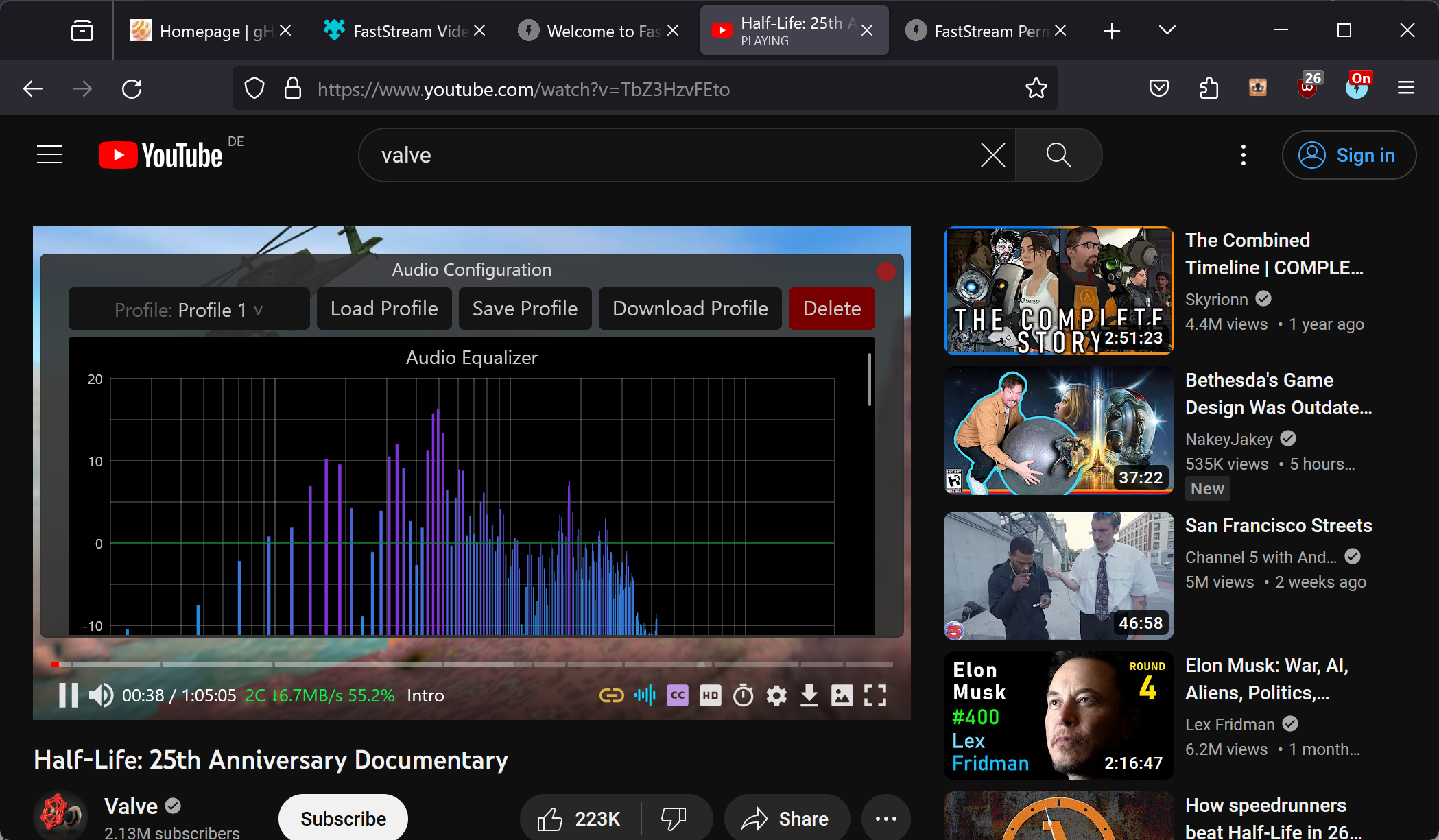
FastStream's custom video player replaces YouTube's player with a better one
FastStream is an open source browser extension for Google Chrome and Firefox that replaces native video players with its own advanced video player. The extension promises the end of buffering issues, support […]
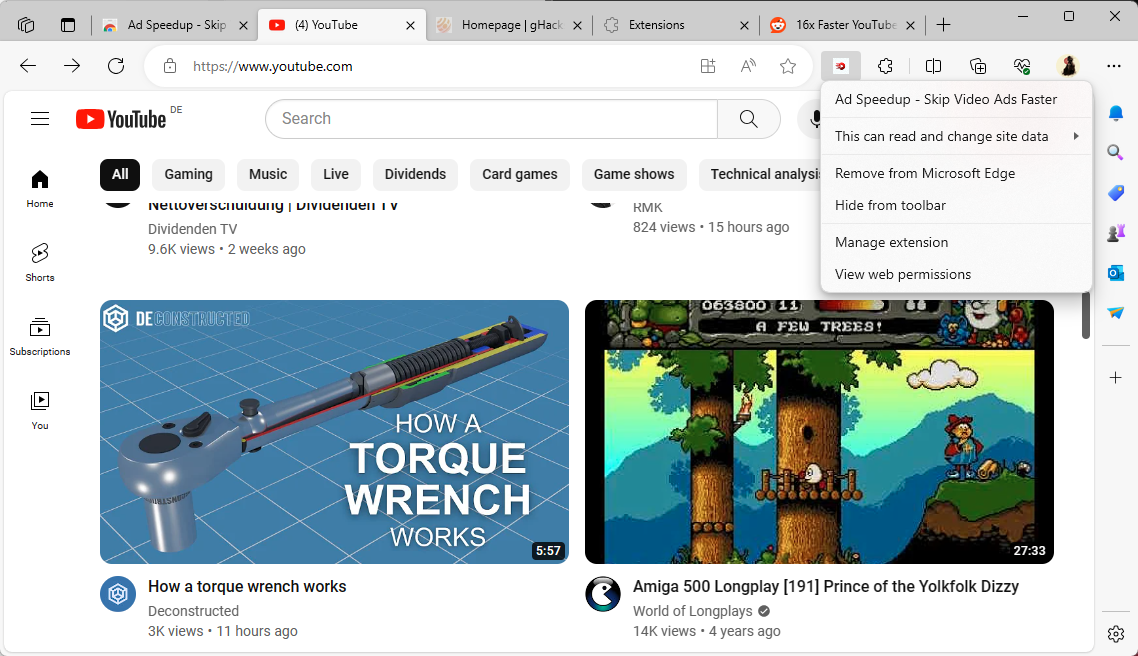
Ad Speedup: mute, skip and fast forward ads on YouTube
Over the past couple of months, a new breed of extensions has emerged to deal with YouTube's ever increasing arsenal of ads. These extensions don't block advertisement on YouTube like traditional content […]
You may now ask Google Bard questions about YouTube Videos
Google expanded the functionality of its AI Google Bard this week. The new feature improves the AI's understanding of YouTube videos. Basically, what it allows you to do know is to ask […]
YouTube video loading delayed? Fix inside
Some visitors of YouTube noticed that the loading of videos would take a whole lot longer than usually. Affected users seem to use browsers that are not Google Chrome or Microsoft Edge. […]
YouTube embraces generative AI
YouTube is launching a new AI-powered music generator tool called Dream Track. The tool allows users to type in an idea and select a participating artist, then it produces an original song […]
YouTube confirms it has launched a global effort to crack down on ad blockers
YouTube has confirmed that it has taken efforts to crack down on ad blockers. The news comes via an official statement sent by a company spokesperson to The Verge. Last month, I […]
This special YouTube Adblocker skips ads instead of blocking them
Google is cracking down on the use of content blockers on YouTube. More and more users see prompts that "ad blockers are not allowed on YouTube". Currently, Google appears to test various […]

YouTube has a crack in Adblock measures
YouTube users are unhappy about the new ''Ad blockers are not allowed on YouTube'' message they are met with while streaming, as the site cracks down on unauthorized ad-free service. If you're […]
No longer the YouTube we're used to
The new YouTube update has recently been released and it brings a fresh look and enhanced user experience to the platform. With over thirty new features being introduced, this update aims to […]

Redirect YouTube Videos in Firefox to play them without Ads
Google is cracking down on the use of content blockers on YouTube. More and more users see the Ad blockers are not allowed on YouTube message when they try to play videos. […]

YouTube adblock measures gets Edge very wrong
Microsoft's goal of enhancing user privacy is clashing with Google's quest for ad revenue, and the battleground is none other than YouTube. Recent reports suggest that some Microsoft Edge users are encountering […]

YouTube is cracking down on ad blockers more aggressively, here's how to bypass it
Google is taking a more aggressive stance in detecting ad blockers on YouTube. The issue seems to have become more widespread than before, here's how you can block the anti-adblock measures. In […]
Google is putting an end to its YouTube Premium Lite plans
YouTube users have three official options when it comes to dealing with advertisement on the platform: endure it, subscribe to YouTube Premium, or, in some select countries, subscribe to YouTube Premium Lite. […]
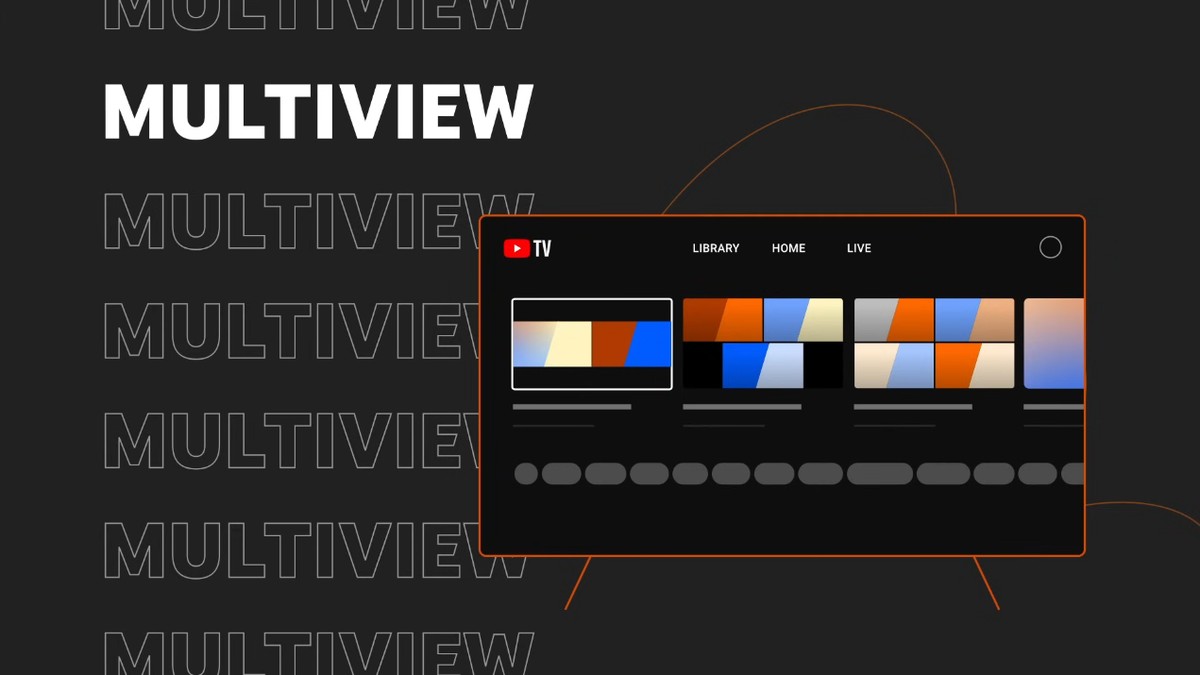
YouTube TV now supports 4 simultaneous streams
As of 2023, the way we consume content has evolved dramatically. No longer are we limited to watching just one TV channel at a time; instead, we have the power to choose […]
Youtube Games, ''Playables'' launched for limited number of users
YouTube is a popular video-sharing platform that allows users to watch, share, and upload videos. In recent years, YouTube has been expanding its offerings to include more interactive experiences, such as live […]
YouTube wants to show you less but longer ads
Google is changing how it serves advertisement to YouTube viewers who watch the streaming service on TV. Many smart TVs come with YouTube's app installed by default or an option to install […]
YouTube showing ads with uBlock Origin enabled? Here is a fix!
The only sane way for watching videos on YouTube who don't pay the exorbitant price for YouTube Premium is to use a content blocker. One of the main reasons for that is […]
YouTube is working on a "search by song" feature
According to YouTube's recent announcement, users will be able to use a new "search by song" feature, which will help them find a song by humming. YouTube has unveiled a new Android […]
YouTube tightens thumbscrew to crack down on ad-blockers
Google has been testing several ways to combat users who use ad-blockers on its YouTube video streaming site. One of the first tests informed users that ad blockers are not allowed on […]
YouTube showing "Your watch history is off" instead of videos
YouTube users who sign-in to a Google or YouTube account while using the video streaming site may have their watch history recorded automatically. The feature is turned on by default and YouTube […]
YouTube TV is not working: How to fix it
People are searching for answers on the internet because YouTube TV doesn't work for them. Luckily, there are a couple of fixes that you can try to get rid of the issue. […]
How to change YouTube handle
"How to change YouTube handle" might be the question that's popped into your mind now as YouTube has revamped its platform with a more social touch, introducing 'handles'. This is a fresh […]

Youtube Premium price increase 2023: Users calls for lawsuit
YouTube Premium has been a popular subscription service for years, offering ad-free viewing, background playback, and access to YouTube Originals. However, in July 2023, Google announced that it would be increasing the […]
Who needs an equalizer when you have Youtube Stable Volume?
YouTube, the beloved platform for sharing and watching videos, is constantly striving to improve user satisfaction. One of their latest endeavors is the introduction of a game-changing feature called Youtube Stable Volume. […]
YouTube takes cues from Netflix, trials premium-user feature
Users can lock their displays on YouTube to prevent unintentionally pressing a button and interfering with the video. This new function is presently being tested. The purpose of the function is to […]
YouTube intensifies crackdown on adblockers with this new restriction
After having tested blocking users with content blockers outright on YouTube, Google is now, reportedly, running a new experiment that allows users to watch three videos before they are locked out of […]
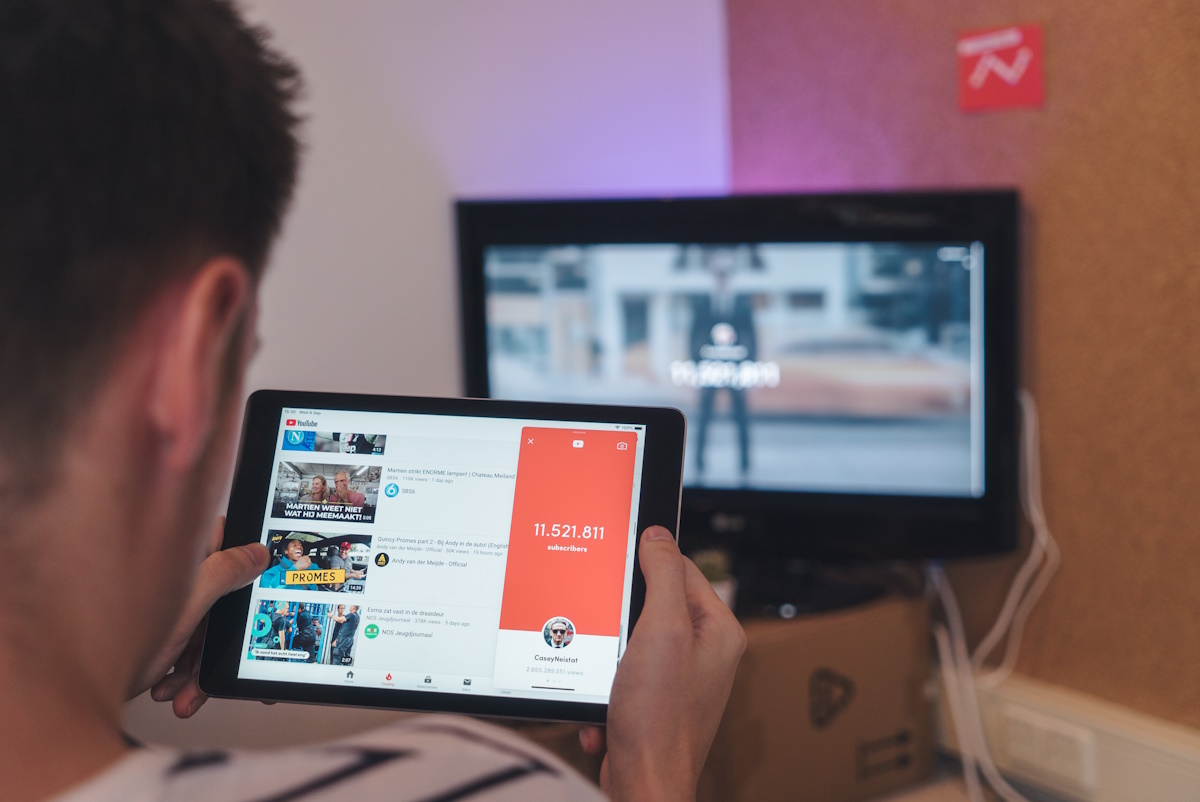
Playables: You may soon be playing games on YouTube
A Wall Street Journal report claims that Google is considering adding playable games to YouTube. Gaming content has a strong presence on YouTube already. Users can watch game trailers, let's plays, tips […]
How to upload Shorts on YouTube: Guide
With the help of the new YouTube Shorts tool, you can now produce and distribute short movies to your audience. The Shorts camera in the YouTube app makes it simple to create […]
You may soon listen to YouTube videos in any language thanks to AI
Videos uploaded to Google's video hosting site YouTube are usually available in a single language. To make these available to YouTube users who do not understand that language, Google introduced subtitle options […]

Your shot at YouTube fame just got better
In a move hailed as a boon for content creators, YouTube is substantially lowering the entry conditions for its Partner Program (YPP), introducing the new YouTube monetization requirements. These freshly minted prerequisites […]
Google is threatening privacy-friendly YouTube frontend Invidious
The open source project Invidious has received a cease and desist notice from Google owned YouTube. In the letter, which the project team published here on the project website, Google claims that […]
Fixed: Youtube not working (on Smart TV, iOS, Android, PC)
Are you facing issues with YouTube not working on your devices? Whether it's your Smart TV, iOS device, Android device, or PC, we've got you covered! With the integration of artificial intelligence, […]
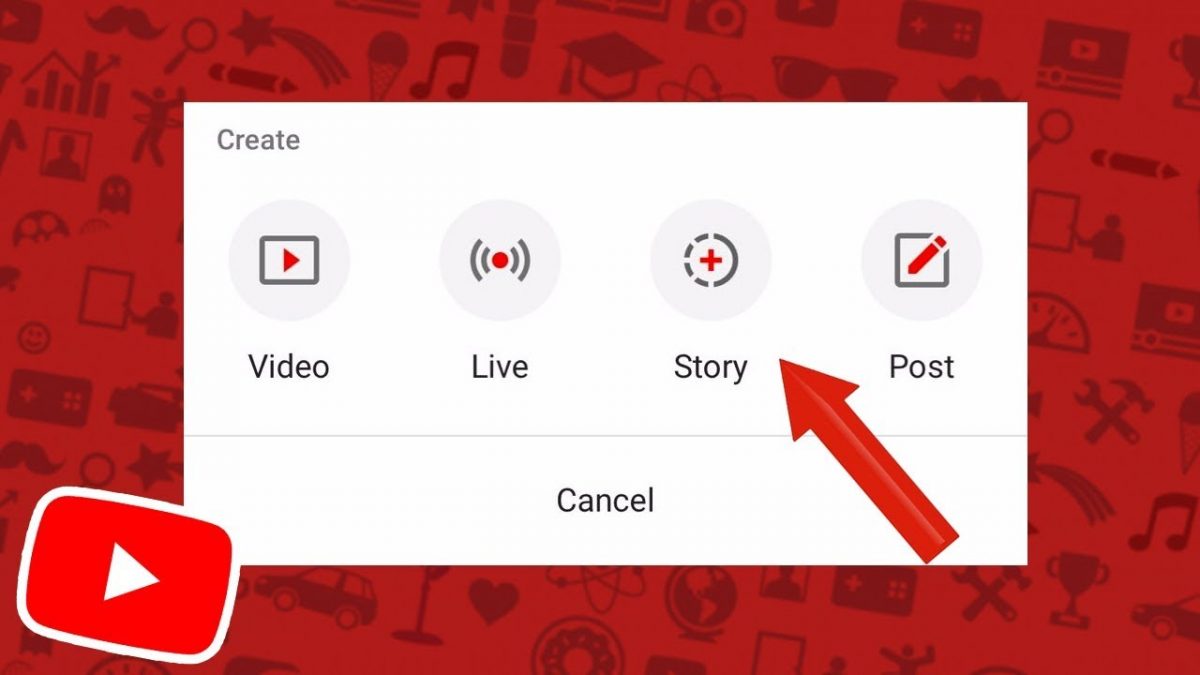
Time to bid farewell to YouTube Stories
YouTube has announced that it decided to shut down its Stories feature on June 26. Stories were initially a Snapchat feature, and YouTube deiced to take the idea and add it to […]
Bad news for YouTube TV: Unskippable ads are coming
YouTube has announced its new "frustrating" feature for TV users. Soon, you will be forced to watch 30-second ads before you start a video. Besides, the company has also decided to show […]
