
Control The Sound Volume With Your Mouse

Windows users can change the volume of sound on the system either from the volume icon in the system tray or the Control Panel. Users with multimedia keyboards can furthermore use the controls on the keyboard to alter the volume on the system. Some users have headsets with external volume controls that can also be used for the purpose.
The default options are sometimes not that practicable, for instance when a fullscreen application is running. It would mean to either leave the fullscreen mode or modify the sounds settings in the application if sound controls are provided (unless an external sound control is available).
Volumouse 2, which was recently released as a beta version, adds another sound controlling option to the Windows operating system. The main purpose of the application is to add sound volume controls to the mouse, or more precisely the mouse wheel.
The application is developed by Nirsoft, which means that it offers the same level of quality that Nirsoft applications share.
The majority of configuration options are displayed directly after startup. A new feature of Volumouse 2 Beta is the ability to define a total of 12 mouse controlling rules, instead of just five as in previous versions.
The mixer device is selected from the pulldown at the top. Below that are the first six rules of which two are active by default. It is possible to change the volume by holding down the Alt key on the keyboard, or the left mouse button, while using the scroll wheel of the mouse to turn the volume up or down.
Rules can be applied to the default playback or recording device, or any other of the connected sound devices. It is furthermore possible to make the rules apply to all channels or only specific ones. The More button loads an advanced options window.
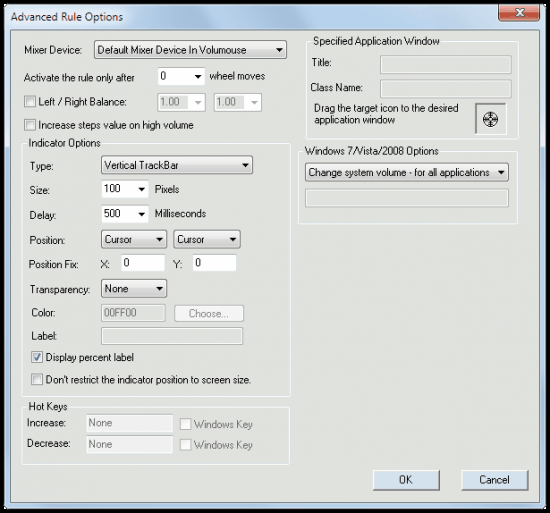
Here it is possible to change the design and layout of the volume control that is displayed when the feature is activated, hotkeys for increasing or decreasing the volume (without the mouse wheel) and apply the rules to a specific application only which is only available under Windows 7 and Vista.
Volumouse 2 adds several features to the program, some of which have already been mentioned in the article. The program now supports 64-bit and 32-bit applications, freely configurable on-screen display indicators and support for multi-monitor systems.
Volumouse's main feature is the ability to control the volume directly, without having to use the control panel or system tray to do so. Windows 7 and Vista users benefit from application specific sound controls, which add several other options to the software. It is for instance possible to mute all sounds on the system except Skype when someone calls, or to disable all sounds but the one that needs to be recorded in a sound recording software.
Volumouse 2 is offered as a 32-bit and 64-bit executable. The program is currently in beta, the final version will be released later this year.
Advertisement


















I use FastKeys (fastkeys.vze.com) for this. It easily controls audio volume with a mouse scroll wheel and tons of other stuff too. Highly recommended!
I use FastKeys for this.Allows audio volume control with a mouse and tons of other stuff. HIghly recommended!
Volume2 is an advanced Windows audio mixer, a complete replacement for the standard Volume Control. This application lets you easily change the sound volume just by rotating the mouse wheel or by using keyboard hot keys or just mouse move on screen border. It includes an audio mixer with advanced volume controls support, a scheduler, an on-screen display, command line support, the ability to store and recall different unlimited presets via one mouse click or system-wide hot keys. Support many languages such as: English, Russian, Greek, Chines, Armenian, Bulgarian.
Blog author: http://my.opera.com/irzyxa
I use 3RVX religiously (freeware). My hotkeys are left ctrl + shift, and I use the mousewheel to adjust volume. I liked it better than the original volumouse — I think I had some conflict that made me ditch it.
Will grab the new version to check it out.
I have been using this utility for years and it is absolutely
essential for me being the best volume controller
and quick mute which is just as important.
Nir Sofer is the master programmer
of fast, small, effective tools which
are available as portable too.
The wealth of free software he offers,
all of consistent high quality, makes
NirSoft a trusted valuable source.
I agree, one of the most consistent developers on Windows next to a few others, Sysinternals come to mind.
Sysinternals came to mind when I wrote my reply too :)
Oops. Sorry for the comments but i figured it out now. I was showing firefox.exe. But firefox.exe doesnt handle the sound. Plugin-container.exe does. It worked when i showed plugin container.
Thank you again.
Well, it works very well with master volume but i couldn’t get it to decrease volume of firefox or any other software. I’m choosing the exe file. Trackbar is showing but it doesn’t decrease or increase volume.
Which operating system are you using?
I was looking for a software like this. Thank you very much.