
Gmail POP3 Configuration

I received several emails lately in which I was asked to explain how to set up email clients correctly so that they would connect to Gmail using Pop3.
The POP3 configuration of Gmail is fortunately not that difficult: The major problem that most users run into is that POP3 has to be enabled on the Gmail web interface before they can actually configure their clients to connect to the service using the protocol.
Failure to do so will only result in connection errors.
Enabling POP3 in Gmail is therefore a two-step process. POP3 needs to be enabled on the Gmail website first before the third-party email client can be configured to connect to Gmail using the POP3 protocol.
Enabling Gmail POP3
Open the Gmail homepage, log into your Gmail account and click on the cogwheel icon in the top right corner of the screen and then on settings in the context menu to load the Gmail preferences.
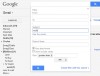
Now select the [Forwarding and POP/IMAP] link which should open a page just like the one you see below on the screenshot.

You basically got two options here to enable POP3. The first Enable POP for all mail (even mail that's already been downloaded) enables POP3 on Gmail for all email messages even those that have already been retrieved while the second, Enable POP for mail that arrives from now onm enables POP3 from that moment on which means that old emails are not retrieved.
A click on the Save Changes button will save the changes and allow POP3 connections.
Gmail POP3 Data
It is time to create accounts in the email client now that POP3 has been enabled for Gmail. The procedure is different depending on the email client at hand, and some clients may support Gmail so that you may only need to enter your email address and password to create the connection.
Below are the values that need to be entered into the email client.
- Email Address: Enter your full Gmail email address
- Password: Enter your email password
- Incoming Server: pop.gmail.com
- Incoming Server Port: 995
- Use SSL: Yes
- Outgoing Server: smtp.gmail.com
- Outgoing server (SMTP) port: 587
- Encryption: TLS
You can check out the help pages over at Gmail that contain configuration assistance for various popular email clients.











what the heck is wrong with your instructions? well it didnt work on windows email. It may be that windows email wizard is lacking in what to ask to put in because it sure doesnt work
Thanks a lot!
Great help. God Bless.. :D
Gmail is useless for me because it’s not possible to disabled encryption and connect to POP port 110.
Please pop3 for all mails
after using recent: before username in pop settings, i received copy of mail to my inbox which i had sent
Thanks for nice info.
Obviously written by someone who enjoys having his useless articles published. The problem has nothing to do with the settings, but rather that most isp’s have BLOCKED all ports that they deem unecessary. Port 25 has been blocked of course (except for their own domains. eg: johndoe@pacbell.net), and ports 995 and 587 have mostly gone byebye as well. Generally speaking, the isp’s have buttoned it nup tight thanks to abuse by spammers.
What Google needs to do is to open up port 80 for both sending and receiving e-mail (several smtp services have done just that in orde4r to get varound the isp’s). Don’t hold your breaths though. Google’s so bloated it woul;d take them ten years just to discuss this issue.
Thanks for having this page up. They block the google help page through websense at my work.
I have outlook express 2004 and I can not configure it for gmail, I have done everything and nothing, the configurations that are here and on other sites not working
hellow,how are you there?
I have configured gmail Pop3 on my Windows Live mail, to send mail I’m using smtp.gmail.com. The problem is everytime I send an email from my client, gmail places a copy of this mail in my gmail sent folder. And my windows live mail subsequetly downloads the sent items into my inbox.
So every mail I send from WinLiveMail, I get a copy delivered to my WinLiveMail inbox. Please help – how can I stop this?
DEAR ALL,
CAN ANY ONE TELL ME HOW TO CONFIGURE SENT BOX IN OUTLOOK EXPRESS ????
NORMALLY WHEN WE CONFIGURE POP3 IN OUTLOOK, ALL MAILS FROM INBOX DOWNLOADS IN OUR OUTLOOK’S INBOX FOLDER, BUT NEVER DOWNLOAD SENT FOLDER MAIL IN OUTLOOK.
IS ANYONE ABLE TO DO THAT ?
I SHALL BE VERY GRATFUL TO YOU ALL FOR YOUR HELP.
REGARDS
GKHAN
Jest taki sewrer, ale nie odpowiada. ;-(
Thanks for this article. Currently the Gmail help page explaining these steps is down:
http://mail.google.com/support/bin/answer.py?answer=33384&ctx=sibling
Your article has definitely helped me.
that’s nice post !!!
Any idea when Accounts/Import will be available to everyone? I would like to import my Yahoo mail account to Gmail.
I don’t see any reason one would want to use POP3, in 2009
What would be your choice then, IMAP?
forgot to sign in for followup comments :-(
What if any advantage does this method have over just setting forwarding to your POP3 email account?
re: Why bother detailing this … “anyone” can find the GMAIL help page. As one poster said lots of people can’t but (IMHO) not too many of those who can’t read GHacks :-)
As Rarst pointed out this article has not been primarily been written for regular Ghacks readers as most of them are very tech savvy and know how they can find that out on their own. Search engine visitors on the other hand and the readers that emailed me might appreciate the information on that page.
@Rarst
Those users could also go to Gmail’s relevant help page directly, in my opinion.
What bothers me in this post is it basically consist of 50% “stating the obvious” (things that are obvious even for morons) and 50% copy-paste.
@Dani
There are plenty users who are… having trouble with that. :)
This post is probably one of those that are more for readers coming from search engines than regular ones.
I don’t see how can anybody be retarded enough not to be able to find the related Gmail Help page by themselves.
I usually enjoy your posts, Martin, but this one is definitely unnecessary.