
How To Recover When Thunderbird Is Broken

Yesterday I started noticing a strange issue in the Thunderbird email client. I could open the email client as usual, and mail would be retrieved.
I was also able to click on one mailbox and read the mails there. But when I tried to click on another mailbox, or another folder of the same mailbox, nothing would happen. When I restarted the email client, I was again able to click on one mailbox, but not on any other.
I tried a lot of "internal" fixes, like removing the msf files so that Thunderbird would regenerate them, or reinstalling the program to see if that would resolve the problem.
Unfortunately though nothing did. I did notice that my mail was still there which was reassuring to say the least.
I first thought about backing up all emails to Mailstore and starting anew, but this would have meant that I would have to juggle between two programs (the new Thunderbird and Mailstore) for a while.
I kept the option in mind and decided to play around with profiles first. First thing I did was to add -profilemanager to the end of the Thunderbird startup command to launch the profile manager during start up.
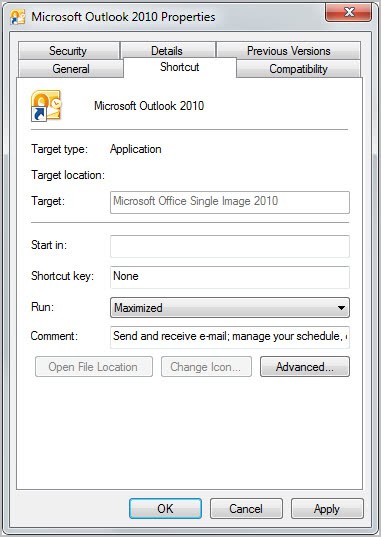
You can do that by locating the Thunderbird shortcut in the taskbar or start menu. Right-click it and select Properties from the options. Look for the Target field and add -profilemanager at the end of the command. This launches the profile manager before the email client is started. A new profile is like a new user account for Thunderbird.
I decided to create a new profile. This is a simple process, all you need to do is to click on create profile and enter a name if you like. Exit the window afterwards.
Now for the difficult part. Locate your Thunderbird profile folder on your hard drive. Windows users find the profile under C:\Users\Martin\AppData\Roaming\Thunderbird\Profiles\
Note that you should see at least two profiles listed there. For the sake of simplicity, we assume you see two profiles. First your original profile with all your emails, and then your secondary profile that you have just created. We are now going to move important data from the old profile to the new one. Important data in this regards are all emails, contact information and preferences.
Locate the Mail (and if you like ImapMail) folder in your old profile and copy it to the new profile. Look into the root folder of the profile and copy the following files to the new profile: all abook*.mab files, all prefs files, all signons files.
Once done start Thunderbird using the new profile. Please note that you need to enter the mailbox passwords again. All extensions and other customizations are not moved. I'd suggest to install them anew, but you could try and move them from the old to the new profile.
You should now see all your mailboxes in the new profile. The preferences should be the same as in the old profile, as we have moved the preference files to the new profile as well.
This process has resolved the issue on my end. I selected the new profile to be started with Thunderbird automatically, and removed the profilemanager command from the startup.
Have you ever experienced issues with an email client? What did you do to resolve them?













your article helped me access my mails again after they were all gone because my computer was suddenly disconnected from electricity. than you.
Glad that the article did help recover the mails.
Hello Martin,
I came across your thread regaring retreivng deleted emails in Thunderbird. Mmy problem, however, is not that I deleted them inadvertently or by accident – it is that I took down the accounts without realizing the emails would go too. I actaully was thinking that the emails files would stay in Thunderbird eventhough the accounts were taken down. Any advice on how I can reteive the old emails.
ray
I had so many problems with T-Bird (sluggishness, quirky behavior, lost messages, etc.) that I was driven to another client. I used Sylpheed for about a couple of years and now I’m using DreamMail. If eM Client goes portable, I will definitely try that too.
This happened to me last month, and I admit that I had found T’bird so reliable that I hadn’t been doing backups as often as I know I should have. I lost many months of in and out mail. My problem started when it was unable to save Sent messages. I then tried compressing folders, and it seemed to hang after several hours, I interrupted it. Big mistake. Loads of folders were zeri bytes. I then did a backup of what was left, upgraded to v8, and copied back all my old backup, with different folder names. I had to use Start – Run – %APPDATA%\Thunderbird\Profiles\ to find the v8 data files. It’s Mozbackup for me, much more than every few months.
Nice one Martin!
I had a similar problem with Firefox a year ago and ended up solving it in exactly the same way. Still no idea what went wrong with the original profile. Thanks for the article!