
Thunderbird Send Later, Schedule Emails

Sometimes you may want to send an email at a later time, maybe because you want someone to receive it a specific time and not earlier, or because you want to avoid mail server overload.
The Thunderbird email client does not offer email scheduling options and it requires manual workarounds to send out emails at a specific time (save as drafts, send when the time has come, or set Thunderbird to offline mode and go online when you want to send out the emails). It does not work all the time as it requires your physical presence.
Enter the Send Later 3 extension for the Thunderbird email client. Send Later does exactly what it is supposed to do: Schedule emails so that they are sent out at a later point in time. Thunderbird still has to be open for that, but you do not need to be present anymore as the emails are sent out automatically by the extension at the selected date and time.
The extension provides you with two options. It can highjack the Send button to display a send later menu on every send, or be used via buttons that need to be placed on one of the available composition toolbars of the email client.
The first option needs to be enabled in the extension's settings. The following menu is then shown whenever the Send button is activated in Thunderbird.
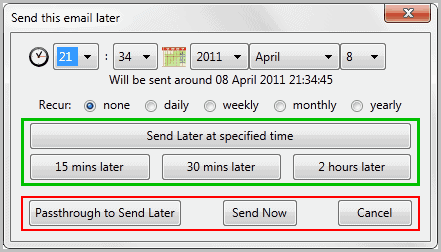
The Send this email later interface may look confusing at first glance. You can specify a time and date, or pick one of the pre-configured options to send the email at a later time. The same menu contains options to send the email multiple times, for instance once per week or year.
A right-click on free space in the Thunderbird write header and the selection of Customize displays the interface element that can be added to the composition toolbar. This is done by dragging and dropping the button set to the toolbar.
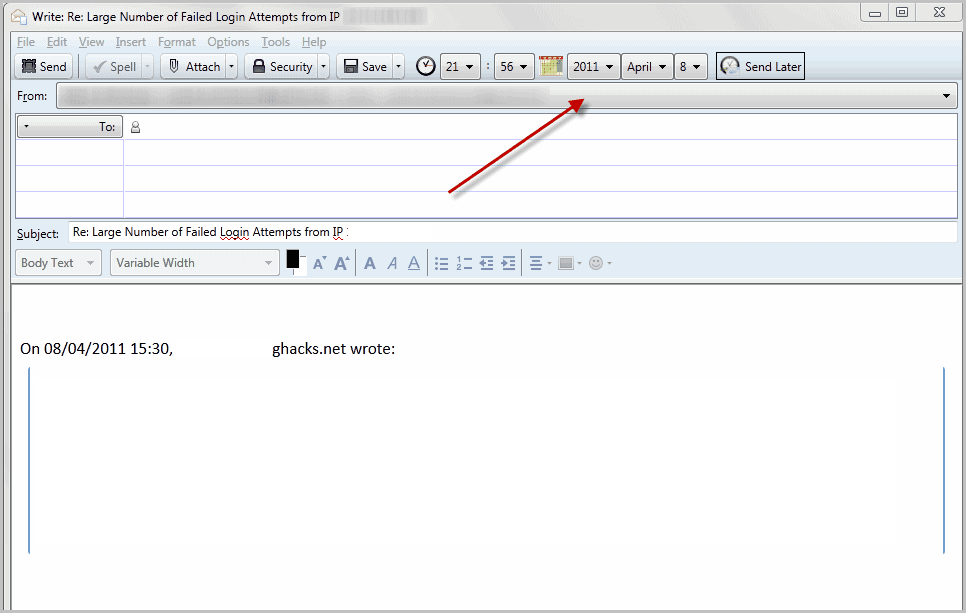
Here it is possible to configure a specific date and time for the selected message at which it will be sent.
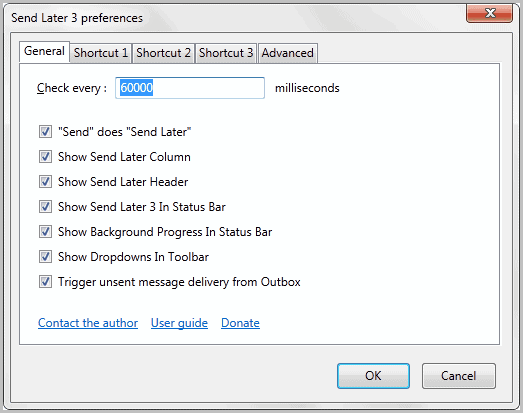
The options offer various configuration settings, for instance to configure hotkeys or the aforementioned option to highjack the send button in Thunderbird.
New users may want to look at the user guide on the developer's website which explains basic features and advanced concepts like dynamic values for preset buttons or switching between send and send later button based on the weekday.
Send Later 3 is compatible with all versions of the Thunderbird email client from version 2 to the latest builds.















If i check the “daily”, will it sent every day until ? or how does it work.
I want to create a mail that it will be sent every day.
Ex: the date is 07.01.2016, 13.00
I check “daily”
and click on the “send around jan 7, 2016 13.00
This means the mail would be sent every day at 13.00?
That is what I want to accomplish, to create a rule that it will sent a mail at a specific time, every day.
If i check the “daily”, will it sent every day
Yes, that’s what “daily” means.
Super! And the button to send all now,
THe damage of blunder is typically much smaller than a damage from failing to send a message.
By the way, I doubt it’s possible for my add-on to automatically send all scheduled messages on sleep or shutdown, but I may be able to prompt for scheduled messages to be sent when thunderbird is closed, similar to how Thunderbird asks about messages in your Outbox when you close Thunderbird.
Thanks Jonathan,
I Found on your site the instruction how to make a button for 1 min delay and replace the Send button. This works fine for me.
Now I see the need for 3 more features:
1. A button “Send Now All” for all delayed messages.
2. An option to automatically Send Now All on Thunderbird close.
3. An option to automatically Send Now All on sleep and shutdown.
Max
The add-on is not designed to work with granularity of less than one minute, though it is possible to make it do so with some behind-the-scenes changes.
You will need to reconfigure the add-on to check for scheduled messages more than once per minute, as described here in the user guide. Note that the more frequently the add-on checks for scheduled messages, the more CPU Thunderbird will consume.
Then you will need to configure a dynamic preset button which returns the delay you actually want, since the minimum delay for the static preset buttons is 1 minute. Dynamic preset buttons are described here in the user guide.
Keep in mind that the maximum possible delay for a message is the preset delay plus the check frequency, so for example, if you make your preset button calculate a 30-second delay and tell Send Later to check for scheduled messages every 30 seconds, a message could be delayed up to a minute before being sent.
Thanks for the addon! Could you also please make a 30 sec button?
I usually like to have my answer delivered very fast, while people are still in the conversation, but I need less than 30 seconds to be able to come back and change what I already sent to the Outbox.
Max
I use Send Later 4.1.4 and I lot it.
I thought there would be a default feature like that but realized I had to use this add-on.
http://day2dayexps.blogspot.com/2012/11/how-to-send-email-later-in-thunderbird.html
I’ve been using this addon for TB for quite some time. It’s great to have the functionality, but there are a few bugs in it that cause a future email not to be sent – haven’t figured out the exact circumstances yet as it doesn’t happen very often.
Hi Rick,
I’m not aware of any such bugs. If you do figure out how to reproduce them, please let me know (jik@kamens.us) so I can look into them. Thanks!
Are you using the current version of Thunderbird (3.1.9) and the current version of the add-on (3.2.7)?
Thanks,
Jonathan Kamens
Thanks for the article.
One clarification… Even when you do not hijack the Send button, you can still get to the add-on functionality without adding buttons to the toolbar — the built-in Thunderbird “Send Later” command, a.k.a., ctrl-shift-enter or File > Send Later, activates Send Later 3 when the add-on is installed.
Outlook has a send later function also.
But this functionality seems to be missing in web based email services (like Gmail). Why?
Gmail has Boomerang.
Most users probably do not need it or know that it is possible.