
Connect Evolution to Google mail and calendar

How many email accounts do you have? How many calendars do you use? If you're like me you have more than you can manage - unless you manage them in a centralized location. That is one of the beauties of using a groupware client like Evolution. And fortunately the Evolution PIM plays well with Google mail and calendar.
In this article you will learn how to configure the open source groupware client, Evolution, to sync to your Google account so you can keep track of all of those calendars in one, easy location.
I am going to assume you already have Evolution installed. You will need an Evolution installation >= 2.12 in order to have both read and write access to your Google calendar. If your Evolution installation is pre-2.12 you will only have read access to your calendar. This does little good because you will not be able to add events to your Google calendar through Evolution. So if your installation is < 2.12 you will need to upgrade.
Setting up Google
Before you get into configuring Evolution, you have to make a small change to your Google account. You will first need to log onto your Google account (or Gmail account). Once logged in click the Settings link. Within the Settings window click on the Forwarding and POP/IMAP tab. For Evolution to be able to retrieve your email you are going to use IMAP to connect. Enable this by clicking the check box for "Enable IMAP". Once that is finished click "Save Changes". Now you're ready to move onto Evolution.
Setting up Evolution for Gmail
We will first set up evolution to connect to your gmail account. Go to the Edit menu and click on Preferences. From within this window you will see the Mail Accounts "tab". Click this tab and then click the "Add" button, which will open up the mail account wizard. This should be fairly straight forward. Here is the pertinent information you will need to configure for Evolution to be able to work with your Gmail account:
- incoming server: imap.gmail.com
- outgoing server: smtp.gmail.com
- username: use your full gmail address
- outgoing serer authentication type: Login
Outside of the above configurations, everything else will be configured as you would for your standard account. Once the wizard is complete you can make your Gmail account your default if you choose. By doing this, all outgoing email will default to this address (unless you select a different email address from the From dropdown.
Setting up Evolution for Google Calendar
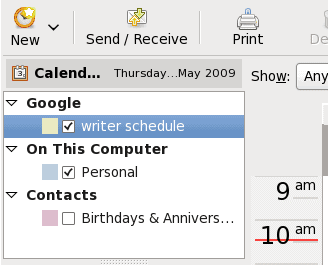
Configuring a Google calendar is just as simple as is the email account. The first thing you need to do is right click the area that contains the listing of your calendars. When you do this you will see a new pop up menu. Click "New Calendar" from this menu (see Figure 1) will open up the calendar wizard.
The first thing you will want to do is select Google Calendar. In this same window there are a few items to take care of (see Figure 2):
Name: Just a name for this calendar.
Username: Your Gmail address.
Calendar: Here you will want to click the Retrieve List button to get a list
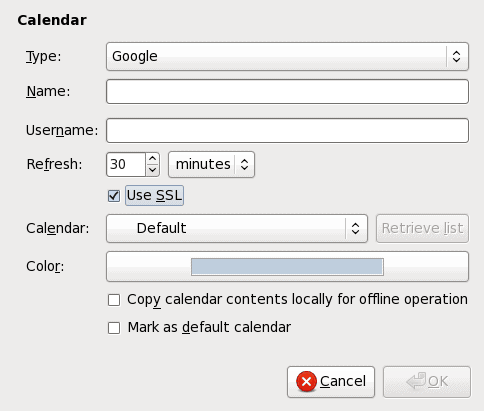
of your available Google calendars. You will need to supply your gmail password for this to complet. Once it is complete you can select which calendar you want to add from your list of Google calendars.
After you complete the configuration click OK. You should, almost immediately, see your Google calendar populate your Evolution calendar.
And that's it. You are now ready to interact with Google mail and calendar with Evolution.
Final thoughts
Evolution is one of the finest PIMs available. And if you are a Gmail/Google Calendar user, Evolution is just the solution to keep all of your accounts easy to manage.
Advertisement












Great article; thanks. Trouble is, in Fedora 17, Evolution is taking for ever to respond (I have already pre-setup the google-account as one of my online accounts). I’m suspecting this is because Evolution is trying to connect to my gmail account automatically, and as I live in Thailand, the country with 20th century ‘high-speed’ internet, it’s taking a while.
Can you confirm my suspicion?
ottimo!!
Grazie!!!
e per i contatti hai qualche idea?
ehmm…
excelent !!
Thank you veruy much!!
Do you have any suggestions for contact?
:-)
Great anything about contacts?
Great article thanks man, easy to follow
Good article! Do you have any suggestions for the contacts? Thanks!