
How To Change A Windows Account Name And User Profile Folder Name

Changing a user's account name in Windows is a straightforward, easy to achieve task. The problem that many users experience after changing the name is that the name of the profile folder is not changed during the process. Say you have a user account Martin and a user profile folder under c:\users\Martin. If you change the account name from Martin to Bob, you will see Bob during login. The user folder under c:\users is however still named Martin and not Bob.
So what can you do if you want to change both the account user name and the folder name of the user profile?
Here is a step by step guide on how to change a user's name and profile folder name under Windows 7. Please note that the old user name will still be used by some Windows Tools, permissions come to mind.
It is recommended to create a backup or at least a system restore point before you start the process, as it requires some basic Registry hacking.
You can use a program like System Restore Manager to create a new system restore point, or one of the backup software programs in our overview for the backup.
You will also lose your current theme which you should backup as well if you want to continue using it.
New Admin account
You need to create a new administrator account to execute all the commands. You cannot use the account that you want to change the user name for. If you only have one account you need to create on first that you can delete again after you have made all the changes. If you have a secondary standard account you can temporarily promote the account to administrator for the process.
Click on Start, then Control Panel. Select Add or Remove user accounts from the options and click the Create a new account link. Name the account and switch to Administrator before you click on Create Account.
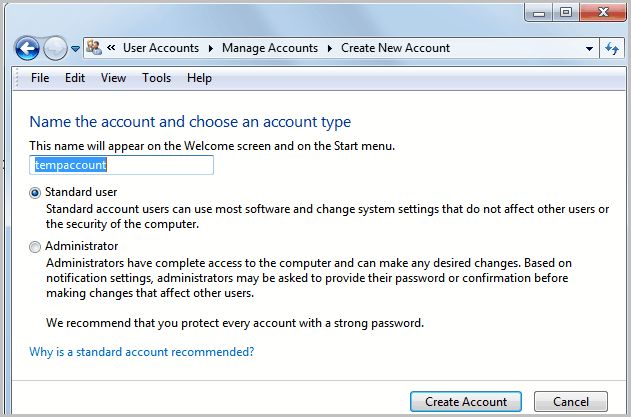
Renaming the user account
While we are at it; You can now change the visible user name of the user account that you want to change the name for. Click the Change your account name link in the user account view if you are logged into the account you want to change the name for.
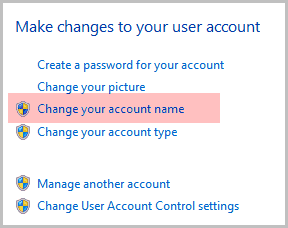
If not click on manage another account, select it from the list and then pick the Change the account name option.
You can now log out of the current account. We have created a second administrator account and changed the visual name of the user account. Log into the admin account that you have just created or promoted afterwards.
Renaming the user folder
Open Windows Explorer or another file browser and open the users folder that you want to rename on the main drive. The folder is usually located under c:\users. Locate the folder of the profile that you want to rename, right-click it and select Rename from the options. Enter the new name and press enter after you are finished. You may see an UAC prompt that you need to accept.
The user folder has been renamed, but you need to edit the Registry setting as well as the old folder path is still stored in the Registry. You would get profile not found errors if you would now try to log into the old user account.
Editing the Registry
Open the Windows Registry editor with the shortcut Windows-r, then regedit and the enter key.
Navigate to the following Registry key:
HKEY_LOCAL_MACHINE\SOFTWARE\Microsoft\Windows NT\CurrentVersion\ProfileList
You find several S-1-5-xx folders in there. You need to click on each folder until you find the the ProfileImagePath folder with the data set to the profile path of the old username, e.g. c:\Users\Martin.
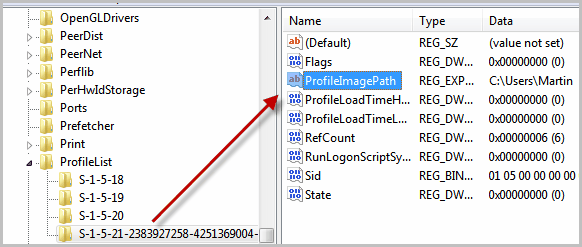
You may want to use the search (by pressing f3) if you find many Registry sub folders there.
Double-click the ProfileImagePath name and enter the path to the new user folder into the form, e.g. c:\Users\Bob
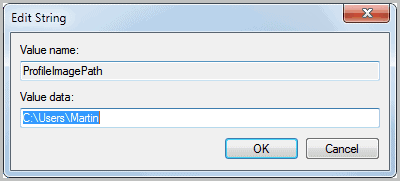
You can now log out of the admin account and log in to the original user account. You will notice that the account name is now displaying the new name. Once logged in you will also notice that the folder under Users is now showing the new folder name that you have selected.
And that's basically how you change both the account user name and the user folder on Windows 7.
Advertisement














HKEY_LOCAL_MACHINE\SOFTWARE\Microsoft\Windows NT\CurrentVersion\ProfileList
I am using Windows 10
I used this method to rename C:/users/username
But for some issue my laptop gets formatted and my very important data lost.
So it’s my humble request to you
Please tell me
How to recover data of C drive.
followed everything this article says.. even the registry edit.. but getting Group Policy Client Service failed the logon Access is denied…
Worked perfectly even for Windows 10! Thanks.
Yeah I did this and it basically moved all my desktop folders somewhere. Changed the desktop theme too and the original users name is still there and now there is a public folder.
Really need your help to get it all back!!!
As long as you are running an Antivirus Suite it will probably block any attempt to rename the profile folder. No chance until you UNINSTALL it. Get the recent (offline) installer package of your Antivirus software and, if supported, save your settings. Unplug / disconnect (W)LAN access and UNINSTALL the Antivirus (just disabling the scanner will not do).
Reboot in save mode and log in to the alternative user account. Start an explorer window or other file manager of your choice with administrative rights and you should be able to rename the user accont folder.
Registry editing should be done also in safe mode. If you are using a third party tool like Registry Toolkit – start it with administrative rights. Some settings may still refuse to make changes – then you have to gain ownership, permit yourself full acces, make the changes and finally re-assign ownership to SYSTEM.
Do not forget to reinstall the Antivirus before reconnecting to the web.
For me it worked this way at Windows 7 Pro 64bit, no issues so far.
A few methods were mentioned in the previous comments on how to accomplish this task. I too was having the same problem you are. Simply reboot into Safe Mode and you should be able to rename the folder. It worked for me.
Thanks . It worked.
Hi Martin,
After I have switched to the new admin account which I have recently created, when I try to rename the folder in the C:\Users it is giving me a pop up “The action can’t be completed because the folder or a file in it is open in another program”.
However, I have closed all the files and folders in the account before logging off from that. Could you please help me in getting the issue resolved.
Does it work for windows 10?
I have not tried it on Windows 10 but see no reason why it should not work. Make sure you make a backup before you try it though.
Just a copy of a comment I made above …
This old article addresses an issue I ran into on Win X v1803.
My visible login (i.e. current account name) is pHROZEN gHOST. But the user profile is in c:\users\user. this caused issues with credentials in accessing this PC from another via remote desktop connection. I was trying to log in using my visible login name (pHROZEN gHOST). The trick was to use the name of the user profile folder (user) and the password for the account. That works fine.
Being curious, I searched the registry for “c:\users\userâ€. There are over 800 occurrences. Some are meaningless. But wading through all of them to fix issues could take a very long time!!!!
MS claims this renaming issue is by design. That’s not true. They didn’t want to do the extra work to clean things up. They could have just used a reference to the user profile setting which would have been changed in the renaming process.
I love the idea behind this. But, at least in my case, the risk is not worth the effort.
Martin — Thank you. Works great with Windows XP on an old HP Pavilion dv8000 I rebuilt. Got rid of the old user name. I got tired of being called “sharon.” It’s a good name, but not for me.
I wouldn’t do this on a laptop that I had previously used, but for old machines that are rebuilt or brought back into service for specific duties, this is great. Thanks!
This causes an infinite loop at startup for windows 10. Do not implement. Had to factory boot.
hi martin can you help me..my old admin acct disappear in welcome screen after i change folder username..only guest and new admin acct as i used to change folder username appearing in welcome screen..please help..
hi..its been how many years since you posted this process, but my problem is also similar to this topic..so i did all the process to change folder username but when i restart my pc i cannot see my old admin acct in the welcome screen..it appears only my “new admin accnt” as i used to change folder username and guest acct..maybe you had an idea how can i get back my original admin acct..please help..thank you in advance..
How to point to a machine or server which is present in the network ?
I am trying to get this to work in Windows 10, but have had no luck so far. Anyone know how?
After following the instructions above I was able to change the folder name. However when I was getting about 10 or so errors when trying to create a backup with backup and restore. It was trying to look for the old user name:
C:\Users\OLDUSER\SOMEFOLDER1
C:\Users\OLDUSER\SOMEFOLDER2
etc…
I used ‘find’ in regedit to find all references to C:\Users\OLDUSER and replaced with C:\Users\NEWUSER and it seems to have fixed it. There were A LOT of references, way more than just the backup and restore errors. Some might have been unnecessary to change or worse shouldn’t have been changed but backup and restore is working now.
I have changed my profile folder from “javarealty” to “Shadow” in registry editor, but after searching deeper, there are still many data value that has ‘javarealty in it. Can I change all of them to “Shadow”?
Please reply…
Hi. I found your page after trying to find a solution to the following problem :
I have renamed through the registry + explorer the main profile of a PC running W7 that’s for a client but when I open the task manager or access the user profiles through the advanced system properties – the username hasn’t been changed there even if everywhere else it has.
Can you help me please ?? – this is making me loose an incredible amount of time
Solution found… netplwiz !
I’ll leave this post here should it prove usefull to anyone else.
MARTIN PLZ HELP ME…..I DID THE SAME PROCESS WHICH YOU TOLD ABOVE.BUT I HAD LOST MY OUTLOOK EXPRESS MAIL. AND I DIDNOT HAVE THE BACKUP.CAN I GET BACK TO MY OLDER USER AGAIN?AND MY OLD USER FOLDER IS NOT PRESENT IN DOCUMENTS AND SETTING/USERS
Hi, I’m afraid I cannot be of help if you don’t have a backup. System Restore is not working as well?
Hey PRADEEP… if you’re seeing “Documents and Settings” preceding the Users name it sounds like you’re running Windows XP. This article was written for Windows 7.
MARTIN PLZ HELP ME…..I DID THE SAME PROCESS WHICH YOU TOLD ABOVE.BUT I HAD LOST MY OUTLOOK EXPRESS MAIL. AND I DIDNOT HAVE THE BACKUP.CAN I GET BACK TO MY OLDER USER AGAIN?
Martin Brinkmann posted this great tip on March 28, 2011and I was amused to just stumble onto this Microsoft Support “Workaround” under “Renaming a User Account Does Not Automatically Change the Profile Path” posted by Microsoft seven (7) months later, on October 20, 2011 at:
http://support.microsoft.com/kb/2454362
As far as I can tell, Microsoft virtually copied Martin’s solution and posted it as their own, giving Martin Brinkmann no credit whatsoever for being the one to have solved the problem! This seems to coincide with the observation made by “Anonymous” posted above.
Am I correct Martin that this is virtually your solution posted 7 months earlier, or is their a distinction between the two? And if there is a distinction, do you have any comment on any difference between the two?
Best wishes, Nate
Martin, Thanks so much for your quick reply!
So, just to clarify, when you say:
“Just make the modifications outlined above and that is it.”
are you saying that it is only necessary to make the modifications outlined in your originating post dated March 28, 2011 and that it is not necessary to make the additional modifications suggested by others in their comments following your post?
I want to be clear on this because that is the part confusing me.
Best wishes, Nate
I would start with the original instructions. If you run into any issues afterwards, for instance programs that do not start up anymore or don’t load user data, try scanning the Registry as program related information may need to be updated then.
Thanks! Now I am clear on your instructions and advice.
Very good.
I appreciate your articles and I respect your wisdom.
Regards, Nate
Thank you so much for this! Very useful and easy to follow! :)
I just figure out something that has been bugging me for many years and found a way to fix it.
When you try to delete a file in Windows Explorer and a box comes up saying you can’t delete it because it is open in another program it doesn’t tell you which program it is open in.
Rename the file (if it will let you) by just adding another character to the name. Then right click the file and click on delete. This time it will tell you which program it is open in.
Close that program if you can. If you don’t see one that is open press CTRL+SHIFT+ESC keys to open the Task Manager. In the Processes tab look for that program. Click on it and then click the End Process button.
Now go back and delete file.
Thanks for the walk-through. :)
I followed the instructions on how to change the user name. I created a new admin acct with password. I logged into the accouknt, and (under Safe Mode) renamed the /user/xxxx directory to the new user name. Logged out and back in under the user, using the new name.
Then ran regedit as the new user name (which has admin privs) and with multiple iterations found (hopefully) all instances of the old user name in a slew of registry entries. The search ability of regedit.exe SUCKS.
when I came to login this morning, it woud allow me to enter the password for the neww admin acct, but on every attempt to login to the changed acct, I get a message that the password or usersname is invalid. I went back to the new admin acct, and changed the password for the changed acct. Still the same result. I went back to the new admin acct again, and removed the password for the changed acct. The logon screen still asks for a password, and whether I leave it blank or enter something, the result is the same; NO ACCESS.
I decided I could endure the loss of internet passwords, but evidently I have screwed something up in my registry hacking. I did create a system restore point before starting this process. I did not create a password reset disk (was non my to-do’s for today).
Do you or anyone have any pointers for me to check up on, like particular keys or files to look at to determine what is wrong so that I can fix it?
Some time has passed since I wrote this, but I don’t think that you have to search for the username in the Registry and replace all instances of it.
Martin, I was about to follow your instructions to make the name change in my User folder to match the name change in my Log-in until I came to this recent reply/comment of yours:
“Some time has passed since I wrote this, but I don’t think that you have to search for the username in the Registry and replace all instances of it.”
What does this mean? Does this mean that if I miss finding some of the occurrences of the old user name in the Registry and leave them alone with the old name, that everything will still work fine? Do you mean that Windows will still find those Registry entries when it needs them?
Or do you mean that you are not really sure whether your method is really still safe because it’s been so long since you wrote the original advice?
I’d like to do this, but your Feb 2014 comment makes me somewhat uneasy. Please clarify.
Thanks in advance for your reply!
Best wishes, NateS
I only meant that it is usually not necessary to scan the whole Registry. Just make the modifications outlined above and that is it.
Easy Solution
Type netplwiz in cmd and change the name
Thanks. HMTM. That worked, and it only took a couple of minutes, including rebooting the PC, as opposed to “less than half a day.”
Thanks so much!! JohnO I had the exact issue, stopped that service and name change complete! I wonder if that’s a HP issue as I’m on a HP laptop. In any case, thanks much to both of you!!
my data got wiped after i did this, luckily i had backup
Thanks for the tips! I done all those, and it works well except one place.
When I go into System Properties (Right click My Computer -> Properties -> Change Settings)
In Advanced Tab, User Profiles – > Settings, I still see the all profile name listed there.
Thanks
Thanks for the info Martin. In regards to the people whom are unable to rename the user folder, reboot the computer and then login to the newly created administrator account and then rename the folder. Just logging off and logging in to the newly created account did not allow me to rename the folder (folder in use prompt). You should update the instructions to reflect this.
Thank you very much Martin. Very, very helpful for me. I was in a panic mode when I wasn’t able to install a software application I needed for my job. I had written to their techsupport team and it was still not resolved. So, I was already thinking of reformatting everything! Good thing I came across your article. I followed your instructions (that by the way is very easy to understand) and my problem was solved. Thanks for the guidance! Saved me a lot of time and unnecessary stress.
PJGU
Windows 7 SP1 (64 bit, but that might not be relevant for this).
John
JohnO…..what version of Windows are you using so I know what to do if I have the same version?
Martin, many thanks for this article. I took over a laptop from a guy who left, but found it hard being known as Kevin.
I too had the above problems renaming C:\Users\Kevin, even in safe mode. I had a look at the services, and found one near the end: User Profile Service. The name looked relevant, though I wasn’t confident, but I could stop it. Lo and behold, I could rename Kevin! Phew!
John thanks for the tip, it will surely help other users out who face a similar situation.
I did have also “The folder or a file in it is open in another program” issue by renaming user folder. Got it renamed in Safe Mode. To get into Safe Mode press F8 at reboot before Windows logo.
Oh thank you so much… thanks a million! :)
I tried renaming the user folder, but I kept getting, “The action can’t be completed because the folder or a file in it is open in another program. Close the folder or file and try again.” What do I do to get around this?
In summary: Microsoft has a bug in their login routine. A registry hack is required to fix. No solution or even acknowledgement of the issue provided by Microsoft. So as usual, Independent Techs fix Microsoft issues for them and Microsoft then keeps all the money….I’m I the only one who sees something wrong with this?
Excellent tutorial. Got everything done, up and running,
in less than half a day. Used Registry Toolkit from
http://www.funduc.com/registry_toolkit.htm
to find and replace old user name with new username, did some renaming myself and Bingo !!
Thanks a ton, Martin :)
Please help, when i try to change the name it keeps displaying “…folder is in use…” and I’ve followed the instructions exactly.
I created another administrator and logged in from there and tried to change it BUT it was displaying that the folder is in use. I even tried changing the account to a standard user but its still not working.
All other programs have been closed. would running in safe mode help?
also what programs might still try to access the old name assuming it works eventually. thanks a great deal.
Well.. guess i’ll just reformat Windows instead of having to edit over 500 registry strings. Dammit.
Thanks martin :0
Ok i did all of this but im haveing problems.. There are alot of places in the registry that have my old name so it wont let me share folders and certain programs are giveing me an error now.. does anyone know how many places it would be in the registry? ive found a few and have fixed some problems but there are 10000 folders in there and i hate to go thro one by one ( and as a added not ive found 2 that will not let me change . i think because they are running but have not clue what they are because its just a number)
Thanks for your help..
Just use the search function… You don’t need to click folder by folder. That would be insane! ^^
Martin.
A good tip well explained, which just got me out of a sticky situation.
However, the username as displayed in (for instance) Task Manager is still that of the original account, and I can’t find how to fix that.
And then I did.
Computer Management > Local users and groups > Users > rename
I just got a new computer which was preinstalled with a default admin user called User, but I want to have my own name for that, so I proceeded with the rename of my user and also the c:\Users\User folder by updating the registry. Since it is a new PC, not many programs installed yet, I searched the whole registry for C:\Users\User and changed those entries to C:\Users\MyName. That was not too much of a hassle.
However, I noticed when sharing a folder and adding my newly named MyName to add access rights, it couldn’t find it and I still had to use User instead.
Great tip: renaming the User to MyName in user management fixed that. Hope there won’t be any more places where something needs to be changed.
Really a bummer Windows doesn’t support clean renaming of a user, including the profiles folder.
Thanks Martin. Your article was of great help. I cross-checked your suggestions with: http://community.spiceworks.com/how_to/show/2236 . I then felt confident enough to give it a try. And it worked.
This article Martin Brinkmann has written is the most informative I have seen on this subject. Many other articles have claimed it can not be done. and the only option one has is to create a new profile and then transfer files and setting over to the newly created profile from the old one. Martin Brinkmann shows us in this article how to actually change the name of both the user account and the profile folder.
I thank him for sharing this with us. I intend to follow this method tomorrow.
By the way, I don’t know what the heck your own problem is ED but this is a fine article so if you feel otherwise then write a better one or just keep quiet. (I was going to say just SHUT UP but figured it might be a little harsh.)
I’m running into a problem when I rename the folder. Upon renaming, I’ll get a prompt confirming that I want to use my administrative rights, but then I receive an error that “The action can’t be completed because the folder or a file in it is open in another program…”. Unless I’m missing something, I’m logged into the new administrator, and all other users are logged out, so I can’t tell what could be using the folder. Any insight?
Try booting in safemode F8 then rename
Have you closed programs that may use data in that folder? Web browsers for instance?
Not impressed: I know you are working in a second language, and I know that Windows is a mess, but you must work hard on achieving some kind of clarity in your writing,
Ed, congratulations.
You’re an A class schmuck.
Ed you are an idiot.For a guy who is using English as a second language Mr. Brinkman probably uses it better than a lot of native born speakers.
Please call me Martin ;)
Well done, Martin! Thank you for your help!
Ed – you are a douche canoe.
And what about this article you published a while ago?
https://www.ghacks.net/2010/04/23/windows-user-profile-relocator/
The software has not been updated in a year but should work nevertheless as well. I do prefer making important changes manually instead of relying on a software though. But it is another option, right.
Changing names on XP accounts is easy under computer management. When Vista and 7 came out, everything changed–a real mess. Say I set up a computer which will later be sold; what to name the account? I found even copying profiles to be somewhat of a natural disaster. Will definitely have to try this on a trial machine. Thanks!
Using this method is not safe. You may experience some problems with programs that use old path for user folder (e.g. WinRAR). I recommend you to search the registry keys of such programs and edit them manually.
This old article addresses an issue I ran into on Win X v1803.
My visible login (i.e. current account name) is pHROZEN gHOST. But the user profile is in c:\users\user. this caused issues with credentials in accessing this PC from another via remote desktop connection. I was trying to log in using my visible login name (pHROZEN gHOST). The trick was to use the name of the user profile folder (user) and the password for the account. That works fine.
Being curious, I searched the registry for “c:\users\user”. There are over 800 occurrences. Some are meaningless. But wading through all of them to fix issues could take a very long time!!!!
MS claims this renaming issue is by design. That’s not true. They didn’t want to do the extra work to clean things up. They could have just used a reference to the user profile setting which would have been changed in the renaming process.
I love the idea behind this. But, at least in my case, the risk is not worth the effort.
Yes agreed, using this method is not the best idea for everyone’s case. I did this and then my windows was unable to start so I went into the safe mode, changed the registry name back and then was able to log into windows properly. I’ll just have to leave the name as is
Good tip. It should however be quite easy to resolve those errors. You may want to search for c:\users\username in the Registry and correct all program paths that point to the old folder.
Nice little hack. Never actually had to implement this, but definitely good to know.
Martin, Nice tips thanks for sharing. BTW possible to use this trick on Windows XP?
Thank u for your help
I only tested this on Windows 7, not sure if it works under Windows XP as well. You could try this method, maybe it works
http://windowsxp.mvps.org/userpath.htm
Hi, could you please advise me on restoring it back? As I have done it and now it won’t let me sign back in and I tried on safe mode and thats not working either
Hi
I would not recommend changing ANY registry settings as this is the bulk settings on your computer/laptop and if you change the profile name then it signs you out and you have to change it bacl