
ZSoft Uninstaller, Monitor Installations, Uninstall Software

The standard uninstall a program control panel applet in Windows is not really suited for uninstalling software completely from the computer system. Why? Because it solely relies on the uninstallation software which more often than not misses files, folders and Registry settings. Microsoft has not really changed that control panel a lot, there are barely any differences between the feature in Windows XP and Windows 7.
Third party application uninstallers use two methods to thoroughly uninstall software: Some uninstallers, like Revo Uninstaller, scan the computer system after the default uninstallation for leftovers. They list the files and Registry keys found so that the user can delete them.
Then there are programs that offer to monitor software installations. These applications record every file, folder and Registry key created during installation. These information are then used during uninstallation to remove the software completely from the system.
ZSoft Uninstaller combines both methods and then some in an easy to use interface.
The software uninstaller lists all installed programs after program start. By default, everything is lumped into the listing including Windows Updates. The Filters menu at the top offers to filter out specific groups including Windows Updates.
Programs can be uninstalled with a double-click on the program name in the listing of installed programs. This triggers the standard program uninstaller. ZSoft Uninstaller afterwards offers to search the system for leftovers. This has to be initiated by the user by double-clicking on the program title in the leftover section that opens up after at least one program has been uninstalled from the system.
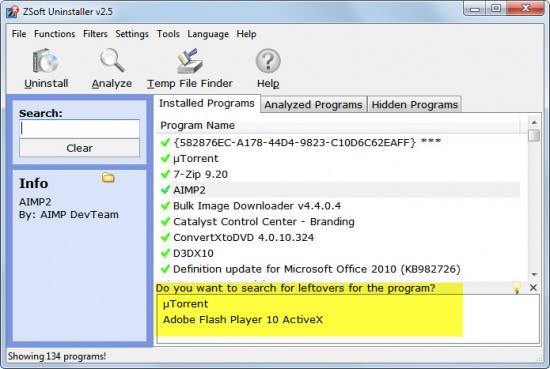
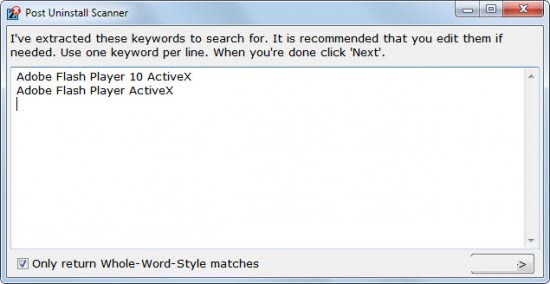
The scan offers an interesting option. It will extract keywords automatically, but gives the user the choice to add keywords to the list of search words as well. This can be used to fine tune the search for leftovers. The uninstaller will search the file system and the Registry and display the findings in list form.
If there is something to criticize it is little things, like the missing option to mark all leftovers for deletion. The uninstaller creates backups of file and Registry leftover removals so that the data can be restored in the event that something has been deleted that is still needed.
But there is more to Zsoft Uninstaller than just the uninstallation of programs itself. The Analyze function offers to analyze a software installation, or to uninstall a previously analyzed program.

Those features alone make ZSoft Uninstaller one of the best, if not the best uninstaller for the Windows operating system. But there is more. It includes several nice to have tools, like a temp file finder, empty folder cleaner, startup program manager, badware finder among the installed programs and a tool to uninstall portable applications.
Programs can also be hidden from the installed programs list to avoid deleting them by accident. Windows users who would like to give ZSoft Uninstaller a try can download the application from the developer website over at ZSoft.dk. The uninstaller has been tested on a 64-bit Windows 7 Professional system, it should run fine on other Windows versions and editions as well.
Advertisement

















actually, recently I’ve found another way to speed up my poor PC, the software “tuneup360”. It’s very easy to handle and of course very powerful, my friends and I all use it now, maybe you can have a try.
Good review, Martin. It does an excellent overview how ZSoft works.
I’m using it and I’m glad with their performance.