
Disable Third-Party Flash cookies that track you on the Internet

Flash cookies, or Local Shared Objects, are used for a variety of purposes: from Flash game saves to storing site preferences or user tracking.
If you do not play browser games, at least none that are Flash-based, and also do not visit websites or services regularly that make use of Flash to save site preferences or other content, you may want to consider disabling Flash cookies permanently in the browser. And even if you visit sites regularly that save content, you may still want to consider disabling third-party Flash content that sites may store on your device.
Note that it may have unforeseen consequences but that is usually resolved quickly. All you need to do is enable the feature again to make use of it in the browser of choice.
Update: Only some browsers support Adobe Flash in 2018. The technology is on its way out; Adobe announced that it plans to retire Flash in 2020. Most browsers set Flash to click-to-play which means that Flash won't be activated unless you interact with the content or have whitelisted the site previously. End
What you can do
There are two primary options to prevent the saving of third-party Flash cookies on the system. You can either disable Flash which may not always be what you want as it will prevent all Flash content from being loaded in the browser, or make changes to the Flash configuration.
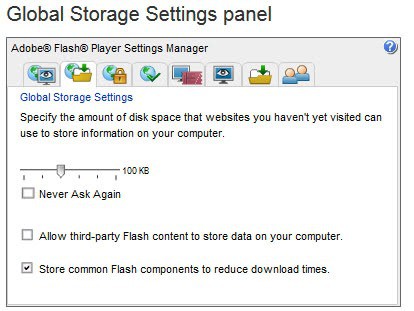
Visit the following website in a web browser that supports Flash. The global storage settings panel specifies the amount of disk space websites can use to store information on the computer.
Some websites may not only save first-party data on your system, but may also load content from other sites, an advertising banner, a Facebook like button or other scripts, that are then allowed to save data on your system as well.
Advertising companies use this system to save cookies on user systems to track them across domains. The company does not need to own the domains for that, all that is required is that the webmaster embeds scripts on the website that access third-party domains for that to happen.
You can uncheck the "allow third-party Flash content to store data on your computer" preference to prevent this from happening to your system in the future. The main site you are on can still save contents while all third party scripts can't anymore. Note that sub-domains are seen as third party sites.
If you are certain that no site you visit uses Flash cookies to save important information, you can set the global storage slider to None to do so. Most sites should work just fine after you have done so. As noted earlier, some sites may not function properly if the allow third party content option is unchecked.
If you prefer to keep everything as is to avoid any issues with sites you visit regularly, you may be interested in programs that help you clean Flash cookies from your system regularly.
Last but not least, it is possible to change the settings for a specific application. To do so right-click on the Flash application to open the settings menu for that app.
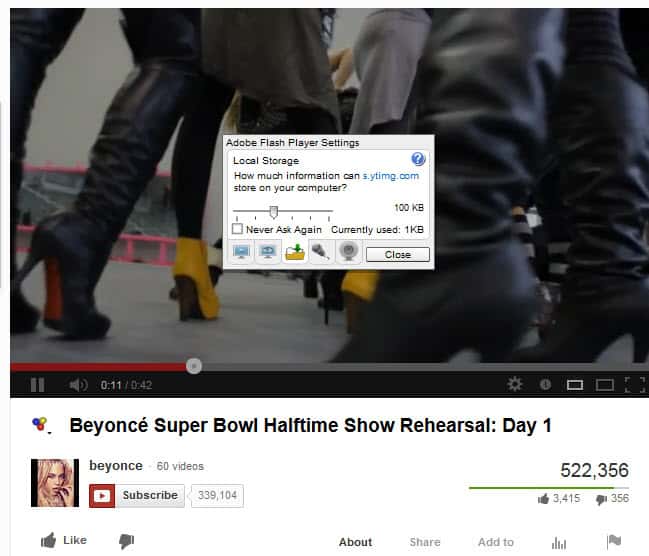
You can modify the storage that you want the application to use. If you want to block it, simply set it to none.

















THANKYOU VERY VERY MUCH
check out CS Lite addon for Firefox.It puts an icon on right of toolbar, that changes color telling you if cookies are allowed for that site. you can allow or block cookies for each website. I do this as I browse.
I use Firefox with Better Privacy. It has two settings: Remove Flash and Silverlight cookies on exit AND remove those cookies every two hours. Nary a “super cookie” ever again!
I completely uninstalled Flash and Java. The security is poor, the updates annoying, and I just don’t need them. I use Firefox as a high security browser (master password FTW) and Chrome for moderate security if I need Flash (built-in updates). Except for the Omnibar extension, I have only privacy/control extensions and no plugins at all.
Security + Performance Boost = Win
same MO as me. great minds…
Please be aware that if you are playing a game that uses flash, even though it is not a browser game, and you suddenly decide to enhance your privacy, you might lose the saved positions for that game. I managed to make the mistake once, so be aware :)
I made that mistake too, never played that game again.
Blocking third-party flash cookies will disable some video websites. Safer to use Ghostery or BetterPrivacy.
Hi
For Firefox users the extensions Better Privacy is, imho, the simplest way to clear these Flash Cookies… (just to choose the option: clear at browser exit…
:)
Agree. Use only on restart. Otherwise, some browser freezes are possible.
My preferred method of dealing with Flash cookies is the Ghostery add-on. One of the features on by default is to delete Flash and Silverlight cookies on browser exit. This way I can have my cake and eat it too.
It also does regular ad / cookie / widget blocking too which, on default settings, is a little too aggressive (exanple: it blocks Disqus and a whole bunch of other commenting systems on various blogs) but it has a ez-to-use interface to whitelist exceptions.