
How to pin websites to the Android home screen

While some browsers for Android make available bookmarks that you can use to open websites quickly without having to start typing their addresses to load them in the mobile browser, you still may prefer a faster solution to open your favorite sites on your Android device. Instead of having to open the browser first, pick a bookmarked site or use the auto suggestions the browser displays, you can alternatively pin sites to the Android home screen to open them from there with a single tap on the shortcut icon.
The core benefit here is speed and that you are free to position the website shortcuts the way you want them to appear on the home screen. Android ships with built-in options to pin websites to the start screen so that you can open then directly from there without having to open a web browser first.
It is actually pretty easy to do so. All you need to do is open the website you want to add to the home screen in your browser of choice, lets say Google Chrome for Android for instance. Update. You need to open it in the default Internet browser of the system to get that feature. Once the website has loaded fully tap on the menu button of the phone and select the add shortcut to homepage option from the context menu that opens up.
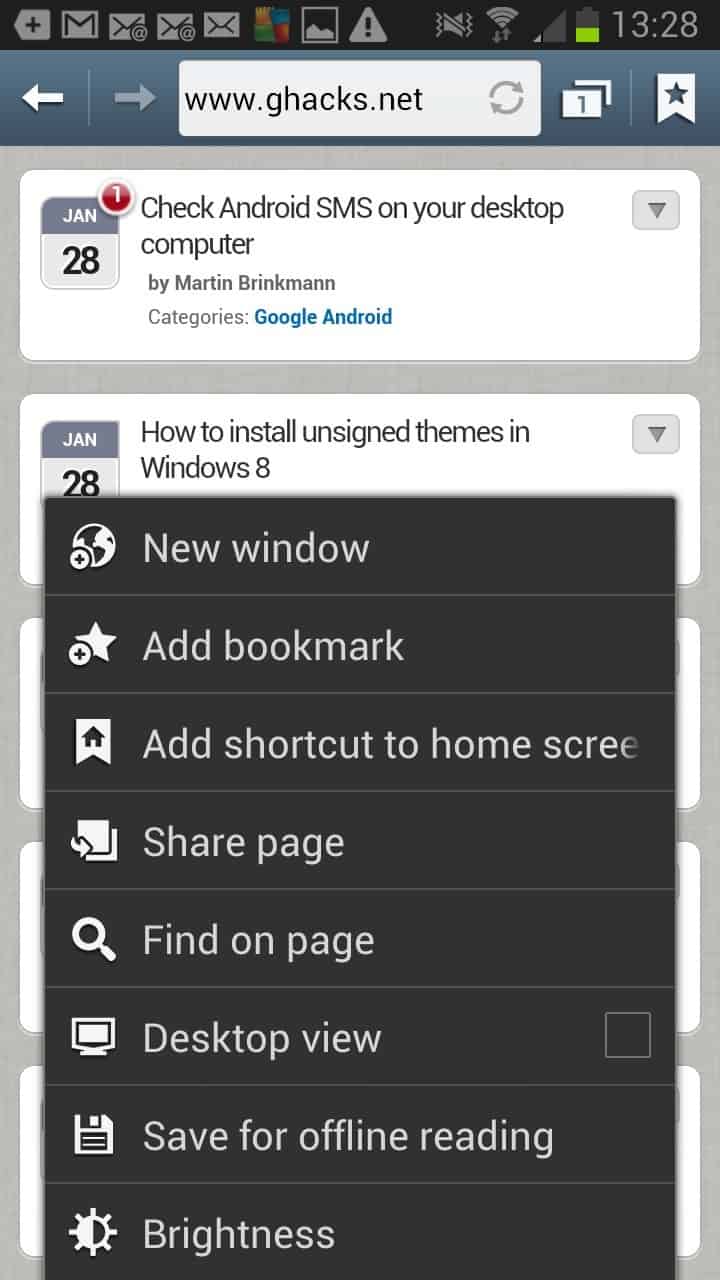
Here you find a couple of other interesting options, like adding a page to the bookmarks - which you can do for pages that you want to save but do not open regularly for instance - or to save the page for offline reading.
Once you tapped on the add shortcut option you will notice that the web page has been added to the home screen of your phone from where you can open it with a single tap on the shortcut icon.
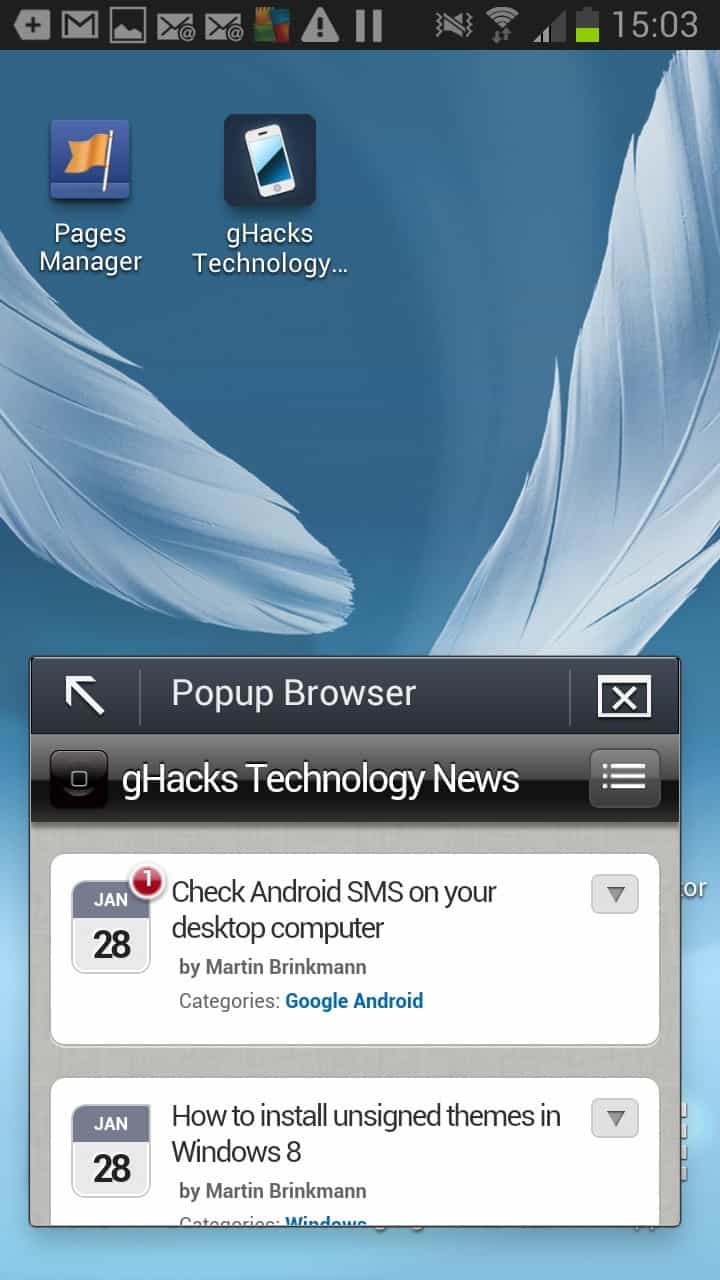
A popup browser opens on my Galaxy Note 2 phone. I can't say if this is the default way of loading website shortcuts on Android or if this is special to Samsung or the device I use. You can tap on the arrow icon on the top left to browse the site in full screen.
Advertisement













In Android 2.3.4 on an LG there is no menu item when viewing a page. There is an “Add shortcut to Home” when you press and hold on a bookmark in the bookmark list. I learned something new about my own phone that I got a year and a half ago. Wonder what else I am missing out on?
You can do that only with the default browser.
and about the pop up screen, it is an option in the settings of the default browser.
Settings>>Advanced>>Page Content>>Open Pages in Overview
My Galaxy Note doesn’t have an Add Bookmark option while Chrome is running. I use Nova Launcher. Is that the problem?
I have updated the article. It seems that the feature is only available in the default Internet browser and not in other browsers.
Command doesn’t exist on my HTC EVO V running Android 4.0.3.
I don’t get the menu item to add shortcut to homepage in Android 2.3.7… using the Dolphin browser.
BTW, I originally tried to stay true to Firefox and use their mobile browser, but it would never work in horizontal view. I’m impressed with Dolphin.
Doesn’t seem to work for Android Chrome on my Galaxy Nexus (4.2.1) – there’s no “Add shortcut” for me to pick :-(
Which browser did you use?