TubeStop adds useful shortcuts to YouTube on Chrome

YouTube's default shortcut system - yes there are shortcuts - is really inferior when you compare it to other Google products. I'm not exactly sure why that is the case but it may have something to do that the site was acquired by Google and not build up from the ground like Gmail or Google Reader.
To use the shortcuts, you need to move the mouse cursor over elements of the video player which more or less breaks the purpose of using shortcuts. Why not just click if you have to move the mouse anyway? You can press space to pause a video or play it, but only if the video itself is active for instance.
Here are a couple of default keyboard shortcuts that you can use if the video player is active:
- SpacePlay or Pause
- 0-9 Jump to a different part of the video
- Up or down arrow keys Increase or decrease the volume
- F Enter Fullscreen mode
- Esc Exit Fullscreen mode
If you own a media keyboard you may also use the keys on the keyboard to control videos that play on YouTube. Not everyone has access to a media keyboard on the other hand and those who do, may not always have installed the proper drivers to make use of the keys on it.
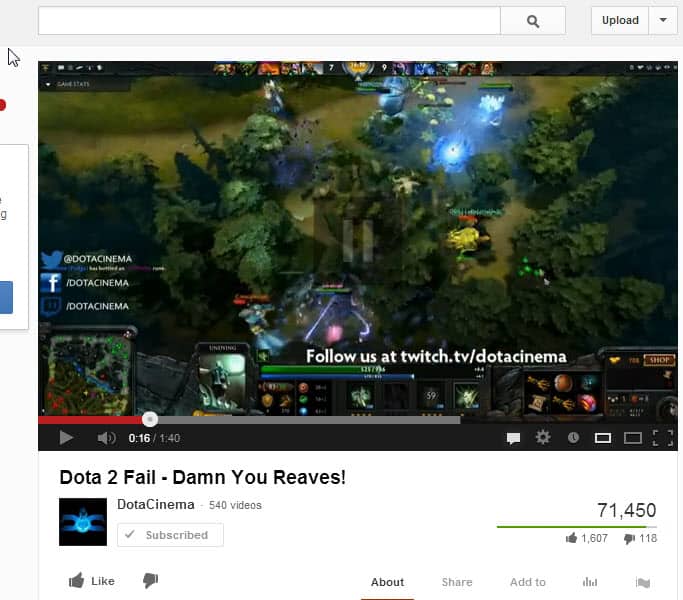
Update: TubeStop is no longer available. You can try YouTube Shortcuts instead which adds several shortcuts to YouTube including "." to focus the player interface. Once you have focused the player, use the default shortcuts to control the video. It is then for instance possible to hit space to pause or resume playback of the video on the site,
TubeStop is an extension for the Google Chrome web browser that adds keyboard shortcuts to YouTube that you can actually make use of. Note that the shortcuts are not enabled automatically after installation. To turn them on, left-click on the TubeStop icon in Chrome's address bar and select the option to do so from the context menu.
The following keyboard shortcuts become available on YouTube afterwards:
- Space Play or Pause
- Ctrl-Up or Ctrl-Down Turn the volume of the video up or down
- Ctrl-Left or Ctrl-Right Jumps to previous and next videos when you are watching playlists
You may ask yourself how the first keyboard shortcut, space to pause or play, is different from YouTube's native shortcut that appears to do the same thing. Well, this one works everywhere on the YouTube page with the exception of the comment text form box and the address bar of the browser. So, you do not need to move the mouse first to pause the game or play the video.
The extension is really handy if you are a heavy YouTube user who likes better pausing control on the site.