
How to backup all Android data without root

Most Android users need root to backup their phones and tablets, but there is a growing number of devices where this is no longer the case. Google made a change in Android 4 ICS that lets you backup apps, data and system apps without root. Several methods have been in circulation to do so: some require the Android SDK to work while others use part of the SDK like the Ultimate Backup Tool.
Simple ADB Backup is without doubt one of the easiest programs to backup data from your Android 4.x device without root access. The program has a few requirements that are identical to other programs of its kind.
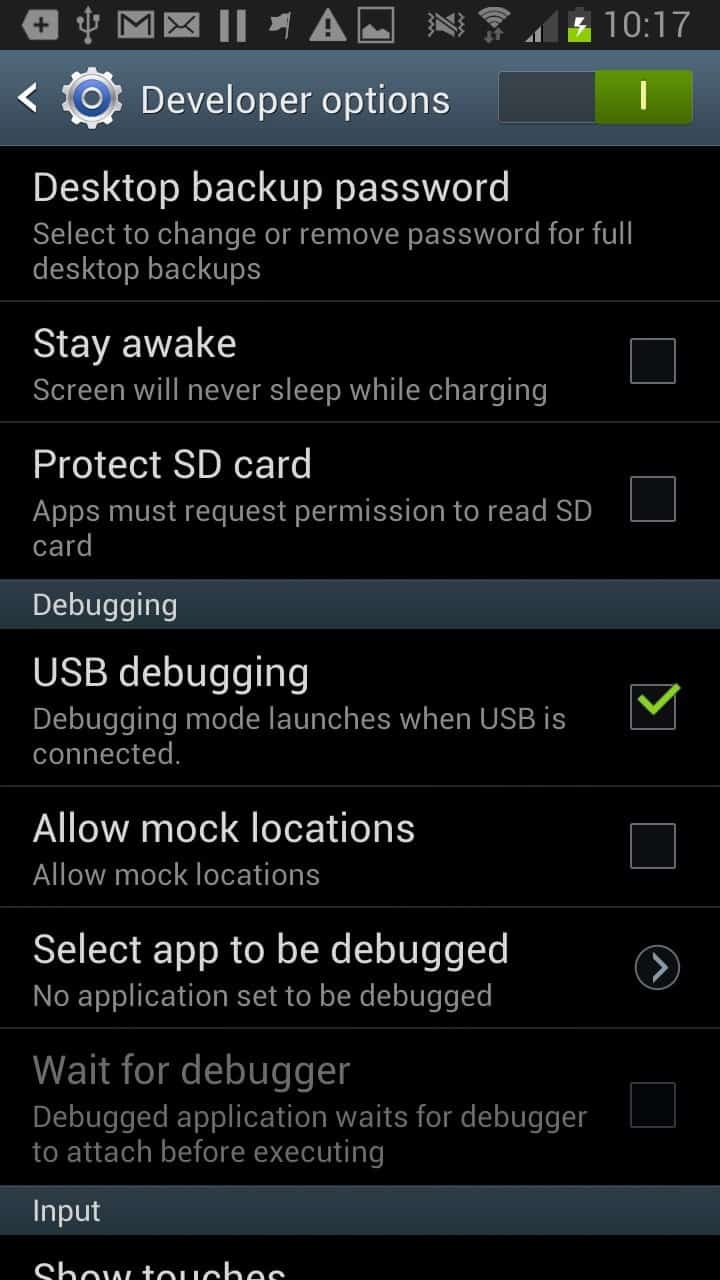
- You need to enable USB debugging on the device. To do so, open the Settings and scroll down to about device. Tap on the build number here seven times. This activates the developer options menu under settings. Note that the menus may have different names on your phone, I can only tell you how they are called on the Samsung Galaxy Note II.
- Go back to Settings. You should now see the new menu Developer Options under System. Locate the USB Debugging setting and tap on it to activate it.
- While you are here, tap on desktop backup password and set it as well as you need to do so before you can create backups. The default password is not set so leave that field empty.
Backing up Android without root
Now that we have prepared the phone or tablet for the backup we can start to use the desktop program. The program displays a simple gui to you that you can use to perform various backup and restore related operations.
- Backup all without system apps
- Backup all with system apps (unsafe)
- Backup app data and device data
- Backup apps
- Backup storage / SD card
- Backup a single app
- Restore
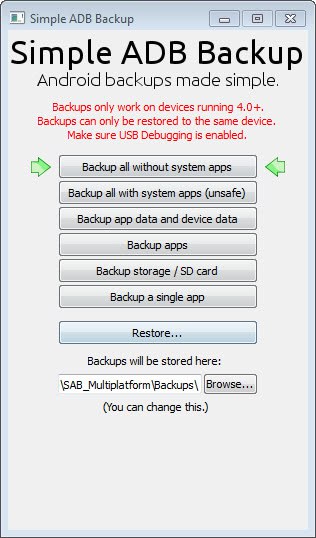
First thing you may want to do is change the location of the backup. When you click on an option you will be reminded that you need to set a desktop password before the operation starts. You are then asked on your phone to unlock it and enter the device encryption password to start the backup.
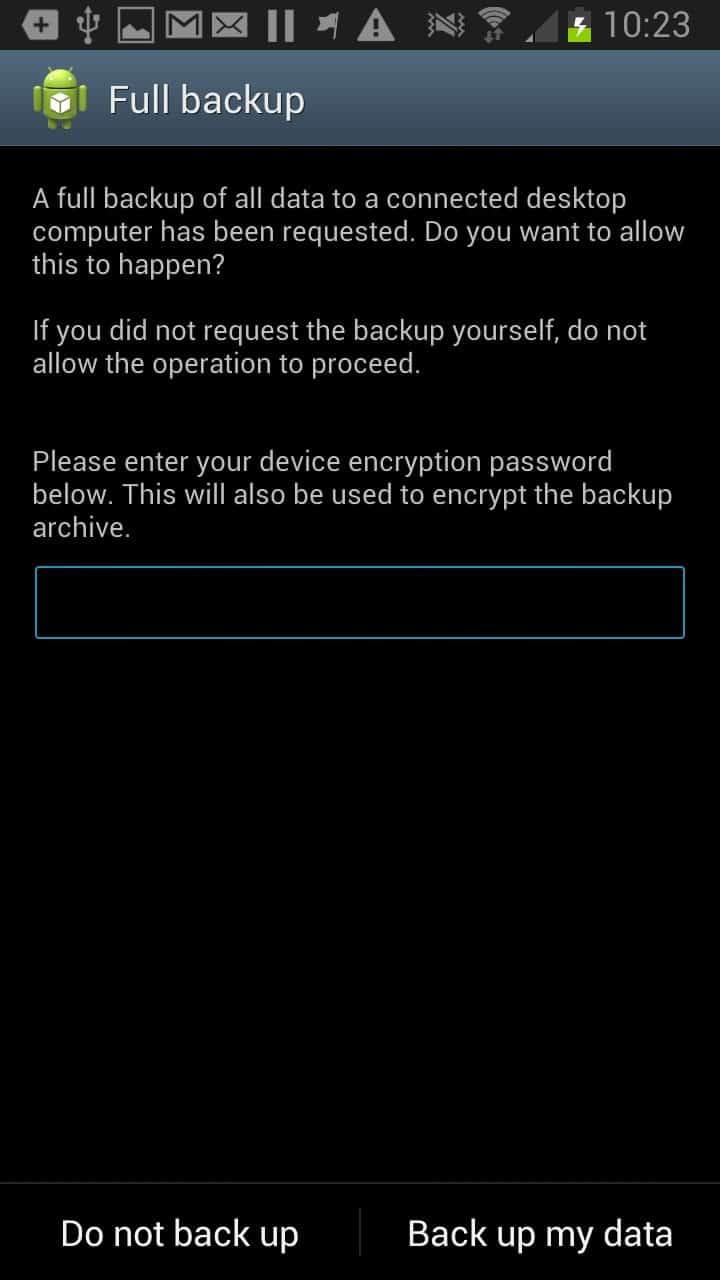
Once you have entered it tap on back up my data to get started. The process may take a while depending on the type of backup that you have selected in the program window.
The application can be run on Windows or Linux systems and is without doubt one of the easiest options to create a full Android backup without rooting the device.
Advertisement
















Thanks for the informative tutorial!
But I got here late and the download link does NOT work pointing to a 404 page.
Anyone have the apk, as I’d like to see if this works on 4.4.2 KK?
Well thanks again.
I attempted to backup my Moto X prior to rooting however in the command prompt I receive an ADB:Unable to connect error even though I allowed for USB de-bugging AND had verified I set the Desktop backup password. Any suggestions would be appreciated.
Does this backsup ALL of the data including the data of apps that aren’t stored on the sd card?
this should be the case.
A good option also for backing up also is G Cloud backup it also doesn’t require rooting but the only drawback is no apps backup still. If it would be available in the next update as the developers claim it would be the best backup app to hit the Google Play Store.
^that.
I’d guess if you somehow compromise important system files without root (and a recovery like TWRP or similar), you might end up with a brick since you would be effectively locked out of fixing anything.
Still, neat app combo.
“Backup all with system apps (unsafe)”
———
What does the “unsafe” text above mean? Why is this “unsafe”?
Unsafe because when you do a restore it might over write critical system files with the ones you’ve backed up.
I could not find any information about that unfortunately.
Nice Android tool there. But it can only restore to the same device as it backs up. No backing up S II and restoring it to S III :(