
Add Dropbox As A Library To Windows 7

I have to admit that I'm not making full use of Windows 7's library feature. Libraries are used to consolidate, or virtually merge, directories. The operating system ships with libraries for photos, music, documents and videos.
Windows 7 users can add folders to existing libraries, so that their contents are displayed in the selected library, or add new libraries for custom data collections.
Creating a library for the local Dropbox folder is actually not a complicated matter. Dropbox is a popular file synchronization and cloud hosting service that creates a root Dropbox folder on the system on installation. All contents of the folder are automatically synchronized with cloud hosting space.
Here is a quick guide that explains how to create a Windows 7 library for Dropbpx. Open Windows Explorer and click on Libraries in the left sidebar. Locate New Library at the top and click on it. Name the new library Dropbox and hit enter to save the name.
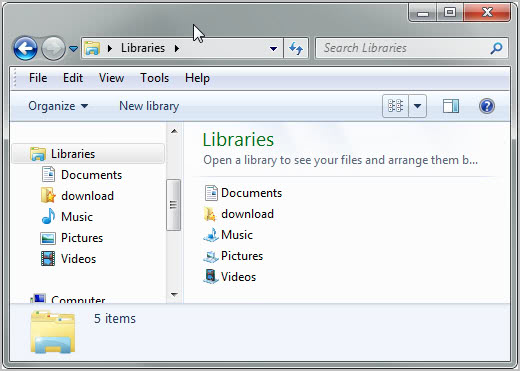
Right-click on the newly created library and select Properties from the context menu. This opens a window where you can add folders to the library.
Click on the include a folder button in the interface and browse to your Dropbox storage folder on your system. The folder is by default added to C:\Users\username\Documents\My Dropbox
Select My Dropbox and click include folder to include the folder in the library. It should now appear under library locations in the properties window.
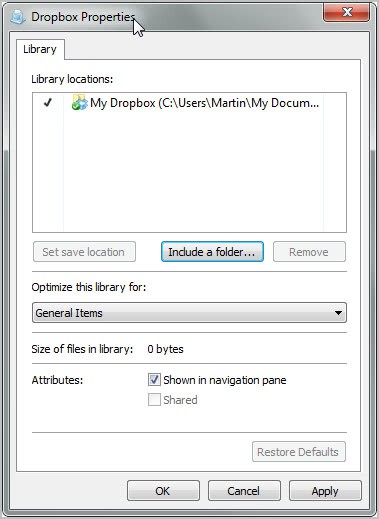
Depending on the type of files in your Dropbox folder, you may want to change the type of files the folder is optimized for. If you only host documents you could for instance select to optimize the folder for documents.
A click on the ok button saves the new configuration. Whenever you click on your Dropbox library now, you should see all of your Dropbox files listed in Windows Explorer.
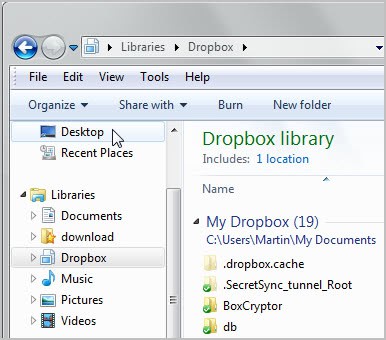
Adding often used folders as libraries, or to existing libraries, can speed up the workflow. An alternativ would be to add the Dropbox folder to the favorites instead which would also display it prominently in Windows Explorer's sidebar.
It does not make much sense to turn a single folder into a library, as you can add it to your favorites instead for the same effect. But as soon as you have multiple folders that you want to access under a single one, it makes sense to create libraries for that.
Advertisement













To get the Dropbox icon instead of the standard icon provided by Windows, click “Change library icon…” and provide the path to C:\Users\username\AppData\Roaming\Dropbox\bin\Dropbox.exe where ‘username’ is the account under which you are logged in.
this is a great option. thanx for the useful tip
Thanks for the great post!
How do you manage to write so many detailed posts in one day?
It is my job :)
Dropbox Library Icon:
http://jamesashton.deviantart.com/art/Dropbox-Library-Icon-195925943
You will need this program to change the library icons!
http://deskmodder.deviantart.com/art/library-icon-changer-142792517
Great tip, Martin! Thanks!!
If you want to give SpiderOak a try (better security and more free space than dropbox) use this referral code:
https://spideroak.com/download/referral/317a29ed47a76995ce1dc5c5441b214a
It will give both of us an extra gigabyte of space for free.
Heh.
It hasn’t been a week since I did the exact same thing myself.
I also entered (and didn’t win) in your Dropbox added sweepstakes, but a couple of days, Dropbox awarded med 3Gb extra space for 12 months, on the account of me becoming a “Dropbox guru”.
Not exactly sure what qualifies you as a guru, but I’m guessing either a certain amount of use or having dropbox installed on both PC and a mobile device (perhaps HTC-only – they made an agreement recently).
I’d like to make my default Windows Pictures Library sync to dropbox. So when I add a photo to my pictures library it automatically is in Dropbox and accessible from my other computers. How do I do that?
Interesting. I got some bits of extra space thanks to users signing up using my referral code.