
How To Block Specific Updates In Windows Update

It is usually not necessary to block updates in Windows Update, Microsoft's integrated updating tool for Windows operating systems. Windows Update notifies the user of new updates by displaying a notification in the system tray, that is, if the update service is up and running.
There are two scenarios where Windows users or admins may want to block updates from being displayed. The first is to block an update's deployment in a small to middle sized business or organization, the second if an update is either not needed, or known to cause problems in a single computer environment.
We for instance installed the Windows 7 Professional SP1 Beta on our test system a while ago, but decided to remove it after a while. Windows however kept nagging at every system startup that an update was available. Even worse, the update was always automatically selected in Windows Update, next to the other security patches and releases that we wanted to install.
That meant that we had to manually find and uncheck the update to prevent its installation in Windows 7. We first thought it would be enough to uncheck the update once in Windows Update to prevent its installation, but it got reselected automatically whenever Windows Update was started anew.
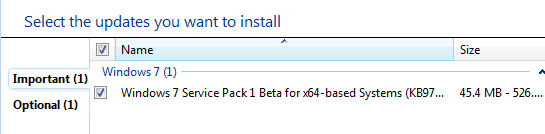
Windows Update does have a mechanism to block specific updates. The answer is revealed after right-clicking an update that should not be installed on the system, and that the user does not want to receive notifications about.
A right-click, and the selection of Hide Update, unchecks the update in the updating software, and changes the color of the update's name to a lighter gray.
The effect can be tested immediately by closing and opening Windows Update again. The frontpage, which lists all available updates for the operating system is no longer listing the blocked update.
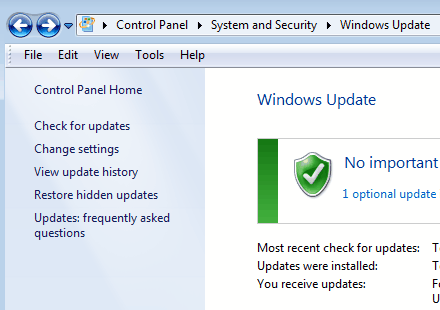
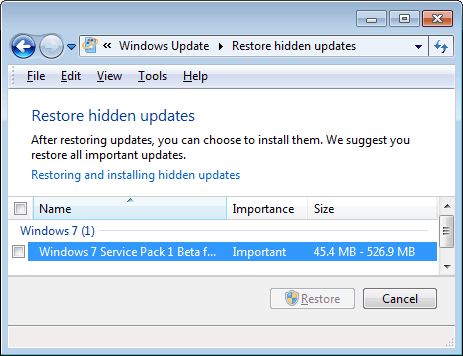
Windows Update offers an option to restore hidden updates at anytime. The Restore Hidden Updates link in the left sidebar of the main Windows Update window opens a page listing all updates that haven been blocked on the system.
Selecting an update and clicking the Restore button at the bottom of the screen will add it to the update cycle again, so that the update can be installed and deployed.
This method of hiding updates in Windows Update is obviously only practical for single computers or small computer networks. Admins have other tools at their disposable to control the updates that are installed on the client machines that they manage.
Have another tip regarding Windows Update? Let us know in the comments.
Advertisement













(http://ultimateoutsider.com/downloads/ ) A handy tool which I have been using since the start of win 10 problems, called (GWX control panel), google it, its free and more importantly it works and safe to use. No problems since.
This is a free tool that can remove and disable the ‘Get Windows 10’ notification area icon on Windows 7 and Windows 8. Recent versions can also disable ‘Upgrade to Windows 10’ behavior in the Windows Update control panel and do much more. See the user guide at the Ultimate Outsider blog. You can still download GWX Control Panel as a standalone executable if you don’t like installers. Please see the “GWX Control Panel Release Notes and Version History” post at the blog for MD5 and SHA-1 checksums of all official releases.
I can hide the updates and WSUS will not install them. But if I deploy software updates via an SCCM deployment it over rides the hidden feature. Anyone know of a way to hide the update on a few machines without having to remove the updates from the deployment.
Thanks,
Robert.
Thank you
If you are here looking to block updates on Windows 10 I wrote a utility that does it, but you can also do it yourself:
1. Disabling Windows Update Service
2. Disabling BITS Service
3. Disabling Windows Update Scheduled Tasks
4. Adding update.microsoft.com to the hosts file
If you want more info and to see my utility check out:
http://jjstellato.bigcartel.com/product/windows-10-update-blocker
With the utility you can disable and enable updates with a single button, so they are done on your terms.
I hid an update a while ago and it stayed hidden for several months and then, unexpectedly, today I found it had installed itself on my machine, so I assume it somehow unhid itself and then was installed at the next update. Is there any way to block unwanted updates more permanently?
Hallo Martin, ich habe windows 7 Home premium 64 -bit , immer wenn ich bekome aufforderung windows updates for 64 bit ich become auch die fur 32 bit mit der vermerkung “important updates” . nach updating alle ( jetzt sind es schon fast 60 welche sich “drengeln” to be updaten, also nach updating, kann ich internet explora nicht mehr offnen. Erst wenn ich reset zu die Zeit before updates is happend, kann ich wieder explore offnen. Bitte, was sol ich machen und wie fand ich aus welche von den updates sind ” die schlechten” corupted updates? Bitte step by step?, binn nicht computer mensch…:)
danke !
Schone Grusse!
Hi, you can try the fixes described on this page: https://www.ghacks.net/2010/12/20/microsoft-windows-update-overview-all-you-need-to-know/ especially 7 and 10.
Thank you! whew! what a relief!
My internet eplorer crashed and i tried to disable addons, scanned and did not work, what helped me was that i uninstalled ie10 from my pc and it worked.
Thank for the advise.
Thanks a lot. One question though…. I don’t want the Windows Malicious software removal update, so chose to hide it. Each time I click update a different version pops up, like february 2012, January 2012 etc. Will I have to hide this every month or will it now stop appearing altogether, which is what I want?
These updates have driven me bonkers since I bought the PC 16 months ago and a notification was permanently on my PC before. Now for the first time it is gone. Bing and SIlverlight were other bains of my life so hoepfully I won’t hear any more of them as I have never used them.
I wouldn’t have thought of right clicking on the item and the Windows help site doesn’t tell you to do it. Thanks again for your help.
The capability has been part of XP for ages. I use it all the time.
Martin,
The capability to ‘Hide’ (reject) has been part of the Vista Update process via the right-click method. The hidden/rejected item/s may also be restored in Vista.
Thank you! I could never figure out how to hide those language pack updates.