
How To Change The Icon Size In Windows Effectively

The Windows operating system can display files as icons in Windows Explorer and on the computer desktop. Windows ships with four presets that you can switch between right there in Windows Explorer.
Changing the icon size can be beneficial, for instance to make icons smalle to display more files at the same time or larger to display a larger preview of each file in the window.
Windows users who want to change the icon size in the operating system need to dive deep into the Control Panel to find the preferences where the size of the icons can be changed.
The Window Color and Appearance menu controls the default icon size and font in Windows.
The icon size can be changed in Windows Explorer as well. The View menu contains opens to change the icon size of the selected folder.
Most users do not know that there is an easier option to change the icon size, at least in Windows Vista and Windows 7. Pressing the Ctrl key and scrolling up or down with the mouse wheel changes the icon size of the active folder on the desktop or in Windows Explorer instantly.
This only works if the desktop or Windows Explorer are selected. The easiest option is to left-click on a blank spot on the desktop or in Windows Explorer before pressing Ctrl and using the mouse wheel to change the size of icons on the fly.
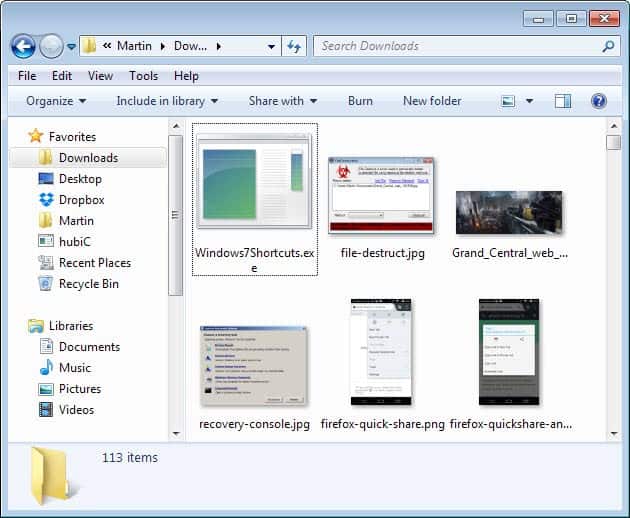
The changes are saved by Windows and independent of each other. It is for instance possible to increase the icon size on the computer desktop while leaving all other icon sizes at their default value.
As far as other options are concerned, you can change the size of thumbnail icons using presets that Microsoft has added to Windows. To change the size, simply click on the icon next to new folder in the menu bar and select one of the following four options to do so:
- Extra Large Icons
- Large Icons
- Medium Icons
- Small Icons
Have additional handy tips to share? Post yours in the comments.
Update: The method works in newer versions of the Windows operating system such as Windows 8 and 10 as well.














Now this was a GREAT tip, one I’ve not seen before. Incredibly simple.
Thanks!
Hi Martin—I didn’t know that you could use the Ctrl key to change the icons, great tip! Along with changing icon size, I’m always looking to change the visual style of my desktop. I found a site with a good explanation of how to change the interface of Windows Vista. You don’t have to worry about downloading a virus because these tips give you a safe way to switch your default, check it out! http://bit.ly/9ocMyr
NOW! you post this tip! :)
Comes in handy with the big screens – like the 52″ HDTV’s.