
Fix Firefox Spell Check Not Working

Firefox's spell checker can be a powerful tool for users who write regularly on the Internet but especially for users who write professionally or want to make sure that they do not overlook typing errors.
It helps to have the spell checker running in the background to check for obvious spelling mistakes so that they can be avoided.
It can happen that Firefox's spell check is not working correctly.
The first thing that Firefox users need to do in this case is to see if spell checking is enabled in the web browser. This is done by going to Tools > Options > Advanced. It is required to tap on the Alt-key first in newer versions of the Firefox browser to display the menu bar first before you can go to the Advanced settings in the options.
The Check My Spelling As I Type box needs to be checked for spell checking to work in the browser. If it is not, check it and it is likely that this was the reason why Firefox was not displaying any corrections to you while you were using the browser.
It can happen that the spell check is still not working even if the option is enabled in the settings. This is then usually caused by a missing dictionary file.
To test if this is this case do the following:
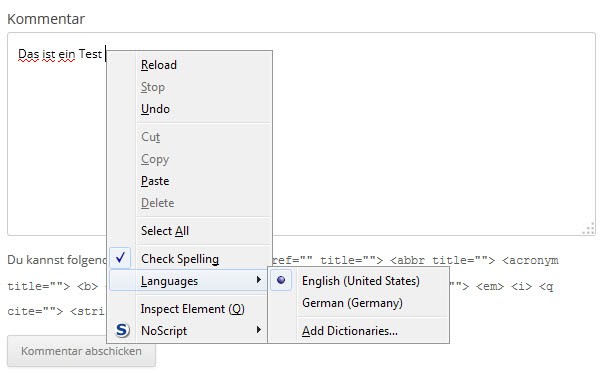
- Right-click a web form on any web page.
- Pay close attention to the options that are displayed.
- If you see Add Dictionaries you have no dictionaries installed and should do so. This is usually the case if spell checking is not working and if the option is enabled in the settings.
Firefox will launch a new window that is displaying available dictionaries for the web browser. All of these dictionaries are installed as add-ons in the web browser. Once the dictionary has been installed spell checking should be working.
Alternatively, do the following to install dictionaries directly in the browser. Visit Firefox's Dictionaries and Language Pack page and click on install dictionary next to the language that you want to enable spell checking for.
If you have installed multiple dictionaries, it is necessary to switch between them in the following way:
- Right-click the form on the website.
- Select Languages > the language you want used for the spell checking.
If you want to automate the process, use the Dictionary Switcher add-on to do so as it adds the functionality to Firefox.















mines installed turned on and not working in Firefox quantum 68.01
Excellent this is working even as i type this ,thank-you.
OMG It worked…
Thankq very much…
Big thanks, man ! I have en-US firefox but I need Russian language spell checking. I just install dictionary and switch languages by right-clicking. Everything works like a charm without even restart !
@Chaimbitton that’s not free you have to pay and your a spammer.
My spell check wasn’t working because of a related problem: right clicking, and looking for installed dictionaries, I saw the options “English / United States” and “add dictionaries…”. I clicked on the first to see what would happen and then the spell check turned on. Now it has a bullet in front of “English”. So it is also possible for spelling to be enabled and a dictionary to be installed and for the spell check to not run because a language isn’t selected.
Thank you!
This spell checker is very limited and i often have to go to google search and type the word i cant spell and google will say “did you mean” and 9 times out of 10 it will give me the correct spelling, i then have to copy and paste it.
If google can give me to correct spelling why cant this firefox spell checker do it?
Brilliant – I’ve been trying to figure this out for days, since I got a new netbook. Thanks a lot.
Super – thank you!
I download firefox and the spell check is not working. Does any one know why.
thank u
Still not working… it use to work… now it does not work anymore….
Thank you very much. I’m using the Firefox Beta (4) and had wondered where my spell checking had gone, and with your description to add a dictionary, it is now fixed.
Tremendous. I have tried to fix this 10 times, various web pages described registry settings, special this and special that. I gave up a few months ago. A new search today – after deciding I was to try and fix for good – yielded your suggestion and it was fixed with two clicks. You deserve some sort of god status for fixing this so easy and fast. Much appreciated.
You are welcome :)
Wow. Thanks. I had to completely reconfigure a new computer and I was lost without the Firefox spell checker. I had the option selected but I didn’t know I didn’t have any dictionaries installed. This solved the problem. Thanks.
That did it for me, now my spell checker facility is restored. Thanks!
Thank you! It was greatly helpful.
Hey, very nicely written article and helpful. I actually had the dictionaries but for some reason, checking for Italian was enabled and not English so pretty much every word I would type would be underlined in red. Not sure how that happened… I just reverted back to Linux FF version 3.5.4 because 3.6 wouldn’t install for some reason. Maybe that had to do with it. Anyway, thanks!
Mega, I am naked without a spell checker!
Thanks! :D
thaaaanks… I must have looked at that tab a dozen times and missed the setting because it was in my local language, so silly
Thank you. Your instructions are very simple and complete.
Thanks! Always had to install google toolbar to get spell checking!
Thanks didn’t realise you needed to actually do something first, before the spell checking worked.
hi- I am using firefox on my macbook and while i get the red lines underneath the misspelled word, i am unable to figure out how to get the spelling suggestions. I’ve tried right clicking and nothing happens. I tried following your steps Tools> Options> Advanced via the firefox tool, but the only options i have under Tools are Web Search, Downloads, Add ons, Error Console, Page Info, Start Private Browsing, clear recent history. Any ideas? Thanks
This worked! Thanks a lot. I had no idea what was wrong with the spell check.
Woo hoo! I now have integrated spell chocking and can not see lots of red underlined words. Interestingly it doesn’t like the word Firefox which is strange.
But thank you, it was very easy to work out following your instructions!
Speaking of spell check, there is a good program Spell Check Anywhere (SpellCheckAnywhere.Net) it adds spell check to all programs.