
Disable AppleMobileDeviceService.Exe, iTunesHelper.exe and iPodService.exe

Users of the Microsoft Windows operating system who install the music manager iTunes will notice a large number of background processes that are connected to that program. The processes that all users are going to see are AppleMobileDeviceService.Exe, iTunesHelper.exe and iPodService.exe with some running in the background even if iTunes has not been opened since system start.
At least two of the processes seem to be connected to mobile devices like Apple's iPod or iPhone which seems like a waste of system resources if none of these devices are owned by the computer user. To say it more clearly: Why would someone need to run these processes if they do not need them? The following paragraphs will show how to disable the three processes AppleMobileDeviceService.Exe, iTunesHelper.exe and iPodService.exe effectively.
Disable AppleMobileDeviceService.Exe
AppleMobileDeviceService.Exe is a Windows Service that "provides the interface to Apple mobile devices". It does not therefor make sense to run this service if no Apple mobile devices are owned by the user. The easiest way to disable the service is to press [Windows R], type in the run box [services.msc] and press the [enter] key on the computer keyboard.
This opens the Services window which displays all Windows Services. Locate the service Apple Mobile Device, right-click it and select Properties from the menu. Click on the Stop button first to stop the AppleMobileDeviceService.Exe service from running in this session.
Now click on the Startup type menu and change the type from Automatic to Disabled. A click on the Apply button will complete the process of disabling AppleMobileDeviceService.Exe.
Update: Please note that this is no longer working under newer versions of iTunes. What you need to do now is uninstall the program. To do that click on Start > Control Panel, select Uninstall a Program and locate the Apple Mobile Device Support entry here. Select to uninstall it to remove it and distnoted.exe, another process that it spawns.
Disable iTunesHelper.exe
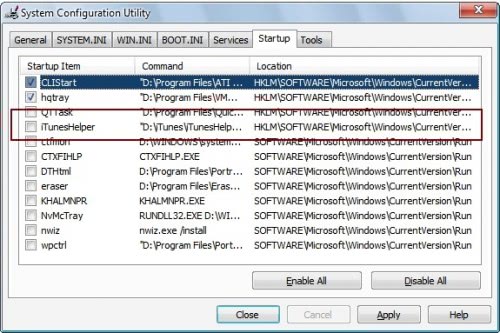
The ituneshelper.exe process is also running in the background all the time. This process is however started from one of the autorun locations. Getting rid of it is quite easy. Press [Windows R], type in [msconfig.exe] and hit the [enter] key on the computer keyboard.
Switch to the Startup tab on top of the window and locate the iTunesHelper entry there. Uncheck that entry to disable the autostart of it when Windows starts. A click on Apply will complete the process. You do not need to restart Windows at this time.
Disable iPodService.exe
This one is tricky. IpodService.exe is a Windows Service. The problem is that it will be launched by iTunes even if the service is set to be disabled. Closing iTunes on the other hand will not close the iPodService.exe from running in the background. Here is what needs to be done to get rid of this process as well.
Open Windows Services again by pressing [Windows R], typing in [services.msc] and hitting the [enter] key. Locate the service iPodService. It is described as "iPod hardware management service". Right-click the service, click on the Stop button if it is running and set it to disabled in the startup type menu.

The second step is needed as iPodservice.exe will be launched by iTunes even if it has been disabled. Locate the file iPod iPodservice.exe on the computer hard drive. It is by default installed into Program Files\iPod\bin.
Delete iPodservice.exe from the /bin/ directory and create a new text document. Give the text document the same name (iPodservice.exe). You should now have a 0 Kilobyte iPodservice.exe file in the /bin/ folder. To test if the procedure worked start iTunes. If everything worked out fine iPodservice.exe should not have been started and should not show up as a process in the Windows Task Manager.
Verdict: Windows users who want to use iTunes but do not own an iPod or other Apple device can now disable unneeded processes from their computer system. It does not make sense having them run in the background all the time.
Advertisement














Hello Martin,
Deleting iPodService.exe is not a solution for me because I do need this exe to run when I sync my ipod with my laptop.
So I want these apple services (Apple Mobile Device & iPod Service) to run on demand, only when I am syncing my iPod with my laptop, which is only every few months.
So I have set them both to manual in Services, and when I want to sync my iPod, I simply start them with a shortcut before launching iTunes (target: C:\Windows\System32\cmd.exe /c “net start “Apple Mobile Device”&net start “iPod Service””). This way, these services only run as needed, and not all the time.
That was my idea, but like you mention, I discovered that the “iPod Service” service is started by iTunes whenever I launch it to listen to music …
Any idea ?
Great article, helped a lot!
Thanks a million. This was a great fix for the constant cpu usage my PC was experiencing.
Why do I have to totally uninstall AppleMobileDeviceService forever? If I stop the service…and disable the service… what is just starting it up again? *THAT* is what needs to be disabled/stopped.
I simply renamed applemobiledeviceservice.exe to APPLEapplemobiledeviceservice.exe.
Their software can’t execute what it can’t find.
If I need itunes, I can rename it back to applemobiledeviceservice.exe, then after I’m finished rename it to APPLEapplemobiledeviceservice.exe again.
GREAT article! Thanks so much. Not only did i learn about how to block apple junk, i also learned a couple things about windows.
Great job. Thank you!
I think I love you man
Applemobiledeviceservice Stopping that service… and making it MANUAL… doesn’t do anything.
It constantly restarts itself.
Per Martin > Disable Applemobiledeviceservice not Manual. To Martin: Your devotion to serve us laymen is great. Thank you!
Wait but can I use itunes after i disable all these things
Can I?? I have the same doubt…
Thank you ever so much. Very easily explained, concise and I was able to disable all.
Whenever I use MsConfig to disable something from launching at startup… MsConfig *ITSELF* always launches at startup… telling me that something that I already know: You have disabled something from launching at startup.
Ugh.
This is Windows XP is trying to help me out????
Serious security fault in Windows 7 here.
I disabled the Apple Mobile Device and it still started up when I logged in, I hadn’t even opened iTunes.
Nice work. It is January 2012, and this still works after installing iTunes on my Windows 7 laptop. AppleMobileDevices.exe was hogging 50% of CPU and killing battery life. Very clear instructions and for those reading now, they work!. I am also able to launch iTunes and listen to music still.
thank you.
Thank you thank you thank you!
My (XP) Apple Mobile Device service kept restarting (quickly) after killing it repeatedly.
If this happens to you, check the Recovery Tab.
My settings for First, Second, and Subsequent failures were all set to “Restart the Service”
IMHO, each of the three selections should be set to. “Take No Action”
Then, Press “Apply” (or “OK”)
If you pressed “Apply”, then press “OK”
Excellent!!!!!
Helped me eliminate a CPU hog!!!!
Now they will lose out on profits because of this ridiculous act, btw the best program from your computer’s care in every aspect is AVG PC Tune Up 2011 thats the program i used to find apple’s processor sucking applications which can be disabled from there as well. It even gives recommendations of what properties you should disable based on computer usage etc. Very good tool indeed
You can always tell a good program from a bad one…. one of them you have to be “tricked” into running… running at all times… and it’s very hard to try to stop it… even if you wanted to.
How is all this “itunes running trickery”… any different from a virus????
Thank you. Apple mobile service has used 25% of Phenom X4 3.9GHz.
Thanks very much. After a while having to manually end these processes every since day is not efficient. The noise my computer made and the lag has progressively irritating the ^&*( out of me, and sometimes, one of those 3 .exe’s would just re-pop up in task manager seconds after “end process”!
If you have 64 bit windows, *some* but not *all* of these files are located in Program Files x86 rather than Program Files. This includes AppleMobileDeviceHelper.exe.
And though I’m late to the game, there are 2 big reasons why people without Apple devices use iTunes:
Smart Playlists (WMP and even fooBar2000 still don’t have these right)
Podcasts (Nobody else has it right on Windows… though I use Doggcatcher on Android now)
Heads up: If you extract the contents of the iTunes installation program, you can delete the parts of the program that you don’t need and never install them in the first place. (the installation package consists of several discrete executable files. So, all you have to do is remove the ones pertaining to Bonjour and mobile devices etc…)
Thank you! Very clear instruction! Now my pc is a bit faster. ( I even bookmarked this.)
In the second part of the third step (disabling iPodSerevice.exe), when I went to find that file in Program Files/iPod/bin, there was no file of that name. There was a File Folder named IPodservice.resources and an application named IPodservice. I looked at what was in the former, and none of the files were named iPodService.exe. I’m not a techie–what now?
I’m not entirely sure. Maybe Apple has changed the location. It appears as if your operating system is hiding file extensions. When you right-click the file and select Properties, do you see the extension?
Thanx mate. I’ve been looking for these instructions for a while.
An extremely helpful page!!!!! Danke schön!
Hi,
I do want to disable these background apps to free up processor power when I don’t need them, but I also need to be able to connect my iPod to this computer sometimes. When I do, will I need to reverse the disabling process you describe?
Thank you.
EG
I have the same doubt…
iTunes Outlook Addin and Outlook Change Notifiers, both installed with iTunes, are known to crash MS Outlook.
Not sure why Apple continues to include more crapware with iTunes. You’d think that QuickTime was enough.
Thanks for the info! HaHa, I’ve tried unistalling these from my laptop, but then iTune’s wouldn’t work and had to reinstall it. Now I just have them disabled instead thanks to your help. :)
I don’t use Apple products (iPhone, iPad, etc…), tho I do love using iTunes to d/l music & tv shows and I hated having to have those unnecessary processes running just to do so. Once again, thanks!
Apple plz su*k my monkey bal*s.
I’ve tried to follow your intructions above but non of the components you mentioned can be seen. Yet it still appears as a helper in startup ?
Wow .. thank you so much. All three were nagging me for a while and I though they necessary to be use Safari.
Thanks again!
Martin, thanks!
This is one of the most clear, simple, and correct fixes I have found! I appreciate your service. ANd I’m sure my old computer appreciates working less hard as well!
Hi there,
Thank you for your help! Those annoying extra processes were taking up valuable space on my little notebook…
A quick question – is it ok to empty my recycle bin and permanently delete the original iPodService.exe? I only installed iTunes so that I could charge my iPhone from this laptop. My primary iTunes music library is on a different computer.
Thanks.
Very helpful! Just what I needed to do when installing itunes! Many thanks.
Thank you very much . I disable these services coz i doesn’t own apple devices.
Well, almost a year since the last comment, and it’s still useful!
Thank you for a clear and concise fix.
I can only add agreement with comments above – I despise sloppy, arrogant software that rearranges my machine. The iTunes behaviour is matched by Adobe and Realplayer, which clobber my desktop and startup on every update.
If the programmers aren’t competent to check the current state of the machine, they might just find it simple to *ask* first.
Thank you. Very clear instructions. So glad to shorten the long list of programs I have running in the background.
Thanks so much for this info. While I have an iPod, I don’t need these things running all the time.
But when you did all these processes, could you still use itunes or even sync your device?
THANK YOU. I’d wondered why I had these processes and couldn’t get rid of them.
Genius !!!!!!!
Yes. This seems to have done the trick. Thankyou for your help. No doubt I will be writing to you again as your site is very good and so far free!
Do I now tick the box for basic startup
You a) click on the Services Tab and try to locate Apple related entries there. If you find them remove the checkmark and see if that helps. You can sort by manufacturer. you b) go to the Startup tab and locate Apple related entries there and remove them using the same method. Restart your computer afterwards.
I have just found Windows R we’ll see what happens now
It means to press the Windows key and then the R key
You have asked me to press Windows R. What or where is Windows R.
Is it a web page?
I am new to computers so am a bit scared of deleting things I don’t understand. I downloaded ITunes which I noticed took ages and before it finished a message came up that my memory was full and the installation couldn’t be completed. It asked me to delete other programmes or empty the Recycle Bin. I thought what a cheek so I deleted everything to do with ITunes. I now have nothing to do with ITunes on the computer but keep getting a message saying ”Apple Application Support is required to blah blah blah” when I start my computer. Could you please help me to stop this message.
Yours Mr Andrew Rogerson
If you have deleted the files manually then some leftovers are still on your system. This can either be a startup item or a service that is autostarted. You can access both by pressing Windows R, typing msconfig and hitting the enter key.
Goodbye ITunes! And even after uninstalling it, I had to separately uninstall Bonjour, MobileDeviceService, etc. Winamp is simply a much better (and more honest) program.
thank you
for your help
The second step for deleting iPodService.exe is not clear.
You say “Delete iPodservice.exe from the /bin/ directory and create a new text document.” Do you mean an actual .txt document, using WordPad?
Then you say “Give the text document the same name (iPodservice.exe). You should now have a 0 Kilobyte iPodservice.exe file in the /bin/ folder.” Do you mean we need to change the .txt document to a .exe?
George yes that is exactly what I meant. You need a 0 Kilobyte file with the same name in the same directory.
Thank you for some very clear guidance on what was a constant irritant. God I loathe companies who think they have the right to tell me what to run on my PC – I admire Apple’s design of their products but their policy of treating their customers as if they all have a very low level of computing ability is SO stupid. I shouldn’t need to jailbreak my Iphone, which is a lovely device, just to get it working the way I want — I own it!
Thank you. Very, very helpful.l
Thanks again! Too many services running in the background, that I don’t use, just irks me to no end. Bothers me more when they start back up after terminating it lol.
Hopefully this helps though!
ipodservice.exe를 ì œê±° í•˜ëŠ”ë° ë§Žì€ ë„ì›€ì´ ë˜ì—ˆìŠµë‹ˆë‹¤.
파ì¼ì„ 지워버리는 ë°©ë²•ì„ ë¯¸ì³ ìƒê°í•˜ì§€ 못했었습니다.
ê°ì‚¬í•©ë‹ˆë‹¤. thank you
Many thanks
Nice work. Big help. Thanks.
The above wasnt helpfull for me.
I uninstalled itunes, but this anoying prog keeps comming up…
if i kill the proces it starts itself up again in about a minute.
There is on my pc no file with the name “applemobiledeviceservice.exe”
Cant find it in services either.
Is it possible a virus is using this?
I know Im infected with virut..
Thank you sooooo much! I have been disabling these things for a while now, only to see the Applemobiledeviceservice.exe turning itself back on.
> I have been disabling these things for a while now, only to see the
> Applemobiledeviceservice.exe turning itself back on.
No matter what I disable, or turn off, or set to manual, or kill… something turns AppleMobileDeviceService.exe back on… every 15-30 minutes.
Forever.
Note that if you reinstall iTunes, or if click ‘OK’ when prompted to upgrade your existing iTunes installation, the actions listed on this page will be undone and you will need to go back disabling the services, deleting the EXEs, and so on.
Good old Apple, thinking they know how we want to work. Sometimes it becomes clear why their market share is so low…
Thanks for taking the time to publish such a clear explanation
The only one of these processes I had running was AppleMobileDeviceService.exe. Although curious as to why it was on my computer, (I don’t own an iPod or have iTunes installed) I’m glad it’s gone.
I have an iTouch and I use I tunes to download media to my device. Can I safely remove AppleMobileDeviceService.Exe, iTunesHelper.exe and iPodService.exe and still use my iTunes to download to my iTouch?
Thank you. Unfortunately that evil virus called iTunes has made these steps absolutely necessary.
Thanks for this great article & I totally agree with Taomyn, I have installed iTunes on an old laptop just to avoid the bloatware that comes with it, I will never install it on my main PC and for excellent alternative for itunes/quicktime
Winamp
Sharepod
The KMPlayer
hmmm, are there any reason for installing itunes for those who don’t own ipod ? for Mac look Windows mod ?
Some like to shop in the iTunes store for example. Some might have had an iPod and switched to another mp3 player later on.
This is Apple’s way of trying to persuade everyone how bad Windows is by programming their own applications so poorly that they screw your system up with this garbage. Even worse, you’re not even given an option to not have this stuff installed. Apple never practices what it preaches.
IMHO iTunes/Quicktime should be classed as malware, There are plenty of alternative ways to manage your MP3 player and to play Quicktime media, all of which are better and carry no baggage.
agreed!!!
i hear you on that I never looked at apple as a good company they are really greedy ..
thanks man! i had to end the process everyday!