
How to assign a specific drive letter to an USB drive

Dante send in this little tip and I thought I would share it with everyone as it can be quite useful. I have reviewed the free program USB Drive Letter Manager before here on Ghacks which enables you to assign specific driver letters to USB devices that you connect to the PC. The benefit here is that the device will always be mapped to the driver letter - provided it is available - once you assign the driver letter to it.
This helps with the identification of the drive as you know that it is always accessible under a specific driver letter when you connect it. I mentioned in that review that you could use the Windows tool Disk Management to assign driver letters to USB Flash drives as well, but did not explain how you could do so.
Dante explained how you can use the Disk Management tool to assign permanent drive letters to removable drives. He also mentioned that the reviewed program USB Drive Letter Manager was not compatible with Windows Vista at the time of writing, and that it makes sense to use the first party program instead.
The easiest way to open Computer Management on the operating system is to right-click the My Computer icon or Computer icon on your desktop, if it is displayed there, and select Manage from the context menu that opens up.
You can alternatively press Windows-r, enter compmgmt.msc and tap on the enter key to load the Computer Management tool this way. If you are running a newer version of Windows, like Windows 7, you may need to run the program with elevated rights. If that is the case press Windows, enter the program name and extension, and right-click the selection afterwards and select run as administrator from the menu.
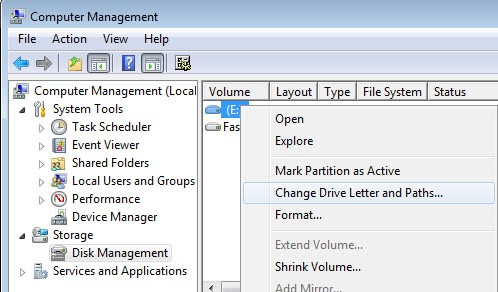
Switch to the Disk Management listing under Storage and right-click on the drive that you want to assign a drive letter to.Select Change Drive Letter and Path to pick a new letter for the selected drive. This will be the drive's permanent letter from then on out.
You can modify the drive letter at any point in time again by following the instructions above and changing the drive letter to another available letter.














Many thanks. I have done this before twice but forgotten how. Got here with Google search and will try to save where I can find again.
Thanks for that tip. Much appreciated. I was wondering how to accomplish this. I am always powering down and copying to a local machine from my network in order to get the data I need to my USB because it interferes with the drive letter assignments of my network. Thanks again, I’ll try this.
lifehacker did something similar recently where you can assign a custom icon to a usb thumb drive.
http://lifehacker.com/software/usb-drive/assign-a-custom-icon-to-your-flash-drive-188852.php