
Disable Low Disk Space Warnings in Windows

Windows popups a balloon tip with a "Low Disk Space - You are running out of Disk Space on" warning every time a hard drive goes below 200 megabytes of disk space.
This can get pretty annoying if you have a lot of data on the drive and your disk spaces goes regularly below 200 megabytes on it or stays there.
If a drive is connected to a PC running Windows that is below the disk space threshold that Microsoft hardcoded into the system, then you will get notifications about disk space being low regularly even if you know about it and are perfectly fine with it.
Note: the actual size may differ depending on the operating system that you are using. New systems may display warnings as early as a 90% threshold is crossed.
Disable Low Disk Space Warnings
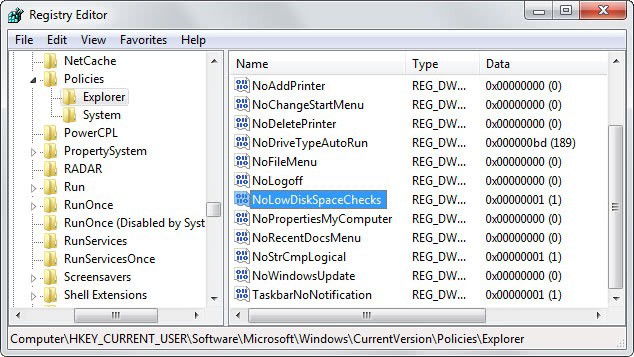
There is, however, a very easy way to turn this message off; it involves editing a Registry setting. Note that it will apply to all drives and not just individual drives.
You can launch the Registry Editor the following way: Use the shortcut Windows-r to bring up the run box, type in regedit in the field and tap on the enter key afterwards.
Go to the key HKEY_CURRENT_USER\Software\Microsoft\Windows\CurrentVersion\Policies\Explorer\ in the Registry Editor by following the path, just as if you were browsing directories in Windows Explorer.
- Right click empty space in the right area and select to create a new Dword value.
- Name the value NoLowDiskSpaceChecks and double click it.
- Note: Some sites report that you should use NoLowDiscSpaceChecks instead as the name. Microsoft uses NoLowDiskSpaceChecks on its support site.
- Enter 1 as its value.
- Close the registry and restart Windows so that this new setting will become active.
- This will turn of the message for all drives.
You can undo the change at any time by deleting the Dword value that you have created in the Windows Registry Editor.
There is a second way to disable the balloon tip part of this message. It involves disabling all balloon tips which can be done in HKEY_CURRENT_USER\Software\Microsoft\Windows\CurrentVersion\Explorer\Advanced\
- Create a new Dword value named NoTrayItemsDisplay and give it the value 1.
The low disk space icon will still appear in your system tray but the balloon tip will not show up anymore.
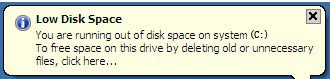
Messages you may receive:
You are running out of disk space on [drive]. To free space on this drive by deleting old or unnecessary files, click here.
You are running very low on disk space on [drive]. To free space on this drive by deleting old or unnecessary files, click here.
You are running very low on disk space on [drive]. To free space on this drive by deleting old or unnecessary files, click here.
Solutions
A low disk space warning warns you that there may not be enough disk space anymore to save all the necessary data to. You do have a few options to resolve the situation.
You can try and remove old data and programs that you no longer need. A good program to get started is CCleaner which can remove temporary files on the system, another to remove service pack backups that you may no longer need because the system is working fine with the service pack installed.
You can also use a program like TreeSize to display the largest files on the system.
















I want speed up internet