How to add Threads to your Instagram bio (and edit your Threads bio)
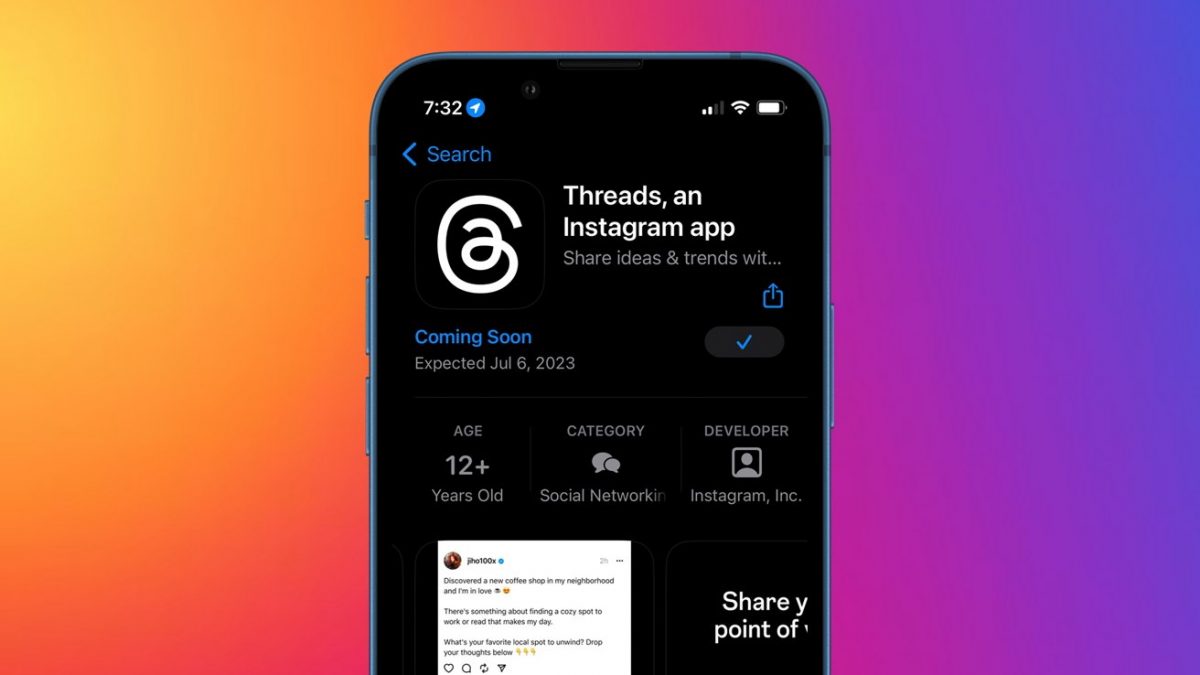
There are two ways to add Threads to your Instagram bio. The automatic way is the Threads badge: once you have a Threads profile, Instagram can show a Threads icon on your profile that opens your Threads account. The manual way is to copy your Threads profile link (Threads profile > Share profile > Copy link) and paste it into Instagram under Edit profile > Links > Add external link.
This guide also covers the Threads bio itself: how to edit it, how to import your Instagram bio and link, what to write in a bio for Threads, and how to hide the badges if you would rather keep the two profiles apart.

How to add Threads to your Instagram bio with the Threads badge
The Threads badge is the fastest way to put Threads on your Instagram profile, because Instagram creates it for you. Threads accounts are built on Instagram accounts, so when you set up a Threads profile, Instagram can display a small Threads icon on your Instagram profile. Visitors tap it and land on your Threads profile.
To check or turn on the badge in the Instagram app:
- Open Instagram and go to your profile.
- Tap Edit profile.
- Scroll down to the Show Threads badge toggle.
- Turn the toggle on, then go back to your profile to confirm the icon is visible.
If you do not see the toggle, make sure you have created a Threads profile with the same Instagram account and that both apps are up to date. Some users report that after the badge was turned off it could not be turned back on for their account. If that happens to you, the manual link method in the next section always works, because it uses the regular Instagram links field.
The badge only appears when someone views your profile in the Instagram app; it does not add any text to your bio, which leaves the bio free for other information.
How to add a Threads link to your Instagram bio manually
A manual Threads link in your Instagram bio works for every account, whether or not the badge is visible. You copy your Threads profile URL and add it as one of your Instagram profile links. Instagram's Help Center says you can add up to 5 websites to your Instagram profile, so a Threads link can sit next to your website or shop link.
- Open the Threads app and go to your profile.
- Tap Share profile, then Copy link. The link has the format threads.com/@yourusername, so you can also type it by hand.
- Open Instagram, go to your profile and tap Edit profile.
- Tap Links, then Add external link.
- Paste your Threads profile link into the URL field and add a title such as "Threads".
- Tap Done (or the check mark) to save.
If you want Threads mentioned in the bio text as well, add a short line such as "More thoughts on Threads (link below)", since an @mention in an Instagram bio links to an Instagram account, not to Threads. Only the links field creates a tappable web link; the bio text itself does not turn URLs into links.
How to edit your Threads bio
You edit your Threads bio from the Edit profile screen in the Threads app or on the Threads website. Changes to your Threads bio, link or profile picture stay on Threads and do not change your Instagram profile.
- Open Threads and tap your profile icon in the bottom-right corner (on the web, click the profile icon in the sidebar).
- Tap Edit profile below your name.
- Tap the Bio field and type your new bio.
- Tap the check mark, then Done to save.
When you open the Bio field, Threads offers an Import bio from Instagram option, and the link field offers Import link from Instagram. Importing copies the current text once; it does not keep the two bios in sync, so later edits on one app do not appear on the other.
Threads also supports several links on a profile. Since a May 2025 update, you can add up to five links below your Threads bio, and Threads Insights shows how many clicks those links receive. If a bio change does not show up right away, close and reopen the app or refresh the page before editing again.
What to write in a bio for Threads
A good bio for Threads says who you are and what you post about in one or two short lines. Threads is a text-first, conversation-driven network, so the bio works best when it tells a visitor what kind of posts and replies to expect, rather than repeating your Instagram bio word for word.
A simple formula that works for most profiles:
- Who you are: role, niche or interest ("Windows tinkerer", "indie game developer", "privacy nerd").
- What you post: the topics people will see in your feed ("daily Linux tips", "browser news and quick fixes").
- Why follow: a reason to tap follow ("I answer every question in the replies").
- Where else: one pointer to your main link, which you place in the links field rather than the bio text.
Examples you can adapt:
- "Tech writer. Windows, Linux and browser tips in plain English."
- "Photographer on Instagram, thinking out loud on Threads."
- "Small business owner sharing what actually works. Ask me anything."
Keep the bio short enough to read at a glance on a phone, avoid stuffing it with hashtags, and update it when your focus changes. A clear bio also helps when you follow people on Threads and they check your profile before following back. If you also post on Instagram, use the Threads bio to explain what is different about your Threads posts.
How to hide the Threads badge or the Instagram badge
Both apps let you hide the cross-profile badge if you want to keep your Instagram and Threads audiences separate. The setting is a toggle on the Edit profile screen of each app.
| Goal | Where | Setting |
|---|---|---|
| Remove the Threads icon from Instagram | Instagram > profile > Edit profile | Turn off Show Threads badge |
| Remove the Instagram icon from Threads | Threads > profile > Edit profile | Turn off Show Instagram badge |
| Remove a manual Threads link | Instagram > Edit profile > Links | Delete the Threads link |
Hiding a badge does not delete or unlink your accounts. Your Threads profile still uses your Instagram login, and anyone who knows your username can still search for you on either app. Since both profiles share one login, it is worth turning on Instagram two-factor authentication to protect them together. If you later want the badge back and the toggle does not restore it, a manual link still works.
FAQ
Why is there no Threads badge on my Instagram profile?
The badge only appears if you have a Threads profile on the same Instagram account and the Show Threads badge toggle in Instagram's Edit profile screen is on. If the toggle is missing or will not turn back on, add your Threads link manually under Edit profile > Links.
Does changing my Threads bio change my Instagram bio?
No. The two bios are separate. Import bio from Instagram copies the text once, and later edits stay on the app where you make them.
Can I put a clickable Threads link in the Instagram bio text?
Not in the bio text itself. Use the Links field in Edit profile for a tappable link, and mention Threads in the bio text if you want it visible there too.
Related: how the Threads following list works, fixing the Threads "an unknown error occurred" message, hiding your Instagram account from other users

Leave a Reply