
Create quick screenshots in Windows 8

You probably know that you can create screenshots in any version of Windows by tapping on the print key, opening an image editor, pasting the contents of the Clipboard in it, and saving the screenshot to the system. Windows 7 and newer versions of the operating system make available the Snipping Tool, a basic program that you can use to take screenshots on the system.
Up until now there was not a way to create a screenshot faster, like pressing one or multiple keys on the keyboard and be done with it. You always had to open a program like SnagIt, the Snipping Tool or another third party tool to create screenshots of the system first.
Microsoft has added a feature to its newest operating system Windows 8 that lets you create screenshots automatically and without the need to start another program to do so.
Screenshots are automatically created when you hold down the Windows key when you tap on the print key. Windows-Print creates a screenshot file automatically on your system that you can then use in other applications or any way you like.
The screenshots are always full screen shots of what is displayed on the screen at the time. The feature works not only when you are working on the desktop but also when you run fullscreen applications such as games.
All screenshots are stored in the Screenshots folder of the My Pictures folder which you can access either via the system's Library feature on the left in Windows Explorer or by opening the directory directly which you find under the user directory.
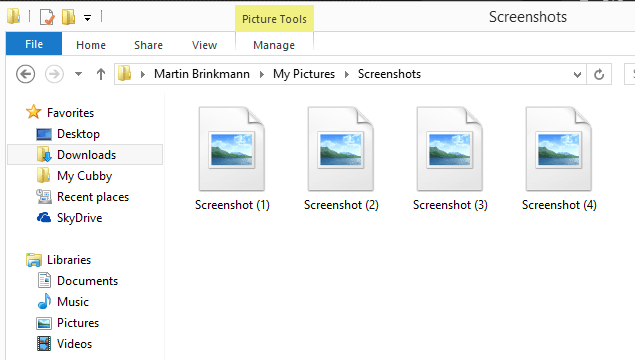
Screenshots are saved as png files with the name Screenshot followed by a number in brackets.
The feature may come in handy when you quickly want to record what you see on the screen for instance, or if you want to take a screenshot of your favorite game or another full screen application that does not allow you to take screenshots.
While you can achieve the same with the majority of screenshot taking tools out there, it is always good to know of an alternative that does not require third party software.
Advertisement













Took ’em a while to adapt that from OSX.
thnx for this trick
Is there a way when in desktop mode to take a screenshot of just the active window like in in Windows 7 with Alt + Prt Scr
An option that is automatically saving the window screenshot? No, that is not an option.