
Ask Toolbar Removal, How To Uninstall

The Ask Toolbar has been developed by the makers of the Ask Search engine to allow easier access to the search engine's search functionality. The toolbar is infamous for its inclusion in freeware applications. Many users install a bundled version of the toolbar accidentally, especially if they do not pay attention to software installation dialogs that include the toolbar in the setup. The Ask Toolbar is usually selected for installation by default, which means that users need to disable it during the setup to avoid ending up with it.
When installed, the Ask Toolbar adds not only the toolbar to Microsoft's Internet Explorer on the system but changes the home page setup in the browser and the default search provider as well. The homepage is set to the Ask search homepage, the search provider to Ask.
Installation of the Ask Toolbar can happen to anyone, even tech savvy users, as some application developers use deceptive techniques to make users install the toolbar.
Users who do not want to use the Ask Toolbar should consider uninstalling it. This is however a technical process that some users may have troubles with.
This guide explains three different methods that both lead to the uninstallation of the Ask Toolbar. The first is manual, the second uses a now-outdated tool called Ask Toolbar Remover and the third the popular Revo Uninstaller.
Uninstalling the Ask Toolbar Manually
A manual removal of the Ask Toolbar has the advantage that no third party software needs to be downloaded to uninstall it from the system. The process itself is not complicated at all, provided that the user knows how to uninstall software in Windows.
Close Internet Explorer and Firefox if either web browser is open. To access the built-in Windows program uninstaller users needs to click on the start orb and select control panel from the available options.
The click on Control Panel opens a list of tools and programs. Locate uninstall a program under Programs and open it with a left-click.
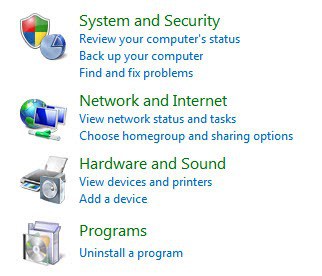
Please note that the terminology may be different if you are not running Windows 7.
Windows XP users need to follow the path Start menu > Control Panel > Add/Remove Programs
Windows Vista users Start menu > Control Panel > Programs > Uninstall a Program
Windows populates a list of all installed applications on the system. Locate the entry Ask Toolbar under the Name column. Right-click the entry and select uninstall from the menu.
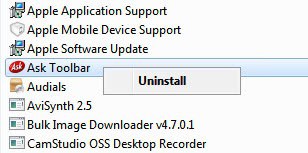
Follow the uninstallation dialog. The Ask Toolbar is removed from Windows and should not appear in the uninstall a program window once the process has completed fully.
Please note that it is possible to remove the Ask Toolbar directly from the toolbar Options. Open Internet Explorer and locate the Ask Toolbar. Notice the little down arrow next to Options? Click on it and the following menu should appear.
Select Uninstall from the context menu and Yes when asked if you are sure that you want to uninstall the product. Close all browser windows when asked to and continue with the uninstallation from this point on.
Ask Toolbar Remover
Ask Toolbar Remover is a third party software that can be freely downloaded from the developer website. The free software supports the removal of Ask Toolbar 4.0, 4.1 and OEM 1000 series. Please note that it appears to be not compatible with the latest versions of the Ask Toolbar.
The portable program needs to be unpacked before it can be started. The interface displays three buttons, Execute Removal, Quit Program and About.
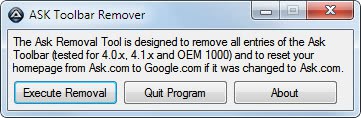
The program can be used if an older version of the Ask Toolbar is installed on the system but appears to do nothing for recent versions of the Ask Toolbar (even though it displays that the removal has been successful).
Using Adwcleaner
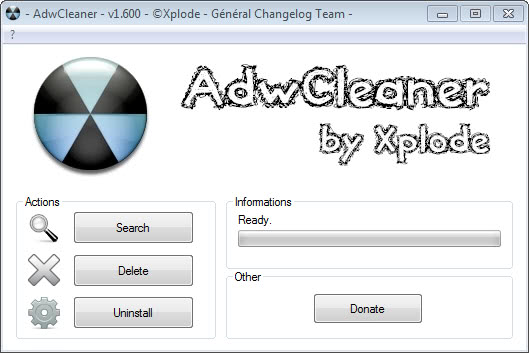
Another option that you have is the free Adwcleaner program that you can download and run on your system. It uses an all or nothing approach though and should be used with care.
To use it, simply click on search to run a scan of your system. A text document is displayed afterwards which highlights the findings. If everything worked out fine, you will find traces of the Ask Toolbar in the file. To remove it, simply click on the delete button to remove the toolbar from your system. Make sure that all browsers are closed before you run the delete command.
Troubleshooting the uninstallation
Sometimes the Ask Toolbar cannot be uninstalled because of errors that are displayed when trying to do so. The most common error message is that a browser window is still open. Users should close all browser windows before they start the removal of the Ask Toolbar from their Windows PC.
I suggest a free tool called Revo Uninstaller if the toolbar cannot be uninstalled via the Windows uninstall a program Control Panel applet. Just download the free version of the uninstaller from the developer website and start it. I recommend that you download the portable version of the program.
It displays a listing that looks fairly similar to the Windows uninstallation applet. Locate the Ask Toolbar in the listing and right-click the entry. Select Uninstall from the context menu and confirm the alert that you want to uninstall the Ask Jeeves Toolbar.
Keep the default uninstall mode (Moderate) and click Next. Another alert appears asking if you want to uninstall the product, click Yes once again.
Revo Uninstaller tries to uninstall the toolbar via its built-in uninstaller. This will fail again with the same error message. Revo Uninstaller will however scan the system for leftovers. It displays files and Registry entries of the Ask Toolbar in a listing. It is now up to the user to select those entries and delete them from the system.
This completes the removal of the Ask Toolbar from the system.
Update: Ask.com has published a program that can remove the toolbar from computer systems. You can download the toolbar from this location directly.
Note that it won't close browsers or processes, but configures the system to remove the toolbar on the start of it. While it will remove the toolbar from the system, it may not change the search provider back to the original one from Ask which means that you will have to do that manually.
I'd also like to point out that some extensions installed in the browser may prevent the manual uninstallation of the Ask toolbar in Chrome. If that is the case try disabling all extensions for the time being before you uninstall the Ask Toolbar.
Advertisement













Buen dÃa,
Muchas gracias por el aporte, me ayudo mucho, REVO Uninstaller fue mi solucion.
Saludos.
Thanks, really appreciate it. Used normal uninstall and worked.
Had trouble getting Ask off a Chromebook. It is not possible to install helpful exe programmes onto CHromebook but the following helped get rid of Ask from my Mother’s Chromebook. Had tried other things but this worked:
IF you have Ask.com search engine on your Chromebook and cant get rid of it try the following:
Close out of all applications.
Uninstall apps
Click the apps list icon in the launcher at the bottom of the screen.
Find your app in the list and right-click (click with two fingers on a Chromebook) its icon.
Select Remove from Chrome.
Uninstall extensions
Click the Chrome menu on the browser toolbar.
Select Tools.
Select Extensions.
On the Extensions page that appears, click the trash can icon for the extension you’d like to remove.
If your extension appears as a button on the browser toolbar, you can also right-click (or click with two fingers on a Chromebook) its icon and select Remove from Chrome.
Reset your browser settings
In the top-right corner of the browser window, click the Chrome menu
Or access settings by clicking on the time at the bottom, if you have closed out of all apps.
Select Settings.
At the bottom, click Show advanced settings.
Under the section “Reset settings,†click Reset settings.
In the dialog that appears, click Reset.
Then disconnect the battery using the keys (not possible to remove battery in Chrome book):
Hold the refresh key (near the number 4) and then tap on the power on/off key until the screen goes blank.
If you have been using your Chrome settings on a number of devices you may also need to do this to stop the Syncing option from importing your Ask settings from other
Stopping sync on the Chromebook,
1. Go to Settings.
2. Under the People header, click ‘Advanced sync settings’.
3. Click the drop-down button and select ‘Choose what to sync’.
4. Un-check all the boxes, then choose ‘Ok’.
5. Then reset the browser settings again.
While on the subject of toolbar removals, how to get about removing the YAC toolbar. For info, it doesn’t show as item in Uninstall in Windows 7. I’ve read about the YAC toolbar, apparently it’s a malware that tracks everything you do on your computer. I downloaded the toolbar inadvertently.
Please! How do I remove this shit Ask from my computer?
There was an interview with the ceo or cio of ask.com and I was one of the first commentors to state that when my pc was free and clean of viruses and after an install of ask toolbar was done then the infection rate on my clean computers I manage skyrocketed.
The ask.com employee then cried BS and others pointed out that I did not say ask infected me but the appearance of and or the percentage rate being raised when ask.com toolbar was installed and I am 100% sure ask.com advertisers are sought out by malware dirty crooks in how they inject infected jpeg’s and dirty CSS files so when that jpeg loads so does their payload.
One of the easier infection routes is the fake hyperlink adwords that has words that appear to be a hyper link but when hovering over it then a tiny ad appears thus disturbing what article you are trying to read. Not sure if ask.com is still employing adword tactics anymore or not.
I was just using Chromebook and I cant remove Ask from Chrome menu and I was searching “super mario advance” for VBA-M and I just don’t know what went wrong, I was downloading this:
http://www.inboxchecker.com/?kw=gen&c=disp&gclid=CP2Clfym-sACFZSDfgodA5cAPw#download
http://download-plus.com/dmgr/
the problem I run into on all tutorials, including this one, for a manual uninstall, is that in XP control panel install/uninstall , I cannot find this ASK program even on the list.
it removed yesterday by restoring defaults, but this is inconvenient and today it is back anyway.
Can anyone help with a manual removal with XP, again, ASK does not appear on the alphabetical install/uninstall list..
Only the Revo Unistaller did the Job. I am using windows 7. Thank You Martin
This damn ask toolbar, I didnt even realise it was secretly installed :( I cant think what software I downloaded that came with this junk attached, (I hope it wasnt ccleaner lol). Its only recently when my battery icon dissapeared from taskbar that I had to run services.msc to fix issue, that I realised this crap ASK is the culprit of my missing battery icon. Damn you ‘ASK’ criminals.
I USED to trust JAVA!
The Ask toolbar downloaded even after I unchecked it during installation. I hate Ask, it can not find anything worth reading. It messes up the rest of the computer. I can not get rid of it after many tries. Says to close Chrome and it already is closed. I don’t think they are going to let me uninstall this. I don’t want all that stuff. I work on my computer and this is just a big headache for me and hinders my research and writing.
Don’t fool around with the other removal options. Use the one that ASK publishes and it’s done.!!! Got rid of the Hi-jacker.
So , you want ot get rid of the Highjacker …with the Highjacker ?!
Why would them want to give you a way of their own to get rid of themselves ?They give you a “way” to be there even if you think they’ve gone for good …
That is the same thing as if you gave to the FOX the guard of the chickens …
Hi,, if we are installing ask toolbar in google chrome or mozilla means in which location it will be stored?
Holy mole! I have been pulling my hair out for the past two days trying to get rid of ask! Thank you, thank you, thank you!!!!
Had tried all but one of the above. Was not too excited about downloading an “ask uninstall program” to remove an “ask program” but it worked like a charm.
Thanks so much!
LMAO my sentiments exactly. I don’t find them particularly trustworthy, and really dread installing anything else they created onto my hard drive.
Great that it worked out for you.
Ok as most on here I ended up with the ask tool bar by not paying attention to the Java update and I did not un-check the box for the ask tool bar. This thing has made me crazy and I have spent hours trying to get rid of it…..I read Tom’s post and I did it- going into the task manager and under processes looking for google chrome and stopping it….Well thank you Tom this worked for me!!!! No more ask and I will always pay attention from now on…I agree with others something needs to be done about this….It was a nightmare….Again TY Tom, I hope this helps others with this problem,I never post comments but I had to this time so others would know that this also worked for me……GOOD LUCK….. AND DO NOT BE WORRIED AFTER IT UNINSTALLED I LOGGED RIGHT BACK IN TO CHROME NO PROBLEMS…..
NO Samantha, don’t feel bad, because I don’t think you got the ask toolbar by not paying attention. I did the java update and I’m telling you, IT DID NOT GIVE an option and I got saddled with that smarmy ASK.
It made me feel (and still does) violated. Particularly since ASK lies about how easy it is to uninstall. That is fully a lie, they are aware of this, and I find that disgusting and completely unethical.
Go to the website & they’re all OH ALL ya gotta do is uninstall it from the control panel (I imagine a grinning sales sleaze with completely dead eyes) IF there’s a problem uninstalling it, there must have been ‘an error’ a bug or else we all must have done something WRONG. ANOTHER LIE, it is completely obvious they knew exactly what they were doing.
IF you can even uninstall it (many get a message *you are not authorized to uninstall* either the toolbar OR the ask updater which will reinstall it), SO, IF you can even ‘uninstall it’ the only achievement is that it will NOT APPEAR AUTOMATICALLY ** IT IS NOT UNINSTALLED AT ALL** The icon is still on the browser, the toolbar is still AN EXTENSION on google, it is LOCKED IN as ENABLED, and there is NO option to remove it (the little garbage can) Other extensions if you right click the icon, you get these choices: OPTIONS, REMOVE FROM CHROME, HIDE BUTTON
But the ASK toolbar only gives ONE option: HIDE
Hey guys,
I found a toolbar remover that works. This took it out instantly.
http://apnmedia.ask.com/media/toolbar/utilities/ToolbarRemover.exe
Hope that helps
It worked instantly! Thank you!
Thanks for mentioning that. I have added it as an update to the original article.
Hi,
I had a problem with the uninstall. kept saying Chrome windows were open. You have to go into chrome settings, click on advanced and untick the option to run in the background. It will then uninstall without a problem
Sign this petition to demand that AskToolbar be removed from Java installer:
https://www.change.org/petitions/oracle-corporation-stop-bundling-ask-toolbar-with-the-java-installer
I tried EVERYTHING and still nothing. I can’t seem to get rid of this Ask toolbar on Chrome.
Any ideas?
Nothing worked for me till i restored my computer to factory condition and reloaded all my programs. The Ask program disabled all my browsers and corrupted my Norton security program. It also eliminated all my past restore points prior to the Ask installation. I will ask Norton to include protection from the Ask toolbar in future updates. Ask came bundled with another program and was downloaded despite my unchecking the box that would permit it.
Like most of the comments I tried everything I could think of to remove the Ask toolbar.
After reading JBHo’s comment, I uninstalled Chrome, then downloaded it again and re-installed it. This seems to have solved the problem, thankfully !!
I picked up the Ask toolbar from somewhere, the only thing that springs to mind was a Java update I accepted. I won’t be doing that again.
The Chrome Ask Extension wouldn’t allow me to untick it.
I couldn’t get Windoiw to uninstall Ask as it kept saying Chrome was open.
First I went into my User App Data/Local/Google/Chrome/Extensions and deleted the Ask entry. This got rid of it from the browser but seemed to slow things down.
So I uninstalled Chrome, this finally allowed me to uninstall Ask toolbar and Ask updater, they were removed normally. I ran IE to reinstall Chrome. It didn’t take too long, and it avoids downloading another set of dodgy free software. All my Favorites etc were still there after the Chrome re-installation.
The end result Chrome was back with no Ask Extension, if anything it seems a bit quicker now.
You are full of shit this ask remover is just another virus. I don’t know what it does but it doesn’t touch ask, and none of the other things you advise here does a thing to it on my computer
after unsuccefully attempts to use the unistall to get rid of “ask. com” i typed in ” restore ” from the start / search menu, then restored my computer to a time prior to any downloads i had made.
The fix for mine when it snuck in uncover was to uninstall the coupon printer which one has to have when printing coupons from coupons.com. Seems that all you need to do is look for freebies that you’ve downloaded and consider uninstalling them.
Thank you,
it’s very helpful!
I had the same issue with the ASK.com bar. After trying everything I could find on the Web (all failed) here was what worked for me. Before clicking uninstall simply go to the Windows Task Manager and click the tab Processes. Scroll down until to you see Chrome.exe. then stop it. You will get a warning that will scare you, but I stopped it anyways with no adverse effects. Then try uninstalling the ASK.com toolbar or in my case it was titled foxit … toolbar. It worked and it will work for you. I tried all the other fixes including Revo Uninstaller (which failed). I have no computer acumen but I am passing along what worked for me.
I could delete the Updater for Ask . com but when i try delete the toolbar itself a warning comes up saying on french , that it is already uninstalled *( I guess)
what should i do…?
I also had the problem and spent hours trying to resolve it. If you go to the control panel you won’t find the ask.com icon but if you look at the recent installation dates you will spot it. In my case it was foxit search or something like that—it had only been installed a few days ago and I didn’t recognize it. I tried to click on the uninstall link without sucess but a left mouse click showed an un install button..I closed all my browser windows and it un installed and is gone–Good Luck
Thank you so much. Ask bar was really annoying and useless. It was good to have a one-stop-shop location where you can find a complete solution as we are confronted too
Please include link with Revo
uninstall ask .com
Finally some Chrome advice. Knut, I have no such APN directory on my computer. (Fortunately, the ask toolbar is gone, at least until I accidentally install it again).. (I assume you mean Ask Partner Network, and not the TV station Aboriginal People’s Network we have in Canada!)
Peter, NEVER tell me or others to install a program to remove a toolbar without details., That is how most of us get into trouble in the first place!
So Knut, if God forbid I install ask again and DO NOT have that folder, what do you recommend?
While I am not Knut, I’d recommend that you google the phrase “toxic narcissism”
if everything else fails, eg, because the ask.com extension is hidden among the extensions, (assuming Windows 7) go to
C:\Users\\AppData\Local\APN\GoogleCRXs\(…).crx
If you have this “APN” (Ask Partner Network) folder and it contains a Google chrome extension (crx) file, delete the folder. Also delete the key pointing to the crx file in the registry.
I was getting the annoying “Error 1316.A network error occurred …” when uninstalling ask. Then I found the following forum posting:
http://forums.lunarsoft.net/topic/5202-ask-toolbar/
In there it recommends the following:
http://apnmedia.ask.com/media/toolbar/utilities/ToolbarUtility/ToolbarUtilityTool.exe
I ran that and ask toolbar is now gone. Bliss!
Really? Cherrydates is what the link took me to.
Thanks, was running out of ideas before I came across your article.
Worked all day to remove the #Ask.com toolbar from my #Chrome browser with no success. Finally learned it was the #Foxit toolbar instead. Now it’s gone, but it took a good three hours of work — including removing and re-installing Chrome, and running several #malware checkers to see if I had been hacked. Seems I installed the tool when I did a routine update of the Foxit reader a few days ago. I’ll be more careful in the future.
Not full – this video tutorial shows it all
http://www.youtube.com/watch?v=rAW8cMw_H2o
Ran into a new spin on the traditional problems associated with removing the Ask toolbar. A Dialog box kept telling me that IE has to be closed in order for the uninstall to complete. Problem was that it wasn’t open. Anyway, had to kill the ieexplorer process in task manager. Seems like it runs one to keep the uninstall from completing.
Hope this helps someone
It helps NOBODY who is using Google Chrome (or FIrefox for that matter).
Had this problem. Solved it. It’s not an extension that can be disabled or removed via Google Chrome browser settings. And there is no Ask.com Toolbar listed in the Add/Remove Programs via the Control Panel. But I just happened to notice that in the list of programs in the Add/Remove Programs section, there IS a Foxit PDF Creator/Reader toolbar. And the publisher of this toolbar is….ASK.COM!!! I uninstalled that toolbar, and POOF! No more Ask.com in my Google Chrome!
This is also true of the Cute PDF Writer toolbar published by ask.com
Ask toolbar does more than just install a pest toolbar, it maliciously loads and edits your NTUSER.DAT hive so that ask.com is the default homepage for every current and newly created user. It also makes ask the default search engine. Uninstalling the toolbar DOES NOT reverse these hacks! These actions are patently malicious and therefore the ask toolbar should be classified as MALWARE!!
That’s good reporting but does not solve the problem as to HOW TO UNINSTALL IT. I ask you again, Fragbert, HOW DO YOU UNINSTALL IT?
His claims are pure mental diarrhea; i.e., he’s just plain full of crap.
It’s oozing out of his ears.
oh sorry – wrong blog!!
Thanks for the Revo Uninstaller tip. I HATE toolbars with a passion. Not sure how ask got theirs onto my computer. But, thanks!
Okay, I was having this problem and it’s driving me nuts. I’m using Google Spreadsheet and all my tabs are pushed down the bottom, I can’t see them anymore.
I have used the Control Panel uninstall and had pieces of the Ask toolbar remain.
(BTW Ask got installed despite my unchecking the proper boxes on a freeware’s installers!)
Then parts of Ask persisted after the use of T-Tools Antiseptic v1.1.2.0, which I generally like.
Finally this little utility got it all out, or at least I think it did: Toolbar Cleaner 1.0.1.42.
Ask.com has turned into to the “Cool” nightmare-junkware (remember all those obnoxious invaders?) of the 2010s. What we need is some expert developer to contribute a free user-friendly systems inoculation, something that blocks the Ask toolbar(s) from getting on board, no matter what.
Nice one. When I downloaded your virus/malware-ridden Toolbar Cleaner it crashed my computer. Folks, don’t trust this guy’s posts. I had to take my CPU to my guy to be recleaned thanks to “Toolbar cleaner”.
It’s caused no problems on my system and passed multiple scans before I ever used it.
re: “your…” – neither this nor any other software is mine. I’m not a software developer at all.
thank u so much… :)
I see that for us Chrome users, the directions (which I mentioned are not accurate) do not work. I am still waiting for a solution, Geeks! Ghacks!
Yes…I agree…it will not show the delete button in chrome.
I downloaded the Revo Uninstaller but that doesn’t show Ask. It doesn’t show up anywhere. I have tried to find it under Revo, CCleaner and Windows uninstaller. It simply doesn’t show up anywhere and it is driving me NUTS! Everytime I open Google Chrome it brings me to the Ask page. Any other ideas?
I found that neither the Ask toolbar remover nor the Revo uninstaller worked so still trying to find an answer. I have tried many other ideas so anything that works would be appreciated at my Kaspersky 2012 virus checker will not scan due to it. I have come across others with the same problem.
Please guys just update me with a vacancy
I have the Ask tool bar in my browser and it will not uninstall I have tried everything. Is there a tool I can down load to get it off my firefox browser?
Thank You
Thank you sooooo much!! ask sux, and I couldn’t get rid of it! thank you!
Thank you for publishing this! Ive been trying to get rid of that piece of crap toolbar for several weeks! I as much respect for Ask as I do Kim Jong Il :P
to remove the ask toolbar in google chrome
click on the wrench
select tools
select extensions
delete the toolbar
click on the wrench
select tools
select extensions
(this presumes the Ask toolbar is visible. IT IS NOT. Nor does it appear in the Control Panel under programs.)
Good to know. Thanks!
Thank you very much…the ask toolbar has been driving me crazy…gone now!
I found Toolbar Uninstaller from Decomputer.
I keep it in my ‘Damage Control’ USB dongle.
I haven’t used it, yet, so I can’t say much about it
Re. “The most common error message is that a browser window is still open. Users should close all browser windows before they start the removal of the Ask Toolbar from their Windows PC.”
I keep on getting the above message even though IE and Firefox are closed. The ask entry in add or remove programs seems to be crazy glued there.
Ccleaner has a list of all the programs on their tools tab, its very easy to select one and delete it.
thanks you very much, good blog
these tool bars are really a headache
worst add ons any software can have is a tool bar :@
Ask has gone incognito. Can’t remove it because it’s always running yet it doesn’t appear in the taskmanager. This shit should be illegal
I hope Ghacks could also published method to remove other toolbar such as Google Toolbar of Yahoo Toolbar (just to name a few)
when I try to remove ask toolbar it does not appear in programs – so how do I then remove ask toolbar ?
I actually got a second ask toolbar, and I have not downloaded anything
Did you try running the Ask Toolbar Remover?
Many Thanks! I removed this ASK GARBAGE, also because installed by java garbage installer.
i don’t need other uninstaller.
thanks again
one big difference is that the google and yahoo toolbars dont invade your browser and stop you from using browser bar searching forever! the developers of ask.com should be thrown in Jail! And they are easy to remove. Ask.com behavior is criminal, criminal, criminal.
Shawn has it right on the nose. Such companies as ask.com should be outlawed. I’ve tried every means, including manual uninstall, and it still messed up my computer and took almost a week to straighten it out. Now they’ve stolen their way in again, and again, my computer won’t function properly. They are as crooked as they come. They and companies like them should be outlawed!
Sure I can do that, even though the uninstallation itself is pretty similar in all regards.