
Remove Windows Media Player Menu Items

Windows Media Player adds context menu items to the right-click menu of several multimedia files even if you do not use this player to play those files.
It makes no sense to keep the items around if you are not using Windows Media Player at all. Removing the entries from Windows Explorer removes some bloat from the menu and reduces the size of the context menu when you right-click on media files.
There is however no obvious option to remove the three entries which means that we once again have to rely on the Registry to fix this issue.
The three items of Windows Media Player that I'm talking about are a) Add to Burn List, b) Add to Windows Media Player Player List and c) Play with Windows Media Player.
Do the following to remove the Windows Media Player menu items: Press Windows R, type in regedit32 and hit enter. Now navigate to the following keys in HKEY_CLASSES_ROOT\Clsid\. I would suggest to make a backup of the keys before deleting them. To backup a registry key you right-click it and select Export from the menu.
a) {8DD448E6-C188-4aed-AF92-44956194EB1F}
b) {F1B9284F-E9DC-4e68-9D7E-42362A59F0FD}
c) {CE3FB1D1-02AE-4a5f-A6E9-D9F1B4073E6C}
Changes will take effect immediately and can be tested by right-clicking a multimedia file like a video.
Another working method would be to unregister the wmpshell.dll which is used to provide the context menu items. This is probably the easier method.
Press Windows R, type in regsvr32 /u wmpshell.dll, hit enter
To register it again you do the following:
Press Windows R, type in regsvr32 wmpshell.dll, hit enter
Those changes take effect immediately as well.
Update: You can alternatively use a freeware program like FileMenu Tools instead if you do not want to edit the Registry. You can use the program to add, edit or remove items from the Windows Explorer context menu.
Please note that the Registry method described above does not work in newer versions of Windows anymore. We suggest you use the freeware program mentioned in the paragraph above instead to remove Windows Media Player entries from the Windows Explorer context menu.
You may also remove Windows Media Player entries from the Open With context menu by opening the Registry and loading HKEY_CURRENT_USER\Software\Microsoft\Windows\CurrentVersion\Explorer\FileExts\.
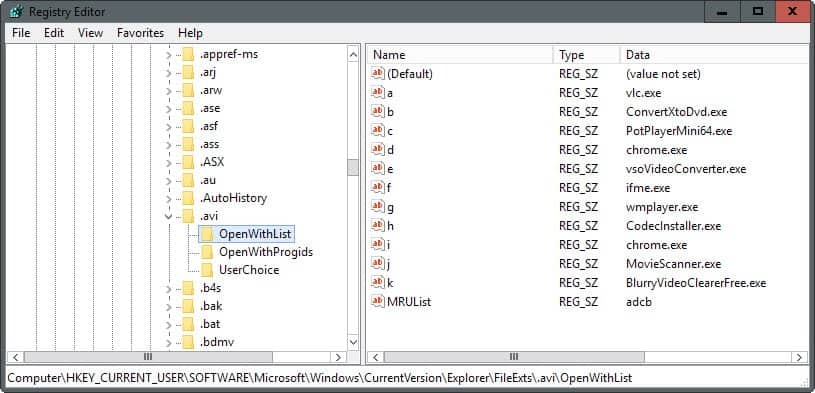
There you need to open the file extension and then the OpenWithList subkey. Locate wmplayer.exe there and remove it from the listing.














Any way to remove the Play Audio-CD with WMP option in the Autoplay dialog that comes up when you insert a cd?
I’ve already succesfully removed others by deleting them from the Autoplay\EventHandlers registry section.
Also, to add entries, you can use TweakUI, see here:
http://lifehacker.com/371677/add-custom-options-to-the-windows-autoplay-dialog
or by hand:
http://windows.ittoolbox.com/groups/technical-functional/windows-xp-pro-l/changing-autoplay-options-297534
Uh…this doesnt really completely remove it. I still have the “add to windows media player list” in the right click meny
Remember that you need admin rights to remove the service.
This key is wrong (you missed a ‘2’ in the last part)
{F1B9284F-E9DC-4e68-9D7E-4236A59F0FD}
Remove this key instead:
{F1B9284F-E9DC-4e68-9D7E-42362A59F0FD}
It worked all perfect, i also unregistered the DLL (just in case).
thaxxx!!
NICE man I LOVE IT :)
Thanks a lot. I used the command to unregister the DLL. Very helpful! I hate those bloated WMP features! :)
can any one pl let me knwo how to remove the RIGHT CLICK MENU of the Windows Media Player
appreciate ur information
One time, I was becoming crazy trying to delete those context items from the registry.
Well the solution regsvr32 /u wmpshell.dll is perfect.
However, for these needs the program
ShellExView v1.18 – Shell Extensions Manager
is very useful. Related to this is ShellMenuView from the same author (http://www.nirsoft.net/utils/index.html).
great, been looking for this