
Faster Access to XP system tools

What do you do if you want to access one of the administrative programs in Windows XP? You click through various menus in the start menu, control panel or Windows Explorer to find them. If you wanted to reach the Device Manager you would have to click on Start, Control Panel, System, Hardware Tab and then the Device Manager which can take quite some time
And while you could use keyboard shortcuts for some of the operations, like pressing Windows-Pause and selecting Device Manager from the left sidebar, you often are left with no other option than to open the system tools manually.
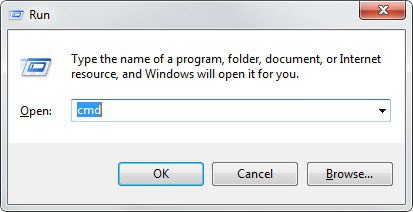
The following method may be useful for experienced users who like to access those system tools faster. I'm going to list the filenames of many system tools. All you have to do is to hit Windows + R and type the name of the file to open it. This may be faster in most situations.
By knowing the names you can also create shortcuts on your desktop if you need one or more of those programs on a daily basis, or add them to a program launcher that you may be working with.
- Backup or Restore Wizard - ntbackup.exe
- Clean up Drive - cleanmgr.exe
- Command Line - cmd.exe
- Computer Management - compmgmt.msc
- Create a shared folder - shrpubw.exe
- Device Manager - devmgmt.msc
- Disk Defragmenter - dfrg.msc
- Disk Management - diskmgmt.msc
- Event Viewer - eventvwr.msc
- File Signature Verification - sigverif.exe
- Group Policy - gpedit.msc
- Local Security Settings - secpol.msc
- Memory Usage - mem
- Performance - perfmon.msc
- Securing the Windows XP Account Database - syskey.exe
- Services - services.msc
- Shared Folders - fsmgmt.msc
- System Configuration Editor - sysedit
- System Configuration Utility - msconfig.exe
- User Accounts - lusrmgr.msc
- Windows Management Infrastructure - wmimgmt.msc
And if you do not want to enter the full file name of the system tool in the run box, you can make use a program like Add to Run to add aliases to the run dialog to open the tools by typing just a few characters into the run box.
Tips
- It is usually not necessary to enter the file extension in the command prompt. Just try to enter only the file name and see if it works.
- Most of the programs are also part of newer versions of Windows. This means that you can use them on these systems as well to open the system tools they represent.
- If you are using a newer version of Windows, Windows 10 for instance, you may also use the start menu to open these programs by tapping on the Windows-key, typing the file name and hitting the enter key afterwards.














Yeah, earlier I already made similar list on my own and now I never go to Start\Progs\100 x etc\ to run these utils. This is just fine.