
Firefox URL Keyword Completer

Keywords can be added to bookmarks in the Firefox web browser to open those websites faster by typing the keyword into the Firefox address bar. Other browsers like Opera support keywords as well (Opera calls them nicknames), and even though it is a useful feature, it does not seem to be used by many Internet users.
The most obvious reason may be the fact that the feature is hidden inside the bookmarks menu, and that users need to know about it to make use of it. Another is that keywords link to one website address only. A user wanting to define keywords for Google Search, Google Maps and Gmail would have to bookmark all three pages, and set the keywords thereafter.
The new Firefox add-on URL Keyword Completer offers a solution for this, as it combines keywords with the ability to enter additional phrases before or after the bookmarked url.
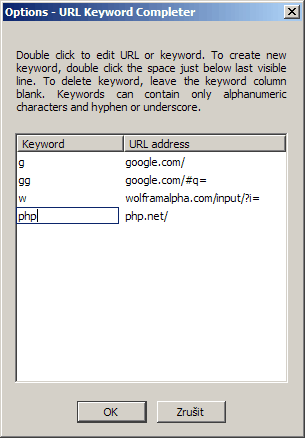
So how does it work in detail. Let us assume you set the keyword g to google.com. If you enter g and hit return in the address bar you are taken to google.com. If you enter g/maps you are taken to google.com/maps/ instead.
It also works in front of the keyword. Code.g for instance loads code.google.com. The extension uses its own options menu, to configure the keywords in there. This is done by opening the options of the add-on, and double-clicking to enter or edit keywords and url addresses.
Once done the keywords become immediately active. Firefox users who use keywords may find the URL Keyword Completer add-on useful, as it offers more flexibility than the original feature. The add-on is compatible with all Firefox 3 versions.
As others have pointed out, a similar feature exists in Firefox where you just need to right-click on a bookmark and select edit bookmark to add a keyword to it as well (in the bookmarks manager). The add-on may however be useful if you plan on assigning a number of keyboards to the browser.
Advertisement












I was wondering if any one new how to edit the extension to provide the revers results, for example: right now on a keyword gg with definition of “google.com/#q=”. Entering the “gg/searched_term will display
google.com/#q=searched. But i need it for sub domains so I want all results to diplay searchedgoogle.com/#q= I tried reading replace.js but could not find it any help appreciated.