
Firefox 4 Customization Roundup

With the Firefox 4.0 Beta just released it is necessary to talk about some of the design changes in that new browser version, especially since it seemed to have irritated or even upset part of the early adopters.
Now, the most obvious changes design wise are the new location of the tabbar and the new single Firefox button that has replaced the menubar in the browser. Both interface elements are visible on the following screenshot.
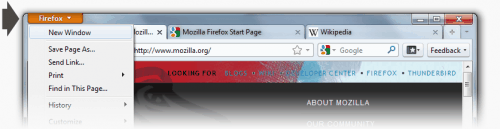
This is a big change, tabs have always been below the address bar in Firefox and the developer's intention was to place them in a more dominant position in the interface. The main problem with that approach is that the tabs are now further away from the mouse pointer which usually resides on the web pages and not the menu bars.
The Firefox button on the other hand feels totally out of place, especially since it is not holding the full menu of the browser but only selected elements of it in its drop down menu. It is not entirely clear how the other menu items are supposed to be accessed in Firefox.
Those are the two big changes and Firefox users have found several workarounds to improve the initial designs. This roundup lists the most interesting posts so far:
Firefox button
Remove Firefox 4.0's big, ugly, unmovable orange button: Sebastian over at the Download Squad has posted userChrome.css additions to change the appearance and location of the Firefox button.
* Locate your Profile directory -- click Help > Troubleshooting Information and then Open Containing Folder
* Now navigate to the Chrome directory
* Copy userChrome-example.css
* Rename your copy to userChrome.css
* Open userChrome.css your editor of choice and dump the following code in it:#appmenu-button-container {
position: fixed !important;
}
#appmenu-button {
padding: 3px 18px 3px 18px !important;
margin-top:3px !important;
background-color: rgba(54, 121, 166, 0.2) !important;
}
#navigator-toolbox[tabsontop="true"] #TabsToolbar {
padding-left: 95px !important;
}
#navigator-toolbox[tabsontop="true"] #TabsToolbar {
padding-left: 105px !important;
padding-top:1px !important;
padding-right:98px !important;
}
Most of the information posted in that article have been taken from a large Neowin forum thread about Firefox 4 Beta. The forum thread contains additional information and element changes, definitely worth a visit to modify the Firefox button in the browser.
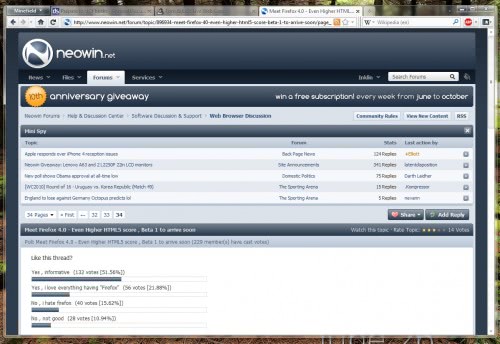
Users who do not want the Firefox button at all can get it removed by enabling the menubar again which restores the old menu and gets rid of the Firefox button completely. This can be done by right-clicking a free spot on the toolbar and selecting the menubar from the View menu that opens up.

The tabs on top can be easily reverted to their old position by right-clicking the toolbar again and clicking on the tabs on top entry there. This moves the tabbar below the Firefox address bar again.
Are there other features in the new Firefox 4 that you do not like the way they are currently implemented?
Advertisement










It’s really bugging me that in Win7 the taskbar icon treats open tabs as if they’re open windows. I just want to click on the icon and navigate to the tabs from within the browser, not from the taskbar.
Just don’t use Firefox 4 BETA (!!!) if you don’t like it.
Well, just press ALT to show the menubar below the Firefox button. Press ALT again to hide it.
Just goes to show, if you keep trying to make something perfect, sooner or later, you will surely screw it all up…
Exactly. From all mess what is now Firefox, UI should have been last on the list to be messed with.