
Five Quick Windows Tips

Some Windows tips are that short that I can't write enough to justify an article for them which is why I have decided to collect five quick Windows tips that are still very useful and probably not know to anyone reading this article. At least I hope that some of them are new to you.
These Windows tips require only a few lines to explain them and maybe a minute to apply them to a Windows computer; that's why I called this article quick Windows tips. If you like this kind of articles let me know and I will continue writing quick tips articles.
1. Start Internet Explorer 7 without add-ons
Just add the parameter -extoff when starting the Internet Explorer 7 using a shortcut or the command line. This will load Internet Explorer 7 without any add-ons.
2. Rename Recycle Bin
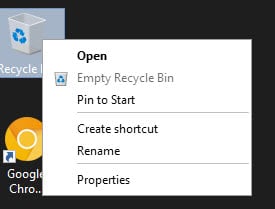
The Recycle Bin cannot be renamed by default. Open the Registry and go to the key HKEY_CLASSES_ROOT\CLSID\{645FF040-5081-101B-9F08-00AA002F954E}\ShellFolder and change the value of Attributes from 40 01 00 20 to 70 01 00 20. Go back to the Recycle Bin, left-click it and hit F2 to rename it afterwards. Might require a restart though.
Update: Please note that you can rename the Recycle Bin in newer versions of Windows by right-clicking it and selecting rename from the context menu.
3. Display all Symbols in System Tray
Windows displays only a handful of system tray icons at once. If you don't like this and would like to display every icon do the following. Right-click the start menu button and select Properties. Uncheck Hide Inactive Icons to display all icons. You could alternatively click on customize and select items that you always want to see.
Update: You need to use customize in never versions of Windows to display all system tray icons in the area as the "hide inactive icons" option has been removed.
4. Make sure all extensions for all file types are always shown
Even if you change the setting in Windows that all extensions should be shown even for known file types some extensions are not shown. A Registry attribute called NeverShowExt overrides the preference so that some extensions may still not be shown on the system. The solution? Delete all NeverShowExt attributes in the Registry and restart Windows afterwards.
5. Show all Devices in Device Manager
To display all devices in Device Manager even those that have been removed by the user do the following: Press Windows-R, type cmd and hit enter. Now enter the command set devmgr_show_non_present_devices = 1 and afterwards start devmgmt.msc. Click on View and select Show Hidden Devices. This is a non-permanent setting which means that the additional information are only displayed during the active session.














always interesting, those quick tips
Did the recycle bin trick…love it