
Automatically Kill Hung Applications

Windows can really sometimes annoy the hell out of me. Starting a new software that was recently installed and seeing it hang after the start with delayed reaction - if any at all - from the system can be really painful.
Hitting CTRL + Shift + ESC and waiting minutes before the Task Manager dialog pops up is not the number one solution to get rid of a process that is stuck in nirvana.
One way to get rid of those processes immediately or after a set time is to edit your Registry and change one or two values there. I had the chance to test this on Windows XP only but it is likely similar on other operating systems such as Windows 2000.
Open your Windows Registry with a tap on the Windows key, typing regedit and hitting enter on the keyboard. Depending on the version of Windows that you are running, you may receive an UAC prompt at this stage which you need to accept.
Navigate to the key HKEY_CURRENT_USER\Control Panel\Desktop and change the value of the key 'AutoEndTask' to 1.
If you want to set a time to wait until the kill process is executed you need to change the value of the key 'WaitToKillAppTimeout' to a value in milliseconds (which means 1000 is 1 second).
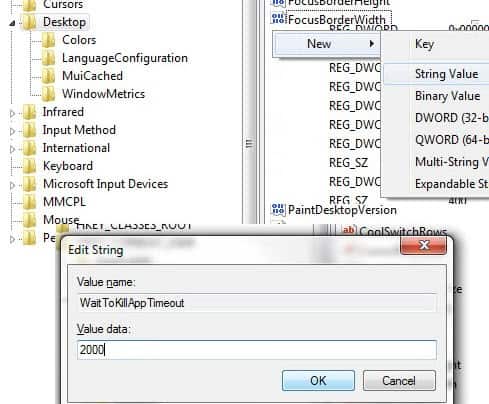
via: Technospot
Update: As some readers have pointed out, it is also possible to press Ctrl-Shift-Esc to bring up the Task Manager more quickly.
Update 2: The values are different in Windows Vista,Windows 7 and newer versions of Windows. In those operating systems you need to do the following (Please note that some keys may exist already depending on the system you are using).
- Navigate to the Registry key HKEY_CURRENT_USER\Control Panel\Desktop
- Select New > String after right-click and enter WaitToKillAppTimeout
- Double-click the entry and set it to 2000
- Select New > String after right-click and enter AutoEndTasks
- Double-click the entry and set it to 1
- Select New > String after right-click and enter HungAppTimeout
- Double-click the entry and set it to 1000
- Select New > String after right-click and enter LowLevelHooksTimeout
- Double-click the entry and set it to 1000
While this means that you will have to create four new strings for the same effect, it is good to know that you can still have Windows kill hung applications automatically.
Please note that you may lose data in the process if you worked before the freeze with the program. Then again, if the application does not recover, you may lose data as well.















Hmm, too bad: My AutoEndTasks is already set to 1…?
I’ve across this “tip” a dozen times. Don’t rehash old stuff.
Martin, I’m not sure I understand this.
Are the two keys connected and dependent on one another? In other words, do I need to set autoendtask to 1 in order to set the delay or should it be set to 0 and only then I will get the delay that I set in the other key?
Also, what does it mean “the process is terminated instantly”? How does the system know when a process is hung?
Thanks’
Joe
Do you about Process Lasso or Process Tamer?
Those are applications for “automatic priority management”. Both are about lowing priority of processes, consuming too many CPU time {and in such way allow to kill troubled app without much waiting}.
Process Lasso in addition
– can automatically raise priority for chosen process and make it work faster or not interruptable by other
– can boost foreground process priority
– has nice CPU usage or system responsiveness indicator
– can show memory usage and so on
So, when I start using Process Lasso, I throw out famous Process Explorer – not only because of problems I had with it, but because Process Lasso can replace it and do more for me {but looks not so good, heh :) }.
And both are free. I do not tets Process Tamer, because Lasso work fine.