How to fix RustDesk not working on Mac: waiting for image, mouse and permissions
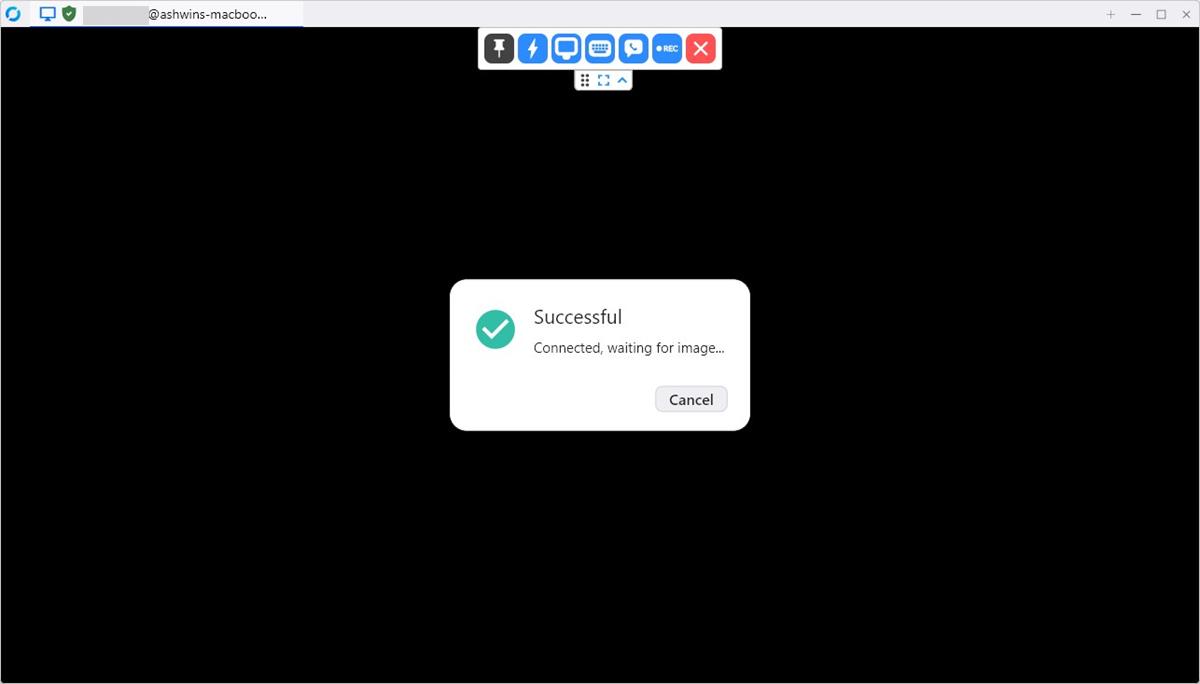
RustDesk on a Mac usually fails for one reason: macOS has not given it the Screen Recording, Accessibility and Input Monitoring permissions it needs. Without Screen Recording, the remote side shows "Connected, waiting for image" forever; without Accessibility and Input Monitoring, the mouse and keyboard do nothing. Grant all three in System Settings, restart RustDesk, and reset the permissions with tccutil if the toggles are already on but nothing changes.
This guide covers each fix in order: installing RustDesk for Mac correctly, the three permissions, the Terminal reset, mouse and click problems, a zoomed-in screen, and the non-permission causes of a black screen such as display sleep, codecs and blocked relay ports.
How to install RustDesk for Mac correctly
RustDesk for Mac is a free, open source remote desktop client distributed as a .dmg file, and most permission problems start with an incomplete install. The GitHub releases page offers two Mac builds: the aarch64 file for Apple Silicon (M-series) Macs and the x86_64 file for Intel Macs. Pick the one that matches your Mac, because the wrong build runs poorly or not at all.
- Open the downloaded .dmg file.
- Drag RustDesk into the Applications folder. Do not run it from the disk image or from Downloads, since macOS ties permissions to the app's location.
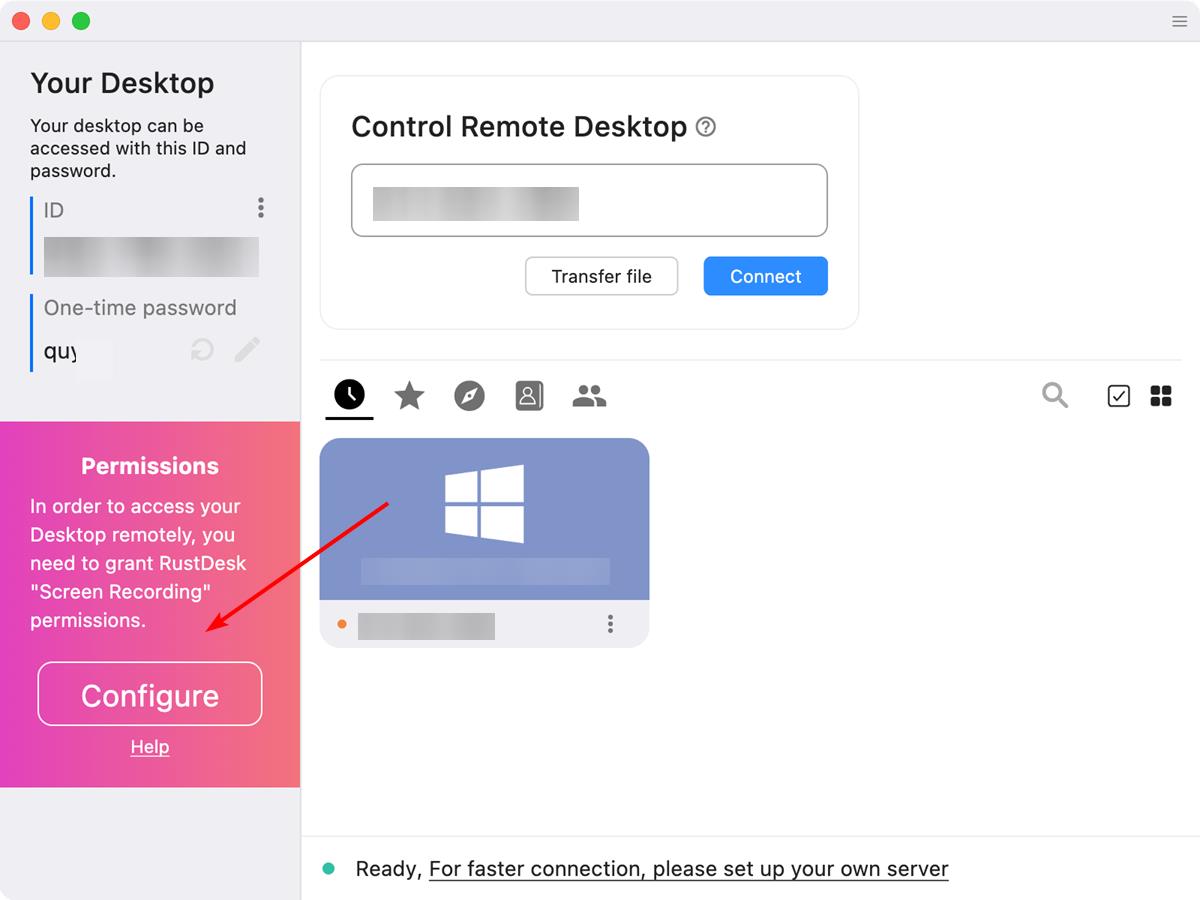
- Launch RustDesk from Applications and follow the prompts in the left sidebar of the main window, which list the permissions that are still missing.
- If Gatekeeper blocks the app, open System Settings > Privacy & Security and allow apps from the App Store and identified developers, as the RustDesk Mac documentation describes.
Install the same, current RustDesk version on both the Mac and the computer that connects to it. RustDesk's own troubleshooting notes say several black-screen reports disappeared after both ends were updated.
Which macOS permissions RustDesk needs
RustDesk needs three macOS privacy permissions on the Mac that is being controlled, and each one fixes a different symptom. All three live under System Settings > Privacy & Security.
| Permission | What it does for RustDesk | Symptom when missing |
|---|---|---|
| Screen Recording | Captures the Mac's display for the remote viewer | "Connected, waiting for image" or a black screen |
| Accessibility | Lets the remote side move the pointer, click and type | Image appears, but mouse and keyboard do nothing |
| Input Monitoring | Allows input capture under newer macOS security rules | Clicks or key presses fail or behave erratically |
To grant them, open each section, switch on the toggle next to RustDesk, and quit and reopen the app. On recent macOS versions the screen capture entry may be labelled Screen & System Audio Recording. If RustDesk is not in a list, click the + button and select it from Applications. If the toggle is on but RustDesk still warns, select RustDesk, remove it with the - button, and add it back with +. Quit every RustDesk instance first, including the RustDesk service icon in the menu bar, so the new permission is picked up.
How to fix RustDesk "Connected, waiting for image" on Mac
"Connected, waiting for image" means RustDesk has connected the two computers, but no video frames are reaching the viewer. On a Mac, the most common cause is a Screen Recording permission that macOS has not applied, even when the toggle looks enabled. That happened in our original case: the toggles under Privacy & Security were on, a reboot did not help, and the session still hung on the waiting message.
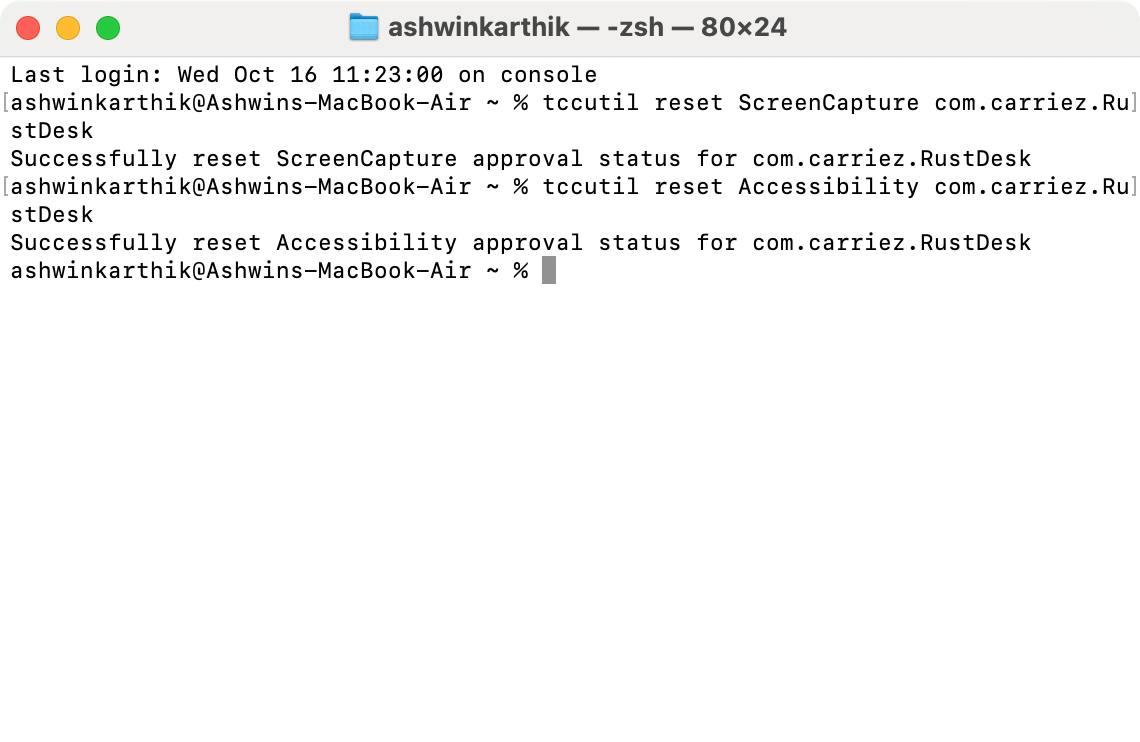
The fix that worked is the permission reset from the RustDesk Mac documentation, which clears RustDesk's entries in the macOS Transparency, Consent, and Control (TCC) database so you can grant them fresh.
- Quit RustDesk completely, including the menu bar service.
- Open Terminal (Applications > Utilities).
- Run
tccutil reset ScreenCapture com.carriez.RustDeskand press Enter. - Run
tccutil reset Accessibility com.carriez.RustDeskand press Enter. - Restart the Mac. RustDesk's documentation notes the reset does not take effect without a reboot.
- Open RustDesk and grant Screen Recording and Accessibility again when macOS asks.
The commands only reset RustDesk's own permissions; com.carriez.RustDesk is the app's bundle ID. Other apps keep their settings.
Other causes of a black screen in RustDesk
If permissions are correct and RustDesk still shows a black screen or waits for an image, the cause is usually the display, the video codec or the network. RustDesk's waiting for image troubleshooting guide lists these checks:
- Display asleep: stop the Mac's display from sleeping in System Settings (Displays and the macOS Lock Screen settings) and keep a MacBook on power during remote sessions.
- Login window: the screen stays black before anyone logs in unless the RustDesk service is installed to run before login.
- No monitor: a headless Mac mini needs a connected display or an HDMI dummy plug so there is a framebuffer to capture.
- Codec: in the session toolbar or Settings, switch between VP8, VP9, AV1 and H.264/H.265, or turn off "Use hardware codec" to fall back to software encoding.
- Network: TCP ports 21115 to 21117 and UDP port 21116 must be reachable; the free public relay has no guaranteed throughput, so a self-hosted server is more reliable for daily use.
There is also a known Mac-to-Mac case where the remote image appears but the waiting overlay never disappears. In that GitHub issue, updating both clients helped some users, and others avoided it by enabling keyboard and mouse control only after the connection was made.
How to fix RustDesk mouse not working or can't click on Mac
When the remote screen appears but the mouse does not move or clicks do nothing, RustDesk is missing the Accessibility or Input Monitoring permission on the controlled Mac. Check both:
- Open System Settings > Privacy & Security > Accessibility and switch on RustDesk.
- Open System Settings > Privacy & Security > Input Monitoring, click +, add RustDesk from Applications and switch it on.
- Quit RustDesk, including the menu bar service, and open it again.
- If clicks still fail, run the Accessibility tccutil reset from the section above and reboot.
Two RustDesk settings can also block input. First, the controlled computer can deny keyboard and mouse access in its security permissions, so make sure that option is enabled for incoming sessions. Second, if typing behaves oddly, the RustDesk Mac documentation points to the "Input source 2" option in the keyboard menu of the session toolbar, available since version 1.2.4.
How to fix a zoomed-in RustDesk screen on Mac
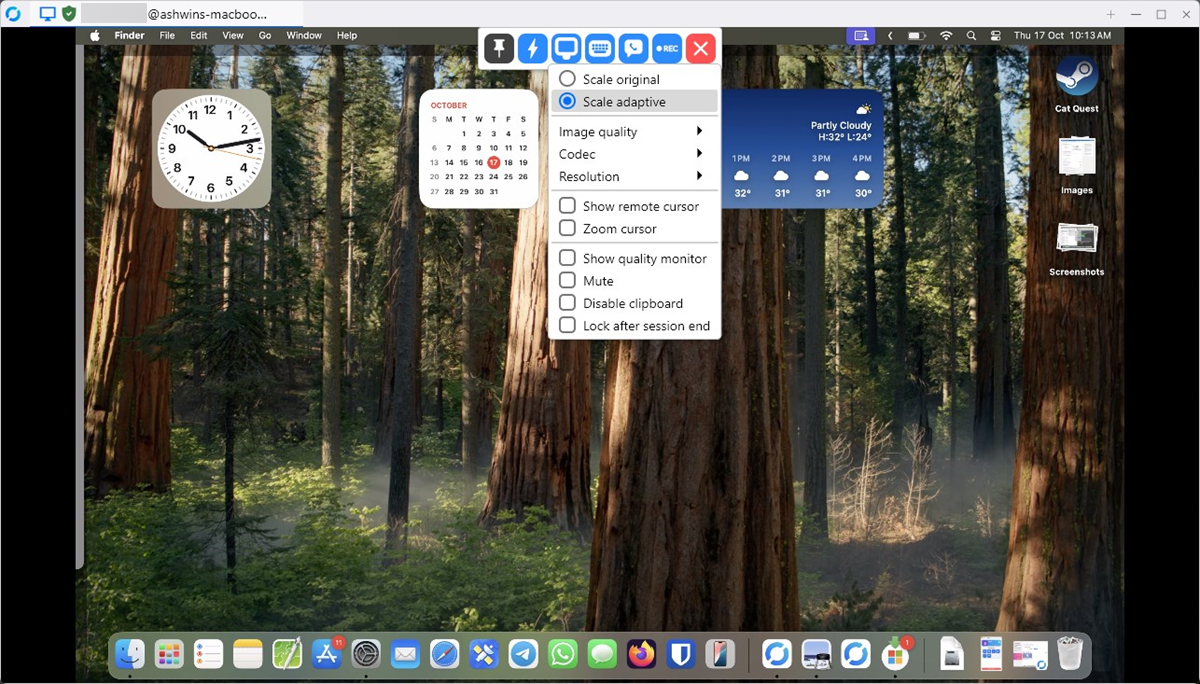
A Mac screen that looks zoomed in or cut off in RustDesk is shown at its original 1:1 resolution instead of being scaled to your window. Switch the view style to adaptive:
- During the session, open the toolbar at the top of the remote window (click the small down arrow if it is collapsed).
- Click the monitor icon to open the display options.
- Choose Scale adaptive. The Mac's screen now fits the window on your local monitor.
To make adaptive scaling the default for every session, set the default view style to adaptive under Settings > Display in RustDesk. Retina Macs are the most affected, because their high native resolution looks oversized at 1:1 on a regular monitor.
FAQ
Does RustDesk work on Apple Silicon Macs?
Yes. RustDesk publishes a native aarch64 build for Apple Silicon Macs next to the x86_64 build for Intel Macs on its GitHub releases page.
Why are RustDesk settings greyed out?
RustDesk locks its network settings, such as the ID and relay server fields, until you unlock them. Open Settings > Network and click Unlock Network Settings, then edit the fields; you may be asked for an administrator password.
Is RustDesk safe to use on a Mac?
RustDesk's client code is open source, but by default sessions are brokered by public servers listed in the project's README, a point some users have raised privacy concerns about. If that matters to you, run your own RustDesk server and point the client to it.
Can RustDesk access a Mac at the login screen?
Only if the RustDesk service is installed so it runs before a user logs in. Without it, the session shows a black screen until someone logs in locally.
Related: virtual machine software for testing apps, using Stage Manager on macOS, privacy scripts for macOS, Windows and Linux

I don’t think any Mac users would be reading ghacks, the comments are full of cheapskates who can’t even afford streaming services let alone afford an expensive computer like that.