
Don't Reset!

This is a incredibly handy little tip that I found over at APC Magazine.
When you’ve been working on your computer for a day or two and it’s starting to slow down and is struggling to open the start menu then it’s probably time to reset. Resetting clears the RAM and gets the system running fresh again.
The Anonymous writer of Shipping Seven also had this suggestion:
Windows occasionally gets into a weird state where, well, things just stop working - the start menu doesn't launch some apps anymore, clicking links in Internet Explorer doesn't work, context menus stop working, etc.*
Instead of rebooting Windows to get things working again, try logging out and logging back in. When Windows (and the apps that plug into the Windows shell) get into some weird state, you don't need to reboot; a logoff shuts down the Windows Explorer, and a logon loads it again.
This used to happen to me every now and again, but since SP1 It hasn’t happened once.
Alternatively there is a much easier way to get your computer running smoothly again and remove all the idle processed.
- Create a new shortcut on the desktop
- In the input field type: %windir%\system32\rundll32.exe advapi32.dll,ProcessIdleTasks
- Click ‘next’ and name the shortcut.
- When this shortcut is run the system should stop for a few seconds as it reclaims RAM before speeding up again as you use it.
There is another alternative that you may want to try out when Windows starts acting strange all of a sudden. Instead of logging off and on again, restarting Windows or running the command listed above, you could simply try killing the explorer process in the Windows Task Manager.
Simply use Ctrl-Shift-Esc to load the Task Manager. There you need to locate the explorer.exe (Windows Explorer) process, right-click on it using your mouse and select restart if the option is provided.
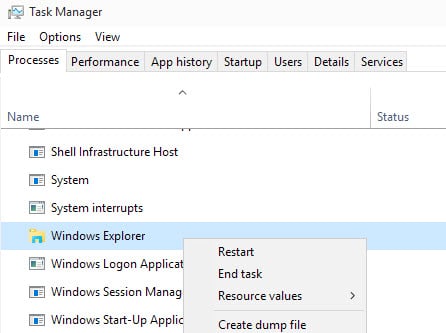
Restart may not be an option on older versions of Windows. Select "End task" instead in this case, and then File > Run new Task. Type explorer.exe and hit enter on the screen to launch a new Explorer instance this way.
Hope you find this useful.
















This shortcut works. “RAM Cleaners” are a scam and most of the time slow your system.
Another excellent freeware, set it and forget it:
CleanMem
http://www.pcwintech.com/tools/CleanMem.html
Cool, seems to help!
However, “SweepRAM” does a better job, IMHO!
Basically, SweepRAM kicks everything into the SwapFile (once – it doesn’t stay running), and the running software takes back ONLY what it REALLY needs – It ‘cleans up’ after ‘memory leakage’, plus many progs grab more memory than they really need – They assume ‘worst case scenario’, which is often too much for routine usage!
To test, open Task-Manager showing “Memory Usage” & “VM Size” columns, and run SweepRAM, which ‘Cleans & Exits’, it’s not resident! Big Cleaning! ;-)
http://88.191.26.34/computers_are_fun/sweepram/
I’m agree with Rarst:
If 1-2 days slow down computer – it’s time to clean up and question selection of apps used.
I used to have more than week without reboot, and record time is more than 20 days.
Lol I have tried it, but it seems to do nothing, but okay, there was also no reason to reset.
I will click again on the button when vista really slow down and lets see what it does :)
Day or two? :) Windows XP SP2 is incredibly stable (talking non-server of course). Last time I ran into problems (some weird leak created trouble with network connections) after 40+ (forty) days of uptime.
If 1-2 days slow down computer – it’s time to clean up and question selection of apps used.
There’s even better way to use this tip: you can just set it as a task in Task Scheduler – and run it e.g. twice a day, at 10 am and 8 pm.
This tip has been there forever but doesn’t really work well, sometimes it’s not just the ram that is slowing down.