How to block website notifications in Chrome, Edge, Firefox and other browsers

To block notifications from websites, open your browser's notification settings and stop sites from asking. In Chrome, load chrome://settings/content/notifications and select "Don't allow sites to send notifications". In Edge, load edge://settings/privacy/sitePermissions/allPermissions/notifications and turn off "Ask before sending (recommended)". In Firefox, check "Block new requests asking to allow notifications". Then remove every site in the allowed list, because blocking new requests does not revoke permissions you already granted.
This guide covers the settings address for each major browser, the desktop and mobile steps, how to keep notifications from the few sites you want, and what to do when spam notifications keep appearing after you blocked them.
Tip: you can also block notifications on the operating system level. See the guide on disabling all or specific notifications in Windows 11.
Notification settings addresses for every browser
Every major desktop browser has an internal page for notification permissions, and pasting its address into the address bar is the fastest way to block notifications. Chromium-based browsers share the same settings path, with the browser name as the prefix: chrome://, brave://, opera:// and so on. Edge uses a longer path, and Firefox keeps notifications on its privacy page.
| Browser | Address to paste | Setting to choose |
|---|---|---|
| Google Chrome | chrome://settings/content/notifications | Don't allow sites to send notifications |
| Microsoft Edge | edge://settings/privacy/sitePermissions/allPermissions/notifications | Turn off "Ask before sending (recommended)" |
| Mozilla Firefox | about:preferences#privacy | Notifications Settings, then "Block new requests asking to allow notifications" |
| Brave | brave://settings/content/notifications | Don't allow sites to send notifications |
| Opera | opera://settings/content/notifications | Don't allow sites to send notifications |
| Vivaldi | Settings, Privacy and Security, Website Permissions | Set Notifications under Global Permissions to Block |
| Safari (Mac) | Safari, Settings, Websites, Notifications | Deselect "Allow websites to ask for permission to send notifications" |
If a browser is not listed and is based on Chromium, try its own prefix followed by settings/content/notifications. The notifications page is one of many Chrome content settings that control what sites may do.
How to block notifications in Google Chrome
Google Chrome blocks all website notifications when you set the default behavior on its Notifications page to "Don't allow sites to send notifications".
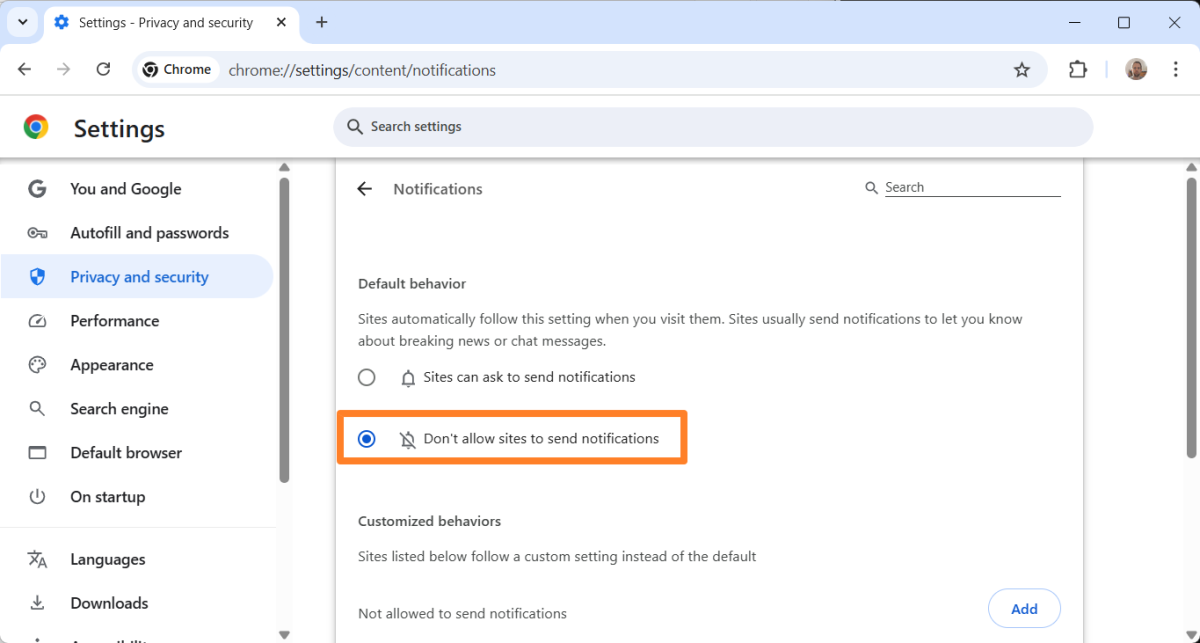
- Load chrome://settings/content/notifications in the address bar, or open Menu > Settings > Privacy and security > Site settings > Notifications.
- Under the default behavior, select "Don't allow sites to send notifications".
- Check the "Allowed to send notifications" list. Click the three dots next to each site you no longer want and remove or block it.
- Optional: to keep one site, click Add next to "Allowed to send notifications" and enter its address.
If you prefer to keep requests but stop them from interrupting you, leave sites allowed to ask and select "Use quieter messaging". Chrome then shows requests as a bell icon next to the address instead of a pop-up. Chrome also acts on its own: it blocks notifications from sites it marks as intrusive or misleading, and it may remove the permission from sites you have not visited in a while. Safety Check lists those removed permissions.
The same steps apply to Brave and Opera, which use the identical Chromium settings page under their own address prefix.
How to block notifications in Microsoft Edge
Microsoft Edge stops all notification requests when you turn off "Ask before sending (recommended)" on its Notifications permission page.
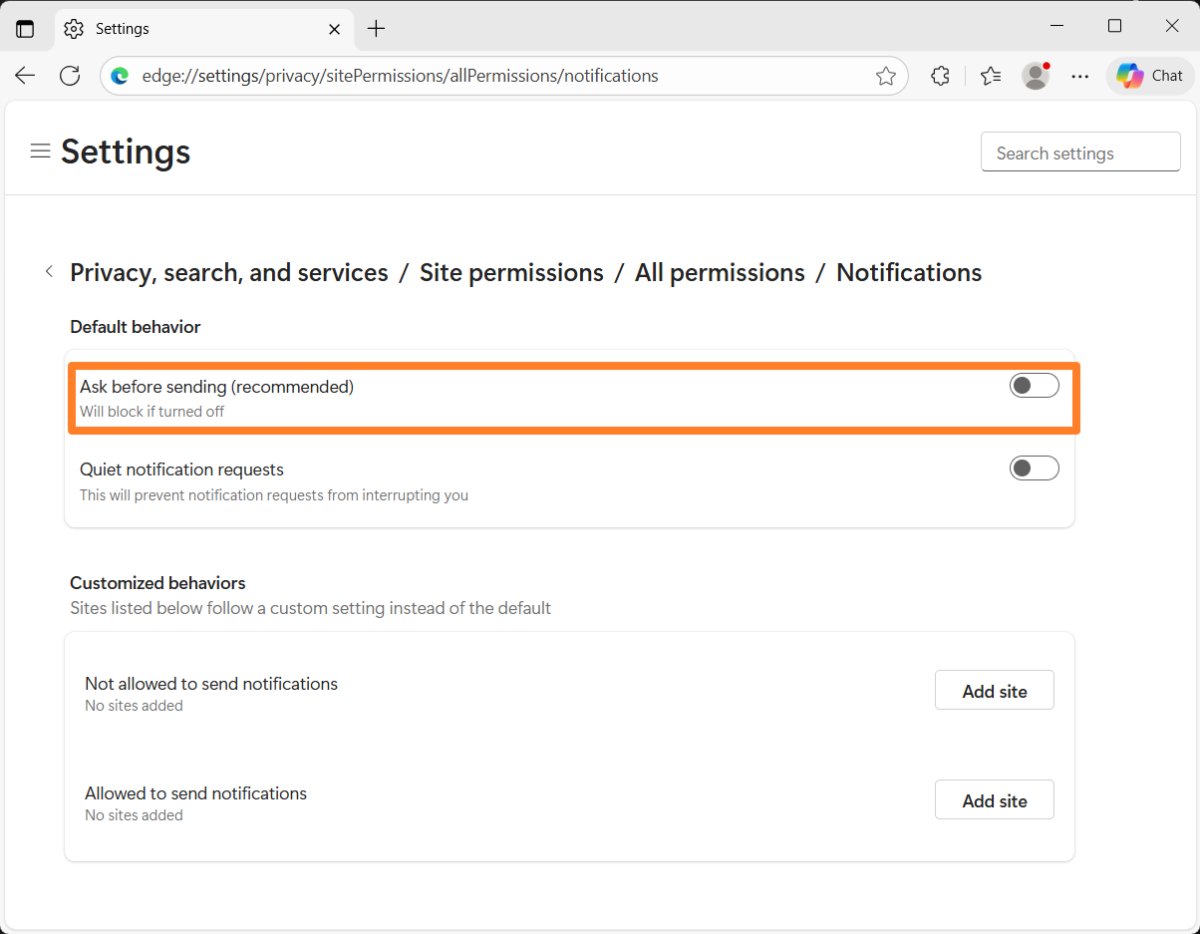
- Load edge://settings/privacy/sitePermissions/allPermissions/notifications, or go to Settings and more > Settings > Privacy, search, and services > Site permissions > All permissions > Notifications.
- Turn off "Ask before sending (recommended)".
- Review the Allow list and remove sites you no longer trust. Add any site you want to keep to the Allow list.
To block a single site, click the site information icon to the left of the address bar while you are on it, and set Notifications to Block. Microsoft documents this per-site method, and the All sites list under Site permissions, in its Edge website notifications help page.
How to block notifications in Mozilla Firefox
Mozilla Firefox blocks every future notification prompt once you check "Block new requests asking to allow notifications" in its notification settings.
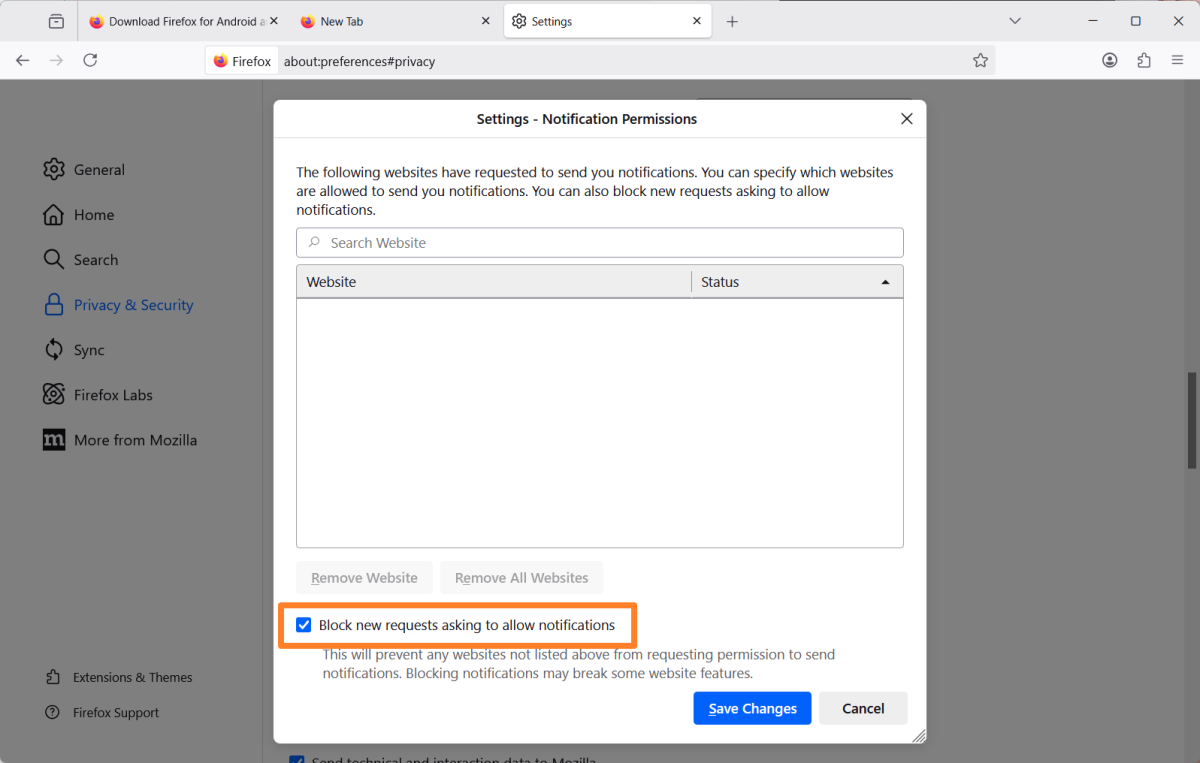
- Load about:preferences#privacy, or open Menu > Settings > Privacy & Security.
- In the Permissions section, click Settings next to Notifications.
- Check "Block new requests asking to allow notifications".
- Select unwanted sites and click Remove Website, or click Remove All Websites. To stop a listed site from asking again, set its Status to Block instead.
- Click Save Changes.
Exceptions still work: open a site you trust, click the permissions icon in the address bar, and set Send Notifications to Allow. Mozilla explains the options in its Web Push notifications support article.
How to block notifications in Opera, Vivaldi and Safari
Opera, Vivaldi and Safari each have a global switch that stops all sites from asking for notification permission.

- Opera: load opera://settings/content/notifications, or go to Menu > Settings > Privacy & security > Site settings > Notifications, and select "Don't allow sites to send notifications". Remove sites from the allowed list with the three dots menu.
- Vivaldi: open Settings > Privacy and Security > Website Permissions, keep Global Permissions selected and set Notifications to Block. Sites listed with their own setting can be changed individually, as described on the Vivaldi website permissions help page.
- Safari on Mac: choose Safari > Settings > Websites > Notifications and deselect "Allow websites to ask for permission to send notifications". To silence a site you already allowed, open System Settings > Notifications, select the site under Application Notifications and turn off Allow Notifications, per Apple's Safari guide.
How to block website notifications on Android and iPhone
Mobile browsers block website notifications in their site settings, and Android lets you switch off the browser's notifications entirely as a fallback.
- Chrome for Android: tap the three dots menu > Settings > Site settings > Notifications and switch the setting at the top off. To keep requests but silence pop-ups, tap "Use quieter messaging". For a single site, open it, tap the Page info icon left of the address bar and then Permissions.
- Firefox for Android: tap the three dots menu > Settings > Site permissions > Notification and choose Blocked, per Mozilla's Firefox for Android notifications article.
- Edge, Brave, Opera and Vivaldi on Android: look in the browser's Settings for Site settings or Notifications. If you cannot find a global switch, turn off notifications for the browser app in Android's app settings, which blocks everything the browser shows, including site notifications.
- iPhone and iPad: websites in a Safari tab cannot send push notifications. Only web apps added to the Home Screen can, a feature Apple added in iOS 16.4. Such web apps appear as their own entries in the iPhone notification settings, where you can turn them off.
Why spam notifications keep appearing after you blocked them
Spam notifications that continue after you blocked new requests come from a site that already has permission, because the block setting only stops future prompts. Many sites use fake prompts such as "click Allow to verify you are not a robot" to collect that permission, and the site then pushes ads or scam alerts even when it is closed.
Use this checklist to stop them:
- Note the site address shown in the notification itself; browsers usually display the sending domain.
- Open the allowed list for your browser using the addresses in the table above and remove that domain. If you do not recognize several entries, remove all of them.
- Check other browsers and profiles on the same device. Each one keeps its own permission list.
- If notifications continue and the domain is not in any allowed list, check installed extensions and remove ones you did not install, since extensions can show notifications too.
After the cleanup, keep the global block on and add exceptions only for sites you actually want to hear from, such as webmail or a chat service.
FAQ
Does blocking notifications in the browser block them in Windows?
No. The browser setting only controls website notifications. Windows app notifications, including those from the browser itself, are managed in the Windows notification settings.
Can I block notification prompts but allow one site?
Yes. Every browser in this guide keeps an allow list or per-site setting that overrides the global block, so add the site you trust there before or after you block all requests.
Which address opens the notification settings in Edge?
Use edge://settings/privacy/sitePermissions/allPermissions/notifications. If a shorter address such as edge://settings/content/notifications does not open the page in your Edge version, go through Settings > Privacy, search, and services > Site permissions instead.
Related: list of Chrome internal URLs and their purpose, enable secure DNS in Chrome, Brave, Edge and Firefox, restart Chrome without extensions

Google Chrome (Desktop)
Open chrome://settings/content/notifications
Turn off: “Sites can ask to send notifications”
This completely disables notification prompts.
Chrome (Android)
Go to Settings > Site settings > Notifications
Toggle off “Notifications”
Or disable “Sites can ask to send notifications.”
Chrome (iPhone/iPad)
Safari controls notifications on iOS. See Safari section below.
? Microsoft Edge (Desktop)
Visit edge://settings/content/notifications
Switch off: “Ask before sending (recommended)”
It will change to “Blocked.”
Edge (Mobile)
Settings > Privacy and security > Site settings > Notifications
Turn off “Notifications.”
? Mozilla Firefox (Desktop)
Open menu ? Settings
Go to Privacy & Security
Scroll to Permissions ? Notifications
Click Settings…
Check: “Block new requests asking to allow notifications.”
Click Save Changes
Firefox (Android)
Tap menu ? Settings
Notifications
Toggle off Website Notifications (if available)
? Safari (macOS)
Open System Settings
Go to Notifications
Select Safari in the app list
Disable “Allow Notifications”
You can also block site prompts directly in Safari:
Open Safari
Go to Settings ? Websites ? Notifications
Uncheck “Allow websites to ask for permission to send notifications.”
Safari (iOS/iPadOS)
Settings ? Safari
Scroll to Settings for Websites
Tap Notifications
Toggle off “Allow Notifications.”
? Opera (Desktop)
Go to Settings
Search for Notifications
Under Privacy & Security ? Site Settings ? Notifications
Disable “Sites can ask to send notifications.”
It was predictable that web sites would abuse the notification feature. It’s typically the first thing I do with a web browser is turn off all notifications. Some sites still offer drop down prompts to remind you to enable notifications. I have never found a web site to have information so important that I needed to be notified right away.
@Martin
Can you suggest any phones that specifically do not have AI?
On my Moto G 2025 it is getting forced upon me. Now the power button opens the assistant instead of the power menu. I’m, sure soon I won’t even be able to answer a phone call without using the AI.
My only choices are to put up with it or get a different device. I don’t need much.
Voice calls, Texting, Navigation, A local file music player to use over BT in my auto.
It would also be nice to be able to sync with my google docs and calender, if that’s possible with allowing google to invade the OS.
I’m not AI-Phobic, I have a 12b LLM running “locally” on my desktop that I’ve become quite fond of. It’s all these outside sources forcing theirs on us for their benifit while trying to make us believe it’s for ours.
@Tachy–Samsung Galaxy S20 Ultra; MC says the Motorola Moto G Power (2025) doesn’t have AI. Top pick–OnePlus 13!
https://www.ebay.com/b/Samsung-Galaxy-S20-Ultra-5G/9355/bn_7116511182
One will run in software phase out on the Samsung; it’s so old. Pixel 7. Get a flip, but it won’t offer everything you want: TCL Go Flip 2.
Courtesy Mistral AI Chat.
The only thing you can do is choose a phone that can install custom ROMs and install one that doesn’t have AI enabled by default.
I think even budget smartphones have some AI features now but I don’t have such so I can’t confirm it. The other option is getting a dumbphone with a keypad.
Just make sure that custom ROM supports your phone model. You do not want ROM installation to fail half way and make your phone unusable.
Thanks, helpful–maybe. I find it somewhat odd-funny that companies, sites, would allow the webmaster to include all the garbage I run across–sign in with Google (big chunk of junk in upper right hand corner); a drop down “get instant 10% today–just enter your email”–totally annoying.
And what I don’t see on so many sites: How to contact us. It’s typically at the bottom of a site, but recently I’ve found it faster to perform a quick search on DDG and let “Search Assist” give me the information.
Some super horrific site designs with loads of unneeded elements blocking the information I went to the site to find. That’s where AI is going to trample the old search and visit design.