Finally! Microsoft is making AI useful in Windows by introducing AI agents
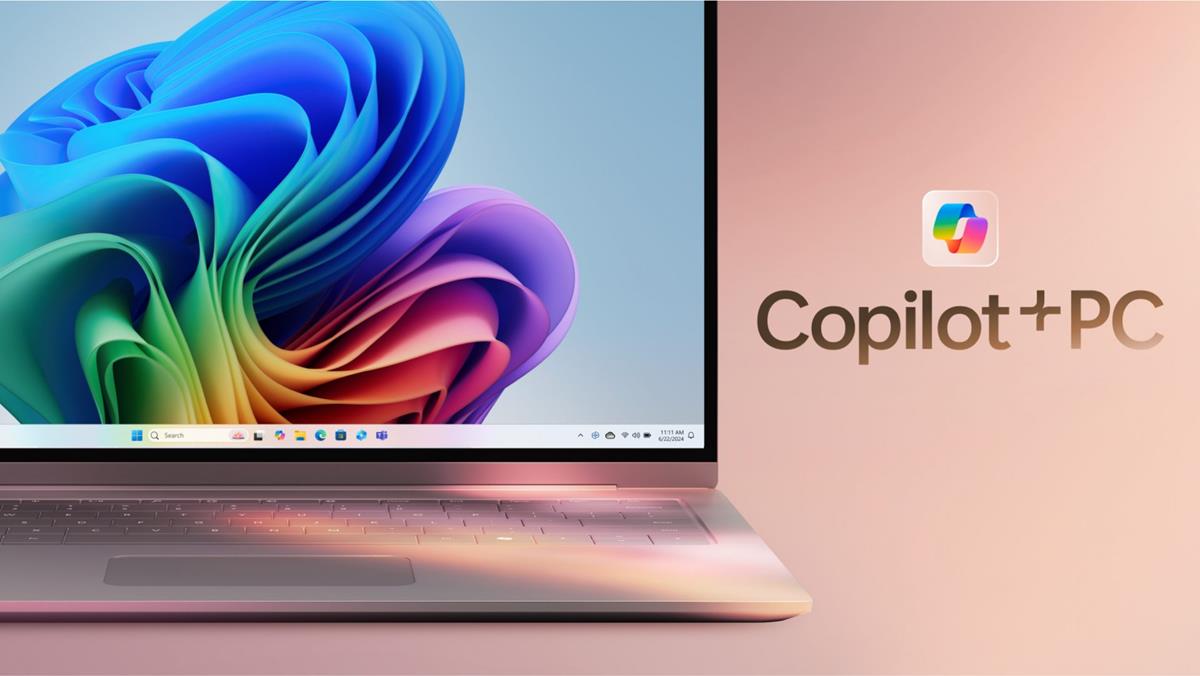
When Microsoft announced the first batch of AI features in Windows last year, it did not introduce many Windows-specific AI features. The initial integration of Copilot in Windows supported a few basic options to make changes to Windows, but that was about it. Microsoft replaced this version of Copilot later on with a generic version that worked like the web version and did not support any Windows-specific features.
Recall, Microsoft's big hope regarding AI in Windows backfired, as privacy and security fears forced Microsoft to go back to the drawing board.Now, Recall is making a comeback and so are other AI features that are specific to Windows.
One of them was just announced, and it could pave the way for improve usability and administration of the operating system. Microsoft just announced the addition of an AI agent to Windows Settings.
AI agent in Windows Settings

The main idea here is to allow users to describe what they want to achieve using natural language. Say, you would like to increase the size of the font that Windows users to display text, or disable the annoying Copilot icon on the taskbar. Previously, you had to type a search term that matches the request, or locate the option manually.
Now, at least on Copilot+ PCs, you can use natural language and Windows will guide you to finding the setting. Even better, Microsoft says that the agent can perform the action on your behalf, provided that you give it the green light to do so.
Microsoft writes: "With this update to Settings, you will be able to simply describe what you need help with like, “how to control my PC by voice” or “my mouse pointer is too small” and the agent will recommend the right steps you can take to address the issue. With your permission and at your initiation, it can even complete the actions to change your settings on your behalf".
Writing "Control my PC with voice" or "my text is too small" will return the right setting on PCs that support the feature.
Here is a short demo video that Microsoft published on YouTube that highlights the new feature:
The initial version of the AI agent is launching on Windows Insider Copilot+ PCs. It supports English only, but this is going to change in the future.
Closing Words
The appeal of AI in Windows was limited until now. The Copilot feature was the same that you got on the web, and there was not much else to be excited about up until now.
The new AI agent in Settings changes that. It adds a feature that Windows users will find useful, as it helps them find the right setting option. Clearly, this needs to work very well to be useful.
Now You: what is your take on this new AI feature in Windows? Would you like to see AI baked into other parts of the operating system? Feel free to leave a comment down below.

We all know the only reason they would do this is to turn back on the shit we turn off.
While AI Agents could definitely be the long sought killer app for “AI, there are some issues … as long as it’s strictly on your systems, that’s fine. but also not very helpful.
If the agents are restricted to your own system but in an multi-user environment, they also need some kind of access control, eg to prevent coworkers are your prankster-“friends” from shouting: format the hard disk, just for the lols, while you are working the last pages of your PhD thesis (yes you are not THAT stupid and have billions of back-up copies, just in case … nonetheless it would be a pretty annoyance)
If the AI voice recognition is couple with biometrics for voice identification to verify access, then this gets forensically very, very interesting. Some people may not like this.
But it gets really interesting, once the agent’s are no longer restricted to your system, and can perform actions on your behalf on the internet, including interacting with other agents. This could be an incredible efficient booster, as that may allow automating tasks, which are quite difficult to script, or automate otherwise.
In that case, there are 2 options:
– every transaction must be formally consented by the user
this is the secure way, but would reduce a lot of the potential efficiency gains.
– the AI agent can autonomously perform transactions
this results in max efficiency gains, but any program makes mistakes (like every human).
Not sure if one is happy, if the agent is tricked into subscribing into some weird service, that one can never get rid of or do worse things (if scammers and marketeers can scam people, then they can surely much easier scam non-sentient agents).
As long as there is perfect control over these agents and everything is transparent and there is a proper security system in place, that’s a great thing.
Otherwise we know, that this is exactly how MS will NOT implement it.
I really don’t want this crap on my devices, desktop, laptop, smartphone…
Co_Pilot Response:
“disable the annoying Copilot icon on the taskbar”
I hear you! If you’re on Windows 11, you can hide the Copilot icon from the taskbar. Here’s how:
1. **Right-click on the taskbar** and select **Taskbar settings**.
2. Scroll down to **Taskbar items**.
3. Find **Copilot**, then toggle the switch **off**.
That should do the trick! Let me know if you need more help.
ChatGPT Response:
To disable the Copilot icon on the Windows taskbar (Windows 11), follow these steps:
Option 1: Via Taskbar Settings
Right-click on the taskbar.
Click “Taskbar settings.”
In the Taskbar settings window, find the Copilot (preview) toggle.
Turn it off.
This will remove the Copilot icon from your taskbar.
Option 2: Using Group Policy (for Pro/Education/Enterprise Editions)
Press Win + R, type gpedit.msc, and press Enter.
Navigate to:
Computer Configuration > Administrative Templates > Windows Components > Windows Copilot
Double-click “Turn off Windows Copilot”.
Set it to Enabled, then click Apply and OK.
Restart your computer.
Option 3: Using Registry Editor (for all editions)
?? Be cautious editing the Registry. Backup first.
Press Win + R, type regedit, and press Enter.
Navigate to:
HKEY_CURRENT_USER\Software\Policies\Microsoft\Windows\WindowsCopilot
If the WindowsCopilot key doesn’t exist, right-click and create it.
Inside it, right-click ? New ? DWORD (32-bit) Value ? Name it: TurnOffWindowsCopilot
Set the value to 1.
Restart your computer.
Would you like help creating a quick registry script or doing this via PowerShell?
yes
Here’s a quick and safe PowerShell script you can run to disable the Copilot icon using the Windows Registry:
# Create the registry path if it doesn’t exist
New-Item -Path “HKCU:\Software\Policies\Microsoft\Windows\WindowsCopilot” -Force | Out-Null
# Set the TurnOffWindowsCopilot value to 1
Set-ItemProperty -Path “HKCU:\Software\Policies\Microsoft\Windows\WindowsCopilot” -Name “TurnOffWindowsCopilot” -Value 1 -Type DWord
# Notify the user
Write-Host “Copilot has been disabled. Please restart your computer for changes to take full effect.” -ForegroundColor Green
How to Run It
Right-click the Start menu, choose Windows Terminal (Admin) or PowerShell (Admin).
Copy and paste the script above into the terminal.
Press Enter.
Restart your PC to fully apply the change.
Would you like a .reg file version instead for easy double-click execution?
yes
Windows Registry Editor Version 5.00
[HKEY_CURRENT_USER\Software\Policies\Microsoft\Windows\WindowsCopilot]
“TurnOffWindowsCopilot”=dword:00000001
How to Use It
Open Notepad.
Copy and paste the code above.
Click File > Save As.
In the “Save as type” dropdown, select All Files.
Name it: Copilot_Disable.reg
Save it to your Desktop.
Double-click the file to run it.
Click Yes when prompted by User Account Control and the Registry Editor.
Restart your PC.
Would you like a companion .reg file to re-enable Copilot later if needed?
yes
Windows Registry Editor Version 5.00
[HKEY_CURRENT_USER\Software\Policies\Microsoft\Windows\WindowsCopilot]
“TurnOffWindowsCopilot”=dword:00000000
One gets the idea . . .
ChatGPT–good alternative if one wants some more information. Agent AI–what was that show? Agent Maxwell Smart?
Actually there were 2 “Get Smart” TV-shows, the original from the mid- to end-60s and a short-lived reboot from 1995. Additionally there were at least 2 movies, including 1980’s “The nude bomb”.
To this day I still prefer using my shoe to phone people instead of using a smartphone, because it otherwise always looks so silly, when speaking into the mic on top of the phone.
To my knowledge, Windows settings and setting for most browsers have very robust search functions already. I can type “font” and it will give you a list of all different “font” related settings/functions. Simplifying things even further will remove any critical thinking out of computer management. Computer is not a toaster. Please do not make it one.
About removing comments. It should be limited to spams, scams, and calls/support for violent crimes. I do not agree with many people here, but I do not want to deplatform anybody for a bad joke or unpopular opinion. But you know, he could be a random bot. What are the latest stats? :90% of comments on message boards/ social media are bots. So do not get too exited.
It won’t be long before that excitement turns into disappointment – MS “AI” has been AS “Artificial Stupidity” since day one , I mean just look at Windows, after 50 years the garbage OS gets worse instead of better year after year. Whoever thinks that MS will come up with a decent product ever is just delusional and should join the MAGA psychopaths.
Martin, why are you so naïve about Copilot embedded on Windows? I mean, it’s f***ing Microsoft! Don’t illusion yourself about them! They can (and will) let you down in a blink of an eye!
If you need assistance from AI, or anything, to effectuate the changes the article uses like changing a font, maybe get some other type of help.
Also please nobody comment that some older people need help with their PCs. Someone in their 60’s today would have been using Windows since 3.1 was the new hot stuff.
Martin, after reading this comment, I believe your site would be better if you would allow your users to be able to block posts from selected users.
ghacks.net##.comment-item:has-text(user name)
Paste this inside of ublock origin under my filters. Copy the user name of the user who’s comment you don’t want to see and put it in place of user name in the quotes, keep the quotes there. It is case sensitive so copy and paste is easier. This will stop only you from seeing their comments.
Block posts from selected users, you mean comments.
So you decide who gets to comment here?
Pretty sure it has its own policy regarding comments.
So, Herman Cost wants to force his opinions on a group of commenters who have strong, often misguided, opinions.
Why should you and your cohorts get to censor opinions?
I will admit that many opinions here are not well thought out or incoherent.
But censorship by Herman Cost makes me shudder.
Next bus leaving for PRC, all authoritarians aboard please.
Comrade Cost please take a front row seat, next to the Chairman Xi.
Nice comment! Freedom of speech is over and it will never come back again.
@efromme, Herman Cost suggested the ability to for anyone (users) to block comments from other users, that is to block comments for themselves, only. Therefor censorship is not the appropriate term.
Though this is feasible with a dedicated line using ‘uBlock Origin’ for instance (I did so myself when confronted to comments from a user called ‘Iron Heart’, some time ago, time flies!) I don’t think it’s a wise idea bur rather an occasional medicine to avoid a nervous breakdown :) When you feel better, you just remove the line of code … no one hurt, no one even knows about it, unless you deliberately write in your comment “Xyz, go on as much as you wish, I’ve blocked your comments!” just like putting your hands on your ears and saying “I don’t hear you, I don’t care!” which, let’s admit it, is a somewhat childish attitude :)
Gobbledygook: wordy and generally unintelligible jargon.
@efromme, thanks for the “generally” :)
Point is you obviously misunderstood Herman Cost’s comment and rather than recognizing it you pick on me!
Anyone can mistake, even Tom Hawack, The Great and Almighty happens to misunderstand.
C’mon, life is too short to entertain naughty conducts, just beg Herman’s pardon and we’ll forget it!
“If you need assistance from AI, or anything, to effectuate the changes the article uses like changing a font, maybe get some other type of help.” Please, don’t be so arrogant!