Invert Files to select files faster on Windows
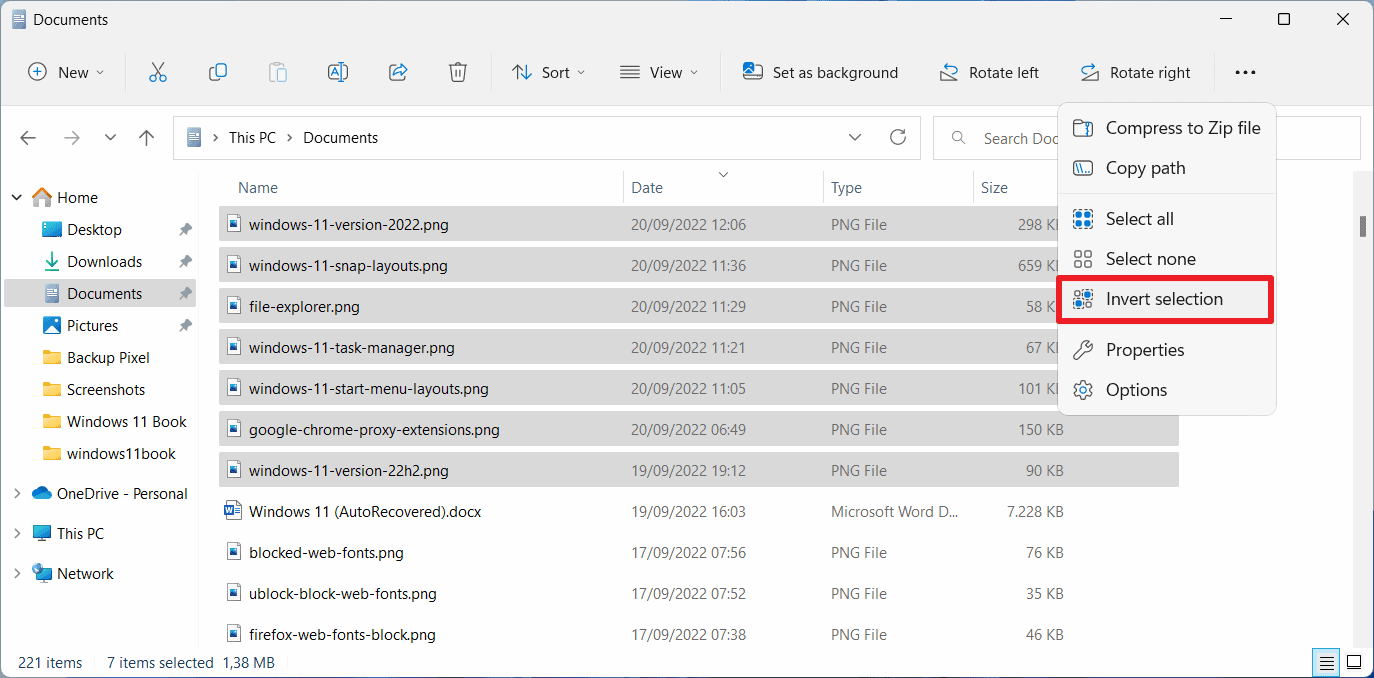
When it comes to selecting files in File Explorer, Windows users have plenty of options. From left-clicking to selecting individual files to drawing a rectangle around files for selection. Keyboard shortcuts help further: holding down the Shift-key while left-clicking on files allows Windows users to select multiple files at once from a selection of files in the active directory.
Sometimes, it may be faster to select files that you don't need and use the invert selection option of the operating system to have all files selected that you do need. A basic example where this may be faster than other methods is the following one.
Microsoft's PowerToys tools collection comes with a resize tool. It is configured by default to keep the original images and create new resized images in the same folder. If you run the operation on all images in the folder, you will notice that they remain selected after the operation. To select the resize images, you could use the invert feature as it is faster than all other options available.
Here is how you activate the invert selection feature on Windows 10 and Windows 11:
On Windows 10:
- Open the directory with files that you need to select.
- Select the files that you do not need in the directory.
- Select Home and then the Invert selection option.
On Windows 11:
- Open the directory in File Explorer and select the files that you do not need.
- Select Menu > Invert selection.
In both cases, the selection of files is inverted, which means that all files that were not selected initially are now selected.
Invert selection is a useful option, but it has its shortcomings. It is always necessary to select all files that you do not want selected. While that works well if there are only a handful of those in a directory, it falls short if there are dozens or more. In this case, it may be faster to use specialized programs such as File Sieve (commercial now) or Smart Copy Tool.
Now You: do you make use of the invert option in Explorer from time to time?

Very useful trick. Thanks.
I’ve never once used File Explorer. I spent more time looking at it because of this article than all the other times combined, which pretty much is, well, zero. You people spend too much time on the computer, and you probably think you’re doing important stuff. I spend more time than I should on the computer, and most of that time is spent on stuff I wouldn’t have to do if I didn’t have a computer.
“Now You: do you make use of the invert option in Explorer from time to time?”
I think I had lost track of this useful option over the years. Thanks for the reminder!
One Commander (https://www.onecommander.com/) is the one true file explorer and rightful heir to the Windows Explorer dynasty…
who needs explorer and all its pathetic qol patches if you have norton commanders childs like total commander. youll never look back.
Nice tip. Now for me to keep that remembered. :)
Really neat trick!
File Explorer? Too basic. Q-DIR for me. Not just invert selection but powerful filtering options, not to mention colour-coding by file type.
I personally like FreeCommander XE and XYporer.
Also, xplorer2 is quite good excellent.
XYplorer is better!