
How to restore the default Windows libraries

I'm experiencing quite a few issues on the system running Windows 8 which I find puzzling to say the least. I fixed the video playback issues recently on the system and discovered during that time that all libraries of the system were not working anymore. Libraries are virtual folders that list files from one or multiple folders of the system, and while I'm not using them all of the time, I did use them occasionally. Whenever I clicked on a library I would just get the error message that the resource was no longer available.
I'm almost thinking that the errors are caused by how I work with the operating system and not the system itself, as I can't find solutions for those errors and issues anywhere on the Internet.
Windows ships with four libraries:
- Documents library - Can be used to store presentations, text files, pdf documents and Office formats.
- Pictures library - Can be used to store image related files like photos.
- Music library - Music files like mp3 or flac can be listed in the folder.
- Videos library - Can be used to store video files.
The main benefit of the library feature of is that it can be used to access a large collection of files that are stored in multiple folders from a single folder.
There is one easy option that you can use to restore all default libraries of the operating system. Please note that you may need to delete the broken or corrupt default libraries before you can make use of the option. Use Windows Explorer, select Libraries from the left side, select the default libraries and delete them.
Once that is done right-click on the Libraries listing on the left side and select the Restore default libraries option from the context menu.
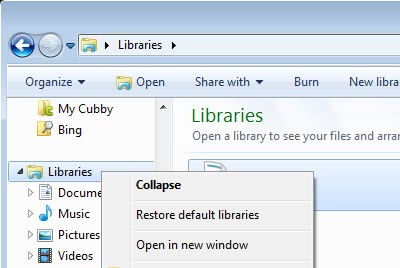
Windows restores the default libraries in the operating system. You may need to add custom folders to the libraries again because they may not be available anymore after you make the change.
Advertisement













This worked perfectly! Thanks!
Thank you save me a lot of time :)
Omg THANK YOU! It helped
Thanks heaps :) Worked like a charm
This didn’t work for me. The restore didn’t do anything but open them in a new window. I had to delete each library and recreate them.
Question:
What will happen to the contents of your current Libraries if you execute the restore command ?
Will they be deleted ?
Do I need to move them out, or back them up first ?
The library is a virtual folder that contains no files. So no, files won’t get deleted but you may need to add folders to the library again.
What do you do to your libraries that is so different Martin?
The most I have done on Windows 7 is relocate the folders to another drive.
I did not do anything to them.