How to save Word documents to the cloud (and stop Word saving to OneDrive by default)
To save a Word document to the cloud, press F12 or select File > Save As, choose OneDrive (Personal or your work account) or a SharePoint location, name the file and click Save. Once the file lives in the cloud, the AutoSave switch at the top of the window turns on and every change is saved automatically. Newer Word for Windows builds can also create every new document in the cloud from the start.
This guide covers both directions: how to put Word documents in OneDrive on purpose, and how to keep them on your PC if you do not want Microsoft's new cloud-first default.
How to save a Word document to OneDrive
Saving a Word document to OneDrive takes one Save As step, and Microsoft notes that when you are signed in, Word already offers OneDrive as the default location. The process is the same for new and existing files:
- Open the document in Word for Windows.
- Press F12, or select File > Save As.
- Pick OneDrive - Personal, OneDrive - [your organization] or a SharePoint site. Choose More save options if the folder you want is not listed.
- Type a name in the File name box and click Save.
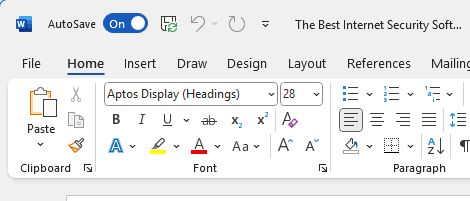
You can also turn on the AutoSave switch in the top-left corner of an unsaved or local document. Word then asks you to choose a OneDrive or SharePoint location and uploads the file there. To make a cloud folder the default, open the Location list in the save dialog, right-click the folder and select Set as Default Location. Details are in Microsoft's save, back up and recover a file help page.
What AutoSave does once the file is in the cloud
AutoSave saves a Word document continuously, but only when the file is stored in OneDrive or a SharePoint library; it does nothing for files on your local drive. That is the main practical reason to keep documents in the cloud: no lost work after a crash, version history, and access from other devices or Word for the web.
AutoSave is different from AutoRecover. AutoRecover writes temporary recovery copies at an interval and works for local files too, so you can still restore a document after Word crashes. ghacks has a separate explainer on AutoSave, AutoRecover and manual saving in Office if you want the full comparison.
Two things to keep in mind with AutoSave on:
- Edits are written straight to the original file. If you want to experiment, use File > Save a Copy first.
- The setting "AutoSave OneDrive and SharePoint Online files by default on Word" under File > Options > Save controls whether AutoSave starts switched on for cloud files.
Word now creates new documents in the cloud by default
Microsoft is changing Word for Windows so that new documents are saved to OneDrive, or another cloud destination you prefer, as soon as you create them. Microsoft announced the change on the Microsoft 365 Insider blog in August 2025 for Word Version 2509 (Build 19221.20000) and later, starting with Microsoft 365 Insiders. Similar behavior was announced for Excel and PowerPoint for Windows.
What changes for you:
- AutoSave is on from the first keystroke, so nothing has to be saved manually.
- New files get a date-based name instead of "Document1". Press Ctrl+S to rename the file or change its location.
- Closing an unsaved new document asks whether to Discard or Keep it; an empty document is discarded without a prompt.
Microsoft lists a few known issues: a new file is not saved automatically if another Word session is already running, and if "Show the Start screen when this application starts" is disabled, the first file after launch is not saved automatically either. Check your own Word version under File > Account to see whether the setting described below is present.
How to stop Word saving to the cloud by default
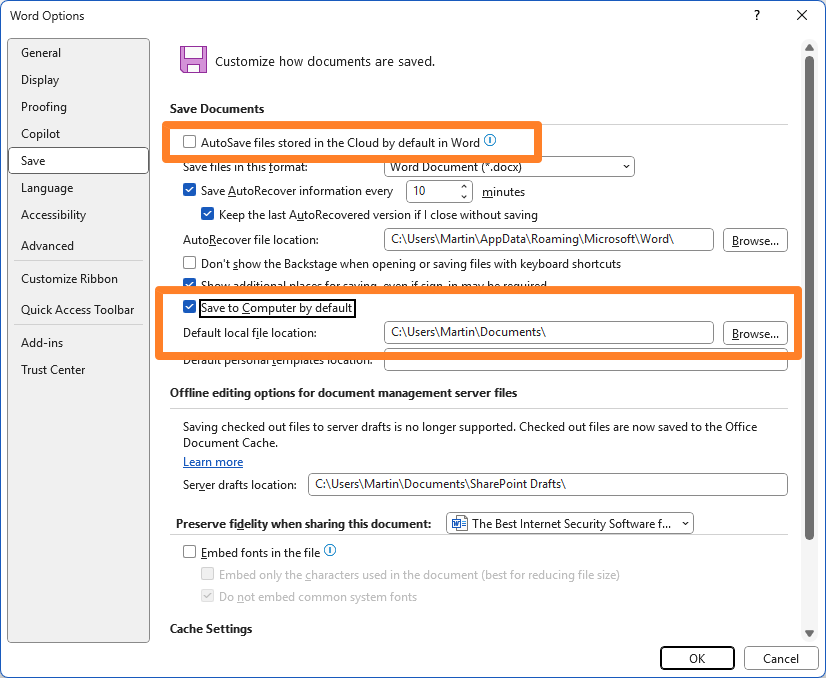
To keep new Word documents on your PC, turn off the cloud default in Word Options. The setting Microsoft documents is "Create new files in the cloud automatically":
- Open Word and select File > Options.
- Switch to the Save category.
- Uncheck "Create new files in the cloud automatically" (if your build shows it).
- Uncheck "AutoSave OneDrive and SharePoint Online files by default on Word" if you also want AutoSave off for cloud files.
- Check "Save to Computer by default" (Microsoft documents it on the Word Options (Save) page).
- Under "Default local file location", click Browse and pick a folder that is not inside OneDrive, then click OK.
One caveat: if OneDrive backs up your Documents folder (Known Folder Move), a "local" folder inside Documents is still synced to the cloud. Pick a folder outside the synced locations, or turn off folder backup in OneDrive settings, if you want files to stay on the device only. You can also remove the AutoSave switch from the title bar via the Quick Access Toolbar tab in Word Options.
Cloud or local: which default makes sense
Cloud saving suits most people who work across devices or collaborate, while local saving suits privacy-conscious users, offline work and files that must not leave the PC. A quick comparison:
| Factor | OneDrive or SharePoint | Local folder |
|---|---|---|
| Automatic saving | AutoSave, continuous | Manual saves plus AutoRecover |
| Version history | Yes, in OneDrive and SharePoint | Only with your own backups |
| Access from other devices | Yes, including Word for the web | No, unless you copy or sync the file |
| Works offline | Synced copies only | Yes |
| Data leaves your PC | Yes, stored on Microsoft servers | No |
In organizations, administrators decide part of this for you. Microsoft added a Group Policy (enablecloudonlysaveasmode) that limits Save and Save As for new Word, Excel and PowerPoint files to cloud locations in Microsoft 365 Apps. If your local options are missing on a work PC, that policy is the likely reason, and only your IT department can change it.
FAQ
Does the cloud default apply to Office 2021 or Office 2024?
Microsoft announced the change for Word in Microsoft 365, Version 2509 and later, and the announcement does not mention perpetual versions such as Office 2024. If your Word Options show no "Create new files in the cloud automatically" setting, your version does not have the change.
Do I need a Microsoft 365 subscription to save Word documents to OneDrive?
No. Any Microsoft account includes free OneDrive storage, and you can save to it from Word. Whether the AutoSave switch appears in the desktop app depends on your Office version; if you see it in the title bar, you can use it.
Can I move a cloud document back to my PC?
Yes. Open it, select File > Save a Copy (or Save As), choose This PC or Browse, and pick a local folder outside OneDrive.
Related: Microsoft Office 2024 explained, changing the default save type in Microsoft Paint, restoring WordPad in Windows 11

There are many good reasons to stay on an older version of MS Office. I have Word 2007. It does not know about this.
I have to admit that I have been using LibreOffice a lot more because it came with the Linux Mint installed on my Linux machines.
Can’t help but think this is to allow AI access to everything you do. Your work is not safe unless you disable this feature.
This line is incorrect: “Word customers who do not want their documents to be saved to the cloud by default need to become active to change the default save location.”
It should read “Word customers who do not want their documents to be saved to the cloud by default need to use Libre Office.”
Technology is no longer a fun hobby or business. It is now a hostile entity that is destroying reality.
1. Lies to you constantly.
2. Tricks you with dark pattern defaults.
3. Spies on everything you do.
4. Turns your friends and family into spies.
5. Turns your grocery store into a facial recognition surveillance nest.
6. Destroys shared sense of reality with AI generated fakes.
7. Alienates you from a society that no longer exists.
8. You pay for the privilege.
9. Calls you crazy if you don’t submit.
We’re getting to the point where we’re going to have to save our docx files in the corpses of Microsoft employees.
Now you know the real reason why it’s AI OR DIE with a New Zealand bunker as a backup plan.
There’s no way this can continue indefinitely.
If you’re not using Linux, you’re part of the problem. It’s no longer a technical decision. It’s a strategic moral and political decision. Join the freedom movement before it’s too late. Search: Linux Mint.
I feel very sorry for young people who didn’t get to experience the Internet when it was new and interesting. We’re now in our Internet crack house phase, and a lot of people are going to die if they don’t clean up fast. But everybody’s addicted. It’s not going to end well. What a nightmare.
I am on my last Windows I will ever use. The only programs that allowed to access Internet on My PC are VPNs, privacy conscious Browsers, YouTube Third Party programs, Antivirus Programs, Torrent app and Firewall app and that’s basically it. Everything else is blocked, including Windows itself. I got tired to opt-out in Microsoft, Google, Adobe and other programs. Enough is enough.
Just say no to saving anything in One Drive… Use Open Office instead!
More black patterns. Any version of Office above 2016 is garbage. I stopped using Office altogether after college. I just use LibreOffice now.
the cloud is NSA’s hard disk
microsoft has been giving FULL data access the the nsa and other 3 letter agencies for several decades.
if you use anything from microsoft, all that data is available to the NSA. windows, office and other microsoft products are used in every government of the world, and very often, their armies. even the french are stupid enough to use products from not only microsoft but also palentir.
read this slowly : the dgsi which is in charge of inside france intelligence is feeding its data and using software from palentir.
the folks at the CIA and NSA are laughing so hard you can hear them laugh from across the atlantic ocean….
Microsoft should first eliminate any bugs from office 365 saving procedure. My one drive failed to save properly my word file twice this month. As a consequence I lost a whole day s work both time. I has to manually retrieve the file after seeking hep from the Internet.
I’m using Word 2010 with LibreOffice for a backstop for when I need a new computer, and I backup my files to an external hard drive. Suffice to say, that I am safe from this nonsense.
“If you mind that Word documents are stored in the cloud by default, you need to modify the default setting.”
So it’s opt-out, is it? Well, that’d be another Microsoft opt-out as far as I’m concerned should I use any of Microsoft products and services besides their OS. I’ve always neglected the company’s native applications to prefer dedicated 3-rd party ones. It all started when I realized that native apps didn’t stand a chance compared to external ones, persisted when I got aware of the deep cross-references of all Microsoft OSs’ applications. Compartments: one for the OS, another for what is not strictly required by the OS. Sub-compartments for excessively curious services, mainly those of the GAFA.
Microsoft seems to have completely lost the ability to make changes to ANY of their software that anybody actually likes. IMO, this is yet *another* reason to avoid MS Office like the plague.
I imagine that every Office update will reset those settings so this will need to be constantly checked… great..
Someone has been using Google Docs. As usual, Microsoft is way behind, a follower, never a leader.
What if you don’t use windows nor ms excel? Does microsoft still force you to save to the cloud?
funklord: What if you don’t use windows nor ms excel? Does microsoft still force you to save to the cloud?
Yes.
Even if you don’t have internet connection, phone, or any kind of computer… Microsoft will force you to comply and upload your documents to OneDrive.
Then you are not affected.
Windows is a privacy nightmare. Use with caution or, better yet, don’t.
What if you do not use MS Word for documents? Does the ‘save location’ still apply for those who use Open Office, Libre Office, etc.?
This is a Word setting, most likely held in the registry hive for office. I really don’t think other office suites would be affected.
I like how the settings page is the only decent looking UI in Microsoft products. Everything else on Windows or other Microsoft software looks so ugly and user-unfriendly.
Everything windows has been ugly since 8 came out and M.$ attempted to get into the mobile market.
They wanted your pc and phone to look the same so they made the pc ui flat and fugly like the ones on the mobile device that couldn’t handle a 3d UI.
Apparently they forgot this failed reasoning and stuck with the flat ui instead of going back to 3D like Windows 7.