Windows-10-to-11 upgrader FlyBy11 gets a convenient option for downloading the Windows 11 ISO

With Windows 10 reaching end of support in three months, millions of Windows 10 need to answer a simple question: what should I do if the PC does not meet Windows 11's system requirements? Officially, if you are in the boat, you have two main options. Sign up for Windows 10 ESU to buy some extra time, or buy a new Windows 11 PC and migrate data from the old system to the new.
Extended security updates sound like a good option, but it is just for a year and you will face the same question again next year. While there are unofficial ways of extending support, many users may not want to go down that route.
Tools like FlyBy11 offer another option for many Windows 10 devices. They bypass certain checks during the installation of Windows 11 to allow the upgrade on devices that Microsoft says are not compatible. This works reasonably well in most cases. In fact, the only time that this won't work is when the Windows 10 system is very old.
FlyBy11 runs a compatibility check on start that highlights if the PC does not meet these mandatory requirements.
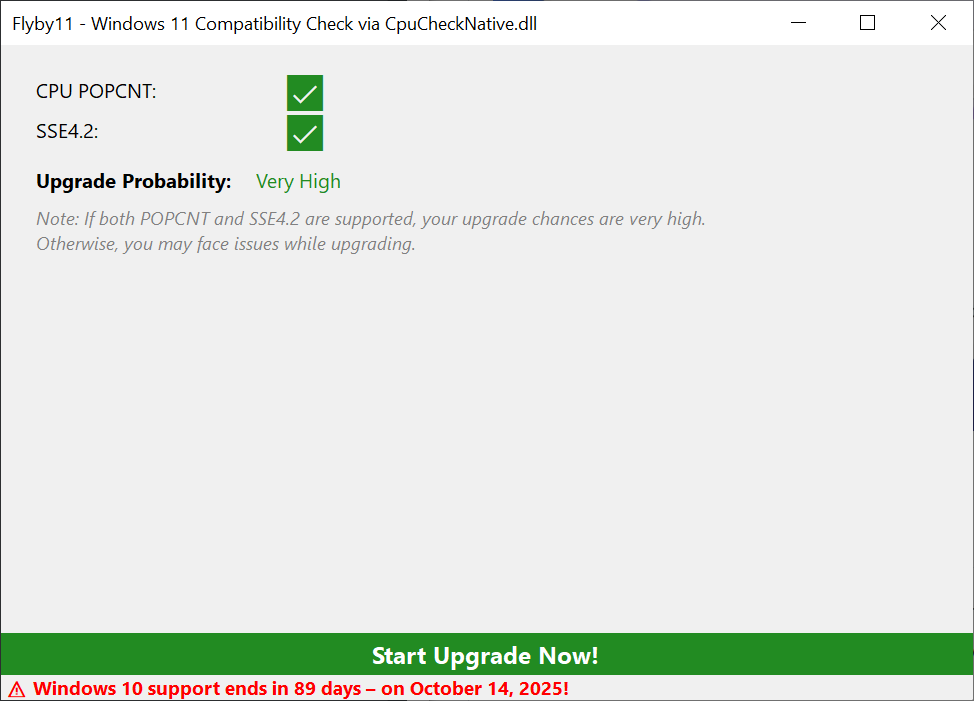
The program gave a "very high" probability rating for the upgrade from Windows 10 to Windows 11 for a PC I ran it on. If you get a similar rating, there is a very good chance that the upgrade to Windows 11 will complete without major issues.
Note: I highly recommend that you create a system backup before you try any upgrades. This allows you to restore the status quo, if things go wrong during the upgrade. I use the free software Paragon Backup & Recovery free for that, but you can use any other full system backup software as well.
Once done, hit the "Start Upgrade Now!"-button to start the process. This opens the program's main interface. It requires a valid Windows 11 ISO image, which you can download using it. The latest version supports the Media Creation Tool as well now, which some users may prefer, as you do not have to answer a few prompts regarding the version that you want to download.

Experienced users may pick Fido instead, which is a fast and easy option to download the latest Windows 11 ISO from Microsoft (and involves hitting "continue" a couple of times mostly). Still, you have to make sure that language and architecture are correct, something that the Media Creation Tool will do for you.
Just in case, you can also use Rufus to bypass the same requirements check. Another good option to upgrade a PC that is not fully compatible with Windows 11 to that version anyways.
Now You: Do you still use Windows 10 on a device? If so, what are your plans regarding end of support?

Flyby11 worked great, no issues, used option 1,(as above comments, kept all files/programs intact).
Updated my 10 yr old HP Desktop to Windows 11, took approx 2hrs to finish full system installation.
Note, I had to select checkbox option “Not right now”, for Windows 11 to run successfully.
Flyoobe = Malware inside https://www.filescan.io/uploads/68acfc4d28a89d9dd4f4061e
and https://www.virustotal.com/gui/file/c6eaa91530d5ad8b6b42f5224de932b2ab3c64fcfed9ff82ee35863b8e8a9531
This is a super cool tool for forcing W11 onto devices. Very impressive that it does something with “windows server” to deploy the image to itself AND preserve data+domain status. Built in ISO download is good, but is it as FAST as the one from Microsoft’s website?
Noob question. Can I use FlyBy11 with an ISO already modified by Rufus, as a pre-install check tool?
I suppose I could run it and then exit before the download stage.
Thanks for your help xD
It should work with any legitimate Windows 11 ISO.
Couple questions if you don’t mind answering.
1. Does it keep all you installed programs; just upgrading the OS, or doing a clean install?
2. Will it let you do new “security updates”, or does one have to deal with workarounds each time?
I’ve used this a handful of times in real work situations, there is no hacking/tweaking, the resulting install is not malformed or crippled. Look at the pre-install checklist, if your CPU is supported, etc, then Windows updates will continue working.
It keeps user profiles, installed programs, personal files, even things like domain status. It is a real upgrade. I had it fail once, it just reverted everything to normal.
You only really need to use this if the built in windows tools are throwing an error at you, or if you’re a few versions behind and don’t want to manually do every feature update to catch up (from 10 to 11).
@SFLORG–First, recommend a full image backup is made; second, upgrading using a “modified” .iso using Rufus or FlyBy11 doesn’t change the fundamental process–a window should appear during installation that offers the user an opportunity to “Keep Personal Files and Apps.” Martin has an article on his other site that explains what to do if that option is greyed out:
https://chipp.in/software/windows/windows-11-fix-keep-personal-files-and-apps-unavailable/
Option 2 @ the following site provides some great screenshots of what you should see–scroll through:
https://www.elevenforum.com/t/repair-install-windows-11-with-an-in-place-upgrade.418/
From all that I’ve read, security updates won’t be an issue; however, the following article should be read:
https://www.zdnet.com/article/is-microsoft-really-going-to-cut-off-security-updates-for-my-unsupported-windows-11-pc/
Thank you, for your time and links.
I upgraded two old Dell desktops and one old Dell laptop using FlyBy11. Worked like a charm.
You have three options (something like this):
1. Upgrade Windows, keep programs and personal files
2. Upgrade Windows, just keep personal files
3. Upgrade Windows, don’t keep anything
I used option 1 and it all worked great.