How to Add Sticker to Photo on iPhone?
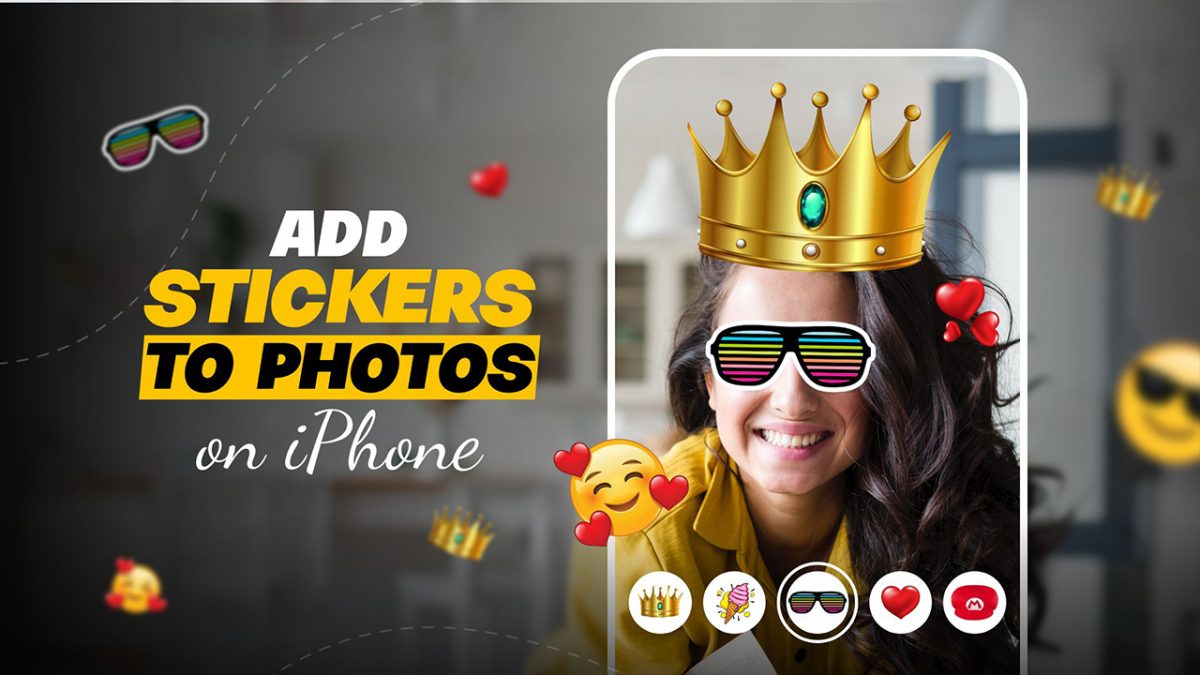
Below I will review 3 options on how you can add sticker to photo on iPhone. While you could use the default photos app to edit all your pictures why not just add a little fun?The great news is we can still stickers and they come with an unlimited supply. Our iPhones will allow us to access digital versions on third-party apps.
1. How to add sticker to photo iPhone using camera in messages?
The messages app allows you to add stickers to a photo using the built-in camera. To do this your iPhone has to run the latest iOS version. Here are the steps:
Step 1: Open the messages app and create a new message
Step 2: Tap the camera and capture an image
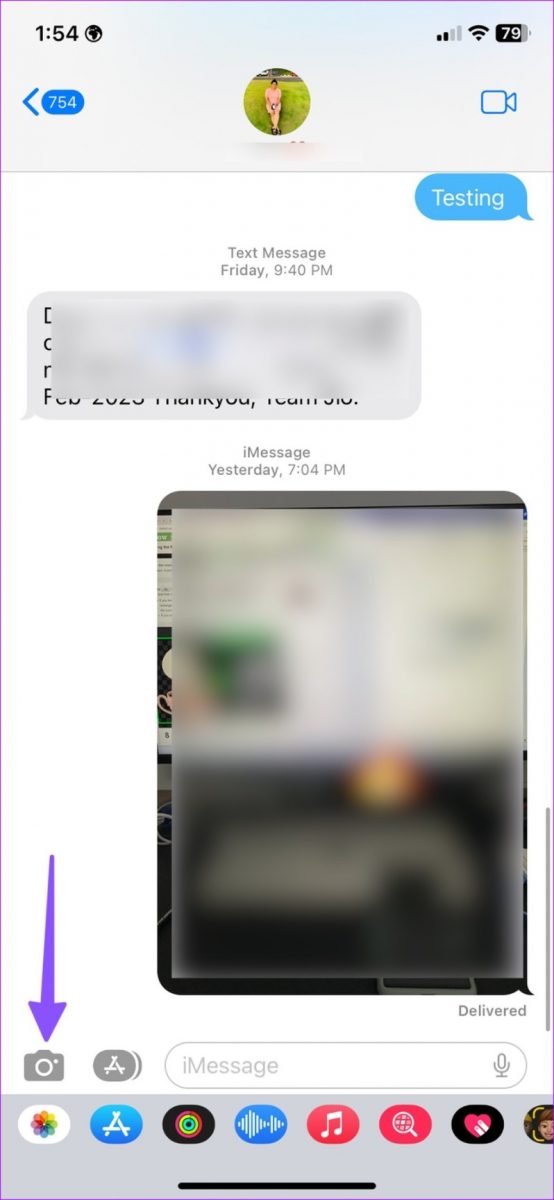
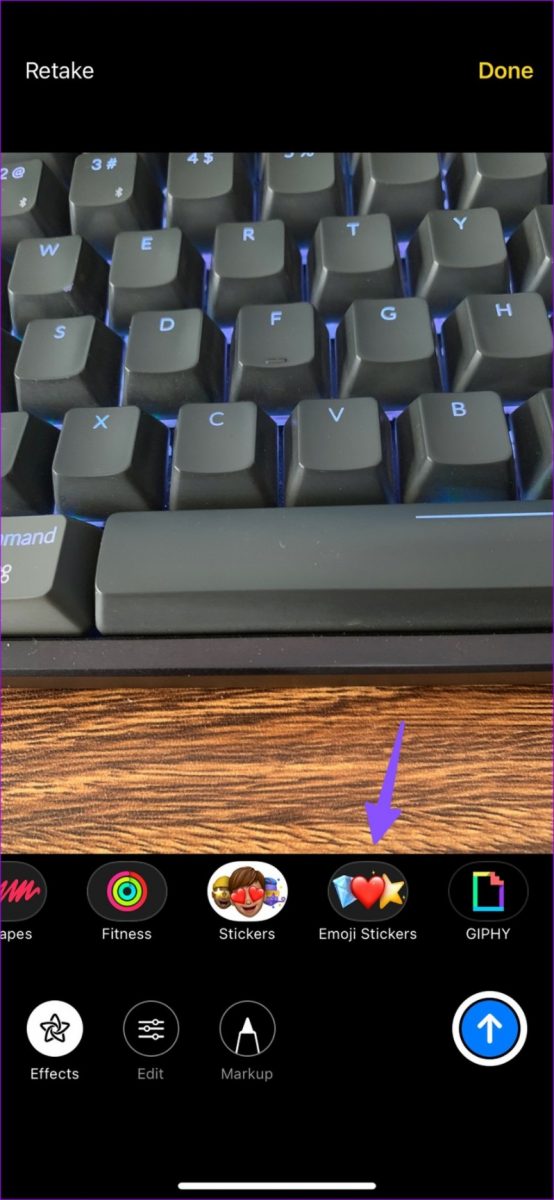
Step 3: At the bottom left corner tap emoji stickers to select an effect icon.
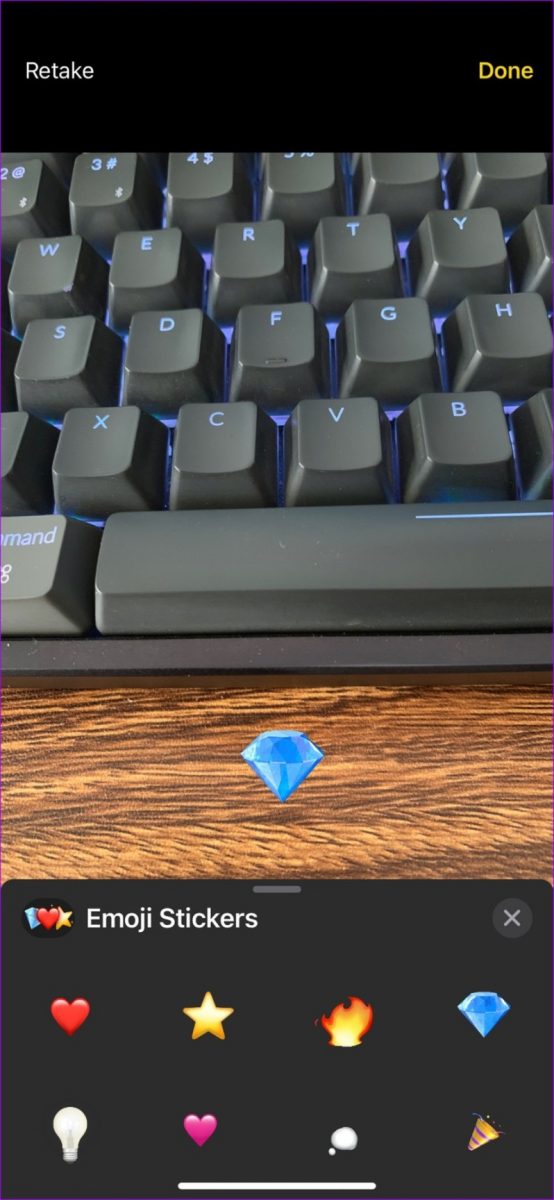
Step 4: Add emoji stickers on your image and press send.
2. Use Telegram to add sticker to photo on iPhone
Telegram comes with more features for adding stickers to a photo. You can add animated stickers to create a GIF and standard ones. You will need to get the Telegram app from the app store first.
Step 1: Open a saved messages chat
Step 2: Select a photo and tap the pin icon. The default editor menu opens.
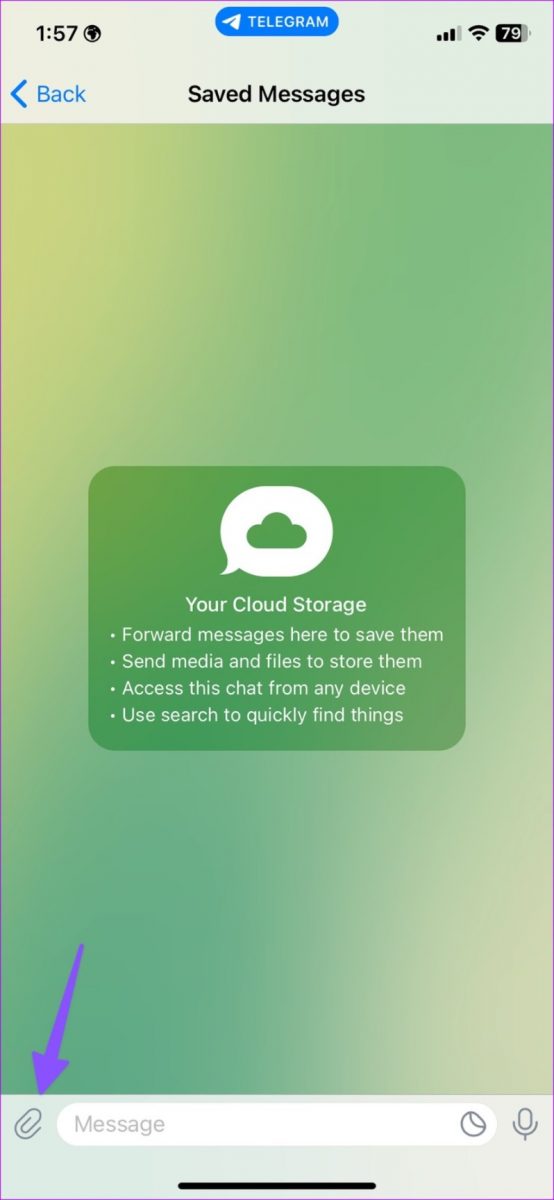
Step 3: Select the highlighter icon at the bottom and move to the sticker tab.
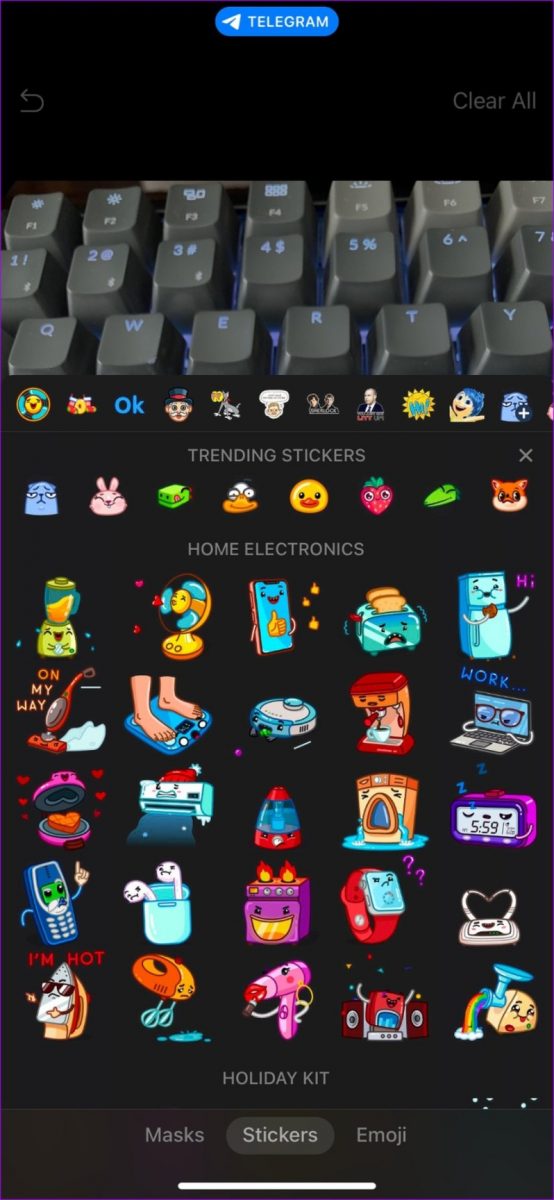
Step 4: Select a sticker from the sticker gallery. When you add animated stickers to a photo, telegram will automatically convert it into a video.
Step 5: You can resize the sticker and tap the checkmark
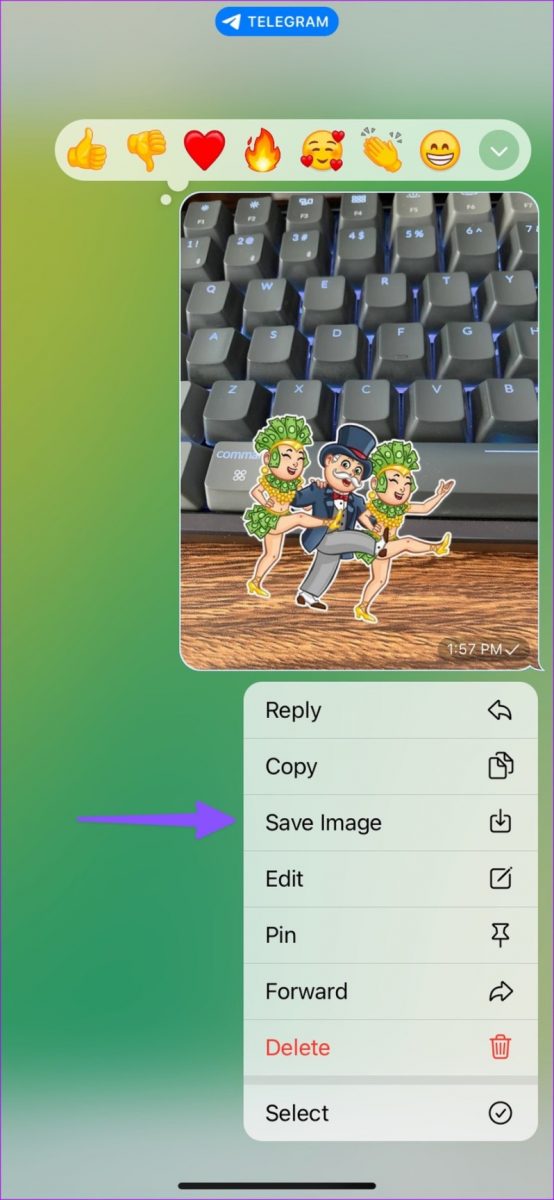
Step 6: Tap send and check your edited photo
Step 7: Long press on the edited image and save.
3. Use WhatsApp to put stickers on photos on iPhone
You can use WhatsApp to add stickers to a picture to share it on the platform. You can chat with yourself and send yourself the edited pictures as well. You can also download the edited pictures to your phone and share them on other platforms. Here is how to add a sticker on WhatsApp:
Step 1: Open WhatsApp
Step 2: Select the person or group you want to send the photo to
Step 3: Tap + at the bottom and select video library and photos
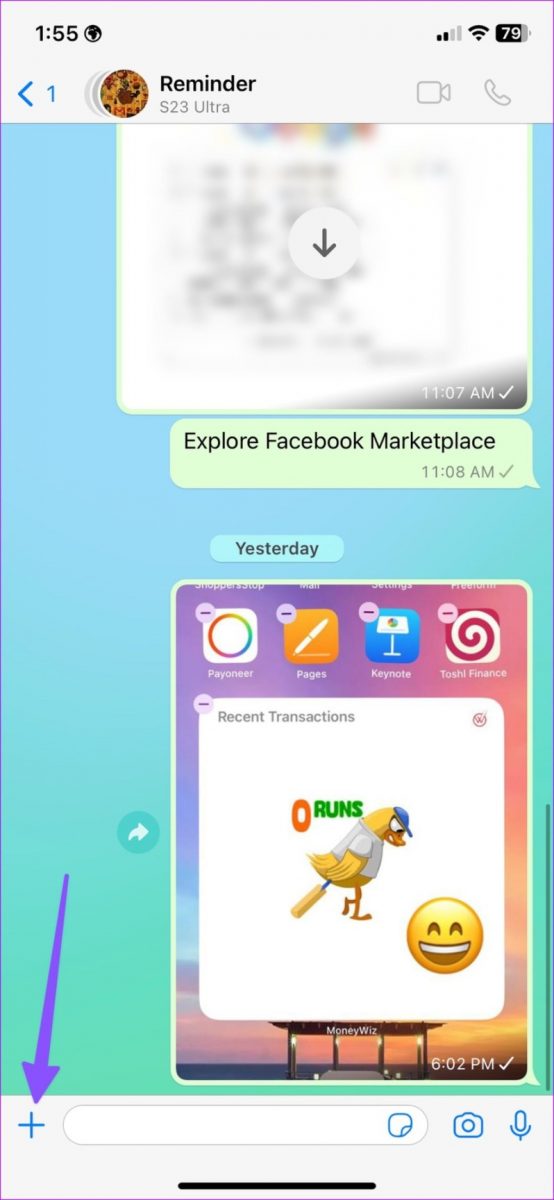
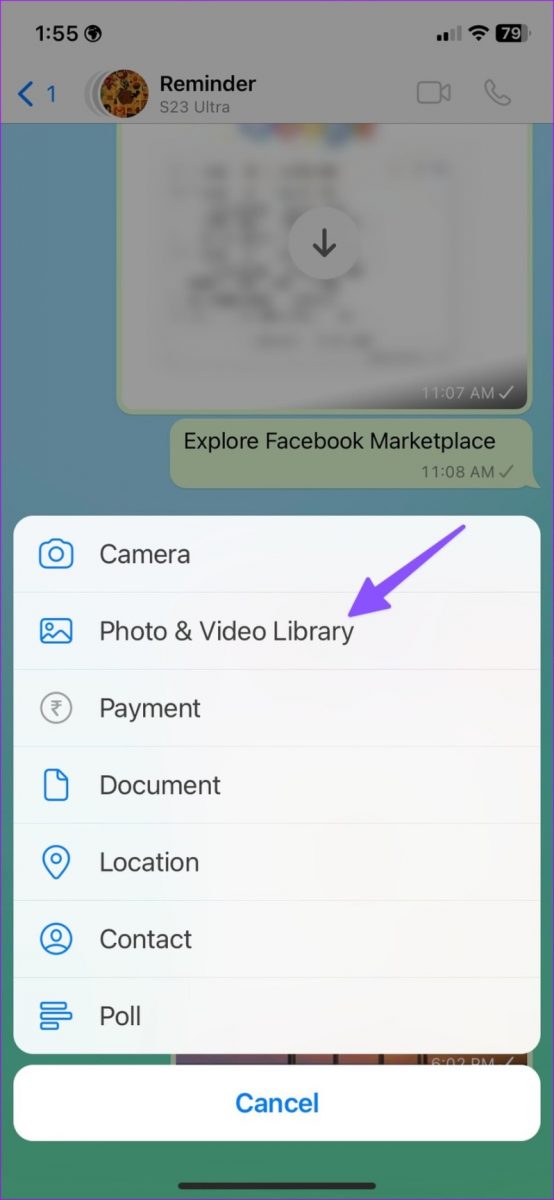
Step 4: Select a Photo
Step 5: Tap the emoji icon at the top
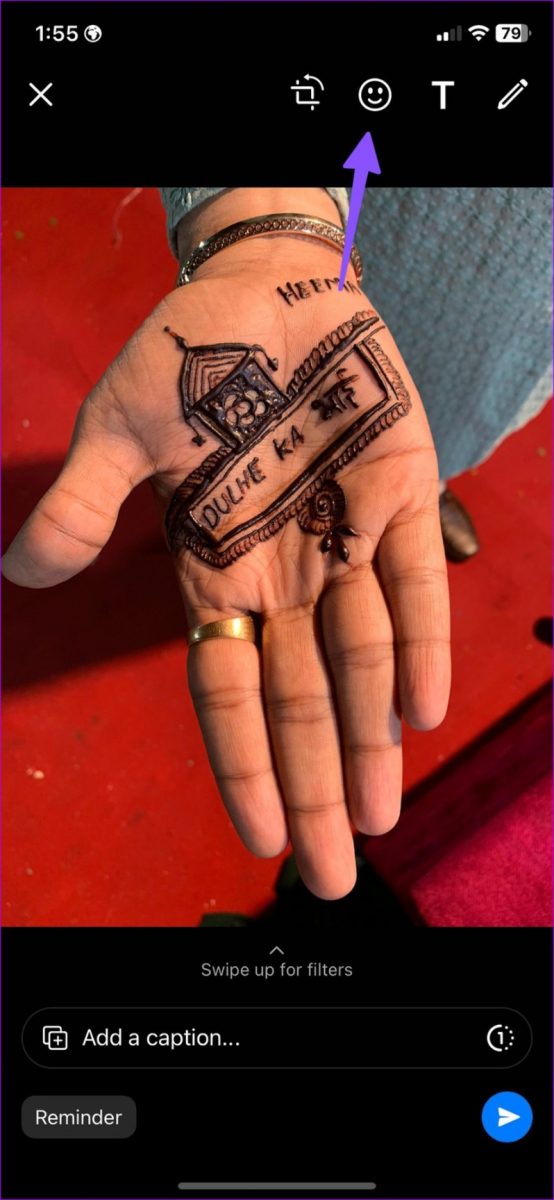
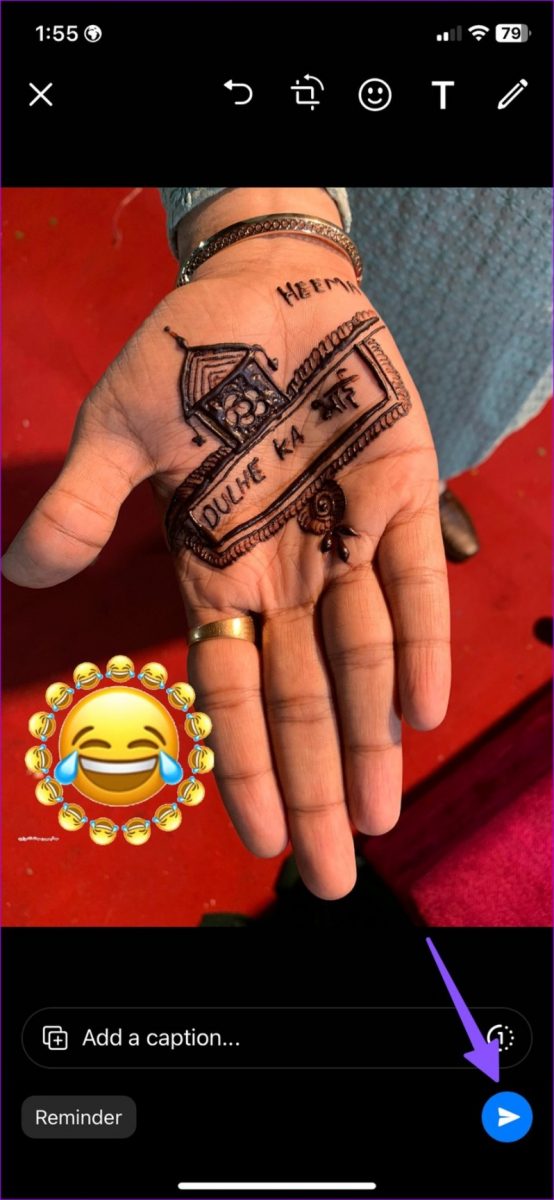
Step 6: You can use existing sticker packs or go to the emoji menu
Step 7: Add as many stickers as you want to the image
Why add a sticker to a photo?
- The one thing I love about adding stickers to my picture is that I can use the pictures on other apps as well. Simply tapping the share button or downloading the picture makes it easily accessible in the photos app.
- There are also a number of other third-party apps you can use such as Pixlr, Instagram, Snapchat, and Messenger which are all accessible from the app store. These apps come with a long list of versatile stickers.
- Stickers can also add fun to your pictures to share with your friends.

Leave a Reply