How to AirDrop on iPhone
To AirDrop on iPhone, open the photo or file, tap the Share button, tap AirDrop and tap the person or device under People. The receiver taps Accept. Both devices need Wi-Fi and Bluetooth on, Personal Hotspot off, and must be within about 30 feet (10 meters). Contacts can find you with the default setting; anyone else needs Everyone for 10 Minutes and, from iOS 26.2, an AirDrop code.
This guide covers the current iOS 27 behavior: turning AirDrop on, sending and receiving, who can see you, where received files land, iPhone to Mac and iPhone to Android. If transfers fail, use our separate fixes for AirDrop not working or failing.
What is AirDrop?
AirDrop is Apple's wireless sharing feature that sends photos, videos, documents, contacts and links directly between nearby iPhone, iPad and Mac devices, without a cable, an upload or a messaging app. It is built into the share sheet of almost every app, so anything you can share, you can usually AirDrop.
How AirDrop works
AirDrop uses Bluetooth to find nearby devices and Wi-Fi to move the data, which is why Apple requires both to be switched on. Apple states that devices must be within 30 feet (10 meters) of one another. The transfer runs directly between the two devices rather than through a cloud server, which is why large videos often arrive faster than through a chat app.
Since iOS 17.1, a transfer that has started keeps going over the internet if you walk out of range (see the cellular section below), and since iOS 26.2, people outside your contacts are verified with a short AirDrop code.
How to turn on AirDrop on iPhone
To turn on AirDrop, open Control Center, touch and hold the connectivity controls, tap AirDrop and choose Contacts Only or Everyone for 10 Minutes. On iPhones with Face ID, Control Center opens with a swipe down from the top-right corner of the screen; on iPhones with a Home button, swipe up from the bottom edge.
- Open Control Center.
- Touch and hold the group of connectivity controls (the tile with Airplane Mode, Wi-Fi and Bluetooth).
- Tap AirDrop.
- Choose Contacts Only to be visible to people in your Contacts, or Everyone for 10 Minutes to be visible to any nearby device for a short time.
The same choice is available in Settings > General > AirDrop, which is also where the Use Cellular Data option lives. If AirDrop is not listed in Control Center at all, check Screen Time content restrictions, which can hide it on managed or children's devices.
How to AirDrop photos and files from iPhone
To AirDrop something, select the items, tap the Share button, tap AirDrop and then tap the person or device under People. Nearby contacts with AirDrop enabled appear there automatically.
- Open the app that holds the content, for example Photos or Files.
- Select the item or items. In Photos, tap Select and tap each photo; in Files, tap the More button, then Select.
- Tap the Share button, then tap AirDrop.
- Tap the person or device under People and wait for the receiver to accept.
Send to someone who is not in your contacts
Sending to a stranger takes one step on each side. The recipient opens Control Center and sets AirDrop to Everyone for 10 Minutes, then you tap their device under People. If both iPhones run iOS 26.2 or later, you are prompted for an AirDrop code: the recipient taps Get AirDrop Code and reads the code to you, and you enter it. Apple says the recipient is then added to your Other Known list for 30 days, and you can mark them as unknown in the Contacts app before that period ends.
Bring two iPhones together
If both devices run iOS 17 or later, you can hold the two iPhones close together to start an AirDrop share without opening the People list. The same gesture powers NameDrop, Apple's feature for swapping contact information instead of files.
How to receive AirDrop on iPhone
To receive AirDrop, tap Accept on the AirDrop prompt that appears on your screen; items sent between devices signed in to the same Apple Account are accepted automatically. Make sure the sender can see you first.
- Set AirDrop to Contacts Only if the sender is in your Contacts, or to Everyone for 10 Minutes if they are not.
- Keep Wi-Fi and Bluetooth on and Personal Hotspot off.
- Tap Accept when the prompt appears, or Decline to refuse the item.
- If asked, tap Get AirDrop Code and read the code to the sender.
On a child's iPhone, Communication Safety can warn about sensitive images received or sent through AirDrop, blur them and point to help resources.
AirDrop settings: who can send to you
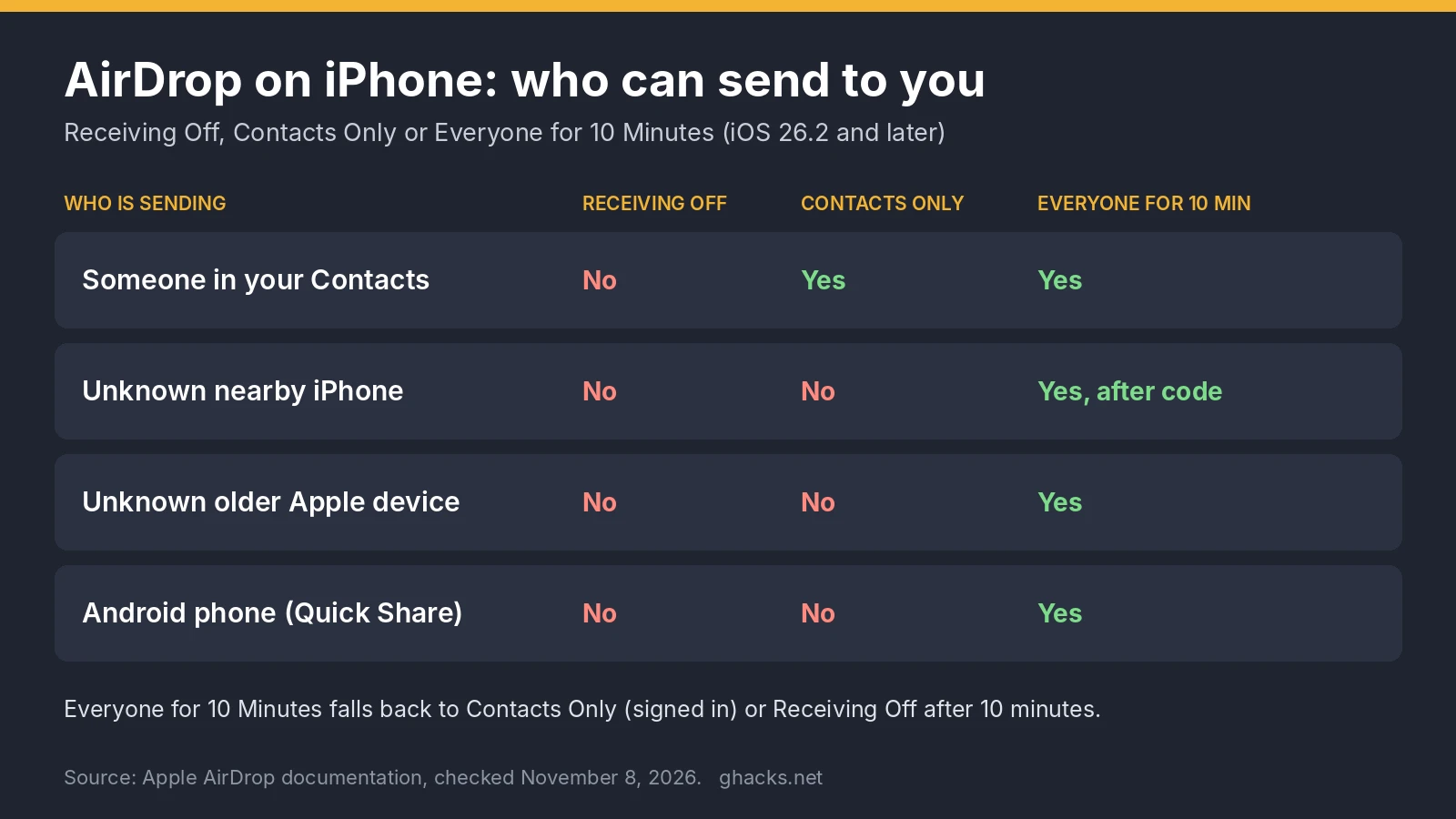
Contacts Only is the everyday setting, Everyone for 10 Minutes switches itself off after 10 minutes, and Receiving Off hides your iPhone completely. Since iOS 16.2, Everyone for 10 Minutes falls back to Contacts Only when you are signed in to an Apple Account, or to Receiving Off when you are not. The table shows who can reach you under each setting, which is the question most AirDrop problems come down to.
| Who is sending | Receiving Off | Contacts Only | Everyone for 10 Minutes |
|---|---|---|---|
| A person saved in your Contacts | No | Yes | Yes |
| A nearby iPhone you do not know (iOS 26.2 or later) | No | No | Yes, after the AirDrop code is exchanged |
| A nearby Apple device you do not know (older software) | No | No | Yes |
| A supported Android phone using Quick Share | No | No | Yes |
| How long the setting lasts | Until you change it | Until you change it | 10 minutes, then Contacts Only (signed in) or Receiving Off |
Code-verified people sit in the Other Known list for 30 days. Apple's AirDrop documentation describes the full code flow.
Use Cellular Data and out-of-range transfers
AirDrop can finish a transfer over the internet when you move out of Bluetooth and Wi-Fi range, and it may use mobile data for that. The Use Cellular Data switch in Settings > General > AirDrop is on by default; turn it off if you want AirDrop to stay off your data plan. Background on the change is in our post on AirDrop over cellular, added in iOS 17.1.
Where do AirDrop files go on iPhone?
Photos and videos go to the Photos app; most other items are saved in or opened with the app that handles them, as Apple puts it, "in the app that they're sent from". The table maps the common item types.
| Item received | Where it lands on iPhone |
|---|---|
| Photos and videos | Photos app, in your library and the Recents view |
| PDFs and documents | The matching app, or the Files app if you choose to save there |
| Contact cards | Contacts, after you confirm the new contact |
| Web links | Opened in your browser |
| Notes, maps places and other app content | The app the item was shared from |
Is there an AirDrop history?
No, iOS has no AirDrop history or transfer log. To find something you received earlier, check Recents in Photos, the Recents and Downloads views in Files, or the app that matches the file type. A Mac is different: some received items go straight to its Downloads folder.
How to AirDrop between iPhone and Mac
To AirDrop from iPhone to Mac, use the share sheet on the iPhone and tap the Mac under People; the Mac must be awake, unlocked and set to Contacts Only or Everyone. From Mac to iPhone, use the Share menu or Finder.
- iPhone to Mac: select the items, tap Share, tap AirDrop, tap the Mac. If both are signed in to the same Apple Account, the item is accepted automatically and most files appear in the Mac's Downloads folder.
- Mac to iPhone: Control-click a file and choose Share > AirDrop, or open a Finder window, click AirDrop in the sidebar and drag the file onto the iPhone.
- Mac visibility: click Control Center in the menu bar, click the arrow next to AirDrop and choose Contacts Only or Everyone.
Can you AirDrop to Android?
Yes, with select Android phones as of November 2026: Google's Quick Share can exchange files with AirDrop when the iPhone is set to Everyone for 10 Minutes. Google added the feature in November 2025, starting with Pixel phones, and widened the list in June 2026.
| Maker | Supported phones (Google's list, June 2026) |
|---|---|
| Pixel 10, 10 Pro, 10 Pro XL, 10 Pro Fold, 10a; Pixel 9, 9 Pro, 9 Pro XL, 9 Pro Fold, 9a; Pixel 8a | |
| Samsung | Galaxy S26, S26+, S26 Ultra; S25, S25+, S25 Ultra, S25 Edge; S24, S24+, S24 Ultra; Z Flip7, Z Fold7, Z Flip6, Z Fold6, Z TriFold |
| Other makers | HONOR Magic V6; OnePlus 15; Xiaomi 17T Pro; OPPO Find X9, X9 Pro, X9 Ultra, X9s and Find N6; vivo X300, X300 Pro, X300 Ultra |
The table follows Google's June 2026 expansion as listed by MacRumors. Samsung has since added more mid-range models; see Galaxy A56 and A57 AirDrop support in One UI 9. Settings needed on both sides:
- iPhone: set AirDrop to Everyone for 10 Minutes in Control Center.
- Android: turn on Share with Apple devices in the Quick Share settings.
- Android, when receiving: switch Quick Share Receive mode on.
- Send from the iPhone through the normal AirDrop share sheet; the Android phone appears under People.
For phones that are not on the list, a browser-based tool such as open source Snapdrop for Windows and Linux or a cloud link is the practical fallback.
Is AirDrop faster in iOS 27?
Apple says it is: at its WWDC keynote on June 8, 2026, Apple listed "up to 80% faster AirDrop transfers" among the iOS 27 performance changes, as reported by 9to5Mac. Apple did not say which file types, device pairs or baseline the figure refers to, so treat it as a best case rather than a typical result. Real speed still depends on the two devices, the distance between them and the Wi-Fi conditions around you. To get the new behavior, update both devices; the other iOS 27 changes are in everything new in iOS 27.
How to change your AirDrop name
Your AirDrop name is your iPhone's name, so you change it in Settings > General > About > Name. The new name shows up for senders the next time they open the AirDrop list.
- Open Settings and tap General.
- Tap About, then tap Name.
- Type the new name and tap Done.
Pick a name that does not reveal your full name if you use Everyone for 10 Minutes in public places, because anyone nearby can see it during that time.
How to turn off AirDrop
To turn off AirDrop, set it to Receiving Off in Control Center or in Settings > General > AirDrop. Your iPhone then disappears from other people's AirDrop lists, while you can still send items to others.
- Open Control Center and touch and hold the connectivity controls.
- Tap AirDrop, then tap Receiving Off.
To block AirDrop entirely on a child's iPhone, use Screen Time content and privacy restrictions under allowed apps; that hides AirDrop until a parent turns it back on.
AirDrop not working?
If AirDrop fails, first check that Wi-Fi and Bluetooth are on, Personal Hotspot is off and the receiver's visibility setting allows you. For everything beyond that, follow our guide to fix AirDrop when it fails or does not show up.
FAQ
Does AirDrop need Wi-Fi or internet?
AirDrop needs Wi-Fi and Bluetooth switched on, but not a Wi-Fi network or internet connection: the devices connect to each other directly. Internet only comes into play when a started transfer continues after you move out of range.
How far does AirDrop reach?
Apple states that devices must be within 30 feet (10 meters) of one another. Walls and interference shorten that in practice, so stay close when a transfer starts.
Can you AirDrop to a Windows PC?
No, Windows has no AirDrop support. Browser-based tools such as Snapdrop or PairDrop, or a cloud storage link, are the usual alternatives.
Can strangers send me pictures with AirDrop?
Only while you are set to Everyone for 10 Minutes, and you still have to tap Accept. Contacts Only, the setting iOS falls back to, blocks unknown senders.
Related: how to factory reset an iPhone, blocking account changes with Screen Time.

Leave a Reply