
How To Stop Video Autoplay On Youtube

Have you ever opened multiple YouTube videos at the same time? The cacophony of sounds has probably been unbearable.
YouTube videos start to play automatically, and there does not seem to be a restriction in the number of videos that can play at the same time.
A user opening four videos simultaneously will make the experience that all four start to buffer and play immediately, and not only the one in the active browser tab.
But autoplay of videos can also be a problem if only one video is opened at the same time. Users with slow Internet connections for instance may experience buffering periods in which the video stops playing. Many like to overcome that problem by stopping the video once it starts loading, to restart it once it has been buffered completely. This ensures that the video can be watched without interruption.
Several add-ons have been developed that automate the process. The majority of add-ons stop the YouTube video once it starts playing without interruption of the video buffering.
Update: Please note that several options that worked back in 2010 do not work anymore as indicated below. There is one alternative however that you can make use of, and it is working at least in Firefox and Google Chrome.
YeppHa Center is an extension for Google Chrome that gives you full control over autoplay on YouTube. If you run Firefox, check out the links below.
The first option is available under General > General. Here you need to make sure that "Only One Player Instance Playing" is selected which pauses any other video on YouTube that would be playing if the option would be disabled. So, only one video will play on YouTube at all times if the option is enabled, regardless of how many YouTube pages you have opened.
The second option is locate under Player > Auto Play. Here you can prevent the auto-play of the following:
- Prevent Auto-Play
- Prevent Playlist Auto-Play
- Prevent Tab Auto-Play
- Prevent Tab Playlist Auto-Play
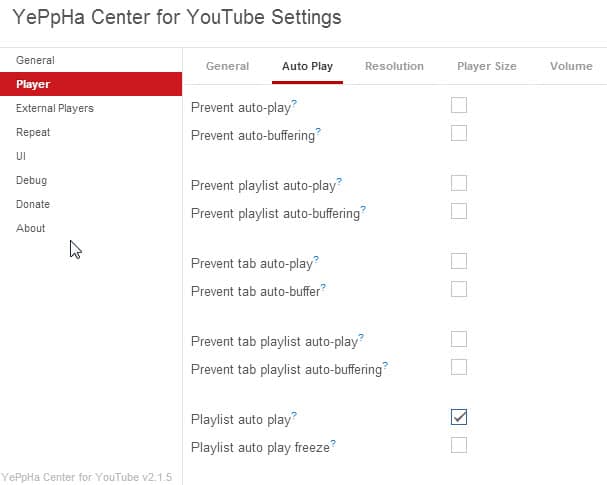
All these options are disabled by default and need to be enabled in the preferences of the extension.
Google Chrome
The Google Chrome extension Stop Autoplay for YouTube does everything a Chrome user would expect. It stops the auto-play of the video, and keeps the buffering link alive so that the video will buffer to 100%, even in a background tab.
Even better is the fact that the add-on supports both Flash and HTML5 video players on YouTube, ensuring that all videos are stopped from autoplaying. [download link]
Firefox
The Firefox add-on stops automatic video playback of embedded media. It works not only with Youtube videos but other embedded media as well. Media is blocked from autostarting in two ways. The first tries to stop the automatic playback, the second replaces the embedded media with a red frame.
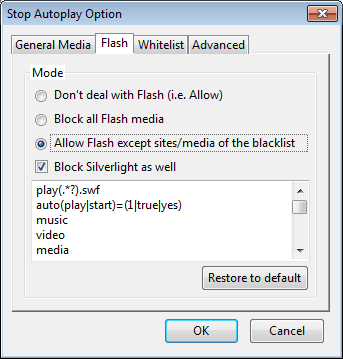
The options offer detailed configuration settings. It is for instance possible to block Flash and Silverlight, or whitelist and blacklist sites.
Update: It is no longer available, check out the alternatives below:
Firefox alternatives:
Tubestop: Stops the autoplay of Youtube videos. [removed by its author, no longer available]
TweakTube - YouTube Enhancer / Video Downloader: Overkill if autoplay is the only issue. Users who want an all in one solution that offers much more than that can give the Firefox add-on a try. [no longer working]
Stop Tube HTML5 will block the auto-playing of vHTML5 videos on YouTube.
Greasemonkey scripts
YouTube Auto Buffer & Auto HD & Remove Ads: Buffers Youtube videos completely while preventing autoplay. [download link]
Advertisement

















>> The Firefox add-on stops automatic video playback of embedded media. It works not only with YouTube videos but other embedded media as well. …
Do you still have any information about this Firefox Add-on, such as the name of the add-on or the author name or the add-on page URL?
I understand that you mention that the add-on is no longer available, but frequently, dead add-on’s are resurrected.
Your Firefox solution does not work with Firefox 24.
BTW – Neither does any of the ‘Stop YouTube Videos AutoPlay’ add-ons. Please advise:-)
Thanks for letting me know. I have updated the article with a new option for Firefox and Chrome.
what if you need to use interney explorer
If you need to use Internet Exploder then download a better browser. Whatever you do, don’t use IE.
For Opera users you can disable youtube vids from autoplaying (flash ones only) by pressing ctrl+F12 -> Advanced -> Content -> Check both boxes related to plug-ins:
*Enable plug-ins
*Enable plug-ins only on demand
I use FlashBlock.
https://addons.mozilla.org/en-US/firefox/addon/433/
Any flash object has to be clicked once to get to the play button,
and then click the play button in the flash object.
So it’s twice blocked.