Windows Readyboost Monitor

Readyboost is a technology in Windows that was introduced in Windows Vista and improved for Windows 7 by Microsoft.
The technology allows the computer user to select a flash drive for memory caching basically. The effect is noticeable on computer systems with 1 Gigabytes or less of computer memory installed. The thinking behind this is that flash memory offers in general a better performance than platter based hard drives (where the data would be cached on otherwise).
The improved Readyboost technology in Windows 7 now supports a maximum cache size of 32 Gigabytes opposed to the 4 Gigabyte limit of Windows Vista. Windows 7 also supports up to eight Readyboost devices compared to one in Vista, and can improve the startup performance as it can be used during startup as well.
While it is certainly better to invest in more RAM, this may not be possible always.
Windows Readyboost Monitor
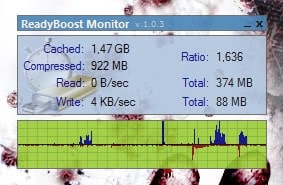
The Windows Readyboost Monitor is a system tray application that will display information about the Readyboost performance on the computer system. Information that is monitored and displayed includes the read and write speed, transfer totals, the cached size, compressed size and the cached and compressed ratio.
The program starts monitoring the Readyboost performance right after installation and startup. It can be an excellent tool to analyze the utilization of the Readyboost technology to see if it does make sense to use it in the operating system (if nothing gets cached there is not really a need for it, and if things are too slow, it is also not an option).
ReadyBoost Monitor is available for download at the developer's website. It is compatible with Windows Vista and Windows 7, and requires the Microsoft .net Framework 3 to be installed.
Update: The program website is no longer available. We have uploaded the latest release version of Readyboost Monitor to our own server. Please note that we don't support the program in any way. You can download the program with a click on the following link: (Download Removed)
Alternative: Windows 7, 8 and 10 users can use the built-in Performance Monitor to check on the Readyboost performance in their operating system. The easiest way to get there is to enter [perf] on the start menu search programs and files form.
Click the Add button to add a new counter to the monitoring software.

Select ReadyBoost Cache from the available counters. You may need to scroll down a bit on the add counters page until you find the ReadyBoost Cache counter listed there.

The result is that the Performance Monitor will monitor the performance of the Readyboost Cache from that moment on.

The last update of the program dates back to 2010 which suggests that the program has been abandoned by its author. It is probably better if you use the windows Performance Monitor to monitor and analyze the performance of the Readyboost Cache on Windows machines.