How to use your phone as a mouse with KDE Connect
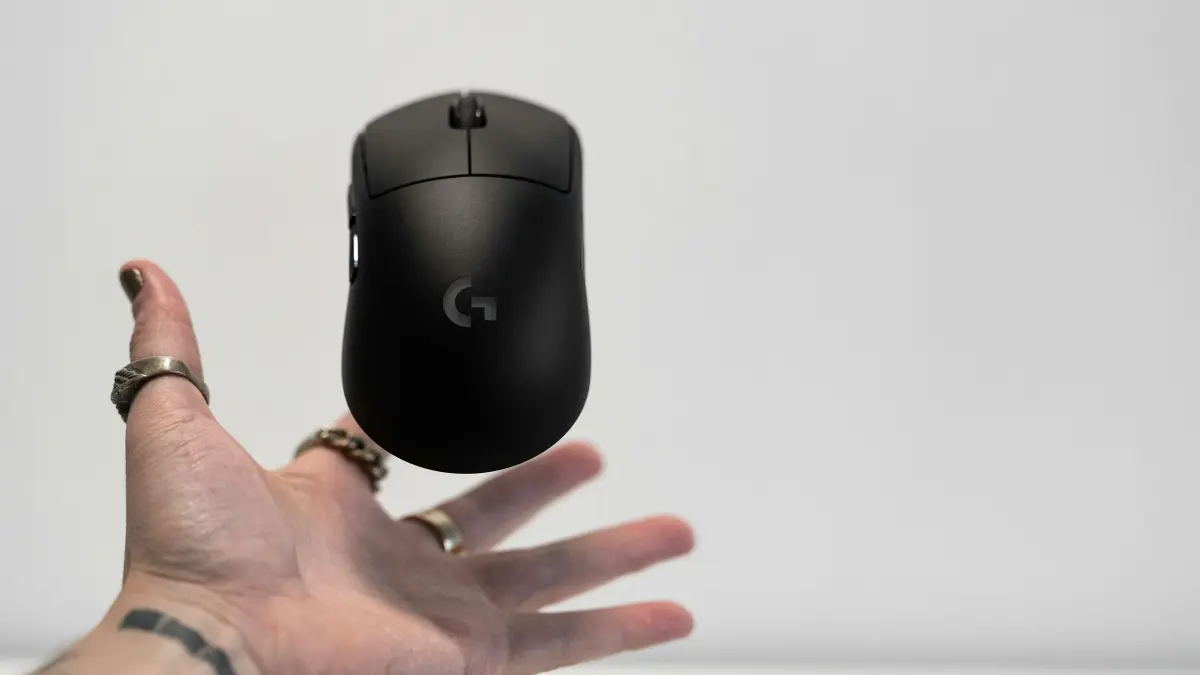
You can use your phone as a wireless mouse with KDE Connect: install it on your computer and phone, pair them on the same Wi-Fi network, tap your computer's name in the app and choose Remote Input. The phone screen then works as a touchpad, and the keyboard icon lets you type. KDE Connect is free, open source and needs no account.
I tried this when my mouse died and I needed something while a new one arrived. KDE Connect is available for Linux, Android, Windows, macOS and iOS, according to the project's download page.
I used Linux Mint on the computer and an iPhone, and the process is the same on Windows and Android, which I only tested briefly. It did not work on macOS 26 when I tried it.
How to use your phone as a wireless mouse
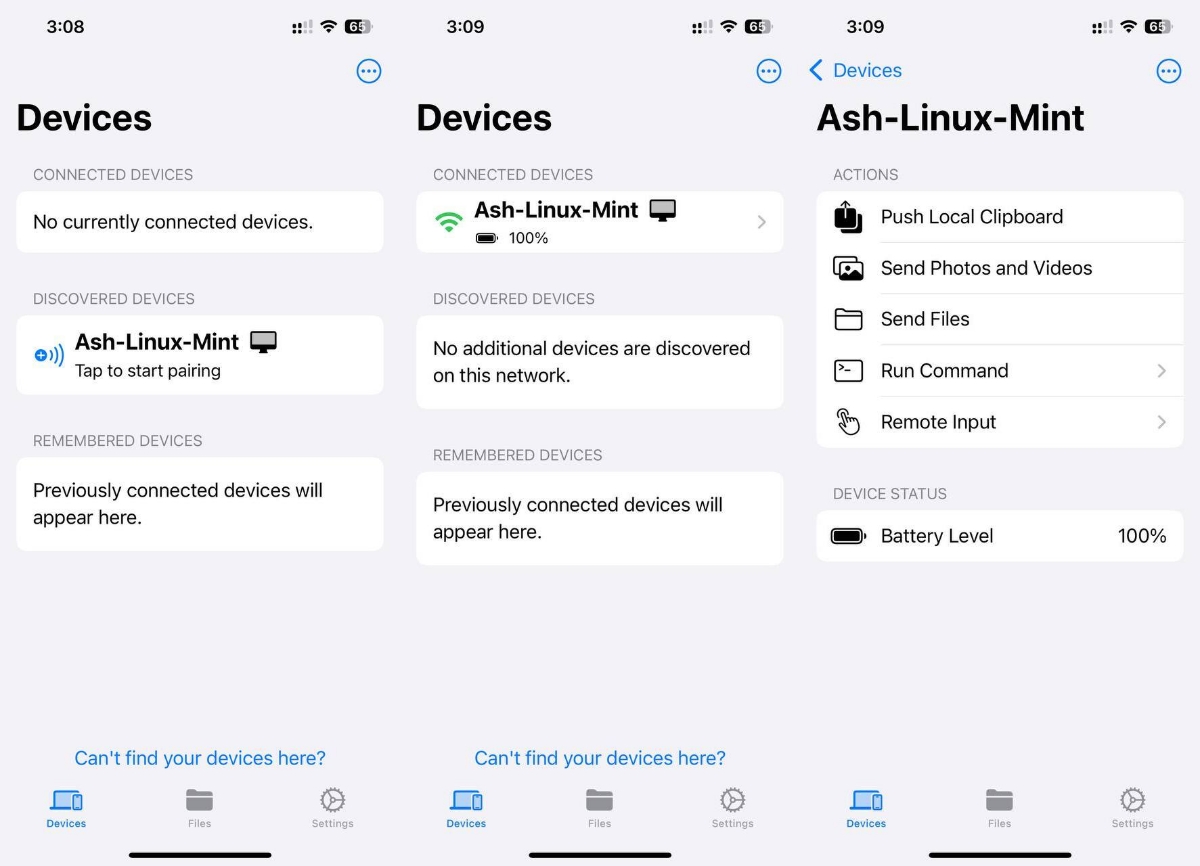
To set up KDE Connect Remote Input, follow these steps:
- Download KDE Connect on your desktop (Windows, macOS and Linux).
- Download KDE Connect on your Android device or iPhone.
- Connect both devices to the same Wi-Fi network and pair them in the app.
- On your phone's KDE Connect, tap the computer's name.
- Select Remote Input.
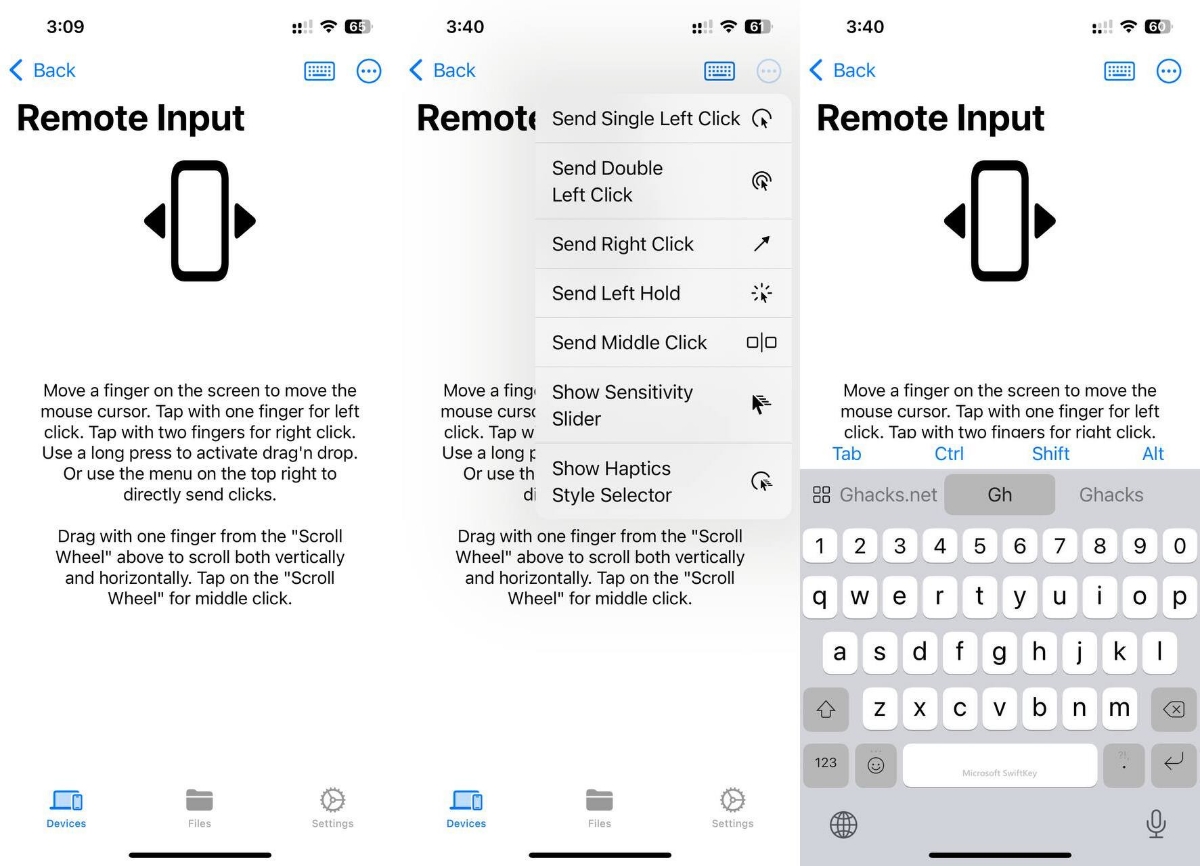
How the phone mouse works
The phone screen acts as a touchpad: drag your finger to move the cursor. Tap the blank space left of the scroll strip to left-click, or the right side to right-click. The scroll strip can be dragged up and down like a page on your phone, which feels reversed at first because dragging down scrolls up. There is some input lag.
Tap the three-dot menu for extra options such as the sensitivity slider and the haptics-style selector. You can also use KDE Connect as a wireless keyboard by tapping the keyboard icon at the top of the app.
Limits and troubleshooting
Remote Input is a stopgap, not a replacement for a mouse. The phone screen stays awake while you use it, so the battery drains quickly. I would not use it for gaming, but it is fine for browsing and basic work.
If the mouse does not respond, check that both devices are on the same network and paired, that the desktop app is running, and that your firewall allows KDE Connect on the local network. On a Mac, the app may need permission under system privacy settings, and macOS 26 may still fail even with permissions granted.
There are other ways to control your computer with a smartphone, but KDE Connect is the one I already use for managing my phone's media. I run it on Linux Mint.
Related: Tips and tricks for the KDE Dolphin file manager, How to change the mouse polling rate

KDE Connect on Plasma and GSConnect on GNOME apparently allow SMS mirroring from the Android app, but the iPhone app doesn’t offer that feature.
We always have spare mice, just like condiments in the kitchen.
We prefer VNC over KDE though, should the need arise.
@Ashwin – A Razer? I hope you didn’t install Synapse (The most invasive spyware / bloatware on the planet) just for a mouse.
KDE Connect works well but very aggressively. That was very gratifying when it detected that my Wi-Fi wasn’t working and popped up a control to turn on Bluetooth and turn on my phone’s hotspot and then connect my computer to the hotspot over Bluetooth. It was not so good though when I then tried to answer my phone and, to my surprise, found that the speaker and microphone were now through the computer instead of the phone. The KDE Connect phone app has a large number of switches that can be turned on or off. Unfortunately, the clarity of the descriptions of what some of these switches might affect leaves a lot to be desired, in my opinion.
You can actually do just about everything you use a mouse and trackpad for using your keyboard, if you know the right shortcuts–old school stuff!