How to Disable the Customer Experience Improvement Program in Windows
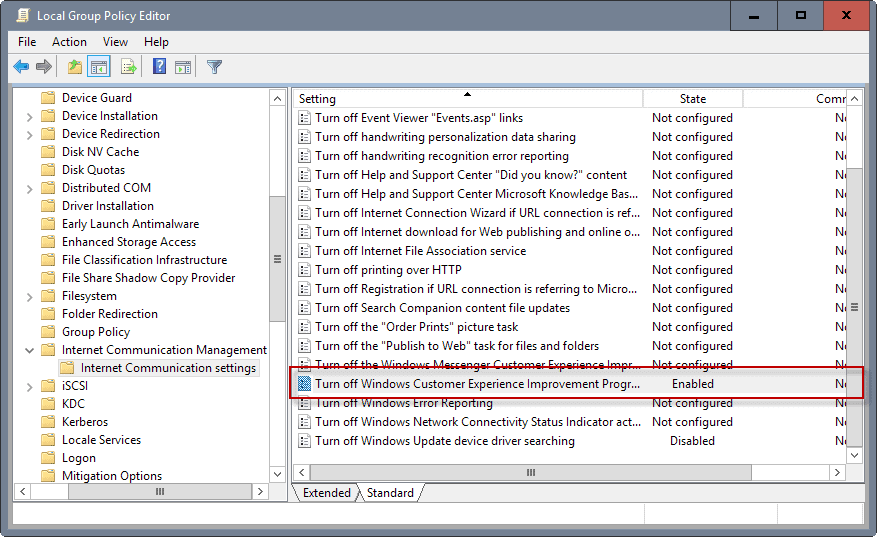
To disable the Windows Customer Experience Improvement Program (CEIP), open the Local Group Policy Editor, go to Computer Configuration > Administrative Templates > System > Internet Communication Management > Internet Communication settings, and set "Turn off Windows Customer Experience Improvement Program" to Enabled. On Windows Home, set the CEIPEnable registry value to 0 under the SQMClient key instead.
The Customer Experience Improvement Program has been part of Windows since Windows Vista. Microsoft describes it as collecting information about hardware configuration and how people use Microsoft software and services, to identify trends and usage patterns. Because the scope of such data is hard to judge from the outside, many users prefer to opt out.
Turn off the Windows Customer Experience Improvement program
If you do not want this usage data collected in the first place, there are several ways to turn off CEIP on Windows 10 and Windows 11: the Group Policy Editor, the Windows Registry, the Task Scheduler and, on some older builds, the Control Panel. Group Policy and the registry are the most reliable, and the Task Scheduler is a supplement.
1. Group Policy
The Group Policy method is the cleanest, because it sets the official policy that all users on the PC follow. According to Microsoft's policy reference, enabling the policy opts all users out of the program, disabling it opts all users in, and "not configured" lets an administrator turn the program on through the Problem Reports and Solutions component in the Control Panel. Microsoft lists the policy for the Pro, Enterprise, Education and IoT Enterprise editions of Windows 10 and Windows 11.
The Group Policy Editor is not included in Home editions of Windows. If you run Windows 10 or Windows 11 Home, skip ahead to the Registry section below.
- Tap on the Windows-key, type gpedit.msc, and hit the Enter-key afterwards. This opens the Group Policy Editor.
- Navigate to the following section: Computer Configuration > Administrative Templates > System > Internet Communication Management > Internet Communication settings.
- Double-click on the policy Turn off Windows Customer Experience Improvement Program.
- Set the policy's state to enabled to disable the data collection.
The change is active right after you make it. If you want to undo the change, set the policy to "not configured" or disabled.
2. Windows Registry
The registry method is what the Group Policy setting writes behind the scenes, so it also works on Home editions. The policy maps to the CEIPEnable value under Software\Policies\Microsoft\SQMClient\Windows in HKEY_LOCAL_MACHINE (the SQM in the key name stands for Software Quality Metrics).
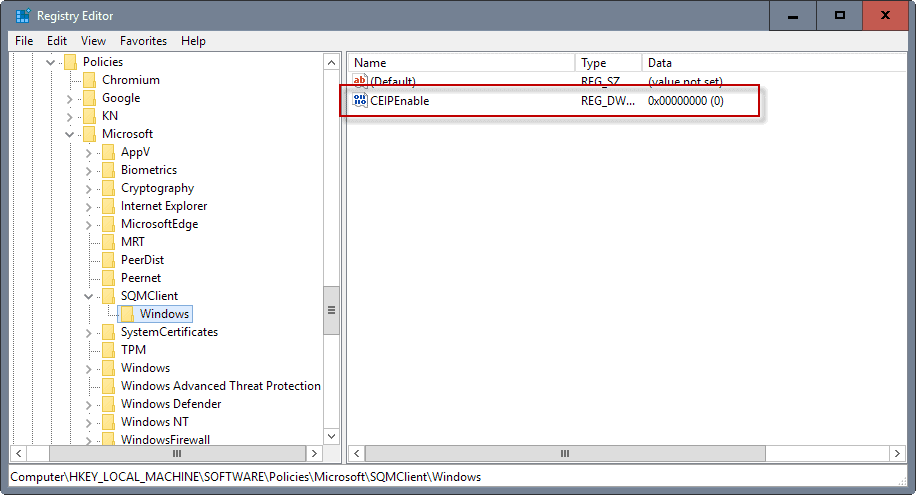
If you don't want to or can't use the Group Policy editor to disable the feature, change its state in the Windows Registry instead. Export the key first (File > Export in Registry Editor) if it already exists, so you can restore it.
- Tap on the Windows-key, type regedit.exe, and hit the Enter-key. This opens the Windows Registry Editor.
- For any edition of Windows: Use the hierarchic structure on the left to navigate to the following key: HKEY_LOCAL_MACHINE\Software\Microsoft\SQMClient\Windows
- To apply it as a policy, which is what Group Policy does, use this key instead: HKEY_LOCAL_MACHINE\SOFTWARE\Policies\Microsoft\SQMClient\Windows
- If a key does not exist, e.g. SQMClient or Windows, create it by right-clicking on the parent key and selecting New > Key from the context menu.
- If the Dword CEIPEnable exists, double-click on it and set its value to 0.
- If it does not exist, right-click on Windows and select New > Dword (32-bit) Value from the context menu.
- Name it CEIPEnable.
- Double-click on it, and set its value to 0.
3. Task Scheduler
The Task Scheduler can stop the upload tasks that feed the program, but it only treats the symptom. Use it in addition to Group Policy or the registry, not instead of them.
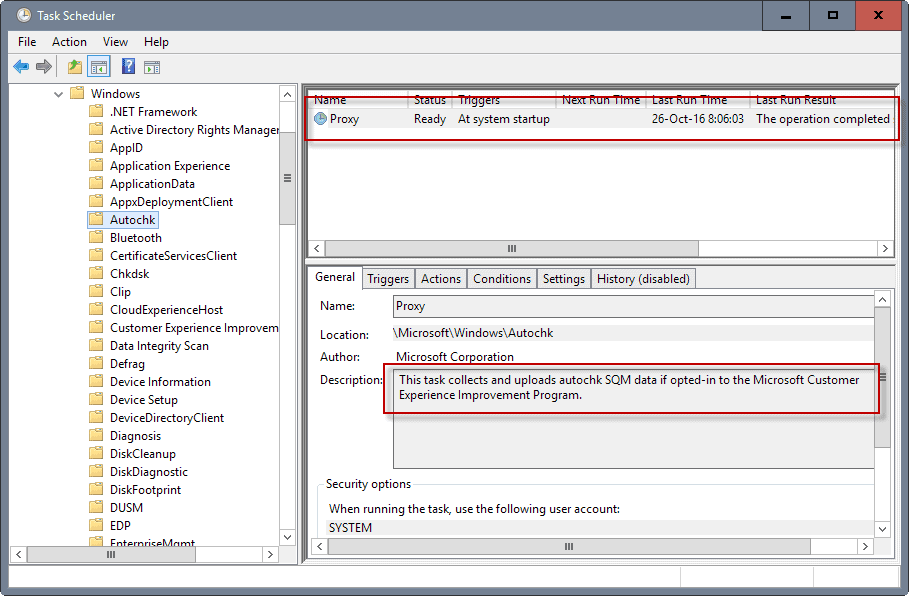
You may stop it dead in its track using the Task Scheduler as well. Basically, what you can do is block the data collection and uploading right there. Windows can re-enable scheduled tasks after major updates, so check them again after a feature update.
- Tap on the Windows-key, type Task Scheduler, and hit the Enter-key. This opens the Windows Task Scheduler.
- Use the folder hierarchy on the left to go to the following folder: Task Scheduler Library > Microsoft > Windows > Autochk.
- The Proxy task there "collects and uploads autochck SQM data if opted-in to the Microsoft Customer Experience Improvement Program".
- Right-click on Proxy and select Disable from the context menu.
- Go to Task Scheduler Library > Microsoft > Windows > Application Experience.
- Right-click on Microsoft Compatibility Appraiser, ProgramDataUpdater, and StartupAppTask, and disable them.
- Proxy: This task collects and uploads autochk SQM data if opted-in to the Microsoft Customer Experience Improvement Program.
- Microsoft Compatibility Appraiser: Collects program telemetry information if opted-in to the Microsoft Customer Experience Improvement Program.
- ProgramDataUpdater: Collects program telemetry information if opted-in to the Microsoft Customer Experience Improvement Program
- StartupAppTask: Scans startup entries and raises notification to the user if there are too many startup entries.
4. Control Panel
The Control Panel option exists on older builds only, so you may not see it on current Windows 10 or Windows 11 installations. If it is missing, use Group Policy or the registry.
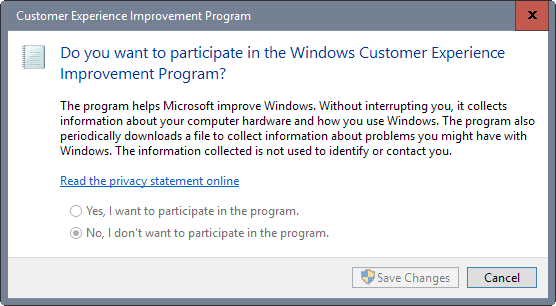
You may disable the program using the classic Control Panel as well (for as long as it is there).
- Press Windows-R, type control and press Enter to open the Control Panel.
- Click on search, and type Customer Experience.
- You should get one result under Security and Maintenance that is named "Change Customer Experience Improvement Program settings". Click on that link.
- Select "No, I don't want to participate in the program" when the preferences window opens.
5. Other Microsoft applications
CEIP is also a per-application setting in several Microsoft programs, and turning it off in Windows does not change them. This is the case for Windows Media Player and Microsoft Office programs, for instance.
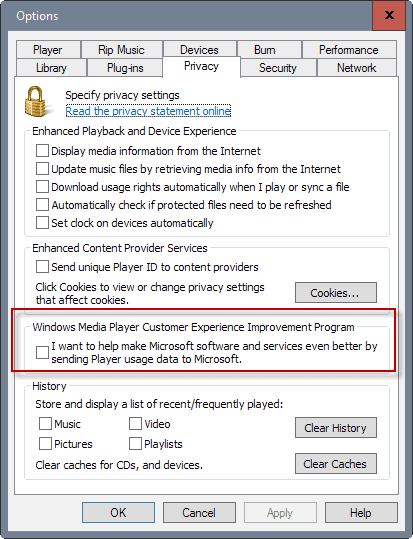
To give you one example:
- Open Windows Media Player on your Windows machine.
- Select Tools > Options from the menu.
- When the options window opens, switch to Privacy.
- There you find the entry "Windows Media Player Customer Experience Improvement Program". If you want to disable it, make sure the box next to "I want to help make Microsoft software and services better by sending Player usage data to Microsoft" is unchecked.
CEIP is separate from Windows diagnostic data. Microsoft's diagnostic data documentation describes the Required and Optional levels used by Windows 10 version 1903 and later, and by Windows 11. To reduce what Windows sends beyond CEIP, review the Diagnostics & feedback page in the Privacy settings.
Related: Custom privacy scripts for Windows, Windows 10 debloat tool, Stop Windows from downloading updates automatically

Thank you for useful information.
Having finally gone to Windows 10 (after staying with Windows 7 after trying 10 when it was new) I can say there have been only a few improvements with “allowing” configuring – but lots more telemetry.
What I truly appreciate, since Win10 was new, is the assistance from people who found and share solutions to Windows 10 blocking our ability to easily configure the OS to work the way we need it to work. I won’t want my desktop to simply be a large mobile phone screen that is not functional as a desktop – which is still the way Windows 10 creators apparently want it to function in a dumbed down way.
Users should not need to have a degree in computer science to be able to get the value we used to get from a desktop without being victimized (malware, viruses, hacking . . .) and used as commodities (telemetry).
I stayed with XP a very long time too before moving to Windows 7 which is more configurable then 7! And Windows 3 worked on 2MG of memory! Go figure . . . how much of the need for memory to run the OS and programs is not for the benefit of users!? Useful basic programs that do what we need are still the best software. Surely, all the top heavy memory usage is not ONLY about protection from viruses, malware, and hacking – all of which are criminal problems not being addressed, rather than computer problems. I really liked that for the most part the criminal element moved on from harassing people using Windows 7.
@MICROSOFT EXPERIENCE
Who thinks people are “hiding” anything? I don’t like what I am doing being interrupted, stopped, slowed down by telemetry that is not necessary for me – so that it seems like there is malware, a virus, or dysfunction of programs or hardware. And the fact is that people who write/are authors have valid concerns about copyright being compromised by unethical corrupt people ont the other end of telemetry – be it anonymous data collection or ill-intended hacking.
For many it is not about “hiding” anything. It is about timing, scheduling, and personal autonomy.
I can’t find this in the registry any more in my 2021 Acer Predator laptop
As dated as this article is, I am glad I found it. We could have all just searched for and shut off the Customer Experience Improvement Program. But we all should know better. It is never that easy. and while i referenced another site before finding and reading through this one, i still found one other task that needed to be shut off. I am not a Microsoft certified pro so this documentation is very helpful. I feel that this is definitely hurting some of our tasks that run for a long time including through the night. Martin Brinkmann, thanks for the article
Right-click on Microsoft Compatibility Appraiser, ProgramDataUpdater, and StartupAppTask, and disable them. – Not found.
PLZ how I can disable CEIP in Win7 I have 100 PC joined to domain I applied GP and task scheduler still same any helllllp please
On my Win7 box, the Control Panel CEIP window was greyed-out any way I approached it. So I switched to the Group Policy editor. That took care of the CEIPEnable registry entry and the Autochk entry in the Task Scheduler.
Unfortunately, my box kept sending out telemetry. Back to the Task Scheduler for a closer look. I found three entries under Application Experience identified as components of CEIP. I’ve disabled these and, with crossed fingers, that should eliminate the telemetry.
So, if at first you don’t succeed…
Thank you for the valuable article.
great article but completely useless.
why useless ?
Microsoft is no longer interested in Vista & win7 users.
all this data goes directly to the drain.
the only thing MS is wondering about those users is “why have they not migrated to W10?” but they refuse to hear that answer.
Altered Group policy OK, Task Scheduler a different story, will try again,
Changed settings on Windows Media player ok. using Win 8.1 Pro
Disabling CEIP doesn’t stop any data or telemetry sent to Microsoft. Read their customer ‘agreement’.
NO
THING
TO
HIDE
WHAT
SO
EVER
Who thinks people are “hiding” anything? I don’t like what I am doing being interrupted, stopped, slowed down by telemetry that is not necessary for me – so that it seems like there is malware, a virus, or dysfunction of programs or hardware. And the fact is that copyright of people who are writers/authors can be compromised by unethical corrupt people. It is not about “hiding” anything, it is about timing, scheduling, and personal autonomy.
With windows 7.
Open the Task Scheduler (Win key then type “sched”). Under Task Scheduler Library -> Microsoft -> Windows delete the following items:
Everything under “Application Experience
Everything under “Autochk”
Everything under “Customer Experience Improvement Program”
Under “Disk Diagnostic” delete only the “Microsoft-Windows-DiskDiagnosticDataCollector”
Under “Maintenance” “WinSAT” “Media Center” and click the “status” column, then select all non-disabled entries and disable them.
also remember to reboot yr computer.
Thanks Martin for showing us different options to choose from
This portable tool is doing it for you in one click:
https://www.phrozensoft.com/index.php?uri=read&yyyy=2015&mm=09&threadkey=windows-privacy-tweaker&threadid=4
“Be sure to visit our site regularly to make sure you have the latest version of Phrozensoft Windows Privacy Tweaker.” Why does Phrozen want people to continue visiting the site? It’s in your best interest? I really doubt it.
Old tool; I wonder how much information one sends to their server each time he/she downloads a program or what the EULA says: much the same as all software–And you agree to let us determine how you use the program in our efforts to continue offering superior software.
Where is the line: MS needs feedback just as Martin needs feedback. But so do other software developers which means your privacy was gone the first day you logged on, each time you make a new account at a site, each time a program is downloaded, every email sent through Gmail, Outlook, or Yahoo.
What a mythic state in which the world lives. Chances are ISIL/ISIS knows you and wonders if you would make a good traitor.
I don’t have a single Windows system in my house anymore. Don’t miss it a bit. Mix of OS X and Linux for me right now.
While you’re at it, also in Control Panel (at least on Win7) you may want to disable the Error reporting feature and the auto maintenance under Troubleshooting. You can do it manually when/if needed.
Thanks Martin, I missed that setting in Windows Media Player.
While I appreciate the article, the methods are written in a way which makes this appear more long-winded and convoluted than it actually is. I think that this a trend on ghacks recently, and I prefer the older style where the articles were shorter and got straight to the point. Regarding the topic of the article, you can just search the Start Menu for “Customer Experience” and turn it off there.
He covered all three ways for the rest of us who like to use Task Scheduler. I like that he turned me on to Group Policy settings since I am trying learn that one.
In the past, I have always used Services and Msconfig. I have found that MS Updates, System Restores and reboots can sometimes change back my settings. This was a one-stop shopping article that helped me and others.
Also, the Windows Media Player settings opened my eyes to yet another way MS was slowing down my Laptop. Even after visiting Black Viper, SevenForums and others I follow, I was surprised that Media Player was still set to report back to the big brother.
Nah, I think the article length is right. I appreciate the detail and explanations given. I’m a user, not a certified Windows expert. I like Martin’s articles – very useful to me.
@ jern, I’ve mistaked indeed, I meant to say in fact “master mind”.
I’m really not fluent in English :)
I’d love to carry on this educated conversation but why is it I feel we’re off-topic?!
@Tom
Don’t start trumpetting your “superior mind” – blowing your own horn like an elephant.
I’ve translated “trump” to “trompe” in French and “trompe” in French means an elephant’s trunk, and not trump… which explains my reference to “Elephant Man”.
Good Lord… my elaborated wording is a fiasco. I feel ashamed, humble, tiny, as superior minds always say.
@ jern, the only Elephant Man I loved was David Lynch’s :)
@Tom
Apophasis – Don’t take offense but Donald Trump is good at that. I like your use of it better than his.
If I were Martin’s manager (10%) I’d say “Great to appreciate gHacks, prove your interest with a donation”, but considering I’m not, I won’t say it :)
Looks like I wrote it, though …
@ John
I agree. Martin’s blogs are excellent for showing users how to fix Windows problems / settings. The more in depth the articles are, the better for users
Thanks again, Martin.
Thanks, Martin, for commenting and detailing a Windows “feature” (if one can call that a “feature”) more than worth being taken into consideration.
All corresponded here with my settings except that CEIPEnable appears here on my Windows 7 64-BIT,
in : HKEY_LOCAL_MACHINE\SOFTWARE\Microsoft\SQMClient\Windows
and not in : HKEY_LOCAL_MACHINE\SOFTWARE\Policies\Microsoft\SQMClient\Windows
I believe this is maybe related to the fact that Windows (7) Home Premium doesn’t handle Group Policies?
Anyway, we do have Registry and Task Scheduler set to block the infamous Windows Customer Experience, and it will stay that way :)
Tom is right:
* on systems that don’t support policies, the only recognized key is `HKLM\Software\Microsoft\SQMClient\Windows`.
* on systems that support policies, both keys `HKLM\Software\Microsoft\SQMClient\Windows` and `HKLM\Software\Policies\Microsoft\SQMClient\Windows` are recognized, the latter having precedence over the former.
Reference: https://msdn.microsoft.com/en-us/library/dd405474(v=vs.85).aspx
Martin, would you update the article accordingly please?
Thanks John, have added the information.
Excellent tech article Martin! Thanks to you….
Thank you, Martin, for taking care of our privacy.
I’ve just turned off the Windows Customer Experience, and I also find in this same section an option to disable Window reports, which certainly sends a lot of information too…
Greatly appreciated !