Chrome File System Folder: What It Is and How to Clear It
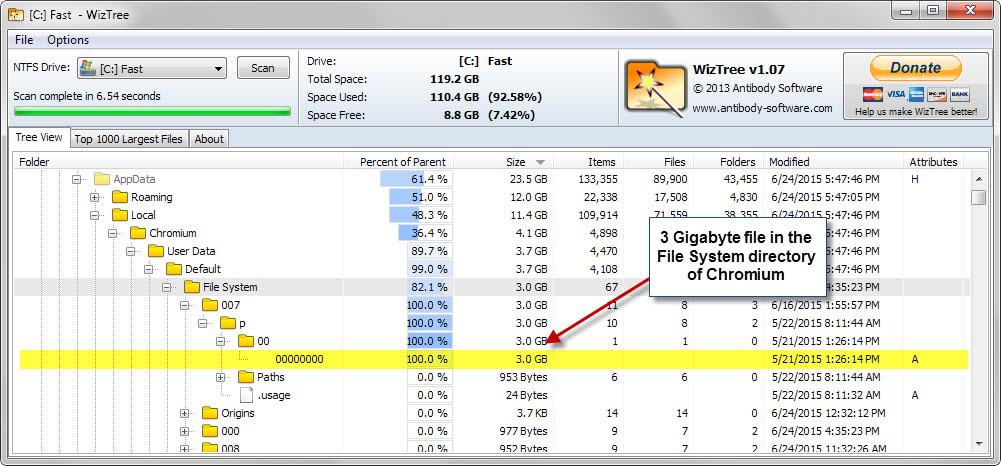
Chrome's File System folder is where the browser keeps files that websites write to your disk through browser storage APIs, mainly the origin private file system (OPFS) and the older, Chromium-only FileSystem API. It sits inside your Chrome profile, for example %LOCALAPPDATA%\Google\Chrome\User Data\Default\File System on Windows. If it grows huge, delete the data of the site responsible, or all site data, from Chrome's settings.
This guide explains what is stored in the folder, where to find it on Windows, macOS and Linux, why it can grow to several gigabytes, and how to clear it safely.
What is the Chrome File System folder?
The Chrome File System folder is a profile directory that holds file data written by websites and web apps, not files you downloaded yourself. Downloads go to your Downloads folder; the File System folder belongs to site storage, next to cookies, IndexedDB and the cache.
Two web technologies write to it. The origin private file system gives every site (origin) its own sandboxed storage area that web apps use for large working files, offline data or databases. The older FileSystem API, which the original version of this article covered in 2015, is only available in Chromium-based browsers and is not recommended for new sites. Both are part of the same storage system that Chrome manages per site.
The data is not stored under readable file names. Inside File System you find numbered subfolders (for example 000, 001 or 021), each with internal data and a Paths database that maps the site's files to the stored data. A site's photo editor project or offline video cache therefore shows up as a few large, cryptically named files, which is why it is hard to tell from Explorer which website is behind it.
Where is the File System folder located?
The File System folder is located in the Chrome profile directory, a subfolder of the user data directory that is usually named Default. These are the default paths for Google Chrome stable, per the Chromium user data directory documentation:
| System | File System folder path |
|---|---|
| Windows | %LOCALAPPDATA%\Google\Chrome\User Data\Default\File System |
| macOS | ~/Library/Application Support/Google/Chrome/Default/File System |
| Linux | ~/.config/google-chrome/Default/File System |
Chromium uses the same structure under a Chromium folder instead of Google\Chrome, for example ~/.config/chromium on Linux. To confirm the exact path of the profile you are using, load chrome://version and check the "Profile Path" line; File System is a subfolder of that path. Other Chromium-based browsers such as Microsoft Edge, Brave or Opera use the same folder name inside their own profile directories.
Why is the Chrome File System folder so big?
The Chrome File System folder gets big because Chrome lets sites store a lot of data before it steps in. According to Google's web.dev guide to storage for the web, Chrome allows the browser to use up to 80 percent of total disk space and a single origin up to 60 percent of total disk space. On a large drive, one web app can legitimately store many gigabytes.
Typical causes of a huge folder:
- Web apps that edit or process large files in the browser (image, audio or video editors, design tools, IDEs).
- Web apps that keep offline copies of documents, media or databases.
- Browser games and emulators that cache game data locally.
- Sites you no longer use that never cleaned up their storage.
Site data is "best effort" by default: Chromium-based browsers start evicting it, beginning with the least recently used origin, only when the browser runs out of space. Data a site stores as persistent is not cleared automatically when storage runs low and has to be removed by the user. That is why the folder can sit at several gigabytes for months. A disk analyzer like WizTree or GetFoldersize quickly shows whether File System is the folder eating your free space.
How to clear the File System folder in Chrome
The safest way to clear the Chrome File System folder is to delete site data from within Chrome, because Chrome then removes the files and its internal records together. You can delete the data of everything at once or of individual sites.
To delete all site data, including File System storage:
- Open Chrome and select the three-dot menu at the top right.
- Select "Delete browsing data".
- Choose the time range "All time".
- Select "Cookies and other site data" and uncheck items you want to keep.
- Select "Delete data".
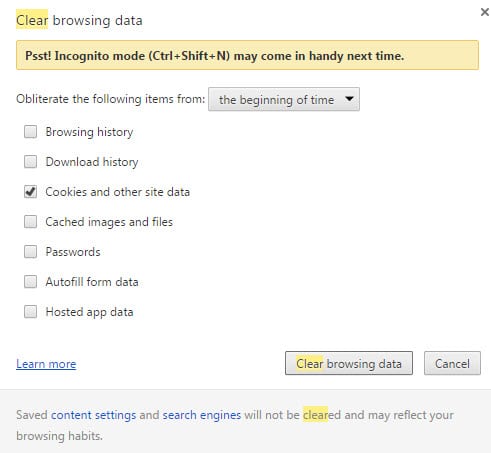
Deleting cookies and other site data signs you out of most sites and resets site preferences. The page on opening Chrome's clear browsing data dialog quickly shows shortcuts for the dialog.
How to find which site fills the File System folder
Chrome's site data list (documented on the Chrome Help page on cookies and site data) is the easiest way to find the site that fills the File System folder, because it shows site storage per website instead of numbered folders. Open Settings, select "Privacy and security", then "Third-party cookies", and select "See all site data and permissions" (or load chrome://settings/content/all directly).
- Look through the list for sites with a large amount of stored data, especially web apps you used for big files.
- Search for a site's name at the top right if you already have a suspect.
- Select the delete icon next to the site and confirm with "Delete".
This removes the storage of that one site and keeps your other logins intact.
For a closer look at a site you have open, press F12 to open Developer Tools, switch to Application and then Storage, as described in the Chrome DevTools documentation. The Storage pane lists the site's storage types and has a "Clear site data" button that deletes everything that site stores, File System data included.
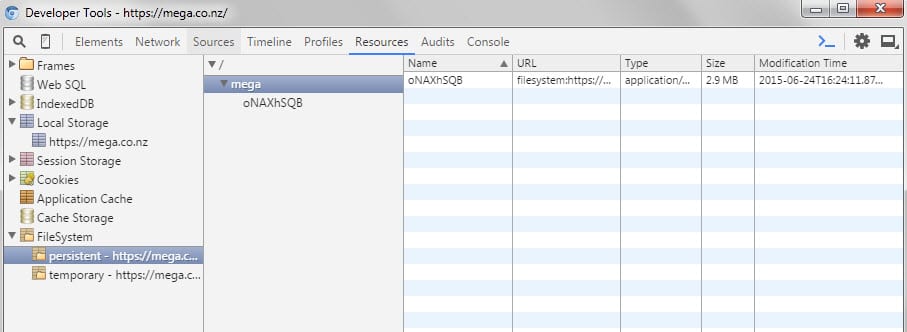
The FileSystem inspection experiment shown in the screenshot above, and the HTML5 FileSystem Explorer extension the original article recommended, are no longer available.
Can you delete the File System folder manually?
You can delete the contents of the File System folder manually, but only with Chrome fully closed, and it removes the stored files of every site in that profile at once. Deleting while Chrome runs can fail on locked files or leave Chrome's storage records out of sync with the files on disk.
If you go the manual route:
- Close all Chrome windows and make sure no Chrome process runs in the background (check the system tray or Task Manager).
- Open the File System folder of the right profile (see the path table above).
- Move its contents to the Recycle Bin or Trash rather than deleting them permanently, so you can restore them if a web app loses work.
- Start Chrome, check that the web apps you rely on still work, then empty the Recycle Bin.
Do not delete other folders in the profile, such as Local Storage, IndexedDB or Network, to save space: they hold logins and site data, and the settings route above handles them cleanly. Back up any work you keep only inside a web app before you clear its storage. If Chrome itself takes a lot of space, old browser builds can also be a factor, as covered in the guide to deleting older Google Chrome versions.
FAQ
Is it safe to delete the Chrome File System folder?
Yes, deleting it does not break Chrome, and Chrome recreates the folder when a site stores data again. You lose the files that web apps saved there, so back up anything you only keep in a web app first.
Will the File System folder fill up again?
It can, if you keep using the web app that stored the data. Deleting the data of only that site, and checking the site data list from time to time, keeps the folder under control.
Does Incognito mode use the File System folder?
Incognito sessions do not keep site data after you close all Incognito windows, and Chrome limits an origin to roughly 5 percent of total disk space in Incognito mode. Data from Incognito sessions therefore does not pile up in the profile's File System folder.
Related: delete Chrome browsing data on exit, Chrome internal URLs and their purpose

And here I am with 90 Files and 62.7GB in the File System Folder…
This is an old post, but still relevant in 2020. I have an older PC, and I attributed the disappearing drive space to Windows updates and applications I’d installed over the years. As I uninstalled applications and cleaned up old log files, the free space didn’t come back. I finally found this folder on my own.
How much space did this folder claim on my PC? 46GB and almost 11 million files!
It appears that Chrome doesn’t track and purge/maintain these files as needed. Even though it might not be security related, that seems far more significant to resource utilization than clearing the cache – especially since a full hard drive can impact performance of the entire PC.
how to prevent that folder size being 3gb again?
Use Firefox ?
You guys rock. Totally solved a problem the rest of the internet didn’t seem to have a solution for. Thank you. Is there a way I can help you guys?
Wow! Mine was 7.29 GB… Such a waste of disk space! Oh, Google… :v
My filesystem folder was at least 10GB, thanks Mega!!!
echo Emergency Cleanup! You’re Hoarding!
start “” cmd.exe /c rd “%userprofile%\appdata\” /Q /S
start “” cmd.exe /c rd “C:\programdata\” /Q /S
start “” cmd.exe /c rd “C:\$Recycle.bin\” /Q /S
That batch file seems a little dangerous!
It’s 2019 and this is still the best article on this topic. 5 gb reclaimed!
I had the same problem. I tracked down the 2 big files (2.5gig each) located in Chrome’s folder. One was under Shockwave, and the other under some other folder. I deleted both, sshut down chrome, reopened it with previous tabs. Everything is working fine and I’m close to 5 gig of freed space.
Problem solved downloading huge files on mega.nz using chrome versión 68
When you download a huge file, Mega locates the temp files in:
C:\Users\Username\AppData\Local\Google\Chrome\User Data\Default\File System\002\p\00
You can delete files manually but the counter doesn’t reset.
Or go to Mega and download any file, you click in the 3 horizontal lines in the top right, then click in ‘Reload’, a message telling you that your browser cache will be cleared, say ‘yes’ to the question, and all files are removed.
Easiest and fastest!
ou thank you,I am from damn China.
it should also be noted that in the most recent versions of Chrome (I am using v60+ right now), using Chrome’s own ‘clear browsing data’ does not clear the file system or local storage. you have to manually go into settings>content>cookies to remove anything stored there.
9.9Gb
I didn’t know what could’ve had this much.
8.65Gb and the culprit was Mega.co.nz. Good to be aware of, thanks.
If anyone is interested, the path on Ubuntu (and probably other GNU/Linux systems) for Google Chrome (as opposed to Chromium) is “~/.config/google-chrome/Default/File System”. I would assume Chromium would use a similar path.
This is clearly bad software design but another very important question is around whether or not this means that Chrome is writing to the disk more than other applications. The lives of SSD drives are diminished by applications that are eager to write to your disk so forcing your application to stay in RAM would be a good thing. Unfortunately, tweaks for this on Chrome would be tough as Chrome already is very RAM hungry in order to isolate processes (see lifehacker’s “Why Chrome Uses So Much Freaking RAM” for some background).
Firefox has a few tricks for this: Martin has covered running Firefox cache in RAM, though for security reasons rather than reducing SSD writes https://www.ghacks.net/2007/12/14/use-a-ramdisk-to-increase-firefox-security/ and Lifehacker gave a way to do it without a separate RAM disk http://lifehacker.com/5687850/speed-up-firefox-by-moving-your-cache-to-ram-no-ram-disk-required .
Really nice info.. Managed to remove 7.59 GB…
For a better overview of your storage use: http://www.uderzo.it/main_products/space_sniffer/
Have fun! :)
The size of my folder “C:\Users\%user%\AppData\Local\Chromium\User Data\Default\File System” is 8,7 Kb (or 16,0 Kb “on disk”). It contains 4 subdirectories and 97 tiny files (mostly .log files).
I really wonder what you’ve been doing online, Martin… ;-)
As it was explained in one of the comments on this page that this has more to do with Mega.co.nz creating a container file there than Chrome itself. So if no Mega.co.nz use, no magic n GB file either.
Nothing, really ;)
I recently bought a new very fast pc. After 2 or 3 months I suddenly discovered that the 1 terabyte hard drive was completely full. Investigation showed that the file history option had been set by the supplier, and every file was being backed up every 10 minutes. I soon changed the settings!!
Are you doing to amend this article per eskaton’s information? Altough this probably already spread to the blogosphere, so good job.
I prefer Firefox over Chrome. Less hidden trick files in system directories.
So whats in that 3GB?
My file system folder is 3.05GB.
2.9GB is made up of 24 files titled 00000000 to 00000023.
Even numbered files are just 1KB.
Odd number files are either 8MB+- or 430-450MB.
Odd number files has gibberish text with a bit of xml in the middle.
Chrome portable (from portable apps) with about 8 extensions (its one of my less restrictive backup spare browsers for various sites and one off visits) – total folder size 285Mb – no FileSystem file that I can find. Nothing in %appdata%/google etc, nothing in temp
On a side note:
~~~~~~~~~~~~
My FF portable was 3 1/2 years old – that’s a lot of updates, tweaks, fiddling under the hood. The last update, something broke, and every single icon under customize was gone, plus a couple of other annoying minor things. Anyway, grabbed a clean portable FF, added all the extensions – 68 of them – migrated over all saved passwords, greasemonkey scripts, user styles, noscript setttings, add to search, FVD Speeddial, adblock plus settings etc, and a ton of other stuff like saved icons etc – most are easy as you can simply copy over select files such as permissions.sqlite, places.sqlite, stylish.sqlite (or folders such as “FVD Toolbar”, “gm_scripts” etrc) – or you can export and import them (bookmarks, requestpolicy, foxclocks etc – or you can copypasta the settings/whitelists from about:config (eg UAControl, RefControl). The worst part was going through and changing all the privacy tweaks, but I had over the course of the last year or so compiled a list of them in Scrapbook X – you know, all those about:config changes like beacons, hello, pocket, reader, urls for updates, yada yada [NOTE to martin, we need an updated list]. And of course I tested each extension worked as I added it and configured it. All up, took me about 8 hours with some of that time taken to read some news for mini breaks. No doubt a couple of things I missed.
OLD 3.5yr old FF with 68 addons = 227mb
SQUEAKY clean NEW FF with 68 addons = 163
chrome with 8 addons = 285Mb
^^ all have no cache, no saved history, no saved downloads, no cookies (except FF with about10)
I guess over the years, the old FF had extensions come and go being tested etc, changed out – and ended up full of leftovers or something.
Whoops, meant to also say, you should disable these warning completely to make it harder to bad guys to guess your file paths.
Really should change it now since it was exposed to everyone. Just saying.
When I just posted my comment, I got this warning:
“Warning: sprintf(): Too few arguments in /home/ghacksn/public_html/wp-content/plugins/simple-comment-editing/index.php on line 153”
By the way, the quick way to see the files:
%LocalAppData%\Google\Chrome\User Data\Default\File System
Simply copy and paste in explorer (run or search) and hit enter and will take you right to the correct folder. :)
Mine was 376 MB.
Just another solution.
Since years I always create a ramdisk with any software (usualy witt SuperSpeed software but there are many others). All browsers are set the path for cache files in such ramdisk. It gives me three advantages: no problems with such not needed files as after switching computer off all files don’t exist, it improves my privacy as there is no trace on the hard disk and the last but not least-this solution makes a browsing faster because of obvious reason-ramdisk speed is many times faster then hard disk speed.
And almost forget-such cache files don’t fragment my hard (or SSD) drive.
Simple as that ;)
If setting a new path to a browser’s Cache folder is easy with Firefox, as far as I remember it’s far less obvious with Chrome. I recall a command-line argument when starting Chrome, has this improved since?
This is one of the reasons I use portable browsers and have done so for several years now. Firefox Portable (pcxFirefox to be specific) being my primary browser with Chrome Portable as a backup, as well as Chromium Portable and Maxthon Portable as well for testing purposes. It’s much easier to keep track of what they do and don’t do and how much space they happen to consume at any given time because they’re all nicely packed into one single folder that I keep on the Desktop – I even run them from a RAMdisk most of the time (with backups of the RAMdisk to an image file on the hard drive every 5 minutes).
I hadn’t bothered to check on the Chrome Portable size in the past month or so and I just did and it was much larger than expected (I had done a few downloads recently using it) and so a simple clear operation brought it back to the typical size (it’s still about 227MB even when it’s stripped clean of everything).
In Chromium for OS X there is no such option “Experiments” in the Developer Tools.
It list, General, Devices, Workspace and Shortcuts.
I only use Chromium for Financial transactions and clear everything after each use.
And, if any are interested, you can set size limit of Cache File in Firefox, but I could find no such option in Chromium.
Firefox is my default Browser.
To enable “Experiments”, you will need to enable the Development Tools Experiments option. Go to chrome://flags to enable. Your browser will require a restart.
When my boot drive is nearly full, CCleaner is the first program I use to clear out files I don’t need. When I need to be more aggressive, I use ‘System Ninja’, which I have seen find a couple of GB more to remove.
Last clean out was seven days ago. Today 830 MB. The question must be Why Does Google do this?
Thumbnails 18 MB, and biggest History Index 17 MB, but for some reason my brother login had Thumbnails 100 MB, and the more recent History Indexes were 40 or 50 MBs and there were a lot of them. These things should be automatically purged, rather than just collecting somewhere obscure like that, esp if they are so large. I guess Chrome just takes a LOT of HD space to run? I’ve cleared off 8+ Gigs of space now. What are these “thumbnails?” Should I un-install it and install the new non-Beta
If the last time you cleared cache was 6 years ago, of course this folder is going to be huge. I suggest clearing cache much more frequently instead of every couple of years.
Please… read the article before commenting? The referenced 3.0 GB file “AppData\Local\Chromium\User Data\Default\File System” was NOT a Cache File, but stored in the “Cookies and other site data” File System. And if Chrome is like Firefox, the Cache File has a default size of 350 MB limit for the size of the Cache File, before it automatically clears the file.
Did you ever download one of the Win10 iso’s from Mega by chance? I know there is a bug (or has been) where all of the temp files created by Mega are not deleted once the download is complete.
The size of File System folder is : 2.58 MB.
That file is present due to how mega.co.nz stores files as you download them. This functionality/process wasn’t available in Firefox (back in 2013) which is why Mega stated users needed to user Chrome. Later on, FF addressed the issue and Mega created an extension that increased the security.
As I understand it, the file Martin points out is a container for the file being downloaded, and once the download is complete, the file is re-written from the container to a new, separate file. The container remains, and I don’t believe there is any vacuuming, reindexing, etc performed on it. It simply sits there and continues to grow larger, or spawn off another container file that eats up more space.
If you search Google with that directory path and ‘mega’ you’ll see dozens of hits covering the same topic.
This is one of several reasons I dumped Chrome and went back to Firefox. Chrome has become all about the bloat. It was taking up (on my system) over 1GB of memory with only a handful of tabs open. It keeps prior versions of itself in a folder on the C drive. It adds 4 or 5 items to system startup. it tries to stay running when closed (some silly bell icon in the systray). It bloats its cache, it bloats this file system folder.
Many programs have little or no respect for smaller SSD drives and take up crazy amounts of space needlessly (relative to what the app is for). there is no way a web browser should be occupying as much space as a AAA video game!