
How To Open The Adobe Flash Player Settings In Google Chrome

If you follow the news on Ghacks you know that Google Chrome is the first web browser that offers an internal Flash plugin to enable Flash support in the web browser. The internal Flash plugin is turned on by default so that all users of the web browser can access Flash based web contents even if Adobe Flash is not installed globally.
The Adobe Flash player controls are web based controls, and they can be used to manage various Flash based parameters and Flash cookies.
Update: You can open the controls directly as well now using this link: http://www.macromedia.com/support/documentation/en/flashplayer/help/settings_manager07.html
Note that you need to click on the "get Flash" button on the page, and then allow Chrome to run Flash content to display the panel. The information below is no longer required. It is kept for archiving purposes. End
Chrome users who only use the internal Flash plugin might have noticed that those web controls are not opening for them properly. The control area remains white with no option to show the controls in the web browser.
It took a while of searching to find a way to display the Flash player settings panel in Google Chrome. Open the Chrome options by clicking on the Tools button in the Chrome toolbar.
Switch to the Under the Bonnet tab and click the Content Settings button afterwards. Now click on the Adobe Flash Player storage settings link in the Cookies tab to open the Adobe Website Storage Settings panel that works in the Chrome browser.

This opens the Flash player controls correctly so that Google Chrome users can manage the Flash Player settings as well.
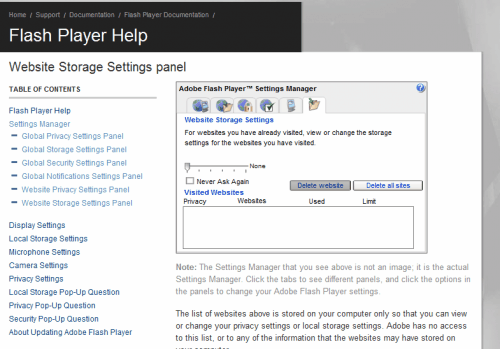
It is possible to open the url directly in Google Chrome so that it is not necessary to follow the menu path to open it.
Update: Please note that Google removed the options from its Chrome browser again. While you can still open the Flash Player settings directly on the Macromedia website to manage the settings in the web browser, you won't find an integrated version of the settings anymore in it.













Now that you’ve given Chrome permission to ask for your permission to run sites with Flash (whew), you need to tell it which sites to allow.
Hello,
I just recently came into the same issue it sounds like many of you are having. If you have the most recent version of Adobe flash player, then maybe this will help you too. This is pretty much an updated version of what Njalldur posted. I think the re-occurring issue is that Chrome will continuously change their interface, so no route is constant.
– Go to settings
– Scroll to the end, click: “Show advanced settings…”
– Find “Privacy”, click: “Content settings”
– Click the “Flash” bar on list of contents; it has a flash puzzle piece symbol next to it
– If your Flash setting has the “Ask First” button on, turn the button off
I hope this allows your videos to play and will help to solve or solve to some extent your issue.
reading a lot of mumbo-jumbo here…
if you just right click on a flash link then select global settings you will be where you need to be!!!
TYPICAL COMPUTER GURU GIBBERISH: MOOCHO ‘MUMBO-JUMBO’…. I STILL hate Bill Gates!
It´s back, but conspicuously well hidden:
– Go to settings
– Scroll to the end, click: “Show advanced settings…”
– Find “Privacy”, click: “Content settings”
– Scroll down to “Media” where you´ll find the text:
“Adobe Flash Player camera and microphone settings are different.” (…you don´t say! ^^)
Click the “Change” button and you´ll end up at these settings.
No, that isn’t correct either from what I see. There is no “Media” under “Content Settings.”
thats why i didnt find.
Cool story , to bad its wrong.
There is no flash player settings under advanced settings even with flash installed.
So perhapse next time you post a “guide” test it yourself otherwise its pretty useless.
Sorry for that. The guide was from 2010 and back then it worked. I have posted an update notice to it.
i want to download flash player on my mobile,plz help me.