Backup software for Windows: built-in tools, free and paid picks compared
The best backup software for Windows is a tool that can restore a full system image from bootable rescue media and keep older versions of your files. Windows 10 and 11 include File History and the Windows Backup app for files and settings, but neither restores a complete system. For full images, Veeam Agent Free, Hasleo Backup Suite Free and AOMEI Backupper Standard cover home use at no cost.
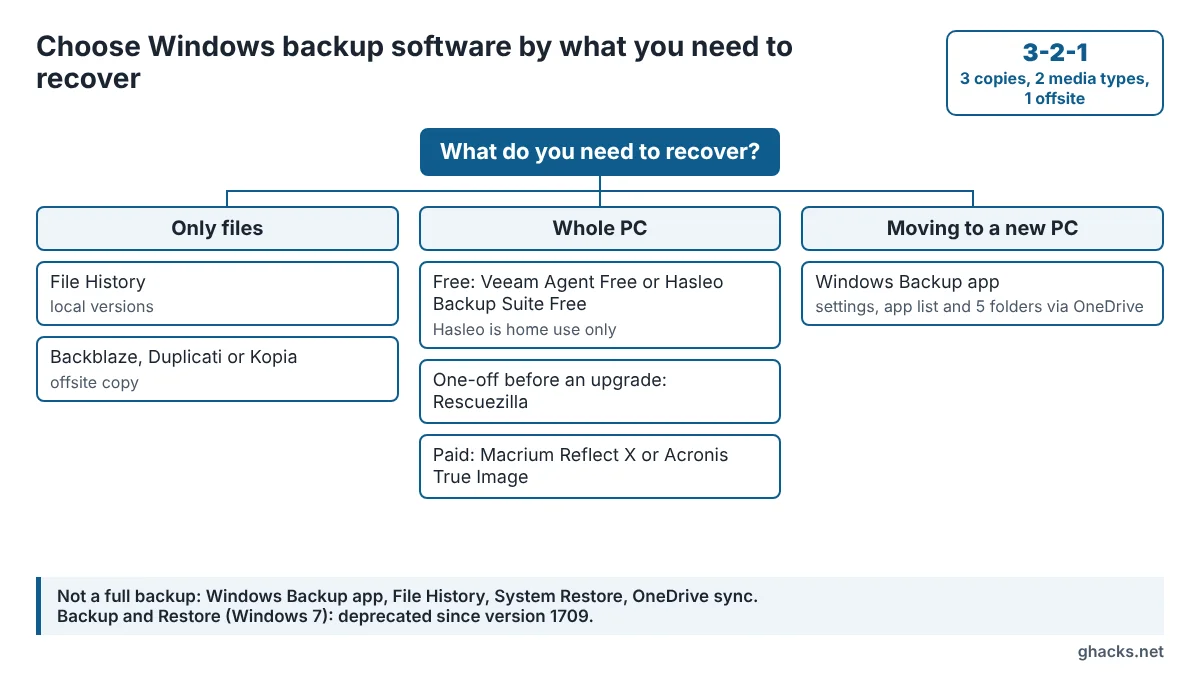
This page compares the built-in Windows options, free tools and paid tools by what they can actually restore, lists the limits of each free edition, and ends with a decision table. Checked against Microsoft documentation and vendor product pages on 19 November 2026; not tested on our hardware. If you only need to copy a user profile, the older profile backup utility we covered in 2011 handles that narrower job.
Our picks at a glance
The best free choice for a full system backup is Veeam Agent for Microsoft Windows Free, with Hasleo Backup Suite Free as a close alternative for home users; the best file-only choice is File History, and the best paid choice depends on whether you want local images (Macrium Reflect X) or cloud storage included (Acronis True Image, Backblaze).
| Tool | Best for | Backup type and cost |
|---|---|---|
| Veeam Agent for Microsoft Windows Free | Full PC images with bare-metal restore | Image, volume and file backup; free |
| Hasleo Backup Suite Free | Home users who want incremental and differential images | System, disk, partition and file backup; free for home use |
| AOMEI Backupper Standard | Simple scheduled images on Windows 7 to 11 | System, disk, partition and file backup; free (differential is paid) |
| Rescuezilla | One-off images from a boot USB, no install | Full disk images; free, open source |
| Duplicati or Kopia | Encrypted file backups to cloud storage you choose | Files and folders; free, open source |
| Macrium Reflect X Home | Paid imaging with ransomware protection for images | Image and file backup; paid |
| Acronis True Image | Image backup plus vendor cloud storage | Image and file backup; annual subscription |
| Backblaze Personal Backup | Unlimited offsite copy of personal files | Cloud file backup; 99 US dollars a year |
Does Windows have built-in backup software?
Yes, Windows 10 and 11 ship three backup tools, but none of them is a complete, supported system backup. Each covers a different slice, and knowing the gaps is the main reason to add third-party software.
Windows Backup app
The Windows Backup app backs up your Desktop, Documents, Pictures, Videos and Music folders by syncing them to OneDrive, plus a list of installed apps and settings such as Wi-Fi networks and passwords, accessibility and personalization. It needs a personal Microsoft account (work or school accounts do not work), and a free account includes 5 GB of OneDrive storage. Restores happen when you sign in with the same account during setup of a new or reinstalled PC, according to Microsoft's Windows Backup documentation. It does not create a system image, and Store apps are reinstalled from pins while other apps only get a link to their installer.
File History
File History copies the Desktop and your Documents, Pictures, Videos and Music libraries to an external drive or network location and keeps earlier versions. You switch it on in Control Panel > System and Security > File History, and you restore by right-clicking a folder in File Explorer and choosing Restore previous versions. Other folders are covered once you include them in a library. It does not back up Windows itself or installed programs.
Backup and Restore (Windows 7) and system image
Backup and Restore (Windows 7) is the only built-in tool that creates a full system image, and Microsoft lists it as no longer developed since Windows 10 version 1709. The deprecated features list tells users who need full-disk backups to look for a third-party product. It is still in Control Panel, but it receives no fixes. Microsoft's compatibility note also says File History refuses to turn on while an active Backup and Restore schedule exists, so you have to delete that schedule first.
Built-in coverage matrix
| Built-in tool | What it covers | Full system restore and status |
|---|---|---|
| Windows Backup app | Five user folders via OneDrive, app list, settings, Wi-Fi passwords | No; current, needs personal Microsoft account |
| File History | Desktop and libraries, with versions, to an external or network drive | No; current, set up in Control Panel |
| Backup and Restore (Windows 7) | System image and file backup | Yes; deprecated since 1709, no updates |
| OneDrive folder backup | Synced copies of selected folders | No; sync, not versioned local backup |
| System Restore | System files, drivers and registry snapshots on the same drive | No; not a backup, lost if the drive fails |
System Restore is often mistaken for a backup. Its restore points live in Volume Shadow Copy storage on the same disk, which you can inspect and size with the vssadmin commands for System Restore, so a failed drive takes them with it.
How we compared backup software for Windows
We compared backup software for Windows on restore capability first, because a backup that cannot be restored has no value. Each tool was checked against the vendor's own product page or documentation for these attributes:
- Restore path: single files, previous versions, and a full bare-metal restore to a new drive.
- Rescue media: whether the tool builds bootable WinPE or USB media for a PC that no longer starts.
- Backup modes: full, incremental and differential.
- Free edition limits: home-only licences, features reserved for paid editions, and support status.
- Protection: encryption, versioning and ransomware features.
Where a vendor page does not state an attribute, the table says "not stated" instead of guessing. Prices are list prices shown on vendor sites on the check date and change often.
Restore capability compared
Veeam Agent Free, Hasleo Backup Suite Free, AOMEI Backupper Standard and Rescuezilla can all restore a complete Windows installation to a new drive from bootable media; Duplicati and Kopia restore files only.
| Tool | Bare-metal restore and rescue media | Free edition limits |
|---|---|---|
| Veeam Agent Free | Yes; recovery media on USB, SD card, disc or ISO | Destinations: external drive, NAS share or Veeam repository |
| Hasleo Backup Suite Free 6.0 | Yes; WinPE emergency disk or USB | Home use only; no system disk clone; not for Education, Enterprise or Server editions |
| AOMEI Backupper Standard | Yes; WinPE rescue media | Incremental is free, differential is paid; only data disks can be cloned |
| Rescuezilla 2.6.2 | Yes; it is the boot media | No scheduling from Windows; images are Clonezilla compatible |
| Macrium Reflect 8 Free | Yes | No security patches since 1 January 2024 |
| Duplicati, Kopia | No; files and folders only | Need a separate image tool for full recovery |
The best free backup software for Windows
The best free backup software for Windows is Veeam Agent for Microsoft Windows Free for full images, backed by an open-source file tool for an offsite copy. All free options below are image tools except Duplicati and Kopia.
Veeam Agent for Microsoft Windows Free
Veeam Agent Free creates image backups of an entire PC as well as volume, file and folder backups, and restores them bare metal or file by file. It writes to an external drive, a NAS share or a Veeam Backup & Replication repository, and builds recovery media as USB, SD card, disc or ISO, per the Veeam Agent Free product page. It fits users who want a no-cost tool from a vendor that also sells enterprise backup. The interface is more technical than consumer tools.
Hasleo Backup Suite Free
Hasleo Backup Suite Free backs up the system, whole disks, partitions or files in full, incremental and differential modes and restores them from WinPE boot media. The Hasleo Backup Suite Free page lists version 6.0, support for x86, x64 and ARM64, and Delta Restore in the free edition. The limits: free for home use only, no system disk cloning, and no support for Education, Enterprise or Server editions of Windows.
AOMEI Backupper Standard
AOMEI Backupper Standard covers system, disk, partition and file backup with incremental backups and WinPE rescue media at no cost on Windows 7 to 11. Differential backups and system cloning are reserved for paid editions, according to the AOMEI Backupper Standard page. Expect upgrade prompts for paid features.
Rescuezilla
Rescuezilla is a free, GPL-licensed imaging tool that you boot from a USB stick, so it backs up and restores Windows without installing anything. It is a graphical front end compatible with Clonezilla images; our Rescuezilla recovery environment review covers how it works. Version 2.6.2 was released on 15 May 2026 according to the Rescuezilla site. Because it runs outside Windows, it suits before-and-after images (for example before a major upgrade) rather than scheduled backups.
Duplicati and Kopia
Duplicati and Kopia are open-source file backup tools that encrypt data before it leaves the PC and send it to cloud storage you choose. Duplicati encrypts with AES-256 locally, transmits only changed blocks and supports targets such as Backblaze B2, Amazon S3, OneDrive, SFTP and network shares. Kopia stores encrypted, compressed and deduplicated snapshots and offers the KopiaUI desktop app next to its command line. Neither creates a bootable system image, so pair one with an image tool.
The best paid backup software for Windows
Paid backup software for Windows is worth it if you want vendor support, ransomware protection for the backup files themselves, or bundled cloud storage. Check current prices before buying, since first-year discounts are common.
Macrium Reflect X Home
Macrium Reflect X Home is Macrium's current paid product for home PCs. The Reflect X Home page lists scheduled backups, Rapid Delta Restore, resumable imaging, open image and file formats, ARM device support and Macrium Image Guardian, which blocks ransomware and accidental deletion of backup files. The page did not show a price on the check date.
Acronis True Image
Acronis True Image, formerly sold as Cyber Protect Home Office, combines image backup and disk cloning with malware protection and optional Acronis cloud storage. It is an annual subscription in three editions: Essentials (49.99 US dollars a year list, no cloud storage), Advanced (72.99, with 50 GB to 500 GB of cloud storage) and Premium (124.99, with 1 TB to 10 TB), according to the Acronis True Image page, which also showed first-year discounts.
Backblaze Personal Backup
Backblaze Personal Backup is a cloud file backup service at 99 US dollars a year with unlimited data, per the Backblaze pricing page. Extended version history, including a Forever retention option, costs extra. It is an offsite copy of your files, not a system image, so it complements a local image tool rather than replacing it.
What happened to Macrium Reflect Free, and what to use instead
Macrium Reflect Free is retired: Macrium stopped security patches for version 8 Free on 1 January 2024 and makes no further changes to its code. Existing installs keep working, since the licence allows use "in perpetuity", according to Macrium's product support policy. Our Macrium Reflect 8 Free release coverage describes the last free version.
The closest free replacements are Veeam Agent Free and Hasleo Backup Suite Free, which match the core Reflect Free workflow: scheduled system images plus bootable rescue media. Two practical points when switching:
- Keep Reflect 8 Free installed, or keep its rescue media, until you no longer need your old images. Do not assume another tool can restore Macrium image files.
- Make a fresh full image with the new tool and create its rescue media before you delete anything.
Which type of backup do you need?
Most home users need two things: a system image for when the drive or Windows fails, and versioned file backups with one copy offsite for deleted files, ransomware and theft.
| Backup type | What it restores | Typical tools |
|---|---|---|
| File backup | Selected files and earlier versions | File History, Duplicati, Kopia, Backblaze |
| System image | The whole drive, including Windows and programs, to the same or a new disk | Veeam Agent, Hasleo, AOMEI, Macrium, Acronis, Rescuezilla |
| Disk clone | A ready-to-boot copy on a second drive, no versions | Clone functions of imaging tools |
| Sync | The current state of files on another device or cloud | OneDrive, Dropbox |
Full, incremental and differential
A full backup copies everything. An incremental backup copies only changes since the last backup of any kind, so it is fast and small but needs the whole chain to restore. A differential backup copies changes since the last full backup, which takes more space but restores from just two sets.
Backup vs sync
Sync is not backup, because a deleted or encrypted file is synced to every copy. A backup keeps separate versions you can return to.
The 3-2-1 rule and ransomware protection
The 3-2-1 rule means three copies of your data, on two different types of media, with one copy offsite. For a Windows PC that can be the PC itself, an image on an external drive, and an encrypted file backup in the cloud.
Against ransomware, the features that matter are versioning (so you can return to a copy from before the infection), a copy that is disconnected or not writable from the PC, and protection for the backup files themselves, such as Macrium Image Guardian. Unplug the external backup drive when a backup run finishes.
How to choose: decision table
| Your situation | Use this | Why |
|---|---|---|
| Only documents and photos matter | File History plus Backblaze or Duplicati | Versions locally, one copy offsite |
| Want to recover the whole PC free | Veeam Agent Free or Hasleo Free | Images with bare-metal restore from rescue media |
| Moving off Macrium Reflect Free | Veeam Agent Free or Hasleo Free, or pay for Reflect X | Same image plus rescue media workflow |
| Before a risky upgrade or reinstall | Rescuezilla | Bootable, no install, full image |
| Want support and cloud in one product | Acronis True Image Advanced or Premium | Image backup with bundled cloud storage |
| Moving to a new PC | Windows Backup app plus a file backup | Restores settings and apps list during setup |
Make your first backup: a five-step checklist
- Pick the backup type from the decision table: image, files, or both.
- Choose a destination on a separate drive, not a second partition of the system disk.
- Create the tool's rescue media on a USB stick and check that the PC boots from it.
- Schedule the backup and, for images, keep at least one older full image.
- Test a restore: restore a folder to a different location and compare file hashes with PowerShell, for example Get-FileHash -Algorithm SHA256 on the original and the restored copy.
FAQ
Is File History enough to back up my PC?
File History is enough for personal files in your libraries and on the Desktop, but it does not back up Windows, programs or settings. Add a system image tool if you want to recover the whole PC after a drive failure.
Can the Windows Backup app restore my whole system?
No. The Windows Backup app restores five user folders through OneDrive, your app list and supported settings during setup of a new or reinstalled PC. It does not create or restore a system image.
Is Backup and Restore (Windows 7) still safe to use?
It still runs, but Microsoft stopped developing it with Windows 10 version 1709 and recommends third-party tools for full-disk backups. Do not rely on it as your only system backup.
How often should I back up?
Run file backups at least daily, or continuously with File History, and create a system image weekly or before major updates. Test a restore after setting up a new tool and again every few months.
Related: WinToHDD for installing and cloning Windows, USB Image Tool for USB flash drive backups