Gmail and Google Workspace smart features: what they do and how to turn them off

Gmail and Google Workspace smart features are settings that let Google use your Gmail, Drive, Calendar and other Workspace content and activity to personalize your experience, for example flight events in Calendar, personalized search and Gemini summaries. You can turn them off in Gmail under Settings > See all settings > General > Google Workspace smart features > Manage Workspace smart feature settings, then Save.
This page explains what the two Workspace toggles control, how they differ from the separate Gmail, Chat and Meet setting, and where to find them.
What are Google Workspace smart features?
Google Workspace smart features are personalization settings that use your Workspace content and activity to power features across Google apps. Google's support page lists three controls: Smart features in Google Workspace, Smart features in other Google products, and a separate Smart features in Gmail, Chat, and Meet setting. Changing the Workspace settings does not change the Gmail, Chat, and Meet one.
Google first announced the updated settings in January 2025. In July 2025 the prompt began appearing for users in the Gmail web app, showing the two toggles shown below.
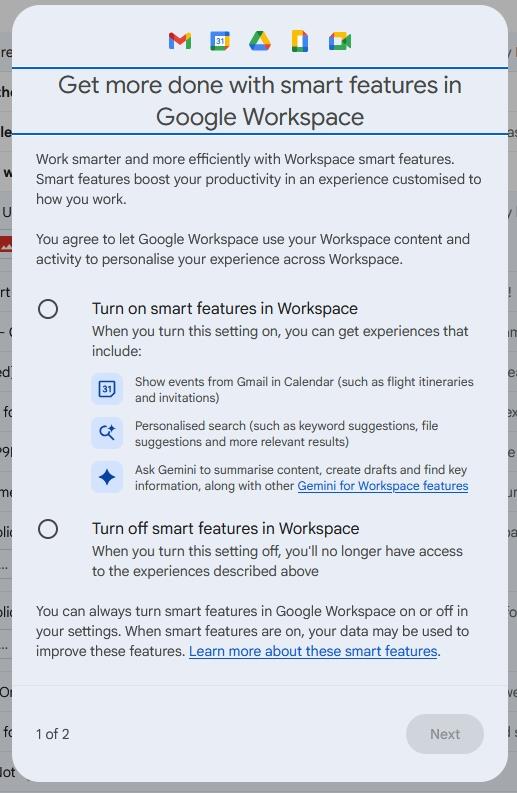
What the two toggles control
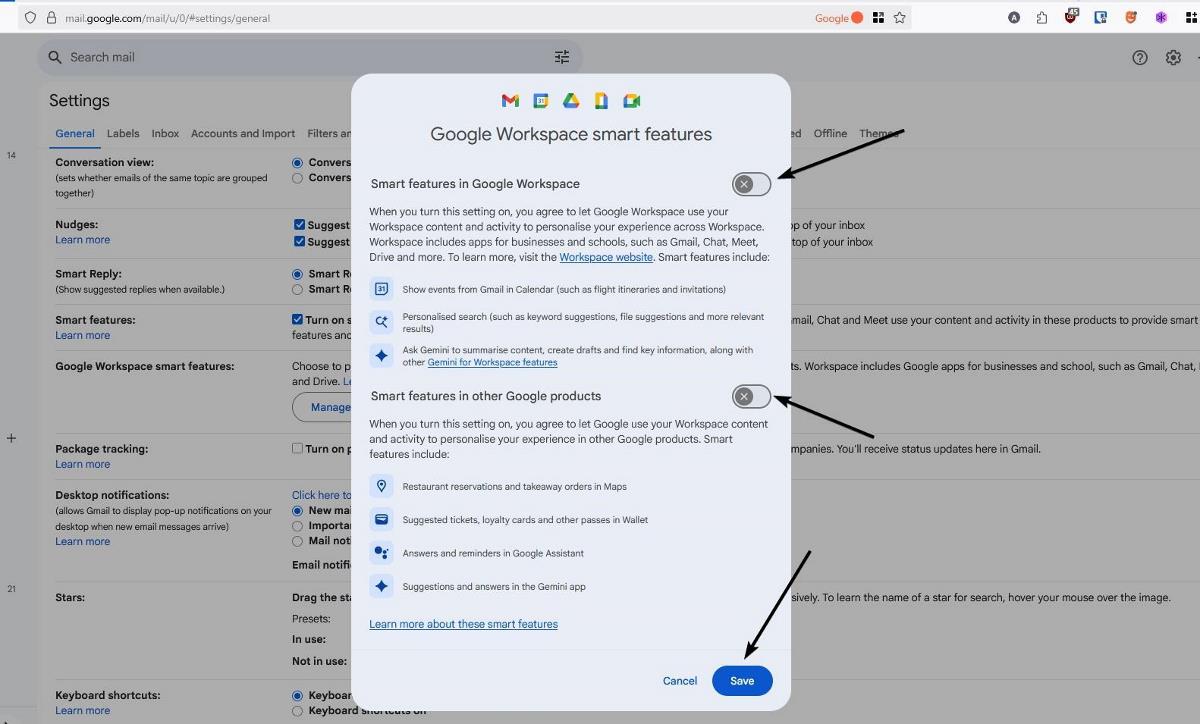
Smart features in Google Workspace controls use of your Workspace data inside Workspace apps. When it is on, it shows events from Gmail in your calendar, such as flight details and invitations, and powers personalized search and file suggestions in Drive, Meet and Chat. It also allows Gemini to use your data to summarize content, create drafts and find information across Google apps. Turning it off removes features such as Gmail events in Calendar, personalized Drive search and Gemini summaries and drafts.
Smart features in other Google products controls use of your Workspace data in products outside Workspace. Examples from Google include restaurant reservations in Maps, suggested tickets and loyalty cards in Wallet and Personal Intelligence in Gemini and Search for personal accounts. Turning it off removes those. In the original prompt, this second option showed as enabled by default for the author, so check it rather than assuming. Google notes that these settings are off by default in the EEA, Japan, Switzerland and the UK.

How to turn off Workspace smart features in Gmail
You can reach the settings from Gmail on a computer in a few steps.
- Open Gmail and click the Settings cog, then See all settings (or open https://mail.google.com/mail/u/0/#settings/general directly).
- On the General tab, scroll to Google Workspace smart features.
- Click Manage Workspace smart feature settings.
- Switch off Smart features in Google Workspace, Smart features in other Google products, or both.
- Click Save.
The toggles look slightly different from the automatic pop-up, with the switch on the right-hand side.

Where else are the settings found?
Smart feature settings follow your Google account, and changes apply across signed-in devices and apps. Per Google, you can also reach them from other apps: in Calendar under Settings > General > Google Workspace smart features, in Drive under Settings > Privacy, in Chat under Settings > Data Privacy, and in Meet under Settings > General.
The separate Gmail, Chat, and Meet setting sits in the same General tab under Smart features. Unchecking it removes personalization such as inbox categorization, Smart Compose, Smart Reply and summary cards in those apps. Some features with their own controls keep working.
Related: Block Gemini from accessing your apps, Gmail subscription management, Android SafetyCore explained

google screwed my gmail..
thanks to them i cant view my emails..
the screen they used that you posted above. are bigger than my screensize and i cant click to
shut them off.
I cant click SAVE, I Cant even click on the TURN OFF on that 2nd page.
resizing my browser window doesnt change the size of the screen they used.
all i seen is the link with the words
Learn more about these s <on the right
ys smart features <on the left. on 1 single line.