Notepad formatting in Windows 11: how to format, clear and turn it off

Notepad in Windows 11 can format text: select words and use the formatting toolbar at the top of the window for bold, italic, links, headings and lists, or type Markdown syntax directly. To remove formatting, use Clear formatting on the toolbar or in the Edit menu. If you prefer a plain text editor, turn the feature off in Settings under Text Formatting.
This guide covers every formatting option Notepad offers today, how the formatted and Markdown views relate, how saving works, and how to clear or disable formatting completely.
What formatting options does Notepad have?
Notepad's formatting is lightweight and based on Markdown, so every style it applies maps to plain Markdown syntax in the file. Microsoft introduced it in Notepad version 11.2504.52.0 in May 2025 (first to Windows Insiders, the rollout we covered when it arrived) and has extended it since. The current option set:
- Bold and italic text
- Hyperlinks (clickable with Ctrl + click)
- Headings, chosen from the heading menu on the toolbar
- Bulleted and numbered lists, plus nested lists
- Strikethrough
- Tables, inserted from the toolbar or typed as Markdown table syntax
Strikethrough and nested lists arrived with Notepad 11.2512.10.0, and tables with Notepad 11.2510.6.0. Both updates started in the Canary and Dev channels, so if an option is missing, update Notepad from the Microsoft Store and check again later. What Notepad does not offer is fonts per word, colors or text size per paragraph: it is not a replacement for WordPad or a word processor.
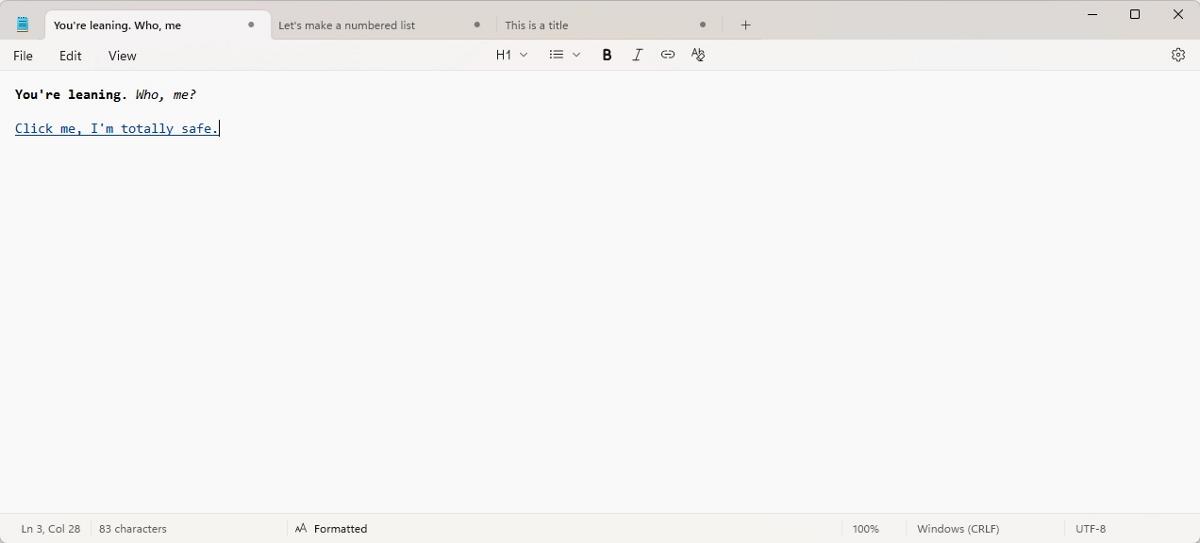
How to format text in Notepad
Formatting text in Notepad works like in any editor: select the text, then pick a style from the toolbar, or turn a style on and keep typing. The toolbar appears below the menu bar whenever formatting is enabled.
- Open Notepad and type or paste your text.
- Select the words you want to style.
- Click Bold or Italic on the toolbar, or press Ctrl + B or Ctrl + I.
- For a heading, place the cursor in the line and choose a heading level from the heading menu.
- For a list, click the bulleted or numbered list button, or start a line with "- " or "1. ".
- For a table, choose Table on the toolbar, then add or remove rows and columns from the right-click menu or the toolbar's Table menu.
You can also skip the toolbar and type Markdown: **bold**, *italic*, # for a heading, ~~strikethrough~~. Notepad renders the result as you type in the formatted view.


How to add a link in Notepad
Notepad adds a hyperlink with Ctrl + K. Select the text that should become the link, press Ctrl + K (or click the Link button on the toolbar), and enter the web address. In the formatted view the link is clickable: hold Ctrl and click it to open the page in your default browser. In the Markdown view the same link shows as [text](address), which is what gets saved in the file.

How to clear formatting in Notepad
Notepad clears formatting with the clear formatting option on the toolbar or in the Edit menu. Select the styled text first to clean only that part, or select everything with Ctrl + A to return the whole document to plain text. In our hands-on test of the first release, Ctrl + Space also cleared formatting from the selection.
Clearing formatting removes the styles and the Markdown markers that produce them, so the text itself stays. If you only want to see the raw characters without losing anything, switch to the Markdown view instead (next section).
Formatted view vs Markdown view
Notepad shows every formatted document in one of two views, and switching never changes the content. The formatted view renders bold, headings and lists the way they look in a document. The Markdown (syntax) view shows the raw characters, such as asterisks and hash signs, which is what is stored in the file.
Switch between them in two ways:
- View > Markdown, then Formatted or Syntax
- The toggle in the status bar at the bottom of the window, which also shows which mode the current tab uses
The Markdown view is the quickest way to check exactly what a document contains before you share it or paste it into another app.

Saving formatted text: .md vs .txt
Formatted text in Notepad only survives when you save the file as Markdown (.md). When a document contains formatting and you save it, Notepad warns that a plain .txt file loses the formatting and offers the Markdown format. Use File > Save as and give the file a .md extension, for example notes.md.
| Format | Formatting kept | Best for |
|---|---|---|
| .md (Markdown) | Yes, stored as Markdown syntax | Notes, README files, documentation, GitHub |
| .txt (plain text) | No, styles are dropped | Config files, logs, code snippets, maximum compatibility |
Because .md files are plain text underneath, any other editor can open them, and Markdown-aware apps render them with the same styles.

How to paste with formatting in Notepad
Notepad treats formatting per tab, so pasting depends on the state of the target document. In our test of the first release, pasting formatted text into a new, empty tab produced plain text, while pasting into a tab that already used formatting kept bold, italics and links. If your paste comes out plain, apply any formatting in the target tab first (or switch it to the formatted view) and paste again. Formatted text copied out of Notepad pasted correctly into LibreOffice Writer in the same test.
To go the other way and strip styles from text copied from a web page or Word, paste it into a tab with formatting off, or paste and then use Clear formatting. Turning formatting off entirely makes Notepad paste everything as plain text, which is how many people use it to clean up clipboard contents.
How to turn off formatting in Notepad
You can disable formatting in Notepad completely, and the app then behaves like the classic plain text editor with no toolbar.
- Open Notepad.
- Click the Settings (gear) icon in the top-right corner.
- Under Text Formatting, switch Formatting off.
- Confirm with Turn off, then click the back arrow.
Formatting is on by default. Turn the switch back on at any time to get the toolbar back.

FAQ
Why don't I see the formatting toolbar in Notepad?
Either formatting is turned off in Settings or your Notepad version is too old. Turn Formatting on under Text Formatting and update Notepad from the Microsoft Store; formatting needs version 11.2504.52.0 or newer.
Does formatting in Notepad need a Microsoft account or Copilot?
No. Microsoft lists a Microsoft account requirement only for the AI features Write, Rewrite and Summarize, not for formatting.
Is there a command line alternative without formatting?
Yes. Microsoft's open source Edit text editor runs in the terminal and handles plain text only.
Related: Markdown formatting testing in Notepad, find text in all files of a folder

Last I used Windows and especially 11, I noticed Notepad was slow to load and then it took a second to draw the UI. The old Notepad used to open instantly.
I’m on the fence whether changes like this are good or bad. On one hand I don’t mind them expanding the program, and I think people who are against it are overreacting, on the other, if they are ignoring the performance and optimization of this program and instead trying to add more to it, then I don’t see a point in such illogical development process. Fix it first and then add more features to it.
My last experiences with Windows 11 was that it felt a bit slower compared to Windows 10, File Explorer and other programs would open slower, the system on idle would use more resources, even debloating it didn’t improve it much. Compared to a debloated Windows 10, 11 was still sower.
Now I don’t concern myself with Windows anymore, I’m just watching it from the side as a bystander and it doesn’t look like things are improving for it, it feels like Firefox – getting new features for the sake of getting new features and trying to remain relevant while the underlying issues are being ignored.
I don’t know if Windows 11 can improve to become even remotely good like Windows 10, Microsoft have to swallow their pride and debloat it themselves, but their desperate push to bloat it with AI, even laptops going as far as to having a dedicated Copilot key (my laptop has one and on Linux it doesn’t do anything unless I program it manually), I doubt they will stray from their chosen path. I’m still interested to see what Windows 12 will be like, although I don’t have much hope for it, and it will be the first new version of Windows that I will not have used, unless I experience it on someone else’s computer.
Notepad has been transformed into nagware. Another page is now opened by the settings, and the find dialog can no longer be dragged around. I uninstalled it and set Notepad4 as my default.
I don’t know… Why this sudden urge to “fix” notepad?
As an IT manager for multiple locations. I tend to use notepad only for quick, temporary notes like a user’s account information, password, mac address or whatever. Items that will never need to be referred to again nor desired to be kept in this new, enhanced application. Until they allowed the “save session state” toggle. All of this data (unless you deleted the actual note prior to closing it) would remain in perpetuity.
If I wanted notepad++ or some other utility to retain the information I would download and install it. I mean, do people actually use notepad for writing documents? Why not wordpad? Ohhhh right! It was removed in Windows 11 24H2 LoL
So we’ve kinda, sorta merged wordpad in to notepad and made a de facto word processor. Thanks Microsoft! That little bit of information that was not necessarily intended for the cloud and telemetry is now safely deposited there! With the gpc console, I’ve instructed my mighty team of admins to remove and replace notepad with classic notepad (found easily on the web).
I know this topic is about notepad’s formatting but my vote is to “format it” back to just a simple utility and leave word processing to Word, Libre Office or Apache OpenOffice.
It randomly appeared here as well. Couple of things I noticed:
1) Spellcheck stopped working, but after restarting Notepad it worked properly again.
2) The “Clear Formatting” option doesn’t really clear all formatting. If you have a plain text file open and add formatting to some text (such as bold), when selecting “Clear Formatting” it will still retain escape characters throughout the whole document. For example, if you have the phrase “Beer & Wine” in the document, it will escape the ampersand with a backslash (\&). After clearing formatting, the escape character will still remain, meaning it will still ask whether to save the file as Mark-down as it’s still no longer a plain text file.
Regarding the inability to copy and paste formatted text from one tab to another, this is likely because Notepad users often use Notepad to remove *all* text formatting. I.E. Copy text from a webpage, paste into Notepad, copy from Notepad and paste it into another application. This is so the other application (such as a word processor, desktop publisher, etc.) doesn’t do unexpected stuff due to carrying over formatting and paragraph/character styles (similar to pasting with Ctrl + Alt + Shift + V in LibreOffice). Therefore, this sounds correct, as Notepad is primarily a simple plain text editor. It is not supposed to be a replacement for a word processor or IDE such as Visual Studio Code, Notepad++, etc..
You are right! It doesn’t seem to clear formatting.
Yes, it does make sense not to copy and paste plain text from other apps. But I was expecting it to recognize a copy and paste from a different tab.