Steam beta adds in-game overlay for CPU, GPU usage, RAM, temperature

Valve has announced that it is improving Steam's game overlay with new features. You can use it to check your PCs RAM, CPU, GPU usage along with the temperatures.
Prior to this, Steam only displayed the frame rates per second (FPS) which you could bring up with the shift + tab hotkey. Now you can get additional information from the same tool.
These counters aren't completely new. This is literally the Performance Overlay which has existed on Steam Deck for years. But still, it is good to have it for computers now. Windows has Game Bar, but it's kind of buggy. Linux has MangoHud, which is pretty cool. There's also MSI Afterburner. Steam's overlay feels lighter than the rest.
The In-game overlay will help you understand how a game's performance is, whether your PC is running hot, using too much RAM, etc., and also help you find whether your CPU or GPU might be your bottleneck in modern games.

To test the feature, open the Steam client on your computer, and head to Interface. Select Steam Beta. The client will restart, and install the update. Open Steam's settings > In Game and scroll down to manage the Performance Monitor Settings. The first drop-down menu lets you choose from the following options:
- FPS Single Value (just the FPS counter)
- FPS Detail and Graph
- FPS Detail, CPU and GPU Utilization
- FPS Detail & Graph, CPU, GPU & RAM details.
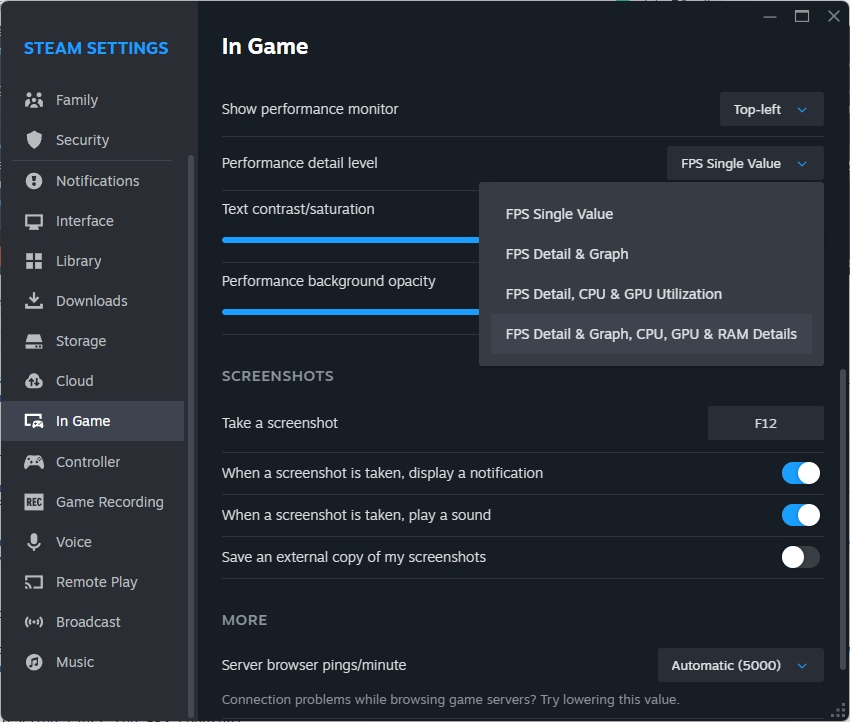
Select an option that you like, and start playing a game. You should see the performance metrics at the top of the screen, they are pretty useful. Steam's Settings also has sliders to adjust the overlay's position on the screen, text contrast and saturation, as well as the opacity of the overlay.

The overlay displays additional details like current FPS, minimum and maximum fps (indicated by the up/down arrows), a separate counter for DLSS/FSR Frame Generation, CPU Processor Utility numbers (including the boosted %), GPU load, Temperature, and RAM usage. You can read more about it here.

Note: If you're facing any issues with the beta version, just follow the same steps to opt-out of the program and go back to the stable channel.
Valve says that the full set of performance counters are initially available on Windows, but most of it will apply to other operating systems. It is also working on supporting more operating systems. The latest Steam update also improves detection of FlyDigi Vader series controllers, and Remote Play's audio resilience to variable network conditions.
Steam has announced some superb updates recently, SteamOS is now available for non-Steam Deck devices, there are some new accessibility tags for games. Steam beta for Linux now comes with Proton enabled by default. Steam for macOS is a native app now, in beta. It's nice to see positive advancements in the gaming world when a lot of the news is bad like, consoles are more expensive, games now cost $80 or more, etc.

Why would you want stream to have access to this level on your system? I use steam have used it for years. I set all games to play offline. Not many steam users seem to know you can do this with all but a few of the games on steam.
I’m a gamer. Custom built machine and put a lot of research into the components before the build.
Whats been/is difficult are the continuously changing landscape that games require with regard to hardware specs but more specifically the video card settings. I’ve been using Afterburner as my go to, for overclocking, Heaven UNIGINE for benchmarking and then either sticking with Unigine or Ocbase for stress testing. Occt (part of Ocbase) is supposedly integrating into Steam soon.
I noticed this Steam feature a few months ago but really paid little attention to it. How was it going to assist with any further information that I couldn’t already get from the utilities currently available? However, gave the Steam function a try. It was ok for reporting the real-time FPS counts which is nice but if you have a reasonable internet speed, card, ram its not all that important to know minute to minute.
nVidia – for those who use that brand of card, also has a utility that works as well as Afterburner and automates many of the processes like adjusting the temperature curve. It also makes suggestions for the specific game your are running. It reduced the temperature on a few of my graphics intensive games by 10-25 degrees in some instances. You can simply download that for your specific card, run some benchmarking utilities and see if you’re overheating too much. So between nVidia and Afterburner, the Steam option is good for a quick look if you experience lag but you’ll probably need a bit more of an assist from other utilities for now. Hope Steam will continue to make this tool even better going forward.
“Gaming PC guys” are the new “car guys” in my opinion. A lot of parallels haha