How to Receive Calls and Messages Only From Priority Contacts on Android
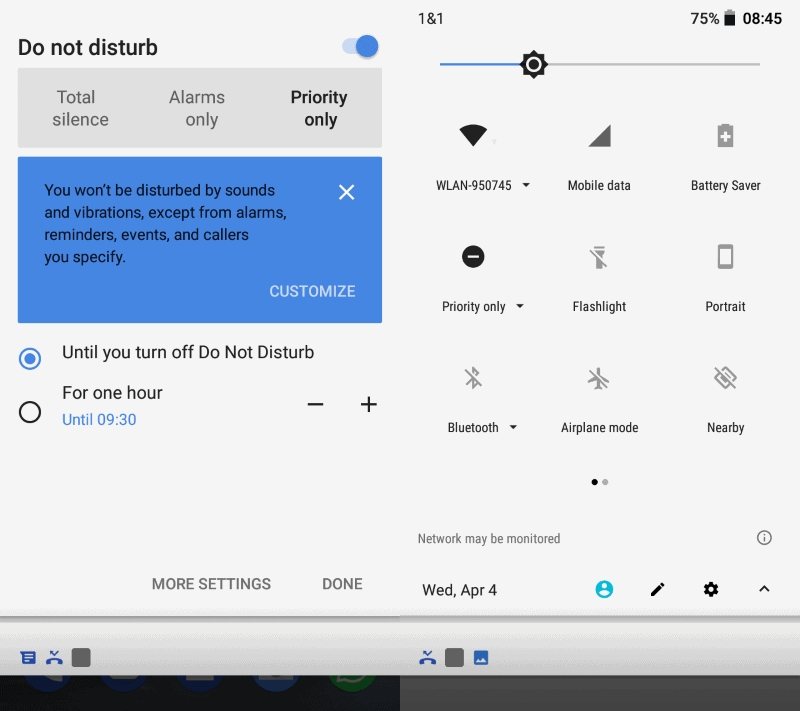
To receive calls and texts only from selected people on Android, use Do Not Disturb: open Settings > Modes > Do Not Disturb (Android 14 and later), open People, and allow calls and messages only from the contacts you choose. On older versions, use "Priority only". On phones that offer a starred-contacts option, starring a contact in the Contacts app marks that person as a priority contact.
This guide covers both menu layouts, how to star contacts, and how to make the setup automatic overnight. Menu names differ slightly between Google Pixel and phones from Samsung, Xiaomi and others.
What priority contacts do on Android
Priority contacts are the people whose calls and messages may still make noise while Android's Do Not Disturb is on. Everyone else still reaches your phone, but silently: the call goes unanswered without ringing and the message arrives without a sound or vibration. Alarms are controlled by a separate setting.
Google's help page describes the People filter as the place to "block or allow calls, messages, or conversations". You decide who gets through for each of the three types separately, so a family member can ring through while a group chat stays quiet.
The feature was called Priority mode when it arrived in Android 5.0 Lollipop, and old guides, including the first version of this one, still use that name. On current Android versions the same controls live under Modes (Android 14 and later) or under Do Not Disturb preferences (older versions).
Set up priority contacts on Android 14 and later
On Android 14 and later, open Settings > Modes, choose Do Not Disturb and set who may reach you under People. This is the layout Google documents for Pixel phones; other makers may place the same options elsewhere.
- Open Settings > Modes and tap Do Not Disturb.
- Under "Notification filters", open People.
- Choose how calls should be handled, then do the same for messages and conversations. The list of choices for each type (for example all contacts or only starred contacts) depends on your phone, so read the options on your screen.
- Optional: switch on "Allow repeat callers" so a second call from the same person within 15 minutes comes through.
- Turn the mode on from Settings > Modes > Do Not Disturb > "Turn on now", or with the Do Not Disturb tile in the quick settings panel.
Alarms and other interruptions such as reminders and calendar events are handled in the same mode under "Alarms and other interruptions". Critical system alerts, such as security notices, still appear.
Set up priority contacts on older Android versions
On Android 8.1 and below, the equivalent is "Priority only": swipe down with two fingers, open the Do Not Disturb menu and pick Priority only, then set the allowed callers under Sound > Do Not Disturb preferences > "Priority only allows". This is the path the original screenshots below show.
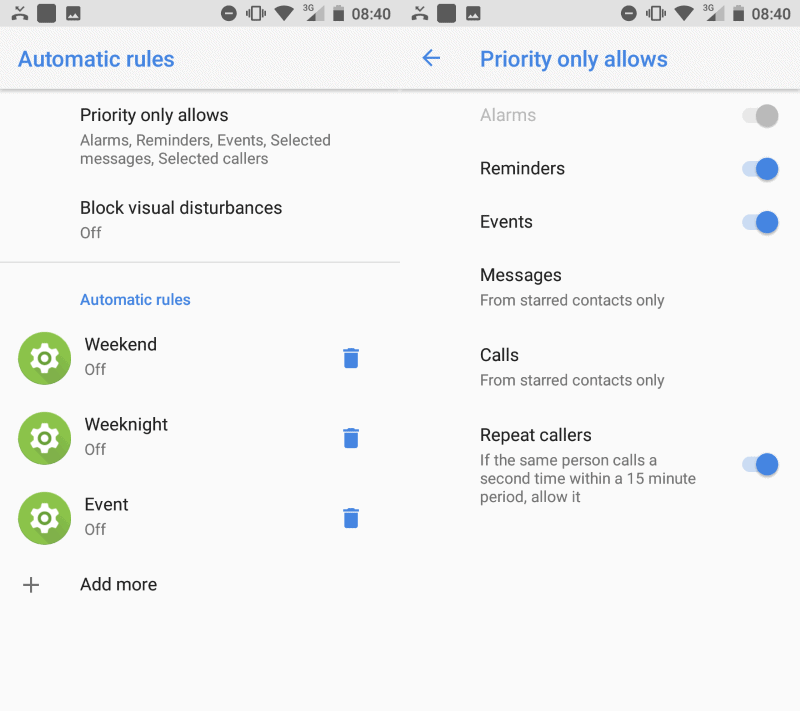
On that screen you set calls and messages separately. Typical choices are anyone, contacts only, starred contacts only or none. Pick "from starred contacts only" if you want a short list that you control from the Contacts app, or "from contacts only" if everyone in your address book may get through.
Two further options on the same page control visual disturbances: whether silenced notifications may peek onto the screen while it is on, and whether they may turn the screen on while it is off. If your phone sits on the bedside table, blocking the second one stops the screen lighting up at night.
Versions between 8.1 and 14 use names that sit between these two layouts (Sound, then Do Not Disturb). If a step does not match, search the Settings app for "Do Not Disturb".
Star a contact so it counts as a priority contact
Starring a contact (also called adding it to favorites) puts that person on the list of starred contacts, which Do Not Disturb can treat as priority contacts on phones that offer that choice. Starring is only needed if you chose a starred-contacts option; if you allow all contacts you can skip it.

- Open the Contacts app and tap the contact you want to let through.
- Tap the star icon in the contact's header.
- To remove the contact from the list later, tap the star again.
The star icon was shown in the Contacts app when this guide was first written; the layout has changed over the years, so look for a star or "Add to favorites" in the contact's menu if you do not see it.
Make it automatic at night or during meetings
You can switch Do Not Disturb on by schedule so the priority list applies without you touching the phone. On Android 14 and later, Bedtime mode, Driving mode and custom modes can start automatically at set times; on older versions use Sound > Do Not Disturb > "Turn on automatically" and add a time rule.
For one-off situations, set the duration instead: under Settings > Modes > Do Not Disturb > "Duration for Quick Settings" you can choose until you turn it off, a set time such as 2 hours, or ask every time. That suits a meeting better than a schedule.
If a call or message still does not come through, check these in order:
- The sender is saved in your contacts under the number they actually use, or starred if you chose that option.
- Messages from chat apps such as WhatsApp or Signal also depend on the Apps filter (or on that app's own notification settings), not only on the People list.
- The phone maker may add its own Do Not Disturb layer, so check your manufacturer's support page if the menu names differ from the ones above.
Related: How to organize your Android home screen, What Android System SafetyCore does

This doesn’t work if you have Google Voice on your phone. All calls ring right through. Is there a fix for this besides uninstalling GV?
Thank you for keeping from having to download another useless app.
I did a search in settings on the word ‘priority’ and no results. Android 8.0.0. Samsung Galaxy S7 Edge.
Only Nokia 8 appears to support Galileo, Martin (can’t see your post anywhere, but received notification of it). https://www.usegalileo.eu//EN/inner.html#data=smartphone
Still, I’ll consider it as an option if stock Android is the OS.
Unfortunately, I don’t have the option to disable notifications at night, or even during any time of the day.
Under Priority App Notifications I can only select from the list of apps installed. There’s no “Automatic Rules” option as shown in your screenshot either which doesn’t help.
My phone is a Samsung Galaxy J5 (2016) which has the Samsung Touch Wiz UI which superimposes their own menus over stock Android.
I’m looking now at a new phone with stock Android only which certainly won’t be a Samsung needless to say.
A BQ phone looked interesting initially especially since it’s one of the models which supports the forthcoming European Galileo satellite navigation system https://www.usegalileo.eu//EN/ but they don’t provide much in the way of support judging by their own site which puts me off.
I bought a mid-range Nokia last year and am happy with it. More or less stock Android and quick security updates.
Sounds supremely useful.
Thanks for the writeup!