
Installing fonts in Ubuntu 10.04

If you've started using Ubuntu 10.04 already, you are probably having a fairly good experience. What a lot of people might not know is just how deeply that good experience goes. An issue that has plagued Linux since inception is fonts. Whether it be the lack of "standard" fonts (and by standard I mean Microsoft) or the lack of "cool" or "artsty" fonts, the act of installing fonts has always mystified people. Well, that is no more. With the release of Ubuntu 10.04 and the help of the Ubuntu Software Center, adding fonts have now become child's play in Ubuntu Linux. Does that mean you have to give up your old way of adding fonts? Of course not! But now, you have a new, simple way of adding fonts.
In this article I will remind you how to install fonts the "old school" way (although it's not really that old school) and I will also show you how to install fonts in the "new school" way.
Old school
Before I get to the old school method, I thought it might be good to list out a few of my favorite places to get fonts. Since I used to do a lot of graphics and web design, fonts were a very important tool for me. For those fonts, some of my favorite stops were:
Chank: One of the coolest collections of artistic fonts you will ever see. NOTE: Most of these fonts are paid-for, not free.
Urban Fonts: A great collection of free fonts.
1001 Fonts: A generous collection of free fonts.
Font Freak: Not a bad collection.
Okay, now that you have collected a thousand or so free fonts ;-), it's time to "install" them. This is very simple. What you need to do is create a folder called ~/.fonts. Before you create this, make sure it doesn't already exist. You can create this folder with the command mkdir ~/.fonts. Once that folder is created it's time to add the fonts. So all of those *ttf fonts you downloaded...move them into the new directory. Say all of your .ttf fonts are in the ~/Downloads directory. You can move them with this command:
mv ~/Downloads/*ttf ~/.fonts
Now if you log out and log back in, your desktop and applications will have full access to those fonts. Now, let's take a look at the new school Ubuntu method.
New school
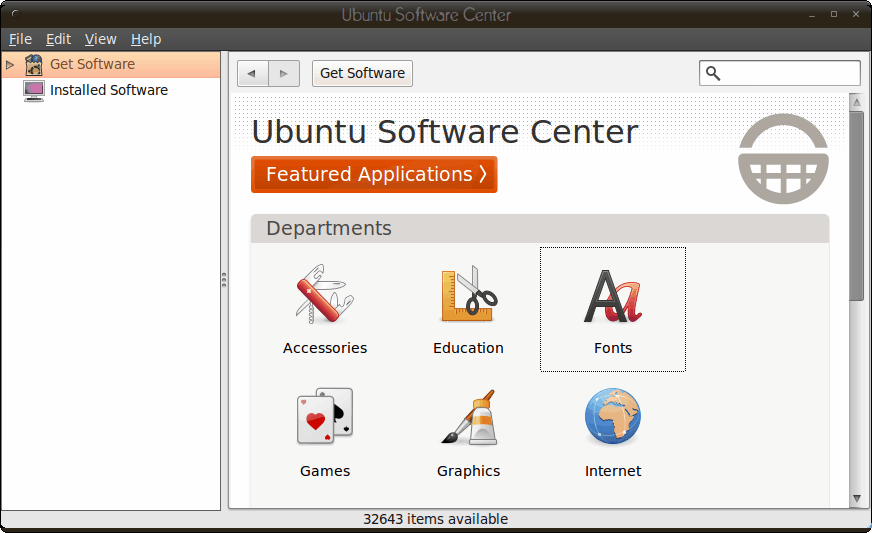
This is a very welcome feature for any Linux distribution. If you open up the Ubuntu Software Center you will notice, on the home page, a Fonts section (see Figure 1). If you click on that section you will see a very large selection of fonts that you can install. These range from various languages, to an installer for the  Microsoft Core Fonts, to a nice collection of artistic fonts. If you are looking for a specific font for a specific language, you're in luck. In this section you will find numerous different languages represented.
To install all you do is select and entry and then click the Install button. You can also get more information about the selection by clicking the More Info button. Unfortunately you do not get a sample of the font from the more information button, but in some cases you do get a nice description of said selection.
After you have installed your new fonts, it's always best to log in and log out to ensure those fonts are available for all applications.
Final thoughts
Installing fonts has never been easier in Linux. Thanks to Ubuntu and the Ubuntu Software Center, anyone can install fonts on their Linux machine.













I cannot install a newly downloaded font. How can that be done with the USC.
Upgraded from 9.10 the other day, and can’t see any positive things. It’s more like a Vista experience, though offcourse not that bad. Only one out of to monitors working correct (lousy, blurry rendering like Brwn mention), firefox is so slow that I get the feeling of using a 14.4 K modem.
In addition to that there’s problems booting (half of the times I have to take a hard reboot), problems watching youtube, . . . .
Haven’t noticed the font thing, never thought about it as a problem, for me it’s more important to have a funictioning system, 9.10 was very nice in that respect.
Think I’ll have to downgrade as soon as possible.
The problem’s lousy, blurry rendering, not fonts on offer. Grow up.
blurry rendering of what? crystal clear on my screens
You can also simply download a particular font and double click it to install it.
Jack,
Does Ubuntu suffer from having too many fonts installed…like Windows?
Jim Carter
no. unlike windows, have many fonts doesn’t bog down the OS (like windows =P)
cool. i prefer using fontmatrix (sudo apt-get install fontmatrix). but there are always several ways to do these things
Awesome app, thanks for the tip Jake.